manuals.online logo
Brands
  1. Home
  2. •
  3. Brands
  4. •
  5. ASROCK Rack
  6. •
  7. Computer Hardware
  8. •
  9. ASROCK Rack C3758D4I-4L User manual

ASROCK Rack C3758D4I-4L User manual

This manual suits for next models

1

Other ASROCK Rack Computer Hardware manuals

ASROCK Rack EP2C621D12 WS User manual

ASROCK Rack

ASROCK Rack EP2C621D12 WS User manual

ASROCK Rack 2U4N-F/X202 User manual

ASROCK Rack

ASROCK Rack 2U4N-F/X202 User manual

ASROCK Rack SPC741D8UD-2T User manual

ASROCK Rack

ASROCK Rack SPC741D8UD-2T User manual

ASROCK Rack EP2C612D24 User manual

ASROCK Rack

ASROCK Rack EP2C612D24 User manual

ASROCK Rack D2143D8UM2 User manual

ASROCK Rack

ASROCK Rack D2143D8UM2 User manual

ASROCK Rack EPC621D8A User manual

ASROCK Rack

ASROCK Rack EPC621D8A User manual

ASROCK Rack 1U12XL C622 RPSU User manual

ASROCK Rack

ASROCK Rack 1U12XL C622 RPSU User manual

ASROCK Rack EP2C622D16FM User manual

ASROCK Rack

ASROCK Rack EP2C622D16FM User manual

ASROCK Rack 1U4G-ROME User manual

ASROCK Rack

ASROCK Rack 1U4G-ROME User manual

ASROCK Rack MP-1543R4 User manual

ASROCK Rack

ASROCK Rack MP-1543R4 User manual

Popular Computer Hardware manuals by other brands

Toshiba TOSVERT VF-MB1/S15 IPE002Z Function manual

Toshiba

Toshiba TOSVERT VF-MB1/S15 IPE002Z Function manual

Shenzhen MEITRACK MVT380 user guide

Shenzhen

Shenzhen MEITRACK MVT380 user guide

TRENDnet TEW-601PC - SUPER G MIMO WRLS PC CARD user guide

TRENDnet

TRENDnet TEW-601PC - SUPER G MIMO WRLS PC CARD user guide

StarTech.com CF2IDE18 instruction manual

StarTech.com

StarTech.com CF2IDE18 instruction manual

Texas Instruments LMH0318 Programmer's guide

Texas Instruments

Texas Instruments LMH0318 Programmer's guide

Gateway 8510946 user guide

Gateway

Gateway 8510946 user guide

Devon IT TC2D Quick setup guide

Devon IT

Devon IT TC2D Quick setup guide

Krüger & Matz Air Shair2 owner's manual

Krüger & Matz

Krüger & Matz Air Shair2 owner's manual

Crystalio VPS-2300 quick guide

Crystalio

Crystalio VPS-2300 quick guide

MYiR FZ3 user manual

MYiR

MYiR FZ3 user manual

Protech Systems BC-K200 Quick reference guide

Protech Systems

Protech Systems BC-K200 Quick reference guide

Miranda DENSITE series DAP-1781 Guide to installation and operation

Miranda

Miranda DENSITE series DAP-1781 Guide to installation and operation

Sierra Wireless Sierra Wireless AirCard 890 quick start guide

Sierra Wireless

Sierra Wireless Sierra Wireless AirCard 890 quick start guide

Leadtek Killer Xeno Pro Quick installation guide

Leadtek

Leadtek Killer Xeno Pro Quick installation guide

Star Cooperation FlexTiny 3 Series Instructions for use

Star Cooperation

Star Cooperation FlexTiny 3 Series Instructions for use

Hotone Ampero user manual

Hotone

Hotone Ampero user manual

Connect Tech Xtreme/104-Express user manual

Connect Tech

Connect Tech Xtreme/104-Express user manual

Yealink WF50 user guide

Yealink

Yealink WF50 user guide

manuals.online logo
manuals.online logoBrands
  • About & Mission
  • Contact us
  • Privacy Policy
  • Terms and Conditions

Copyright 2025 Manuals.Online. All Rights Reserved.

C3758D4I-4L / C3558D4I-4L
Quick Installation Guide
www.asrockrack.com C3758D4I-4L C3558D4I-4L
No. Description No. Description
1 UID Switch (UID) 6 LAN RJ-45 Port (LAN4)
2COM Port (COM1) 7 LAN RJ-45 Port (LAN3)
3VGA Port (VGA1) 8 Dedicated IPMI LAN Port
4 LAN RJ-45 Port (LAN2)
9
USB 3.0 Ports (USB3_12)*
*e USB3_2 port on the rear I/O is shared
with the USB_1_2 header on the motherboard.
(Default is set to the USB_1_2 header.)
5 LAN RJ-45 Port (LAN1)
4
2
P/N: 15G065096001AK V1.1
Install the Server Board
Motherboard Layout
Jumper Cap On/O
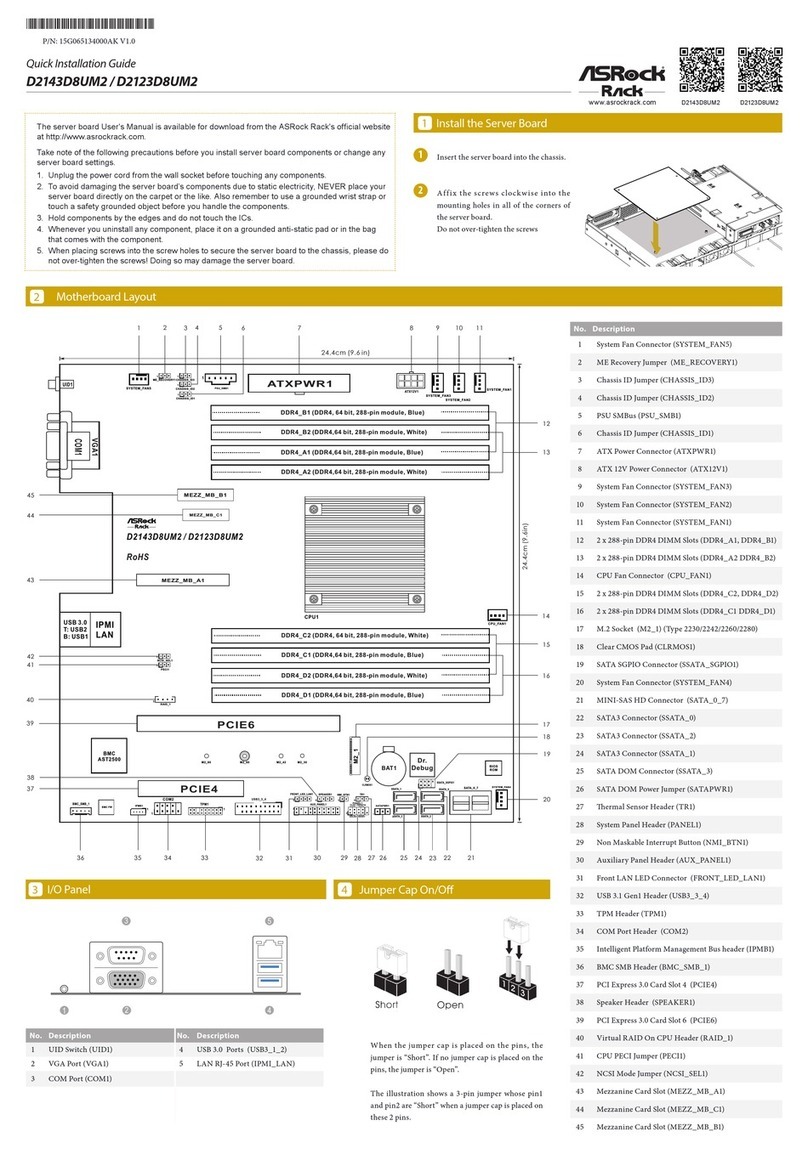
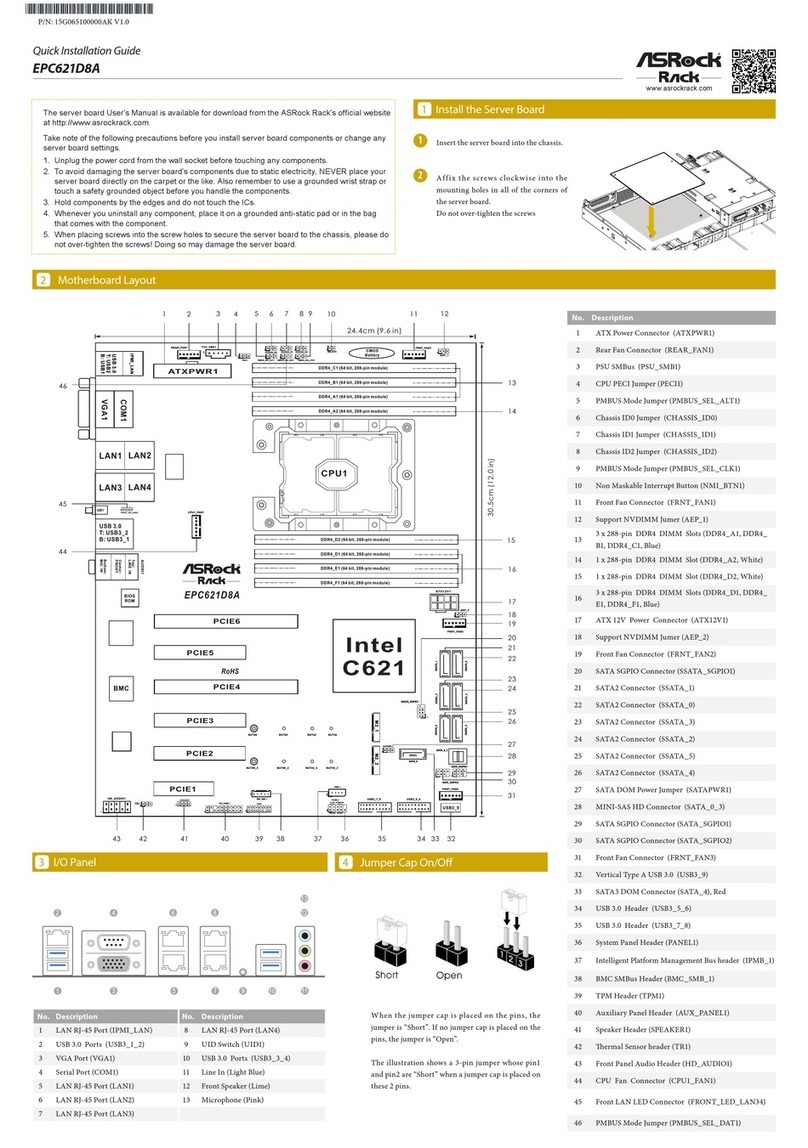
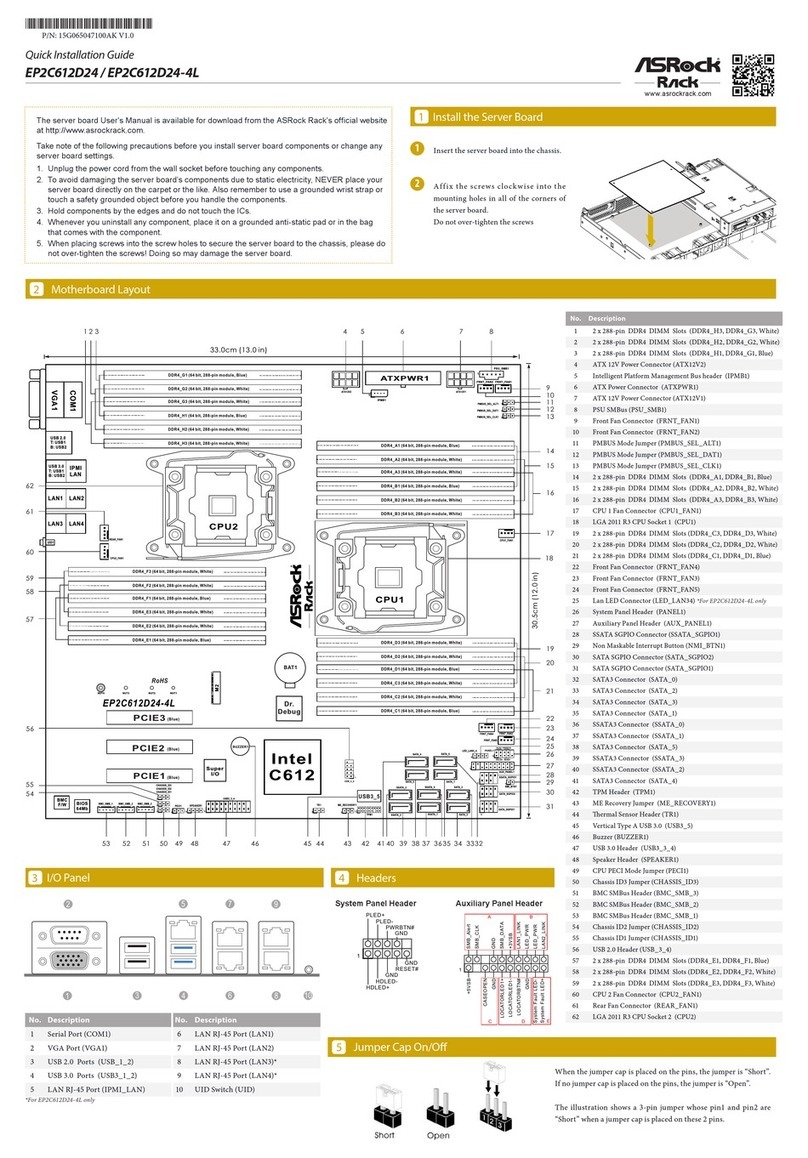
The server board User's Manual is available for download from the ASRock Rack's ofcial website
at http://www.asrockrack.com.
Take note of the following precautions before you install server board components or change any
server board settings.
1. Unplug the power cord from the wall socket before touching any components.
2. To avoid damaging the server board’s components due to static electricity, NEVER place your
server board directly on the carpet or the like. Also remember to use a grounded wrist strap or
touch a safety grounded object before you handle the components.
3. Hold components by the edges and do not touch the ICs.
4. Whenever you uninstall any component, place it on a grounded anti-static pad or in the bag
that comes with the component.
5. When placing screws into the screw holes to secure the server board to the chassis, please do
not over-tighten the screws! Doing so may damage the server board.
1
1Insert the server board into the chassis.
2Affix t he screws clockw ise into the
mounting holes in all of the corners of
the server board.
Do not over-tighten the screws
When the jumper cap is placed on the pins, the
jumper is “Short”. If no jumper cap is placed on the
pins, the jumper is “Open”.
The illustration shows a 3-pin jumper whose pin1
and pin2 are “Short” when a jumper cap is placed on
these 2 pins.
I/O Panel
DDR4_B1 (64 bit, 288-pin module, Blue)DDR4,
DDR4_B2 DDR4,(64 bit, 288-pin module, White)
BIOS
ROM
17.0cm (6.7 in)
17.0cm (6.7 in)
ATXPWR1
REAR_FAN1
IPMB1
TPMS1
AUX_PANEL1
BMC_SMB_1
1
DDR4_A1 DDR4,(64 bit, 288-pin module, Blue)
DDR4_A2 DDR4,(64 bit, 288-pin module, White)
1
PSU_SMB1
1
1
1
PCIE7
USB 3.0
T: USB2
B: USB1
IPMI
LAN
UID
LAN1 LAN2
LAN3 LAN4
BMC
CPU1_FAN1
FRNT_FAN1
1
T 1
R
FRNT_FAN2
PANEL1
1
1
1
CLRMOS1
COM1
VGA1
AST2500
Marvell
1543
CHASSIS_ID1
CHASSIS_ID2
CHASSIS_ID3
LED_LAN3_4
SPEAKER1
NMI_BTN1
SATA_SGPIO1
SATA_SGPIO2
ME_RECOVERY1
(ME x8, EE x8)
2
134
1
5
6
7
8
9
10
11
12
13
19
20
21
22
23
24
25
26
27
28
29
30
31
35
C3758
C3558
DC_IN12V1
1
36
BMC_DIS1
1
T 1B
CMOS
Battery
HDD_PWR1
SATA_12
SATA_0
SATA_1
SATA_2
SATA_3
SATA_PWR1
SATA_PWR2
SATA_8_11
SATA_4_7
1
1
1
1
14
15
17
16
18
37
38
39
40
1
USB_1_2
USB_SEL2
USB_SEL1
32
33
34
3
No. Description
1PSU SMBus (PSU_SMB1)
2 Rear Fan Connector (REAR_FAN1)
3 ATX Power Connector (ATXPWR1)*
4 ATX 12V Power Connector (DC_IN12V1)*
5 2 x 288-pin DDR4 DIMM Slots (DDR4_A1 DDR4_B1)
6 2 x 288-pin DDR4 DIMM Slots (DDR4_A2, DDR4_B2)
7 HDD Power Connector (HDD_PWR1)
8 CPU Fan Connector (CPU1_FAN1)
9 Front Fan Connector (FRNT_FAN1)
10 SATA SGPIO Connector (SATA_SGPIO1)
11 Mini SAS HD Connector (SATA_4_7)
12 SATA SGPIO Connector (SATA_SGPIO2)
13 Mini SAS HD Connector (SATA_8_11)
14 SATA DOM Power Jumper (SATA_PWR1)
15 SATA3 DOM Connector (SATA_12), Red
16 SATA3 DOM Connector (SATA_0), Red
17 SATA DOM Power Jumper (SATA_PWR1)
18 USB Selection Jumper (USB_SEL2)
19 USB Selection Jumper (USB_SEL1)
20 USB 2.0 Header (USB_1_2)**
21 Clear CMOS Pad (CLRMOS1)
22 Non Maskable Interrupt Button (NMI_BTN1)
23 LAN LED Connector (LED_LAN3_4)
24 ermal Sensor Header (TR1)
25 Front Fan Connector (FRNT_FAN2)
26 Speaker Header (SPEAKER1)
27 BMC SMB Header (BMC_SMB1)
28 System Panel Header (PANEL1)
29 Auxiliary Panel Header (AUX_PANEL1)
30 TPMS Header (TPMS1)
31 Intelligent Platform Management Bus header (IPMB1)
32 SATA3 Connector (SATA_3), White
33 SATA3 Connector (SATA_2), White
34 SATA3 Connector (SATA_1), White
35 Chassis ID Jumper (CHASSIS_ID3)
36 Chassis ID Jumper (CHASSIS_ID2)
37 Chassis ID Jumper (CHASSIS_ID1)
38 Enable/Disable BMC Jumper (BMC_DIS1)
39 ME Recovery Jumper (ME_RECOVERY1)
40 underbolt AIC Connector (TB1)
*Please use either the ATX 12V Power Connector (DC_IN12V1) or the ATX
Power Connector (ATXPWR1) at one time. Do not connect them both simutane-
ously.
** e USB3_2 port on the rear I/O is shared with the USB_1_2 header on the
motherboard. Please refer to the User Manual for jumper setup information.
3
42
157
6 8
9
*15G065096001AK*
C3758D4I-4L / C3558D4I-4L
Quick Installation Guide
www.asrockrack.com C3758D4I-4L C3558D4I-4L
Activity / Link LED Speed LED
Status Description Status Description
O No Link O No Link
Blinking Yellow Data Activity O 10M bps connection
On Link Yel low 100M bps connection
Green 1G bps connection
6LAN Port LED Indications5Install the Power Cables
LAN Port
System Panel Auxiliary Panel
8
7
1Before installing an expansion card, please make sure that the power supply is switched o or the power
cord is unplugged. Please read the documentation of the expansion card and make necessary hardware
settings for the card before you start the installation.
2Remove the system unit cover (if your motherboard is already installed in a chassis).
Remove the bracket facing the slot that you intend to use. Keep the screws for later use.
Align the card connector with the slot and press rmly until the card is completely seated on the slot.
Fasten the card to the chassis with screws.
Replace the system cover.
4
5
6
3V
3V
GND
GND
5V
5V
GND
PWROK_PS
5VSB
12V
12V
3V
121
13 24
3V
-12V
GND
PSON#
GND
GND
GND
5V
5V
5V
GND
N/A
GND
RESET#
PWRBTN#
PLED-
PLED+
GND
HDLED-
HDLED+
1
GND
Headers
3
9Install the Memory
Install the PCIE Card
1
2
3
Unlock a DIMM slot by pressing
the module clips outward.
Insert the memory module.
Lock the clips.
IMPI LAN Port
*Images shown are for illustrative purposes only and may dier depending on model.
4
8
1
5
12V
GND
ACT/LINK LED
SPEED LED
LAN Port
Speed LED Activity / Link LED
Status Description Status Description
O 10Mbps connection or
no link
O No Link
Yellow 100Mbps connection Blinking Green Data Activity
Green 1Gbps connection On Link
ACT/LINK LED
SPEED LED
LAN Port
GND
BMC_SMBCLK1
BMC_Alert1_N
CASEOPEN#
1
SMB_SMBDATA1
+3VSB
LAN1_LINK
LED_PWR
LAN2_LINK
LED_PWR
+5VSB
GND
GND
LOCATORLED+
LOCATORLED-
LOCATORBTN#
System_Fault_LED_N
System_Fault_LED_P
AB
CD
E
PCIE7 (PCIE 3.0 x8 slot) is used for PCI Express max x8 lane width cards.
Slot Generation Mechanical Electrical Source
PCIE 7 3.0 x8 x8 / x4 CPU
Dual Channel Memory Conguration
Priority DDR4_A1
(Blue)
DDR4_A21
(White)
DDR4_B1
(Blue)
DDR4_B2
(White)
1Populated Populated
2Populated Populated Populated Populated