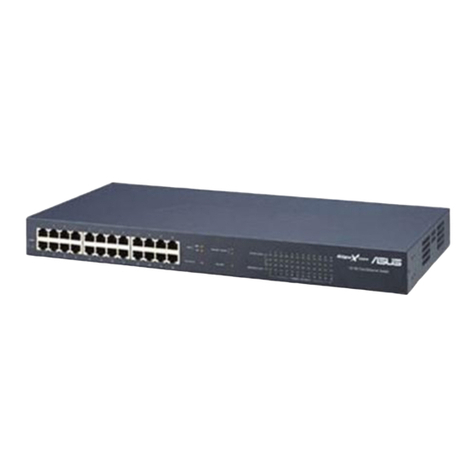
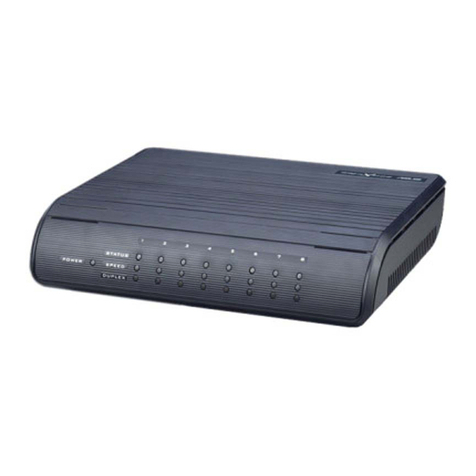
Asus E1816 User manual

Centralized Network
Management
GigaX Smart Switch Management Software
User’s Manual
E1816 / Oct 2004

2GigaX Smart Switch Centralized Network Management
Copyright Information
No part of this manual, including the products and software described in it, may be repro-
duced, transmitted, transcribed, stored in a retrieval system, or translated into any language
in any form or by any means, except documentation kept by the purchaser for backup pur-
poses, without the express written permission ofASUSTeK COMPUTER INC. (“ASUS”).
ASUS PROVIDES THIS MANUAL “AS IS” WITHOUT WARRANTY OF ANY KIND,
EITHEREXPRESSORIMPLIED,INCLUDING BUTNOTLIMITEDTOTHEIMPLIED
WARRANTIESORCONDITIONSOF MERCHANTABILITYORFITNESS FORAPAR-
TICULAR PURPOSE. IN NO EVENT SHALL ASUS, ITS DIRECTORS, OFFICERS,
EMPLOYEES OR AGENTS BE LIABLE FOR ANY INDIRECT, SPECIAL, INCIDEN-
TAL, OR CONSEQUENTIAL DAMAGES (INCLUDING DAMAGES FOR LOSS OF
PROFITS, LOSS OF BUSINESS, LOSS OF USE OR DATA, INTERRUPTION OF BUSI-
NESSAND THE LIKE), EVEN IFASUS HAS BEENADVISED OF THE POSSIBILITY
OFSUCHDAMAGESARISINGFROMANYDEFECTOR ERROR INTHIS MANUAL
OR PRODUCT.
Product warranty or service will not be extended if: (1) the product is repaired, modified or
altered, unless such repair, modification of alteration is authorized in writing by ASUS; or
(2) the serial number of the product is defaced or missing.
Products and corporate names appearing in this manual may or may not be registered trade-
marks or copyrights of their respective companies, and are used only for identification or
explanation and to the owners’ benefit, without intent to infringe.
SPECIFICATIONSAND INFORMATION CONTAINED INTHIS MANUALARE FUR-
NISHED FOR INFORMATIONAL USE ONLY,AND ARE SUBJECT TO CHANGE AT
ANY TIME WITHOUT NOTICE, AND SHOULD NOT BE CONSTRUED AS A COM-
MITMENT BYASUS. ASUS ASSUMES NO RESPONSIBILITY OR LIABILITY FOR
ANY ERRORS OR INACCURACIES THAT MAY APPEAR IN THIS MANUAL, IN-
CLUDING THE PRODUCTS AND SOFTWARE DESCRIBED IN IT.
Copyright © 2004 ASUSTeK COMPUTER INC. All Rights Reserved.
Limitation of Liability
Circumstances may arise where because of a default on ASUS’ part or other liability, you
are entitled to recover damages fromASUS. In each such instance, regardless of the basis on
which you are entitled to claim damages from ASUS, ASUS is liable for no more than
damages for bodily injury (including death) and damage to real property and tangible per-
sonal property; or any other actual and direct damages resulted from omission or failure of
performing legal duties under this Warranty Statement, up to the listed contract price of each
product.
ASUS will only be responsible for or indemnify you for loss, damages or claims based in
contract, tort or infringement under this Warranty Statement.
This limit also applies to ASUS’ suppliers and its reseller. It is the maximum for which
ASUS, its suppliers, and your reseller are collectively responsible.
UNDER NO CIRCUMSTANCES IS ASUS LIABLE FOR ANY OF THE FOLLOWING:
(1)THIRD-PARTYCLAIMSAGAINSTYOUFORDAMAGES; (2) LOSSOF,ORDAM-
AGE TO, YOUR RECORDS OR DATA; OR (3) SPECIAL, INCIDENTAL, OR INDI-
RECT DAMAGES OR FOR ANY ECONOMIC CONSEQUENTIAL DAMAGES (IN-
CLUDINGLOSTPROFITSORSAVINGS),EVENIFASUS,ITSSUPPLIERS ORYOUR
RESELLER IS INFORMED OF THEIR POSSIBILITY.

GigaX Smart Switch Centralized Network Management 3
Product Contact Information
ASUSTeK COMPUTER INC. (Asia-Pacific)
Company Address: 15 Li-Te Road, Peitou, Taipei 112
General Telephone: +886-2-2894-3447
General Fax: +886-2-2894-7798
Web Site Address: www.asus.com.tw
Technical Support
MB/Others (Tel): +886-2-2890-7121
Notebook (Tel): +886-2-2894-3447
Desktop/Server (Tel): +886-2-2890-7123
Networking (Tel): +886-2-2890-7902
Support Fax: +886-2-2890-7698
ASUS COMPUTER INTERNATIONAL (America)
Company Address: 44370 Nobel Drive, Fremont, CA 94538, USA
General Fax: +1-510-608-4555
Web Site Address: usa.asus.com
Technical Support
General Support: +1-502-995-0883
Notebook (Tel): +1-510-739-3777 x5110
Support Fax: +1-502-933-8713
ASUS COMPUTER GmbH (Germany & Austria)
Company Address: Harkort Str. 25, D-40880 Ratingen, Germany
General Telephone: +49-2102-95990
General Fax: +49-2102-959911
Web Site Address: www.asuscom.de
Online Contact: www.asuscom.de/sales
Technical Support
Component Support: +49-2102-95990
Notebook Support: +49-2102-959910
Online Support: www.asuscom.de/support
Support Fax: +49-2102-959911

4GigaX Smart Switch Centralized Network Management
Copyright Information 2
Limitation of Liability................................................................. 2
Product Contact Information 3
1 Introduction 5
1.2 Using this Document......................................................... 5
2 Getting to Know the GigaX Smart Switch 6
2.1 Parts List........................................................................... 6
2.2 GigaX Smart Switch Features........................................... 6
2.3 Technical Specifications.................................................... 6
2.4 Front Panel ....................................................................... 7
2.5 Rear Panel ........................................................................ 7
3 Quick Start Guide 8
3.1 Part 1 — Connecting the Hardware .................................. 8
3.2 Part 2 —Start the Switch .................................................. 9
3.3 Management from CNM.................................................. 10
4 Management Functions 14
4.1 Start CNM Program ........................................................ 14
4.2 Functional Layout ........................................................... 15
4.3 General Settings for CNM............................................... 17
4.4 Switch Topology .............................................................. 20
4.5 Switch Setup ................................................................... 23
4.6 System ............................................................................ 24
4.7 Configuration .................................................................. 30
4.8 Statistics.......................................................................... 41
Table of Contents

GigaX Smart Switch Centralized Network Management 5
1.2 Using this Document
1.2.1 Notational conventions
• Acronyms are defined the first time they appear in text and in the glossary.
• For brevity, the GigaX Smart Switch is referred to as “the switch.”
• The terms LAN and network are used interchangeably to refer to a group of
Ethernet-connected computers at one site.
1.2.2 Typographical conventions
•Italics are used to present the texts displayed or you type in the CNM user
interface.
•Boldface type text is used for items you select from menus and drop-down lists
1.2.3 Special messages
This document uses the following icons to call your attention to specific
instructions or explanations.
Note: Provides clarification or nonessential information on the current topic.
Definition: Explains terms or acronyms that may be unfamiliar to many
readers. These terms are also included in the Glossary.
WARNING: Provides messages of high importance, including messages
relating to personal safety or system integrity.
1 Introduction
Congratulations on your purchase of theASUS GigaX Smart Switch. You can
now manage your LAN (Local Area Network) through a friendly and powerful
userinterface,theASUSCNM. TheASUSCNMrunsonWindowsOS. Please
refer to the CNM installation guide for CM installation details.
This User Guide will show you how to set up the GigaX Smart Switch through
CNM,andhowtocustomizeits configurationtogetthemostoutofthisproduct.

6GigaX Smart Switch Centralized Network Management
2 Getting to Know the GigaX Smart Switch
2.1 Parts List
In addition to this document, the switch should come with the following:
• GigaX Smart Switch
• AC Power cord
• Rack installation kit (2 brackets with 6 screws (M3 x 6L))
• Installation CD-ROM
• Quick installation guide
2.2 GigaX Smart Switch Features
• (24) 10/100BASE-TX auto-sensing Fast Ethernet switching ports
• (2) 10/100/1000BASE-T auto-sensing Gigabit Ethernet switching ports (GigaX 1024P only)
• Auto MDI/MDIX for 10/100BASE-TX & 10/100/1000BASE-T ports (GigaX 1024P only)
• 802.3, 802.3u and 802.3ab compliant
• 8.8 Gbps switch capacity and 6.6 Mpps forwarding rate
• 8K MAC address cache with hardware-assisted aging
• 802.3x flow control
• 802.1Q-based tagged VLAN, up to 32 VLANs
• 802.1p CoS (Class of Service), 2 queues per port
• IGMP(v1, v2) snooping support
• 802.3ad link aggregation (trunking), up to 7 trunk groups (GigaX 1024I only)
• 802.3ad link aggregation (trunking), up to 8 trunk groups (GigaX 1024P only)
• Bandwidth management for each port and Tx/Rx direction
• Broadcast storming filtering
• CNM Windows-based software provides easy management
• LEDs for port link status, speed, duplex mode and collisions
2.3 Technical Specifications
Physical Dimensions: 43.5mm(H) X 444 mm(W) X 200mm(D)
Environmental Ranges
Operating temperature: -10ºC to 50ºC (14ºF to 122ºF)
Storage temperature: -40ºC to 70ºC (-40ºF to 158ºF)
Operating humidity: 15% to 90%
Storage humidity: 00% to 95%
Power
Input: 100-240V AC / 2.5A / 50-60Hz
Power Consumption: 12W

GigaX Smart Switch Centralized Network Management 7
Label Function
POWER Connects to the supplied power cord
2.4 Front Panel
The front panel contains LED indicators that show the status of the unit.
2.5 Rear Panel
The rear panel contains the ports for the unit’s power connections.
Label Color Light Function
POWER Green On The switch is powered on and operate normally
Off The switch is powered off
10/100 ports from 1 to 24
STATUS / SPEED Green On Ethernet link is established in 100 Mbps
Flashing Data frames are being transmitted on this port
Off No Ethernet link
Amber On Ethernet link is established in 10 Mbps
Flashing Data frames are being transmitted on this port
DUPLEX/COLLISION Amber On The port is operating in full duplex mode
Flashing The port is operating in half duplex mode and
collisions are occurring
Off The port is operating in half duplex mode
10/100/1000 Gigabit ports form 25 to 26 (GigaX 1024P only)
STATUS Green On Link is present
Flashing Data frames are being transmitted/received on this port
Off Link is not present
SPEED Green On 1000Mbps
Amber On 100Mbps
Off 10Mbps
DUPLEX/COLLISION Amber On The port is operating in full duplex mode
Flashing The port is operating in half duplex mode and
collisions are occurring
Off The port is operating in half duplex mode
I

8GigaX Smart Switch Centralized Network Management
3 Quick Start Guide
This Quick Start Guide provides basic instructions to set up the GigaX Smart
Switch environment.
• Part 1 shows you how to install the GigaX Smart Switch on a flat surface or in a
rack.
• Part 2 provides instructions to set up the hardware.
• Part 3 shows you how to configure basic settings on the GigaX Smart Switch.
This Quick Start Guide assumes that you have installed ASUS CNM in a
Windows PC. Both the switch and the PC are located in the same network. For
CNM installation, please refer to the CNM installation guide.
3.1 Part 1 — Connecting the Hardware
InPart1,youselectaproperplacetoinstalltheswitch.Pleaseusetheoperating
environment specifications as references to choose the installation place. The
Ethernet cable length from the switch to an attached device cannot exceed
100 meters (328 feet).
3.1.1 Installing the Switch on a Flat Surface
The switch should be installed on a level surface that can support the weight of
the switches and their accessories. Attach four rubber pads on the marked
location on the bottom of the switch.
3.1.2 Mounting the Switch in a Rack
1. Attach brackets to each side of the switch and make sure that the posts are
correctlyinsertedinto theswitch.Use thescrewsprovidedtofasten thebrackets
to the switch.
2. Place the switch in the rack, insert and tighten two screws from the brackets on
the switch to the nuts on the rack.

GigaX Smart Switch Centralized Network Management 9
3.2 Part 2 —Start the Switch
In Part 2, this guide will show you how to connect the switch to a power outlet,
to your computer (with CNM installed), and to the network.
3.2.1 Step 1. Connect to the PC with CNM Installed
The switch can be managed through the ASUS CNM software that is running
on a Windows OS computer. Please refer to the CNM installation guide for
details. Before starting the CNM application, you have to connect the PC to the
same network as the switch is attached to.
3.2.2 Step 2. Connect to computers or a LAN
You can use Ethernet cable to connect computers directly to the switch ports.
You can also connect hubs/switches to the switch ports by Ethernet cables.
Note that both the crossover or straight-through Ethernet cable can be used to
connect computers, hubs or switches.
3.2.3 Step 3. Attach the power cord.
1. Plug the female end of the AC power cord to the POWER receptacle on the
back of the switch.
2. Check the front LED indicators with the table 3.1. If the LEDs illuminate as
expected, the switch hardware is working properly.
3. Plug the male end of the AC power cord into a wall outlet or a power strip.
Figure 3.1 Overview of Hardware Connections
Note: Use twisted-pair Category 5 Ethernet cable to connect the 1000BASE-
T port. Otherwise, the link speed can not reach 1Gbps. (GigaX 1024P only)

10 GigaX Smart Switch Centralized Network Management
3.3 Management from CNM
In Part 3, start the CNM program and manage the switch to meet your network
requirements. Before starting CNM, make sure that your manage station is
attachedto the samenetwork asthe switchis. Otherwise, CNMwill notbe able
to discover the switch.
3.3.1 Switch Discovery and Management
1. Make sure that the switch is powered ON and that the CNM is installed on the
management station.
2. Click on the CNM shortcut icon in the desktop of the manage station to start the
CNM application. CNM will display a window as shown below.
Note: This version of CNM only manages the switches in the same network.
LED Indicators
This LED Should be
POWER Solid green to indicate that the device is turned on. If this light is not on,
check if the power cord is attached to the switch and if it is plugged into a
power source.
STATUS of Solid green/amber to indicate that the device can communicate with your
10/100 ports LAN or flashing when the device is sending or receiving data from your LAN
computer.
STATUS of Solid green to indicate that the device can communicate with your LAN or
Gigabit ports flashing when the device is sending or receiving data from your LAN
(GigaX 1024P only) computer.
Table 3.1 LED Indicators
This manual suits for next models
2
Table of contents
Other Asus Switch manuals
Asus
Asus XG-U2008 User manual
Asus
Asus GIGAX2048 User manual
Asus
Asus GigaX 1016 User manual
Asus
Asus GigaX1024i+ User manual
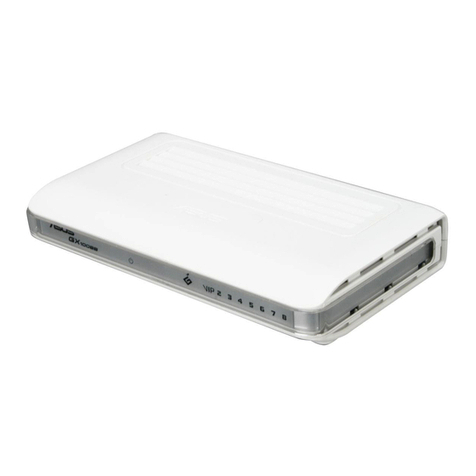
Asus
Asus GIGAX 1008B User manual
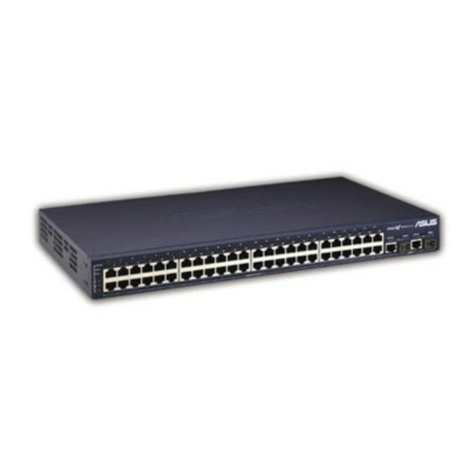
Asus
Asus GX1108B User manual

Asus
Asus GigaX1116i+ User manual
Asus
Asus GIGAX2024 User manual
Asus
Asus GigaX1105N User manual
Asus
Asus GigaX1008 User manual
Asus
Asus GX2024B - GigaX Switch User manual
Asus
Asus GigaX 2124X User manual
Asus
Asus GigaX2024X - GigaX 2024X Switch User manual
Asus
Asus GigaX1104PS User manual
Asus
Asus GigaX1024X User manual
Asus
Asus GX1105N User manual
Asus
Asus GX-D1081 User manual

Asus
Asus GigaX 1124 User manual

Asus
Asus GigaX1024i User manual

Asus
Asus GX1026i User manual