Quick Start Guide Version 1.1
ABLELink Serial-Ethernet Server
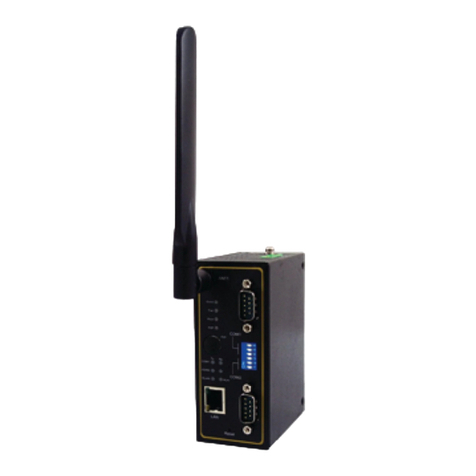
GW21C-MAXI
Copyright © 2003 Atop Technologies, Inc.
All rights reserved. Designed in Taiwan.
2 / 4
1. Connect GW21C-MAXI to the Ethernet network.
2. Connect a serial device to the serial port of GW21C-MAXI.
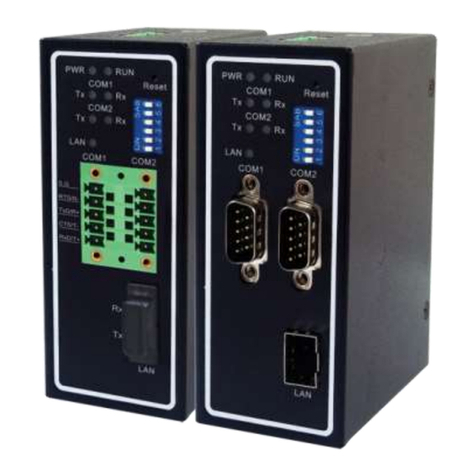
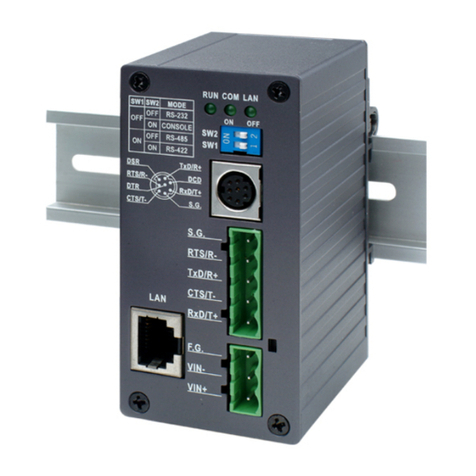
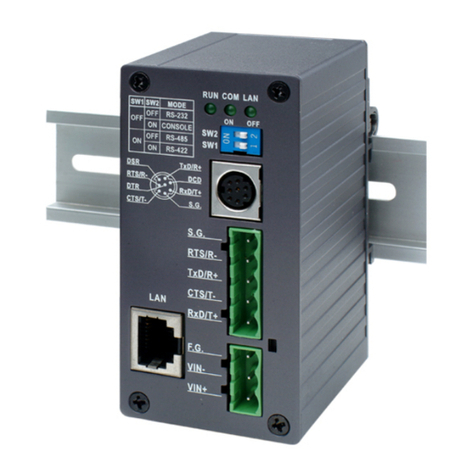
3. Power on GW21C-MAXI, RUN LED will be on and blinking. If there is data being
transmitted over the network, LAN LED will be blinking otherwise it will be off.
Software Setup
Assign a new IP Address by ARP command
Use ARP command to assign a static IP address of GW21C-MAXI using its hardware MAC
address. The MAC address is printed on the rear side of device in the format of
"0060E9-xxxxxx". The following example shows how it works within MS-DOS command
prompt window.
Step1: arp -s 10.0.50.101 00-60-E9-11-11-01
(Add to ARP table)
Step2: telnet 10.0.50.101 1
(Change to the new IP via telnet port 1. Note: The telnet will be failed and GW21C-MAXI
will be restarted.)
Step3: telnet 10.0.50.101
(Using telnet to configure GW21C-MAXI. Refer to Configuration by Telnet chapter)
Note:
1. When using this method to change IP address, PC's IP address and GW21C-MAXI's IP
address must belong to the same subnet.
2. The changed IP address must be legal, otherwise it will be changed back to the default
value (10.0.50.100) after restart.
Configure by Telnet utility
1. Telnet to GW21C-MAXI using command “Telnet IP_address”. Default IP address is
10.0.50.100 and default password is null.
2. GW21C-MAXI’s network, COM ports settings can be configured individually.
3. The connection status is shown from “AP version” column of monitoring tool
(monitor.exe).
Configure by monitor.exe utility
Use monitor.exe that comes with product CD or diskette to configure the network
parameters of GW21C-MAXI. Please refer to Appendix D Configuration Utility in the product
user manual for more details.
Configure by Web Server
1. Open web browser, type in the IP address of GW21C-MAXI to be configured. Default
user name is admin and default password is null.
2. Configure settings from web page links then click “Save Configuration” to save settings.
3. Click on ”Restart” button to make the change effective if necessary.
Configure by console mode
1. Power off GW21C-MAXI.
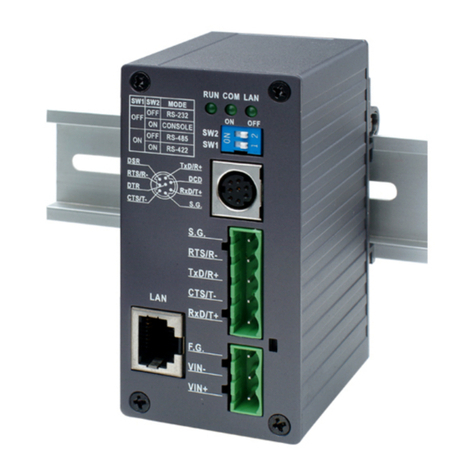
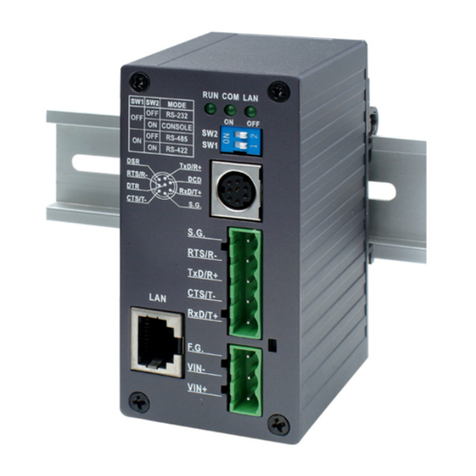
2. Set the MODE switch SW1 to ‘OFF’ and SW2 to ‘ON’.
3. Use a PC to connect to GW21C-MAXI’s console with RS-232 cross over cable.