manuals.online logo
Brands
  1. Home
  2. •
  3. Brands
  4. •
  5. Audient
  6. •
  7. Recording Equipment
  8. •
  9. Audient EVO 4 User manual

Audient EVO 4 User manual

Other manuals for EVO 4

1

This manual suits for next models

1

Other Audient Recording Equipment manuals

Audient ASP8024 HERITAGE EDITION User manual

Audient

Audient ASP8024 HERITAGE EDITION User manual

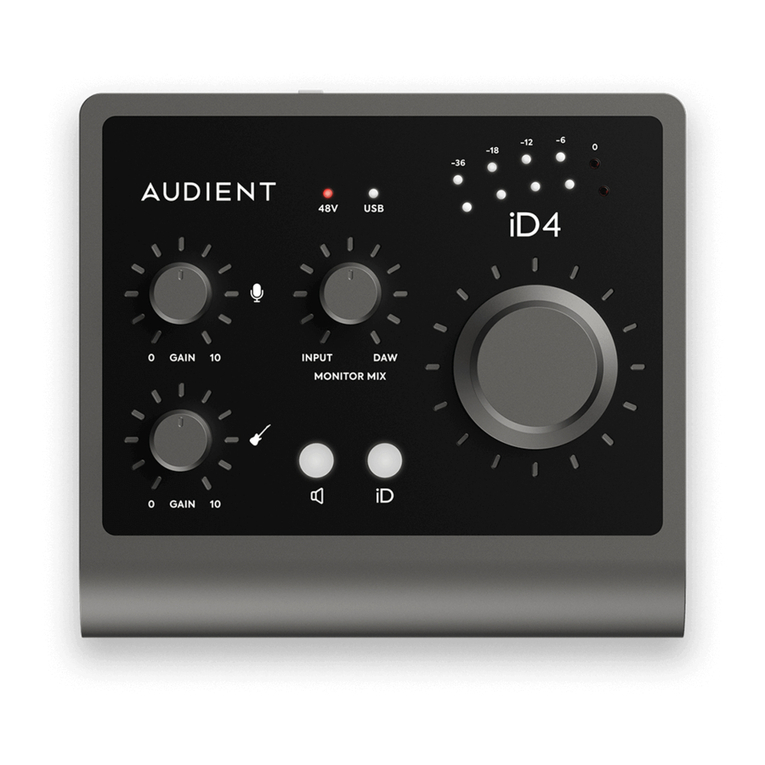
Audient iD4 User manual

Audient

Audient iD4 User manual
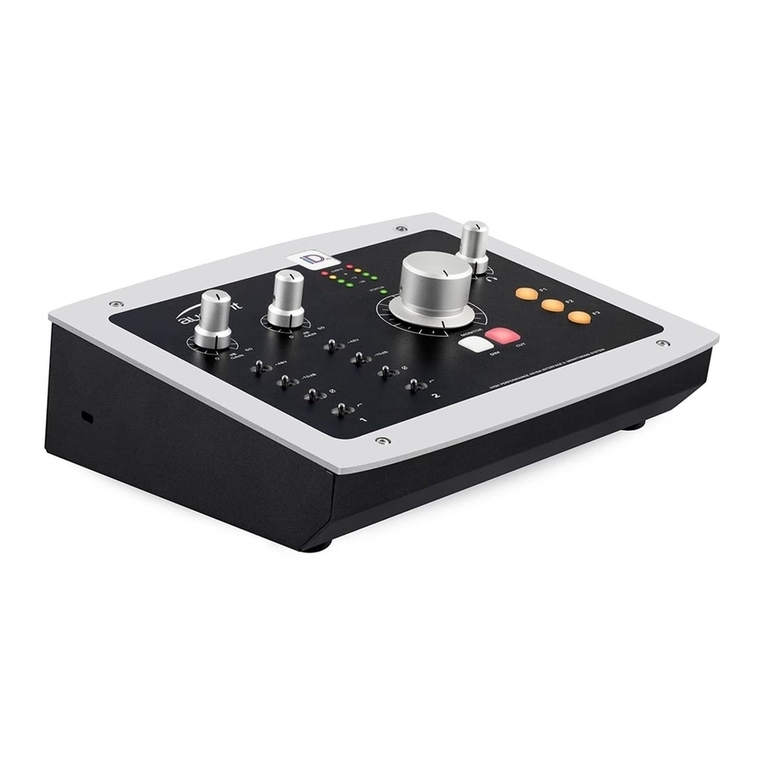
Audient iD24 User manual

Audient

Audient iD24 User manual
Audient ASP500 Series User manual

Audient

Audient ASP500 Series User manual
Audient ASP8024 Dual Layer Control User manual

Audient

Audient ASP8024 Dual Layer Control User manual

Audient iD24 User manual

Audient

Audient iD24 User manual
Audient iD44 User manual

Audient

Audient iD44 User manual
Audient evo 16 User manual

Audient

Audient evo 16 User manual
Audient iD4 User manual

Audient

Audient iD4 User manual
Audient iD4 User manual

Audient

Audient iD4 User manual
Audient EVO 4 User manual

Audient

Audient EVO 4 User manual

Audient iD44 User manual

Audient

Audient iD44 User manual

Audient iD24 User manual

Audient

Audient iD24 User manual

Audient iD22 User manual

Audient

Audient iD22 User manual

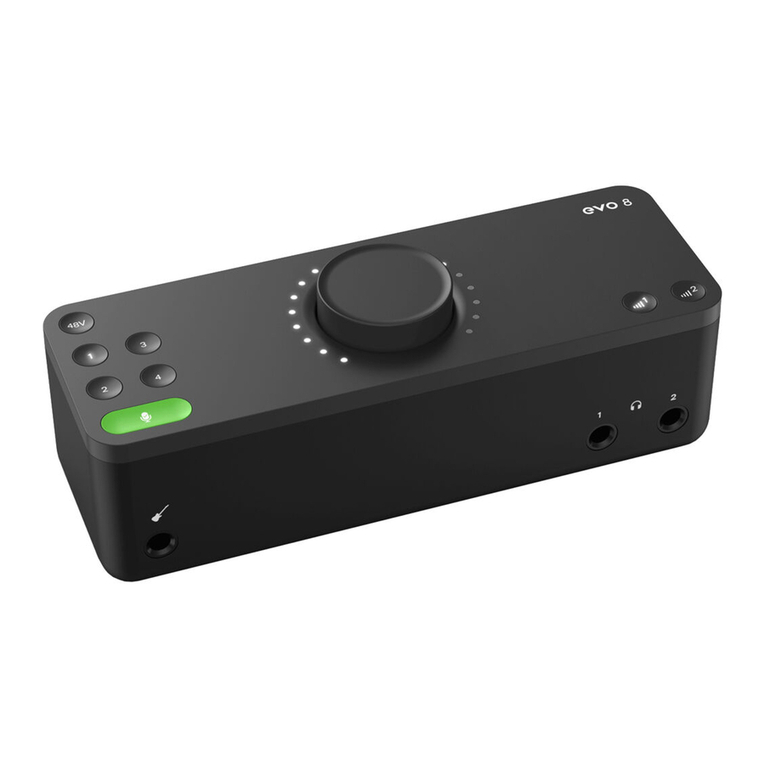
Audient EVO 8 User manual

Audient

Audient EVO 8 User manual

Audient iD4 User manual

Audient

Audient iD4 User manual
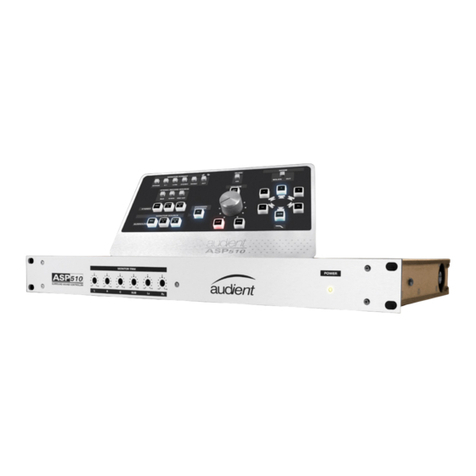
Audient ASP 510 User manual

Audient

Audient ASP 510 User manual

Audient iD44 User manual

Audient

Audient iD44 User manual

Popular Recording Equipment manuals by other brands

Philips CDR 765 null

Philips

Philips CDR 765 null

Philips CDR770 null

Philips

Philips CDR770 null

KV2 Audio 500 Series user guide

KV2 Audio

KV2 Audio 500 Series user guide

Robotics Technologies microBus-Cam II installation manual

Robotics Technologies

Robotics Technologies microBus-Cam II installation manual

Seca 460 quick start guide

Seca

Seca 460 quick start guide

Cognex MVS-8000 Series Hardware manual

Cognex

Cognex MVS-8000 Series Hardware manual

Mect MPNC006 Series user manual

Mect

Mect MPNC006 Series user manual

Bad Caf THE LEASH operating manual

Bad Caf

Bad Caf THE LEASH operating manual

Strymon NIGHTSKY user manual

Strymon

Strymon NIGHTSKY user manual

Mitsubishi Electric 16CH DIGITAL RECORDER DX-TL5000U user manual

Mitsubishi Electric

Mitsubishi Electric 16CH DIGITAL RECORDER DX-TL5000U user manual

Tews Technologies TPMC465 user manual

Tews Technologies

Tews Technologies TPMC465 user manual

Honeywell Excel 50 user guide

Honeywell

Honeywell Excel 50 user guide

SeaLevel COMM+8.LPCI user manual

SeaLevel

SeaLevel COMM+8.LPCI user manual

Arturia AUDIOFUSE STUDIO user manual

Arturia

Arturia AUDIOFUSE STUDIO user manual

Rukra RK-1240 quick start guide

Rukra

Rukra RK-1240 quick start guide

Samson SCOM owner's manual

Samson

Samson SCOM owner's manual

Dynacord DPS260 owner's manual

Dynacord

Dynacord DPS260 owner's manual

Pyle Pro PSS8 manual

Pyle Pro

Pyle Pro PSS8 manual

manuals.online logo
manuals.online logoBrands
  • About & Mission
  • Contact us
  • Privacy Policy
  • Terms and Conditions

Copyright 2025 Manuals.Online. All Rights Reserved.

Welcome to your new EVO 4 Audio Interface. Please
read this quick guide to help get you started.
Connect
To connect your EVO 4 to your computer,
simply plug in the USB cable provided. Once
successfully connected, EVO 4’s volume
wheel LEDs will illuminate and perform a
short animation followed by the Volume
button illuminating.
01
Install Drivers
In order to start using your EVO 4 you will need
to download and install the latest drivers, which
can be found at evo.audio/evo4/downloads.
Once the drivers are installed, you may be
prompted to update the units rmware. A full
installation guide can be found on our website.
02
The Features
1. Smartgain Mode
2. Inputs 1 + 2
3. Phantom Power
4. Volume knob
5. Monitor Mix
6. Output volume
03 2
34
6
5
1
04 Smartgain Mode
The Smartgain LED will start ashing
red and the volume wheel LED’s will
illuminate indicating that Smartgain
Mode is now listening
Smartgain Mode will dial in the
correct levels and when complete
the Smartgain button will ash green
twice to indicate it has been successful
Start playing or performing into the
microphone
5
6
7
You are now ready to start recording
8
Press the Smartgain button to begin
The Smartgain LED will illuminate green
and the input channel LEDs (1 & 2) will
begin to ash (indicating a channel
must be selected)
Press one or more of the input channel
buttons to select the channels to be
adjusted
Press the Smartgain button again to
begin the process
1
2
3
4