manuals.online logo
Brands
  1. Home
  2. •
  3. Brands
  4. •
  5. Audiovox
  6. •
  7. Car Video System
  8. •
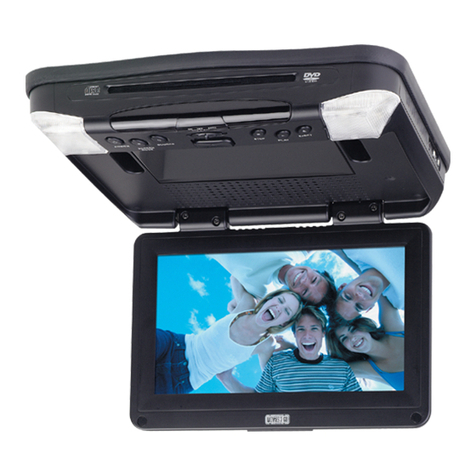
  9. Audiovox VOH8512 User manual

Audiovox VOH8512 User manual

Other manuals for VOH8512

2

Other Audiovox Car Video System manuals
Audiovox VE640 - VE - 640 User manual

Audiovox

Audiovox VE640 - VE - 640 User manual

Audiovox VODEXL10 A User manual

Audiovox

Audiovox VODEXL10 A User manual

Audiovox Movies 2 Go MMSV58 User manual

Audiovox

Audiovox Movies 2 Go MMSV58 User manual

Audiovox Movies2Go MMD100 Quick start guide

Audiovox

Audiovox Movies2Go MMD100 Quick start guide

Audiovox VOH681 User manual

Audiovox

Audiovox VOH681 User manual

Audiovox 1187025 User manual

Audiovox

Audiovox 1187025 User manual

Audiovox VM9511TS User manual

Audiovox

Audiovox VM9511TS User manual

Audiovox VME 9314TS User manual

Audiovox

Audiovox VME 9314TS User manual

Audiovox MMD85 - 8.5 Inch Dropdown Video Monitor User manual

Audiovox

Audiovox MMD85 - 8.5 Inch Dropdown Video Monitor User manual

Audiovox VDS102T User manual

Audiovox

Audiovox VDS102T User manual

Audiovox LCM7020PKG User manual

Audiovox

Audiovox LCM7020PKG User manual

Audiovox VOD108 - 10.2" Overhead Video Monitor User manual

Audiovox

Audiovox VOD108 - 10.2" Overhead Video Monitor User manual

Audiovox VBP4000 - VBP 4000 DVD Player User manual

Audiovox

Audiovox VBP4000 - VBP 4000 DVD Player User manual

Audiovox HR7011PKG User manual

Audiovox

Audiovox HR7011PKG User manual

Audiovox 50-0245x-002 SERIES User manual

Audiovox

Audiovox 50-0245x-002 SERIES User manual

Audiovox AVXMTG10U User manual

Audiovox

Audiovox AVXMTG10U User manual

Audiovox VE-500 User manual

Audiovox

Audiovox VE-500 User manual

Audiovox LCM1042TV User manual

Audiovox

Audiovox LCM1042TV User manual

Audiovox Mobile Video VOD100 User manual

Audiovox

Audiovox Mobile Video VOD100 User manual

Audiovox Movies2Go AVXMTGHR1D User manual
Audiovox

Audiovox Movies2Go AVXMTGHR1D User manual

Audiovox LCM 7070 User manual

Audiovox

Audiovox LCM 7070 User manual

Audiovox MMD7HRPKG - Movies2Go - DVD Player User manual

Audiovox

Audiovox MMD7HRPKG - Movies2Go - DVD Player User manual

Audiovox SLOT-IN AVD400 User manual

Audiovox

Audiovox SLOT-IN AVD400 User manual

Audiovox VOD710 - DVD Player With LCD Monitor User manual
Audiovox

Audiovox VOD710 - DVD Player With LCD Monitor User manual
Popular Car Video System manuals by other brands

Farenheit MD-1510CM instruction manual

Farenheit

Farenheit MD-1510CM instruction manual

Mazda Connect manual

Mazda

Mazda Connect manual

RCA DRC97983 Manual de usuario

RCA

RCA DRC97983 Manual de usuario

Panasonic CY-VHD9401U Service manual

Panasonic

Panasonic CY-VHD9401U Service manual

Stinger HEIGH10 RB10RAM13B installation manual

Stinger

Stinger HEIGH10 RB10RAM13B installation manual

Alpine IVA-W203 - 6.5" Touch Screen 2-DIN DVD In-Dash... owner's manual

Alpine

Alpine IVA-W203 - 6.5" Touch Screen 2-DIN DVD In-Dash... owner's manual

Eonon E1057 instructions

Eonon

Eonon E1057 instructions

Milion D2223 user manual

Milion

Milion D2223 user manual

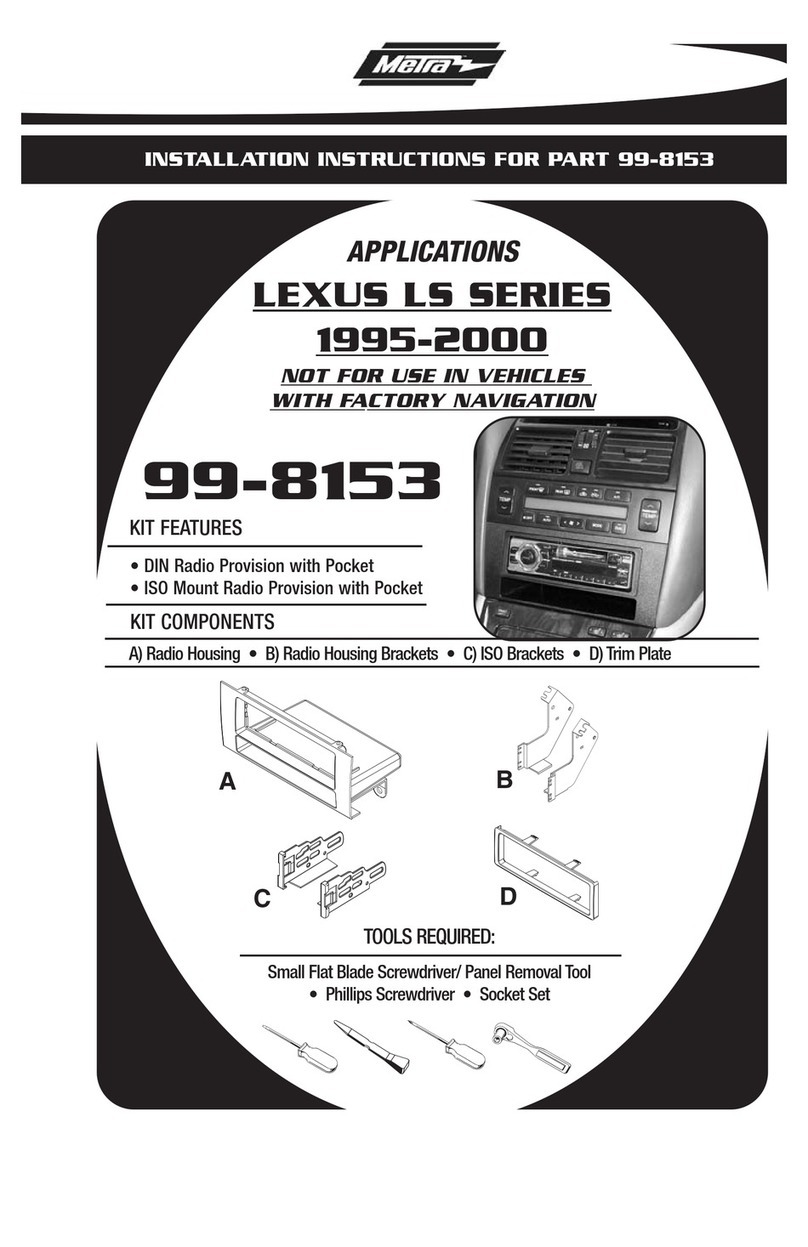
Metra Electronics 99-8153 installation instructions

Metra Electronics

Metra Electronics 99-8153 installation instructions

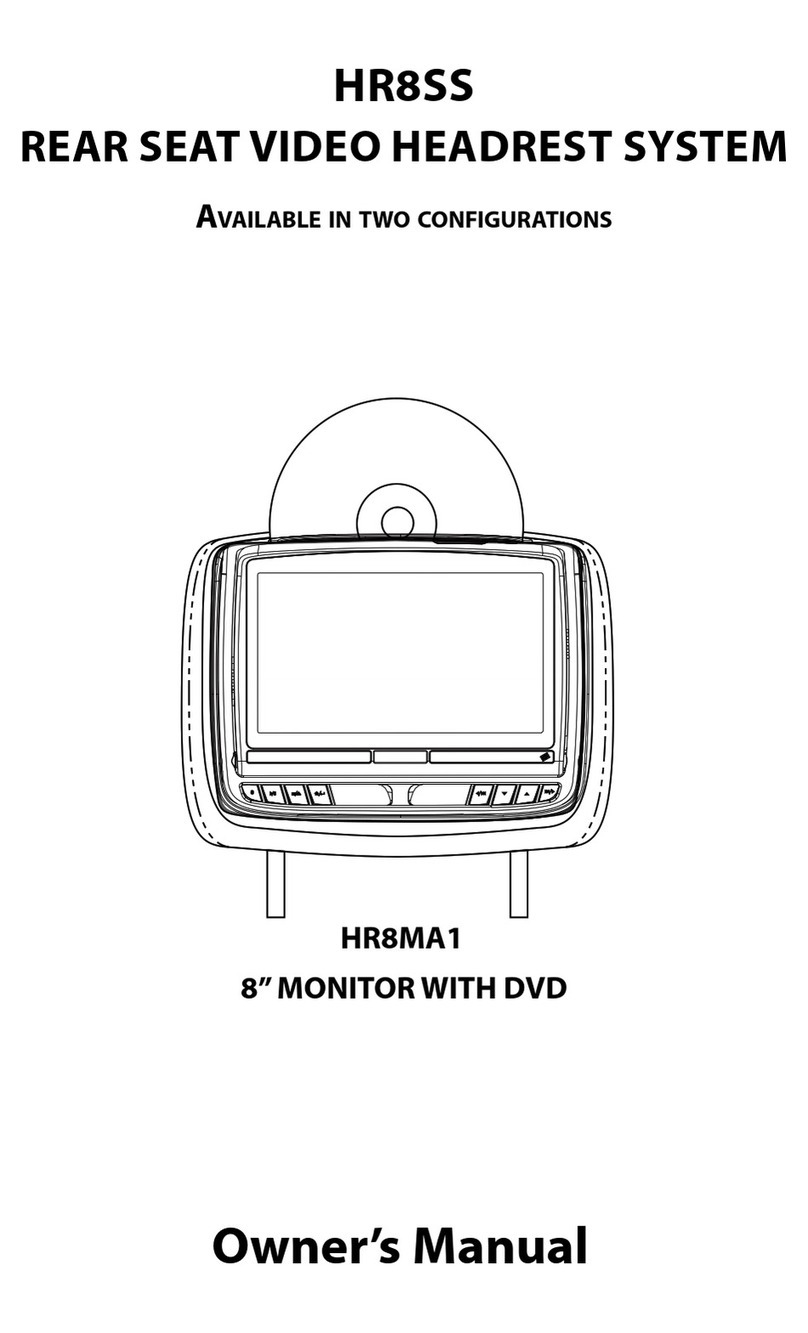
Voxx Electronics HR8MA1 owner's manual

Voxx Electronics

Voxx Electronics HR8MA1 owner's manual

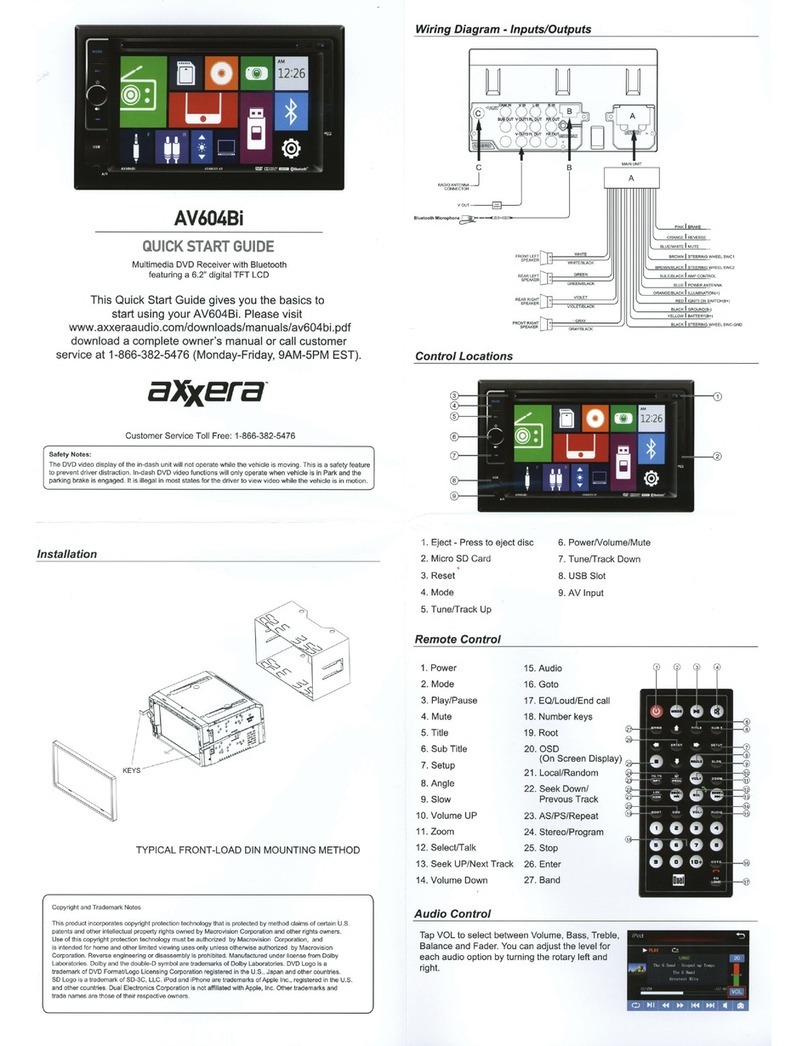
Axxera AV604Bi quick start guide

Axxera

Axxera AV604Bi quick start guide

Clarion NX706E owner's manual

Clarion

Clarion NX706E owner's manual

Pyle view PLDN74BTi owner's manual

Pyle view

Pyle view PLDN74BTi owner's manual

Clarion NX602 quick start guide

Clarion

Clarion NX602 quick start guide

RCA DRC6296 - Twin 9" Mobile DVD System Manual Del Usuario

RCA

RCA DRC6296 - Twin 9" Mobile DVD System Manual Del Usuario

Fiat Uconnect 5.0 manual

Fiat

Fiat Uconnect 5.0 manual

Lanzar SVDVD5 owner's manual

Lanzar

Lanzar SVDVD5 owner's manual

Eonon E1060 instructions

Eonon

Eonon E1060 instructions

manuals.online logo
manuals.online logoBrands
  • About & Mission
  • Contact us
  • Privacy Policy
  • Terms and Conditions

Copyright 2025 Manuals.Online. All Rights Reserved.

128-7297
1 of 20
VOD705
ELECTRONICS CORP.
®
VOH8512
DROP-DOWN
VIDEO
MONITOR
128-7297
128-7297
2 of 20
-2-
Important Notice
An LCD panel and/or video monitor may be installed in a motor vehicle and visible to the driver if the LCD panel or video monitor is used
for vehicle information, system control, rear or side observation or navigation. If the LCD panel or video monitor is used for television
reception, video or DVD play, the LCD panel or video monitor must be installed so that these features will only function when the vehicle
is in “park” or when the vehicle’s parking brake is applied.
An LCD panel or video monitor used for television reception, video or DVD play that operates when the vehicle is in gear or when the
parking brake is not applied must be installed to the rear of the driver’s seat where it will not be visible, directly or indirectly, to the
operator of the motor vehicle.
Warnings
Do not use any solvents or cleaning materials when cleaning the video monitor.
Do not use any abrasive cleaners, they may scratch the screen. Use only a lightly dampened lint free cloth to wipe the screen if it is dirty.
Lock the LCD screen in the fully closed position when not in use.
Before putting on headphones always adjust the volume setting to the lowest position.
Remember to leave the dome light switch in the off or auto positions when the vehicle is unattended, as the dome lights, if left on, can drain
the vehicle’s battery.
Do not put pressure on the screen.
Caution children to avoid touching or scratching the screen, as it may become dirty or damaged.
Television Reception
This entertainment system is designed primarily for viewing prerecorded movies or playing video games. Television reception in a moving
vehicle will be limited and in some areas will not be possible due to weak and variable signal strength. Television viewing in a stationary
vehicle will result in an improvement, but may still be marginal due to signal strength. The quality of the picture will not be consistent with
home TV reception. Reception may be affected by weather and distance from TV station. A weak signal may cause the picture to roll, be
snowy, or cause some color loss.
128-7297
3 of 20
-3-
Congratulations on your purchase of the Audiovox VOH8512
Drop-Down Video /Monitor. The VOH8512 has been designed
to give you and your family many years of video entertainment in
the mobile environment. Please read the directions that follow
to familiarize yourself with the product and to ensure that you
obtain the best results from your equipment.
Please note: Installation options vary, see the individual owner’s
manuals for each component in your system to obtain a full
understanding of each component’s operation.
Safety Precaution
For safety reasons, when changing video media it is
recommended that the vehicle is not in motion, and that you do
not allow children to unfasten seat-belts to change video media
or make any adjustments to the system. System adjustments
can be accomplished using the remote control, while seat-
belts remain fastened. Enjoy your Audiovox entertainment
system but remember the safety of all passengers remains the
number one priority.
Features
– 8.5” TFT Active Matrix Color LCD Monitor
– OSD (On Screen Display) For Control of Picture
Quality, Display of Source Selection
– Three Source Selection (AV1/AV2/AUX)
– Video Display ON/OFF Control (when LCD Panel
is Opened and Closed)
– Forward and Rear IR Sensor
– Infrared Transmitter for IR Wireless Headphones
– Dome Lights with Built-in Three Position Switch
– TV Tuner (Optional)*
– Backlit controls for Low Light operation
– Five Frequency Wireless FM Modulater
– Full Function Remote Control
* Part Number PODTVT
128-7297
4 of 20
-4-
Controls and Indicators Diagram
123
4
5
6
7
8
9
10
11
12
4
13
14
128-7297
5 of 20
-5-
Control Function Descriptions
1. Infrared Transmitter and Sensor – Use to transmit audio
to the wireless headphones. Also allows the remote control
to operate the VOH8512 and to control other accessories in
the system.
2. POWER Button – Used to turn the system ON/OFF. Bright
red when system is on, dim when off.
3. Three position Dome Light Switch
• Auto – Automatically switches on the dome lights in
conjunction with the vehicle’s interior illumination.
• Off – The dome lights will not turn on in this position.
• On – Turns on the dome lights.
4. Dome Lights – Provide additional interior illumination.
5. ( – ) Button – Picture quality adjustment (decrease).
6. ( + ) Button – Picture quality adjustment (increase).
7. PICTURE SELECT Button – Display picture adjustment
mode (Brightness, Contrast, Color & Tint)
8. Screen Release – Moves in direction of the arrow to release
the drop down screen.
9. Drop Down LCD Panel
10. IRT ON/OFF – Turn Infrared Transmitter power On/Off.
11. FM Select Button – When this button is pressed it will turn
on the wireless FM Modulator and then cycle through FM
frequencies (FM Off, Channel 1, 88.3MHz; Channel 2,
88.7MHz; Channel 3, 89.1MHz; Channel 4, 89.5MHz;
Channel 5, 89.9MHz).
12. SOURCE Select – Used to select one of the three sources
(AV1, AV2 ,AUX)
13. AUX – AUX input jack.
14. REAR Remote Sensor Eye – Allows the remote control to
operate the VOH8512, and control other accessories,
connected to the system.
128-7297
6 of 20
-6-
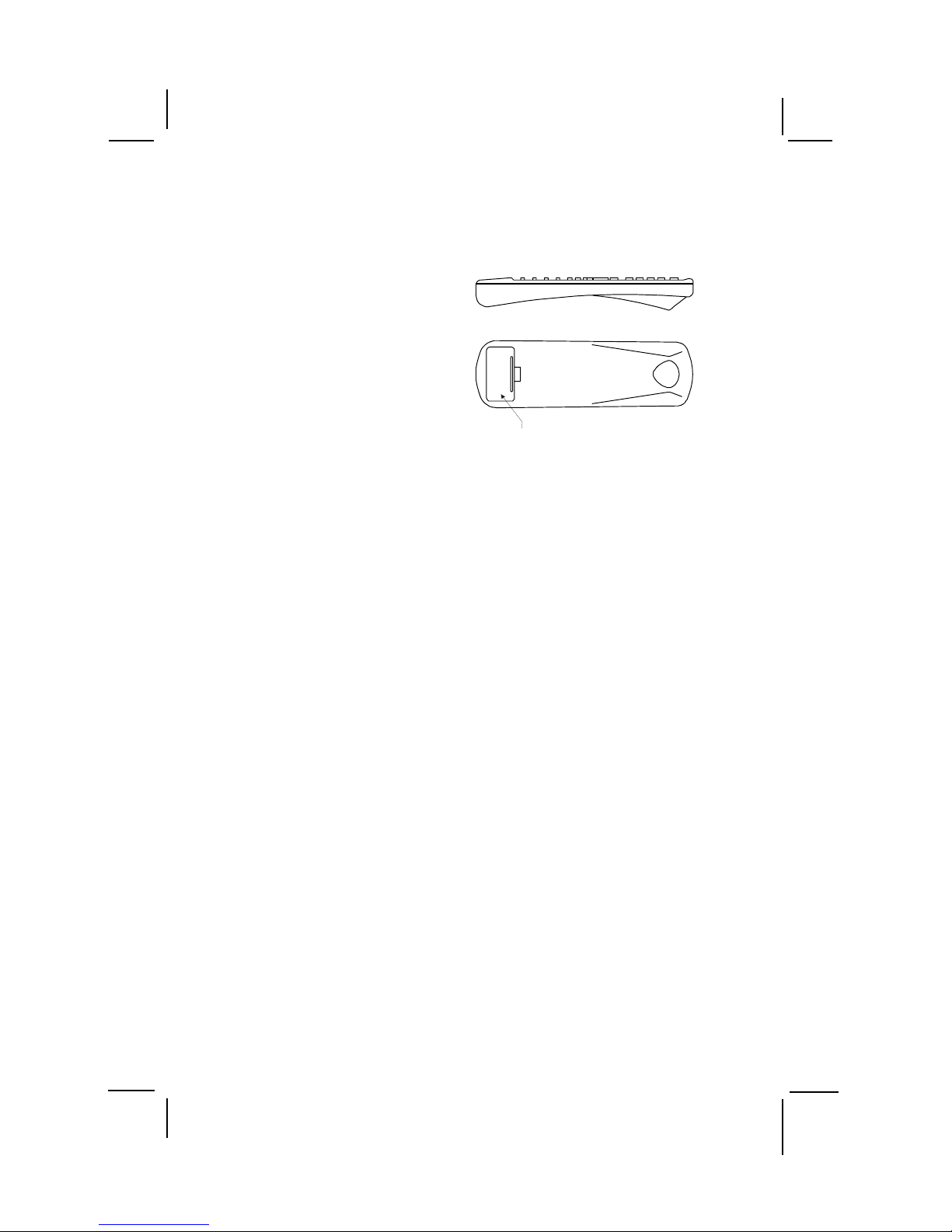
Battery Installation
Before attempting to operate your Remote Control, install the
batteries as described below.
1) Turn the Remote Control face down. Using a fingernail,
lift the battery cover off.
2) Install two “AAA” batteries as shown. Make sure that
proper polarity (+ or -) is observed.
3) Align the cover tabs with the remote control and press
down until the cover clicks.
The remote control will operate the VOH8512 and most Audiovox
VCP’s. It is not a universal remote control and will not control
equipment from other manufacturers.
Remote Control Operation
BATTERY COVER
128-7297
7 of 20
-7-
Remote Control Function Descriptions
*Function control is available on the unit and the remote control.
** Not used in this model
*** Function only available if optional TV Tuner is installed.
1. POWER Button*
Press this button to turn the VOH8512 on. Press the button again to turn the VOH8512 off.
2. SOURCE Button*
Each time the button is pressed, the audio / video source will change: AV1, AV2, AUX.
3. AUTO MEMORY Button (AUTO PROGRAM Button)***
When the AUTO MEMORY button is pressed, all channels are searched and channels that are detected with signals of
sufficent levels are automatically stored.
4. SKIP/SEARCH Button***
This button selects betweeen SKIP and SEARCH mode. In “SKIP mode” the TV tuner will tune and stop on channels that are
programmed into memory the when CHANNEL UP/DOWN buttons are used. When the SKIP mode is disabled, the TV will
stop on all active channels.
5. ERASE/WRITE Button***
While tuned to a channel, pressing this button will store or erase the channel from memory. The stored channel numbers are
displayed in “GREEN” and the erased channel numbers are displayed in “RED”.
6. Channel Up ( ) Button***
Use this button to increase the channel number to the desired channel and to scroll upward in menu options.
128-7297
8 of 20
-8-
7. MUTE Button
Press this button to mute the audio.
Pressing the button again restores the sound to the previously set level.
8. ENTER Button**
Used to implement a selected setting or menu option.
9. LEFT ( ) Button**
Allows the user to shift left in the menu options.
10. MENU Button**
Allows the user to access the main menu.
11. RETURN Button**
Allows the user to return to the menu while PBC on.
Note : This function only present on VCD 2.0.
12. TV Mode Select Button
Switches certain function keys on the remote control for TV functions.
13. DVD Mode Select button**
Switches certain function keys on the remote control for DVD functions.
128-7297
9 of 20
-9-
14. DISPLAY Button**
Press to display DVD Disc current information.
Press DISPLAYbutton DVD Player Perform
Once Display current TITLE , CHAPTER & elapsed time
Twice Display current SUBTITLE
3 times Display current AUDIO language & channel
4 times Display current surround mode
5 times Display current ANGLE
6 times Display A-B current status
7 times Display REPEAT current status
8 times Display off
15. FM TRANSMITTER ON/OFF Button
Turns the FM Modulator ON/OFF.
16. AUDIO Button**
Press this button to display and select the desired AUDIO language. Each time the button is pressed, the language or track
changes. NOTE: The languages & tracks you can select are vary from disc to disc.
128-7297
10 of 20
-10-
17. ZOOM Button – Press this button to zoom the picture. **
Press ZOOM button OSD DVD Player Perform
Once 2X ZOOM picture 2 times
Twice 3X ZOOM picture 3 times
3 times 4X ZOOM picture 4 times
4 times 1/2 Reduces picture to 1/2 normal size
5 times 1/3 Reduces picture to 1/3 normal size
6 times 1/4 Reduces picture to 1/4 normal size
7 times OFF Returns to normal size
18. PAUSE ( ) Button**
Allows the user to pause the playback.
19. STOP (!!
!!
!) Button**
Disc playback will be stopped.
20. PREVIOUS ( ) Button**
Allows the user to return to the previous chapter or track.
21. NEXT ( ) Button**
Allows the user to skip to the next chapter or track.
22. REV ( ) Button**
Allows the user to search in a backward direction at 2, 4, 8, 16 and 32 times the normal speed.