AVAYA 4610 & 4620 - Phone Handling Basics 5
Call Pickup within a Predetermined Pickup Group
A ringing phone may be picked up if the extension is assigned to your predetermined programmed Call
Pickup Group. Call Pick-up must have been previously designated for your department to use this
feature. This feature may be added to the phone if it is not presently configured.
To answer a ringing phone within Pickup Group:
Step 1 – Lift the handset.
Step 2 – Dial the Call Pickup Code *11. The call has been answered.
Step 3 – Begin to talk.
Note: The call will continue to display on the phone originally called.
Conference Call
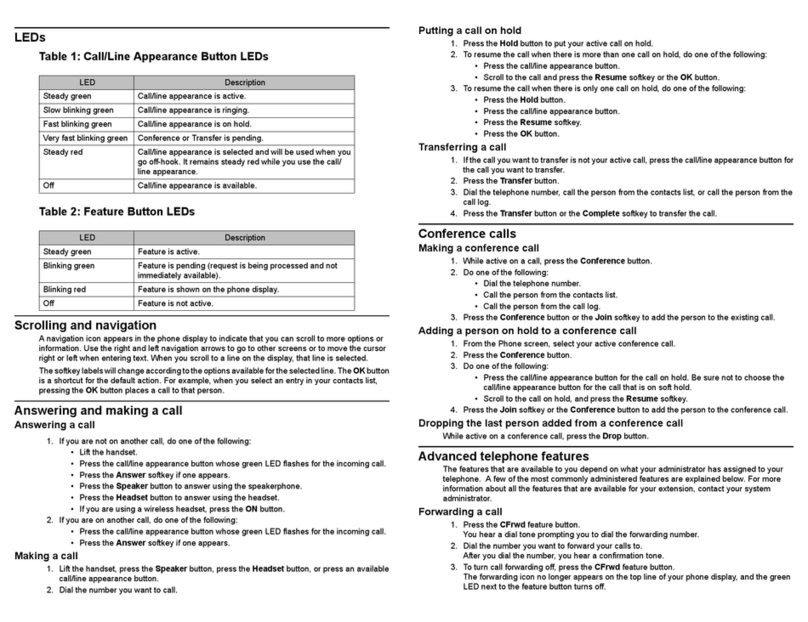
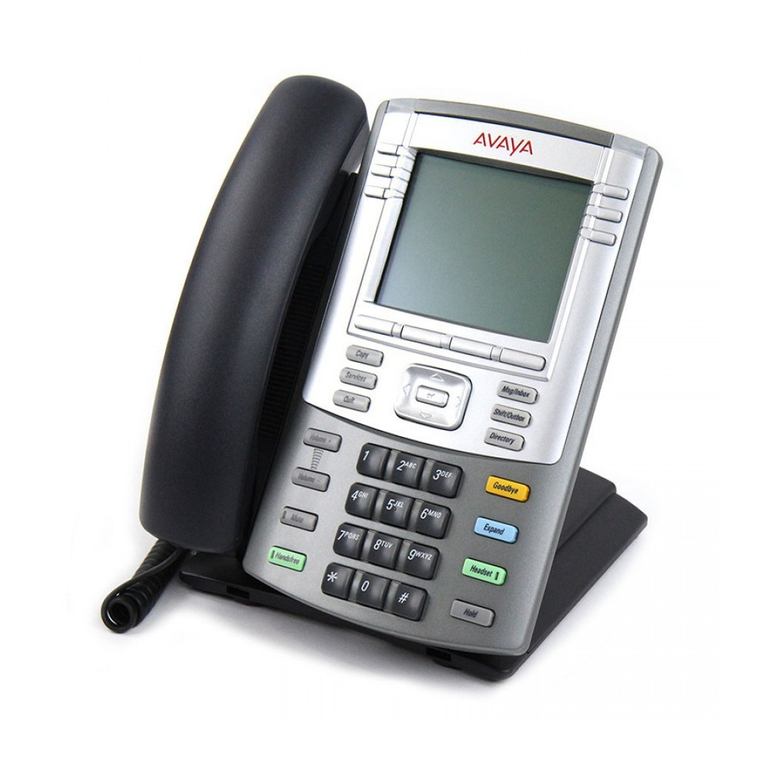
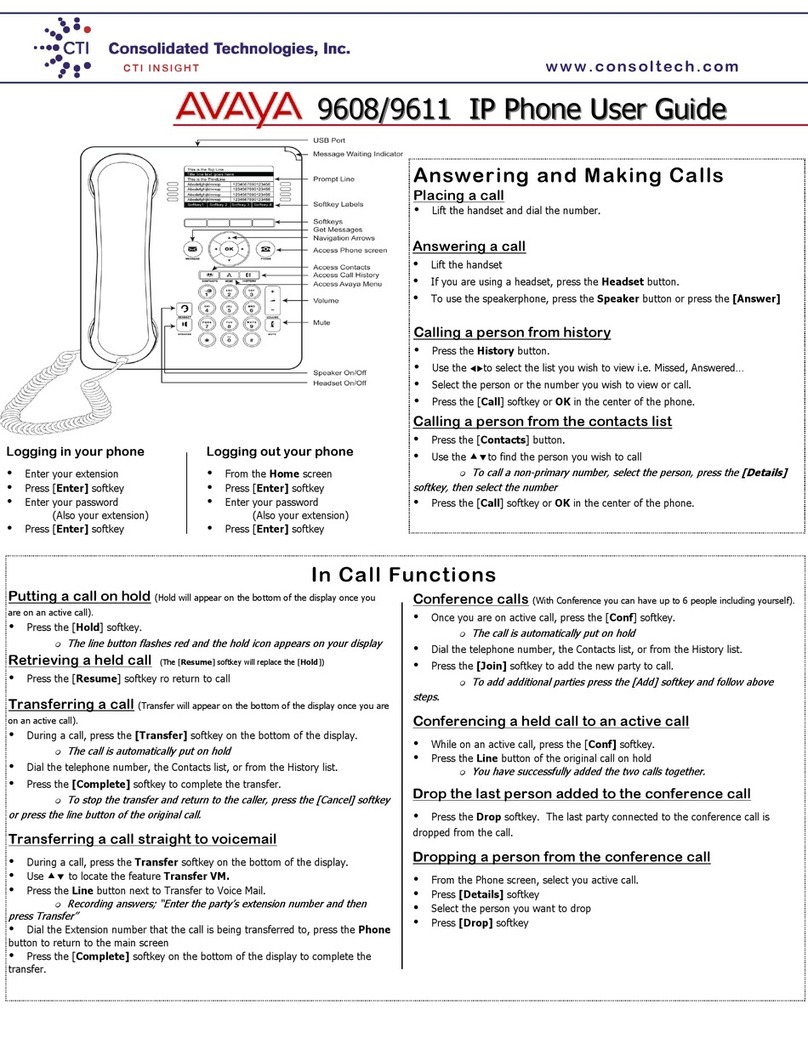
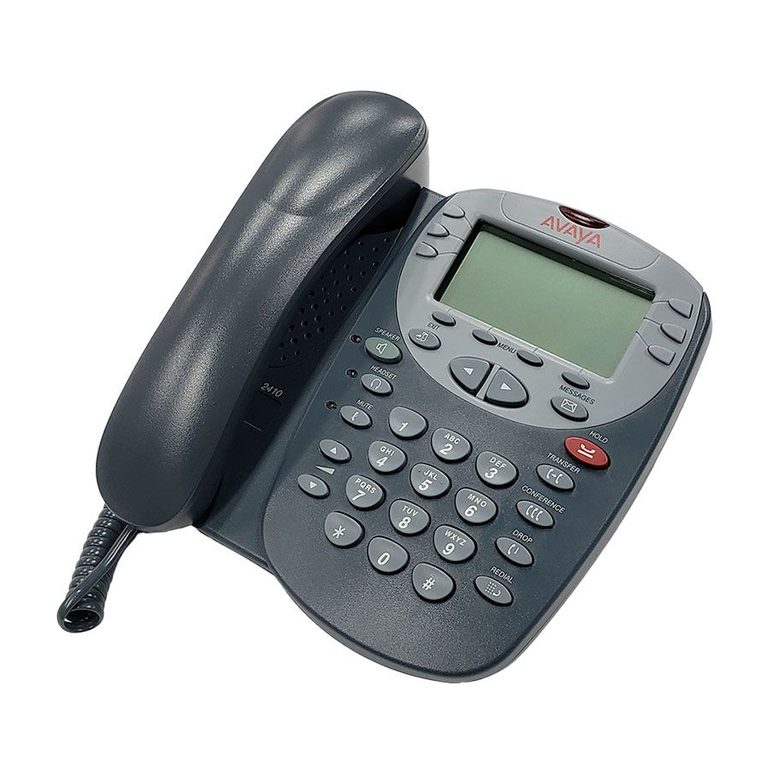
The AVAYA 4610 and 4620 conference feature allows you to conference up to six parties (including
yourself) on the call.
Add a Party to a Conference Call:
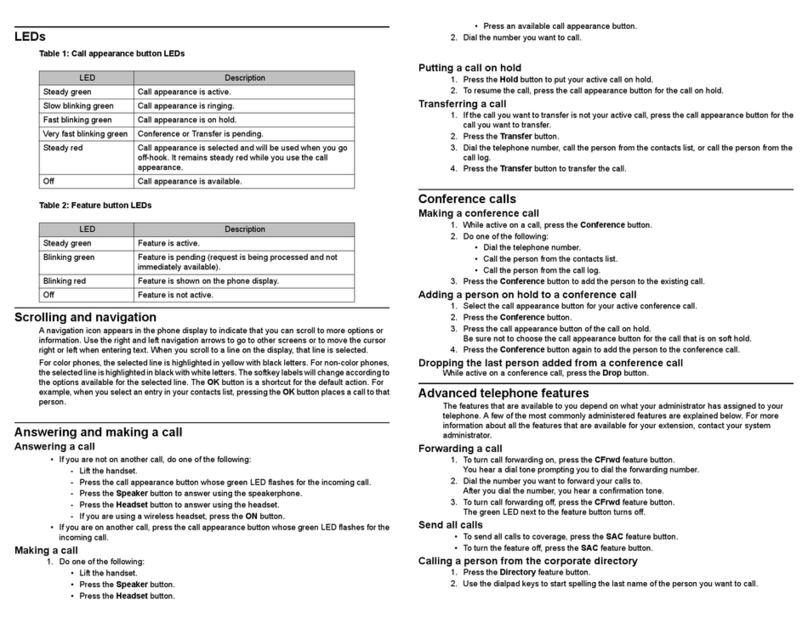
Step 1 – Press the Conference button. The original call is automatically placed on hold.
Step 2 – When you hear a dial tone, dial the number of the person you wish to add.
Step 3 – Wait for an answer.
Step 4 – Press the Conference button again.
Step 5 – If the caller does not answer or does not want to join the call, press the Drop
button if you wish to dial another number. Press the Line softkey if you wish to return
to the caller you placed on hold.
Step 6 – To add another call to the conference call, repeat Step 1 - Step 4.
Add an Incoming Call to a Conference Call:
Step 1 – While on a conference call, press the Line softkey to answer the incoming call. The
conference call will be placed on hold.
Step 2 – To add the active call to the conference, press the Conference button. This will place
the active call on hold to await the connection.
Step 3 – Press the Line softkey to return to the conference call.
Step 4 –Press the Conference button again to add the new call to the conference.
Conference Two Calls – An Active Call and a Call on Hold:
Step 1 – While on the active call, press the Conference button, which will place the active call
on hold.
Step 2 – When you hear a dial tone, press the Line softkey to return to the held call.
Step 3 – Press the Conference button again to place the held call in conference.
Remove Last Person from Conference Call:
Step 1 – Press the Drop button. The last person added to the conference call will be dropped.
VCUnet - VCU Technology Services Problem Calls: 828-2227
www.ephones.vcu.edu Updated: 9/26/07