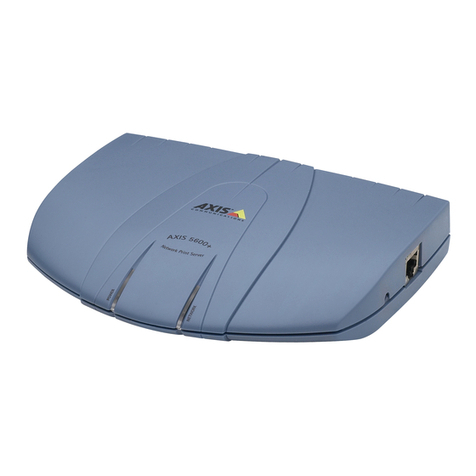
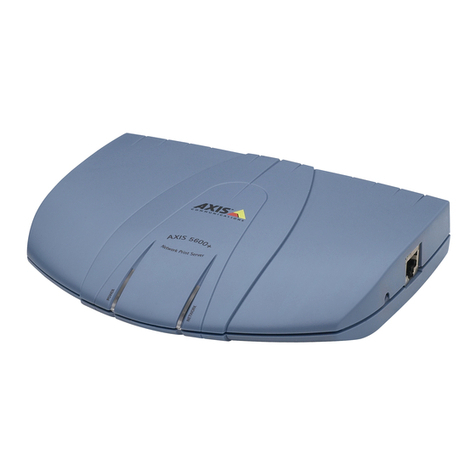
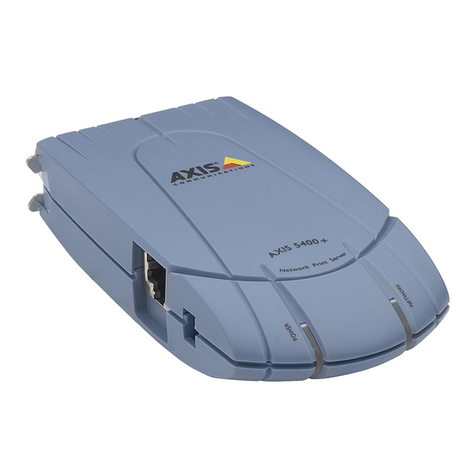
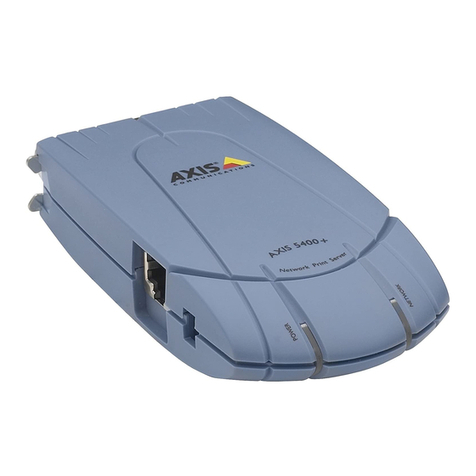
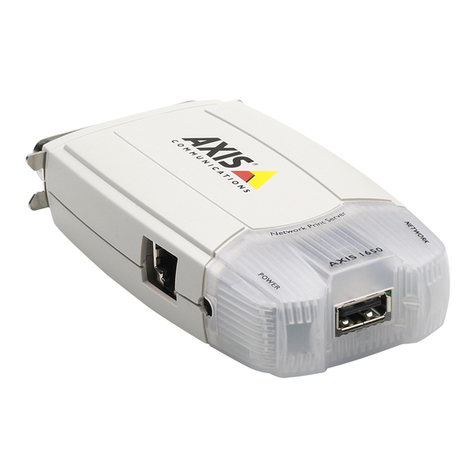
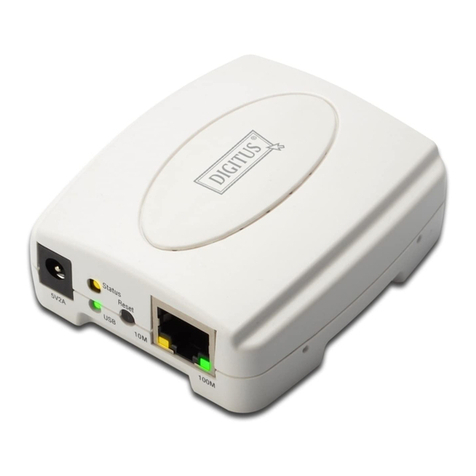
Axis 5600+ User manual

1
AXIS 5400+/AXIS 5600+ User’s Guide
AXIS 5400+/AXIS 5600+
User’s Guide
English

2
AXIS 5400+/AXIS 5600+ User’s Guide
Table of Contents
TECHNICAL SPECIFICATIONS: 116
ENGLISH DEUTSCH: 27
Regulatory Information 3
Before You Start 4
Hardware Inventory 5
Quick Overview 6
Print Server Installation 6
Connect the Hardware 8
Assign an IP address 9
Automatic IP address assignment 9
Manual IP address assignment 9
Set the IP address manually using AXIS IPJumpStarter software 10
Alternative method for setting the IP address manually: Arp/Ping 11
Verify access to the print server’s web pages 12
Make Network Printers available for printing 13
Install Printers in Windows 2000/XP/Server 2003 and NT 13
Install Printers in Windows 98 and Windows Me 18
Install Printers in UNIX/Linux 20
Install Printers in Mac OS X 22
Print Server Management and Configuration 23
Web-based Print Server Management 24
Managing multiple print servers with AXIS ThinWizard software 25
Using the Test Button 26
Schnellübersicht 28
Hardware installieren 30
IP-Adresse zuweisen 31
IP-Adresse automatisch zuweisen 31
IP-Adresse manuell zuweisen 31
IP-Adresse per AXIS IP JumpStarter zuweisen 32
IP-Adresse per ARP/Ping zuweisen 33
Zugang zu den Webseiten des Druckerservers überprüfen 34
Drucker über das Netzwerk hinzufügen 35
Drucker unter Windows 2000/XP/Server 2003 und NT hinzufügen 36
Drucker unter Windows 98 und Me hinzufügen 40
Drucker unter UNIX/Linux hinzufügen 42
Drucker unter Mac OS X hinzufügen 45
Druckerserver-Verwaltung und -Konfiguration 46
Webbasierte Druckerserver-Verwaltung 47
Druckerserver-Verwaltung mit AXIS ThinWizard 48
Taste „Test“ 49
FRANCAIS: 50 ESPANOL: 72
Brève présentation 51
Connexion du matériel 53
Attribution automatique d’une adresse IP 54
Attribution manuelle d’une adresse IP 54
Vérification de l’accès aux pages Web du serveur d’impression 57
Ajout d’imprimantes dans Windows 2000/XP/Server 2003 et NT 59
Ajout d’imprimantes dans Windows 98 et Me 62
Ajout d’imprimantes dans UNIX/Linux 64
Ajout d’imprimantes dans Mac OS X 67
Configuration et gestion du serveur d’impression 68
Gestion du serveur d’impression basée sur le Web 69
Gestion à l’aide de AXIS ThinWizard 70
Le bouton de test 71
Guía rápida 73
Conexión del hardware 75
Asignación automática de una dirección IP 76
Asignación manual de una dirección IP 76
Verifique el acceso a las páginas Web del servidor de impresión. 79
Para agregar impresoras mediante la red 80
Para agregar impresoras en Windows 2000/XP/Server 2003 y NT 81
Para agregar impresoras en Windows 98 y Me 84
Para agregar impresoras en UNIX/Linux 86
Para agregar impresoras en Mac OS X 89
Administración y configuración del servidor de impresión 90
Administración de servidor de impresión basada en la Web 91
Administración de servidor de impresión con AXIS ThinWizard 92
El botón de prueba 93
ITALIANO: 94
Panoramica sul prodotto 95
Collegamento dell’hardware 97
Assegnazione automatica di un indirizzo IP 98
Assegnazione manuale di un indirizzo IP 98
Verifica dell’accesso alle pagine Web del server di stampa 101
Aggiunta di stampanti sulla rete 102
Aggiunta di stampanti in Windows 2000/XP/Server 2003 e NT 103
Aggiunta di stampanti in Windows 98 e Me 106
Aggiunta di stampanti in UNIX/Linux 108
Aggiunta di stampanti in Mac OS X 111
Gestione e configurazione del server di stampa 112
Gestione del server di stampa su base Web 113
Gestione del server di stampa mediante AXIS ThinWizard 114
Pulsante Test 115

3
AXIS 5400+/AXIS 5600+ User’s Guide
English
Regulatory Information
Safety Notices: take some time to read through the safety notices before installing the print server. Please observe all safety markings and instructions
when using this product.
Observe “Important:” in the text to avoid operational impairment. Do not proceed until you have fully understood the implications.
Electromagnetic Compatibility (EMC)
USA
This equipment has been tested and found to comply with the limits for a Class B digital device, pursuant to Part 15 of the FCC Rules. These limits are
designed to provide reasonable protection against harmful interference in a residential installation. This equipment generates, uses and can radiate radio
frequency energy and, if not installed and used in accordance with the instructions, may cause harmful interference to radio communications. However,
there is no guarantee that interference will not occur in a particular installation. If this equipment does cause harmful interference to radio or television
reception, which can be determined by turning the equipment off and on, the user is encouraged to try to correct the interference by one or more of the
following measures:
- reorient or relocate the receiving antenna
- increase the separation between the equipment and receiver
- connect the equipment into an outlet on a circuit different from that to which the receiver is connected
- consult the dealer or an experienced radio/TV technician for help. Shielded (STP) network cables must be used with this unit to ensure compliance with
the class B limits.
Europe
This digital equipment fulfils the requirements for radiated emission according to limit B of EN55022, and the requirements for immunity according to
EN55024 residential, commercial, and light industry. Compliance is not valid for unshielded network cables.
Japan
This is a class B product based on the standard of the Voluntary Control Council for Interference from Information Technology Equipment (VCCI). If this is
used near a radio or television receiver in a domestic environment, it may cause radio interference. Install and use the equipment according to the
instruction manual. Compliance is not valid for unshielded network cables.
Australia
This electronic device meets the requirements of the Radio communications (Electromagnetic Compatibility) Standard 1998 AS/NZS 3548. Compliance is
not valid for unshielded network cables.
Liability: Every care has been taken in the preparation of this manual; if you detect any inaccuracies or omissions, please inform your local Axis office,
which can be found on the cover of this document. Axis Communications AB cannot be held responsible for any technical or typographical errors and
reserves the right to make changes to the product and manuals without prior notice. Axis Communications AB makes no warranty of any kind with regard
to the material contained within this document, including, but not limited to, the implied warranties of merchantability and fitness for a particular
purpose. Axis Communications AB shall not be liable nor responsible for incidental or consequential damages in connection with the furnishing,
performance or use of this material.
Axis’ Trademarks: AXIS IP JumpStarter, AXIS ThinWizard, axinstall, AXIS Print Monitor.
Other Trademark Acknowledgments: Adobe Acrobat Reader, Aix, Apple, ARP, BOOTP, Debian, Ethernet, EtherTalk, IBM, LAN Manager, LAN Server,
Macintosh, Microsoft, Novell NetWare, OS/2, OS/400, AS/400, Red Hat, Solaris, SuSe, UNIX/Linux, Windows, are registered trademarks of the respective
holders.
Support Services: should you require technical assistance, please contact your Axis dealer. If your questions cannot be answered immediately, your Axis
dealer will forward your queries through the appropriate channels to ensure you a rapid response. On the Internet you can find on-line manuals, technical
support, software updates, application software, corporate information, etc.
Patent information: Axis AB has intellectual property rights relating to technology embodied in the product that is described in this document. In
particular, and without limitation, these intellectual property rights may include one or more of the patents listed at http://www.axis.com/patent.htm and
one or more additional patents or pending patent applications in the US and other countries.
Software Acknowledgments: This product includes software developed by the OpenSSL Project for use in the OpenSSL Toolkit.
USER’S GUIDE AXIS 5400+/5600+ | R1.4| Part nr:19850 |November 2003|Copyright © Axis Communications 2003

AXIS 5400+/AXIS 5600+ User’s Guide
4
Before You Start
This guide applies to the AXIS 5400+/AXIS 5600+ with firmware version 6.43 and higher.
The following operating systems are covered in this guide:
• Windows 98, Windows Me, Windows NT, Windows 2000, Windows XP, Windows Server
2003
• Mac OS X
• UNIX/Linux
Note:
The instructions in this guide are based on the settings found in a new and unconfigured AXIS
5400+/AXIS 5600+.
To reload the default parameters, you can perform a Factory Default, which will restore most
settings to their default values. See Using the Test Button on page 26 for instructions.
Installation instructions in this book cover the above operating systems over TCP/IP.
See the AXIS 5400+/AXIS 5600+ User’s Manual, located on www.axis.com for installation instructions
regarding
•Windows over NetBIOS/NetBEUI
•NetWare over IPX/SPX and TCP/IP
•MacOS over Appletalk
English

5
AXIS 5400+/AXIS 5600+ User’s Guide
English
Hardware Inventory
Unpack and check all the items using the following check list. Contact your dealer if anything is
missing or damaged. All packing materials are recyclable.
Hardware Model Part number Power Adapter
Axis Print Server AXIS 5600+ 0129-001-03 PS-H
AXIS 5400+ 0130-001-02 PS-H
Power Adapter Model PS-H Part No.
PS-H
Australia 19111
Europe 19108
Korea 19112
UK 19109
USA / Japan 19110
Media Title Part Number
CD
AXIS Network Product CD rev 1.3 and up
Printed Material
AXIS 5400+/AXIS 5600+ User’s Guide rev 1.4 and up
Optional accessories
(not included in
package)
Description Part Number
Cables
Parallel Printer Cable for AXIS 5600+ 13360
Centronics to Mini Centronics Cable for
AXIS 5400+ 16453
Printer Extension Cable for AXIS 5400+ 13522

AXIS 5400+/AXIS 5600+ User’s Guide
6
Quick Overview
Print Server Installation
Follow these steps in order to get your Axis print server up and running:
1. Connect the Hardware, 8
2. Assign an IP address, 9
3. Make Network Printers available for printing, 13
Web-based Print Server Management
You can access the AXIS 5400+/AXIS 5600+ built-in web pages to manage printing, perform
firmware upgrades, etc. See “Web-based Print Server Management” on page 24.
AXIS 5400+ Internal web page
English

7
AXIS 5400+/AXIS 5600+ User’s Guide
English
AXIS 5400+
AXIS 5600+
Backside label of print server
Note: “S/N” can also appear as “Ser. No.” or “Serial no.”
Power Adapter
connector
Ethernet
connector
Network
indicator
Power
indicator
Test button
Parallel printer port (LPT1)
Ethernet
connector
Power Adapter
connector
Test button
Power
indicator
Network
Indicator
Parallel printer port (LPT1)
Parallel printer port (LPT2)
Serial printer port (COM1)
Serial number same as
MAC/Ethernet number; e.g.
00408c181cf0 =
00-40-8c-18-1c-f0 (Windows)
00:40:8c:18:1c:f0 (Unix/Mac)

AXIS 5400+/AXIS 5600+ User’s Guide
8
1. Connect the Hardware
1. Make sure that the printer is switched off and that the Power Adapter is disconnected from
the print server.
2. Locate the serial number, found on the underside label of the print server, and write it down.
Example: S/N: 00408c181cf0
3. Connect the printer directly to a port on the print server or using an appropriate cable.
4. Connect the AXIS 5400+/AXIS 5600+ to your network (Ethernet Connector), using a twisted pair
RJ45 category 5 cable.
5. Switch on the printer and make sure it is ready for use.
6. Connect the Power Adapter to the print server. The Network Indicator will start flashing when
the print server is correctly connected to the network.
7. Wait1minuteandpressthetestbuttononce.Atest pagewillbeprintedontheconnectedprinter
— keep it handy during the installation. The test page will show the assigned IP address of the
print server.
Test page
Print server’s
IP address
English

9
AXIS 5400+/AXIS 5600+ User’s Guide
English
2. Assign an IP address
2.1 Automatic IP address assignment
If you are working in a network with automatic IP address assignment (e.g. DHCP, RARP, BOOTP,
Auto-IP),your print server will obtain an IP address automatically when you connect it to the
network.
You will find the print server’s IP address on the test page you printed out on page 8,
go to Verify access to the print server’s web pages, on page 12
2.2 Manual IP address assignment
If you wish to set the IP address manually, choose one of these methods:
•AXIS IP JumpStarter - Axis software that locates print servers on your network and allows
you to assign an IP address to them. Recommended for small offices and local networks.
Refer to Set the IP address manually using AXIS IP JumpStarter software on page 10 for
instructions.
•ARP/Ping - use this alternative method to set the IP address for each print server
individually. Refer to Alternative method for setting the IP address manually: ARP/Ping on
page 11 for instructions.
•AXIS ThinWizard for Windows 2000, Windows XP and Windows Server 2003.
Axis software that assists in setting the IP address of several print servers.
Recommended for large organizations and enterprise networks.
Refer to Managing multiple print servers with AXIS ThinWizard software, on page 25

AXIS 5400+/AXIS 5600+ User’s Guide
10
2.2.1 Set the IP address manually using AXIS IP JumpStarter software
AXIS IP JumpStarter software is used to set the IP address of the print server.
1. Install AXIS IP JumpStarter. It is available free of charge on www.axis.com
2. Select the required server from the serial number list in the IP JumpStarter dialog window.
3. From the Server menu, select Set IP Address.
4. Click the radio button that corresponds to your choice of IP setting method. You must define
the Subnet Mask and Default Gateway when assigning a static IP address.
5. Click OK to save your settings.
6. Enter the server root password (by default set to pass), and click OK.
7. The AXIS 5400+/AXIS 5600+ will appear in the list with the assigned IP address.
8. To verify that you have access to the print server’s web pages, highlight the print server in the
list and select Server Home Page from the Server menu.
Note:
If your print server does not appear in the serial number list, refer to the AXIS IP JumpStarter online help files!
Click here to
access the
print server’s
internal
web pages.
English
Other manuals for 5600+
4
This manual suits for next models
1
Table of contents
Languages:
Other Axis Print Server manuals