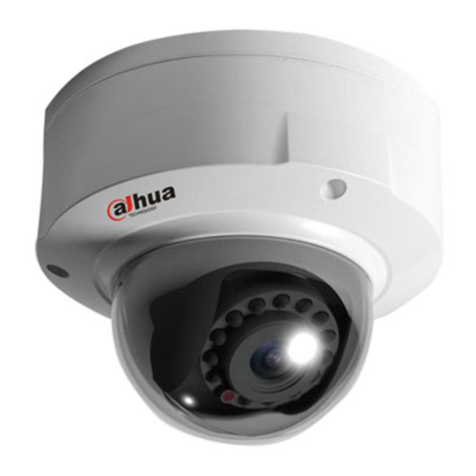
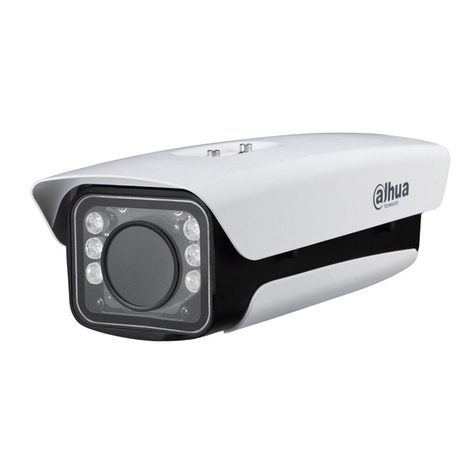
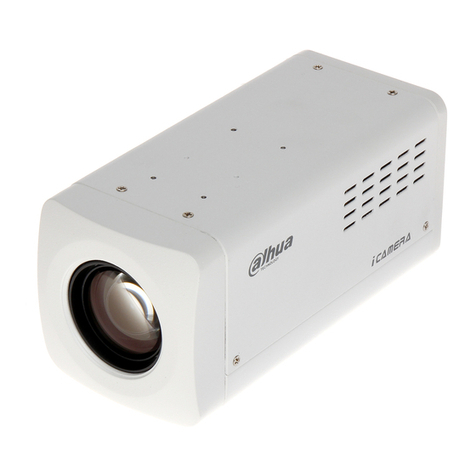
Dahua web 5.0 User manual

Operation Manual
Foreword
General
This manual covers the functions, configuration, general operation and
maintenance of the network camera system.
Security instructions
The following classified signal words with defined meaning may appear in the manual.
signal words Meaning
Indicates a hazard of medium or low potential which, if not
avoided, could result in minor injury or
moderate.
CAVEAT
Indicates a potential risk that, if not avoided, could
cause property damage, loss of data, poor
performance, or other unpredictable result.
CAUTION
TIPS Provides methods to help you solve a problem or
save time.
NOTE Provide additional information such as emphasis or
complement to the text.
revision history
Version Content of the review Release date
V1.0.0 First pitch. October 2020
About the manual
●The manual is just a reference. If you find any discrepancy between the manual and the actual
product, the actual product shall prevail.
●We will not accept any responsibility for losses caused by using the device without
following the instructions in the manual.
●The manual will be updated in accordance with the latest laws and regulations of the
related jurisdictions. For more information, please refer to the printed manual, CD-ROM,
QR code or our official website. In the event of a discrepancy between the printed
manual and the electronic version, the electronic version will prevail.
●All designs and software included herein are subject to change without prior written
notice. Product updates may cause discrepancies between the actual product and the
manual. Contact customer service requesting the updated program and supplementary
documentation.
●Even so, there may be some deviation in technical data, functions and description of
operations, or printing errors. If there is any doubt or controversy, we reserve the right
of final explanation.
●Please update the reader software or try other conventional reader software if you
cannot open the manual (in PDF format).
Yo

Operation Manual
●All trademarks, registered trademarks and company names in the manual are the
property of their respective owners.
●Please visit our website, contact your dealer or customer service if you have problems
using the device.
●If there are uncertainties or controversies, we reserve the right of final explanation.
II

Operation Manual
Safety Warnings and Precautions
important
electrical safety
●All instructions for use and installation must be carried out in accordance with the electrical safety
regulations of your country.
●The power supply must comply with the Safety Low Voltage (SELV) standard and supply
power with a nominal voltage that meets the limited power source requirement in
accordance with IEC60950-1. Power supply requirements are indicated on the device label.
●Make sure the power supply is adequate before using the device.
●An easily accessible disconnect device must be incorporated into the building installation
wiring.
●Protect the power cord from being walked on or pinched particularly at plugs,
convenience receptacles, and the point where they exit from the device.
operating environment
●Do not point the device directly at strong light when focusing, such as lamplight and
sunlight; otherwise, it may cause excessive brightness or light streaks, which will not be
caused by device malfunction and may affect the life of the complementary metal oxide
semiconductor (CMOS).
●Do not place the device in a humid, dusty, extremely hot or cold environment, or in
places with strong electromagnetic radiation or unstable lighting.
●Keep the device away from any liquid to prevent damage to internal components.
●Please keep the indoor device away from rain or moisture to avoid fire or lightning.
●Maintain good ventilation to prevent heat buildup.
●Transport, use and store the device within the permissible limits of humidity and
temperature.
●Do not subject the unit to high pressure, strong vibration, or splashing water during
transportation, storage, and installation.
●When transporting the device, store it in the factory package or use equivalent
materials.
●Install the device in a place that can only be accessed by professional personnel with
relevant knowledge of safety protections and warnings. Failure to do so may cause
damage to non-professionals entering the installation area when the device is operating
normally.
Use and daily maintenance
●Do not touch the heat dissipation component of the device to avoid burns.
II

Operation Manual
●Carefully follow the instructions in the manual when performing any device disassembly
operations; Otherwise, it may cause water leakage or poor image quality due to
unprofessional disassembly. Please contact after-sales service to replace the desiccant if
there is condensation mist on the lens after taking the product out of the box or if the
desiccant turns green. (Not all models include desiccant.)
●It is recommended to use the device together with a lightning rod, to enhance the lightning
protection effect.
●It is recommended to ground the device to improve reliability.
●Do not touch the image sensor (CMOS) directly. Dust and dirt can be removed with an air
blower, or you can wipe the lens gently with a soft cloth moistened with alcohol.
●You can clean the casing of the device with a soft, dry cloth, and for tougher stains, use
the cloth with a mild detergent. To avoid possible damage to the coating of the device
casing which could cause a decrease in performance, do not use volatile solvents such as
alcohol, benzene, white spirit, etc. to clean the device casing, nor can you use a strong
abrasive detergent .
●The domed cover is an optical component. Do not touch or clean the cover with your
hands directly during installation or operation. To remove dust, grease, or fingerprints,
wipe gently with diethyl-moistened oil-free cotton or a soft, damp cloth. You can also
remove dust with an air blower.
CAVEAT
●Strengthen the protection of network, device data, and personal information by taking
measures including, but not limited to, using strong passwords, changing passwords
regularly, updating firmware to the latest version, and isolating of the computer network.
For some devices with old firmware versions, the ONVIF password will not be changed
automatically along with system password change, and you need to update the firmware
or manually update the ONVIF password.
●Please use components or accessories supplied by the manufacturer, and make sure that
professional engineers perform the installation and maintenance of the device.
●The image sensor surface must not be exposed to laser beam radiation in an
environment where a laser beam device is used.
●Do not provide two or more power sources for the device unless otherwise specified.
Failure to follow these instructions could damage the device.
IV.

Operation Manual
Index of contents
Foreword ................................................. ................................................................ ................................................................ ..
I Important Safety Warnings and Precautions..................................................... .......................... III 1Overview................................................ ................................................................ .................................... 1
1.1 Introduction................................................... ................................................................ ................................ 1
1.2 Network connection ................................................... ................................................................ .......................... 1
1.3 Configuration flow................................................... ................................................................ ................. 1
Device initialization .................................................. ................................................................ ............ 3
Access................................................. ................................................................ .................................................. 7
3.1 Log in to the device..................................................... ................................................................ .....7
3.2 Reset password.......................................................... ................................................................ ............ 8
Straight ................................................. ................................................................ .................................................... 10
4.1 Live Interface................................................... ................................................................ ...................... 10
4.2 Encryption configuration ................................................... ................................................................ . eleven
config. ................................................................ ................................................................ ............................................ 12
5.1 Network..................................... ................................................................ .................................................... 12
5.1.1 TCP/IP.................................. ................................................................ .................................... 12
5.1.2 Port ........................................ ................................................................ .................................. fifteen
5.1.3 Email ................................................... ................................................................ ..............17
5.1.4 Basic service................................................... ................................................................ ...................... 19
5.2 Event................................................ ................................................................ ........................................ twenty
5.2.1 Alarm input configuration .................................................. ..................................... twenty-one
5.2.2 Establish alarm linkage .................................................. ......................................... 22
5.2.2.1 Add schedule..................................................... ................................................................ ... 2. 3
5.2.2.2 Recording linking .................................................. ......................................... 24
5.2.2.3 Linking snapshots .................................................. ......................................... 25
5.2.2.4 Linkage of alarm output.................................................. .................................... 25
5.2.2.5 Email linking..................................................... .................................. 26
5.3 System.................................................. ................................................................ ...................................... 26
5.3.1 General ................................................ ................................................................ ................................. 26
5.3.1.1 Basic ..................................... ................................................................ ............................ 26
5.3.1.2 Date and time ............................................ ................................................................ .................. 27
5.3.2 Account ..................................... ................................................................ .................................. 28
5.3.2.1 User................................................... ................................................................ ............................ 28
5.3.2.1.1 Add users ................................................ ................................................................ .....28
5.3.2.1.2 Reset password .................................................. ....................................... 31
5.3.2.2 ONVIF user............................................ ................................................................ ..............32
5.3.3 Managers................................................... ................................................................ ............................. 33
two
3
4
5
V

Operation Manual
5.3.3.1 Requirements..................................... ................................................................ ...................... 33
5.3.3.2 Maintenance................................................... ................................................................ ............. 3. 4
5.3.3.3 Import/Export............................................ ................................................................ ..........35
5.3.3.4 Default................................................... ................................................................ ............ 35
5.3.4 Update ................................................ ................................................................ ...................... 36
Appendix 1 Cybersecurity recommendations.................................................. ................................. 37
SAW

Operation Manual
1Overview
1.1 Introduction
An IP camera (Internet Protocol camera), is a type of digital video camera that receives
control data and sends image data over the Internet. They are commonly used for
surveillance and do not require a local recording device, just a local area network.
The IP camera is divided into single-channel camera and multi-channel camera according to the
number of channels. For multi-channel camera, you can set the parameters for each channel.
1.2 Network connection
In the general IP camera (IPC) network topology, the IPC connects to the PC through a
network switch or router.
Figure 1:1 overall IPC network
Cable
switch or router
Cable
either
CPI pc
Obtain the IP address by searching in the ConfigTool, and then you can start to access the IPC
over the network.
1.3 Configuration flow
For more information, see Figure 1:2. For details, see Table 1:1. Please configure the device
according to the actual situation.
1

Operation Manual
Figure 1:2 setup flow
Yes
Access It has started? configure parameters
basic
configure parameters
of events
Nope
set direction
IP configuration of
Initialize alarm input
Set the time of
system establish pairing
alarm
main task
secondary task
assessment task
set mail
electronic
Table 1:1 flow description
Setting Description Reference
Open the IE browser and input
the IP address to log in the web
interface. The IP address of the
camera is 192.168.1.108 by
default.
Access " 3 Access".
Start the camera when you use it
for the first time.
" 2 Initializing the
device"
initialization
Please change the IP address
according to the network planning
to use the product for the first time
or during the network setting.
IP adress " 5.1.1 TCP/IP"
parameters
basic
Set the date and time to make
sure the recording time is
correct.
date and
hour
" 5.3.1.2 Date and
hour"
two

Operation Manual
two device initialization
It is necessary to start the device for the first use. This manual is based on the operation of
the web interface. You can also start the device via ConfigTool or NVR.
●To ensure the security of the device, please keep the password properly
after startup and change it regularly.
●When starting the device, please keep the PC IP and the device IP in the same network.
Step 1: Open the Chrome browser, enter the IP address of the device in the address
bar, and then press the Enter key.
The IP is 192.168.1.108 by default.
Figure 2:1 region settings
Step 2: Please select the area, language and video standard according to the actual
situation, and then clickFollowing(Next).
3
Table of contents
Other Dahua Security Camera manuals

Dahua
Dahua IPCMW1230DP-VM12 User manual

Dahua
Dahua HFW2100R-VF User manual

Dahua
Dahua DH-IPC-PDBW8800-A180 User manual

Dahua
Dahua HAC-HFW2501T-Z-A User manual

Dahua
Dahua DH-HAC-EB2401 User manual

Dahua
Dahua N28BB7Z User manual

Dahua
Dahua F Series User manual

Dahua
Dahua DH-IPC-AX6 User manual

Dahua
Dahua F Series User manual

Dahua
Dahua 6CE445XANR User manual

Dahua
Dahua SD8A840WA-HNF User manual

Dahua
Dahua N65CL5Z User manual

Dahua
Dahua SD8A240VI-HNI User manual

Dahua
Dahua DH-SD6C430U-HNI User manual

Dahua
Dahua HAC-HFW1800T-A-0280B User manual

Dahua
Dahua 40212TNI User manual

Dahua
Dahua IPC-HUM8101 User manual

Dahua
Dahua NK8BB7Z User manual

Dahua
Dahua DH-SD49212I-HC User manual

Dahua
Dahua DH-SP-PIXX User manual