manuals.online logo
Brands
  1. Home
  2. •
  3. Brands
  4. •
  5. Dell
  6. •
  7. Computer Accessories
  8. •
  9. Dell POWER VAULT 130T LIBRARY 130T User manual

Dell POWER VAULT 130T LIBRARY 130T User manual

Other manuals for POWER VAULT 130T LIBRARY 130T

3

Other Dell Computer Accessories manuals

Dell OptiPlex Micro Form Factor User manual
Dell

Dell OptiPlex Micro Form Factor User manual

Dell Wyse 3010 User manual

Dell

Dell Wyse 3010 User manual

Dell OptiPlex 3080 Tower User manual

Dell

Dell OptiPlex 3080 Tower User manual

Dell Precision Compact User manual

Dell

Dell Precision Compact User manual

Dell Precision Dual USB Type-C Thunderbolt 3 Dock User manual

Dell

Dell Precision Dual USB Type-C Thunderbolt 3 Dock User manual

Dell DL1000 User manual

Dell

Dell DL1000 User manual

Dell OptiPlex Small Form Factor User manual

Dell

Dell OptiPlex Small Form Factor User manual

Dell PN556W User manual

Dell

Dell PN556W User manual

Dell Inspiron One 2020 User manual

Dell

Dell Inspiron One 2020 User manual

Dell OptiPlex 3080 Tower User manual

Dell

Dell OptiPlex 3080 Tower User manual

Dell OptiPlex 5050 Tower User manual

Dell

Dell OptiPlex 5050 Tower User manual

Dell Latitude Systems PR09S User manual

Dell

Dell Latitude Systems PR09S User manual

Dell Thunderbolt Dock WD22TB4 User manual

Dell

Dell Thunderbolt Dock WD22TB4 User manual

Dell OptiPlex 5090 Tower User manual

Dell

Dell OptiPlex 5090 Tower User manual

Dell OptiPlex 7090 User manual

Dell

Dell OptiPlex 7090 User manual

Dell OptiPlex XE4 Tower User manual

Dell

Dell OptiPlex XE4 Tower User manual

Dell Pro Wireless KM5221W User manual

Dell

Dell Pro Wireless KM5221W User manual

Dell KM714 User manual

Dell

Dell KM714 User manual

Dell Latitude Rugged DisplayPort User manual

Dell

Dell Latitude Rugged DisplayPort User manual

Dell Canvas Pen User manual

Dell

Dell Canvas Pen User manual

Dell KM632 User manual

Dell

Dell KM632 User manual

Dell KM7171 User manual

Dell

Dell KM7171 User manual

Dell OptiPlex 7080 Small Form Factor User manual

Dell

Dell OptiPlex 7080 Small Form Factor User manual

Dell OptiPlex 3080 Small Form Factor Cable Cover User manual

Dell

Dell OptiPlex 3080 Small Form Factor Cable Cover User manual

Popular Computer Accessories manuals by other brands

Netstor NA255A user manual

Netstor

Netstor NA255A user manual

perixx PERIDUO-610 user manual

perixx

perixx PERIDUO-610 user manual

Cherry PURE JD-0100 operating manual

Cherry

Cherry PURE JD-0100 operating manual

Cool-Icam DICK II user manual

Cool-Icam

Cool-Icam DICK II user manual

Motorola ATRIX user guide

Motorola

Motorola ATRIX user guide

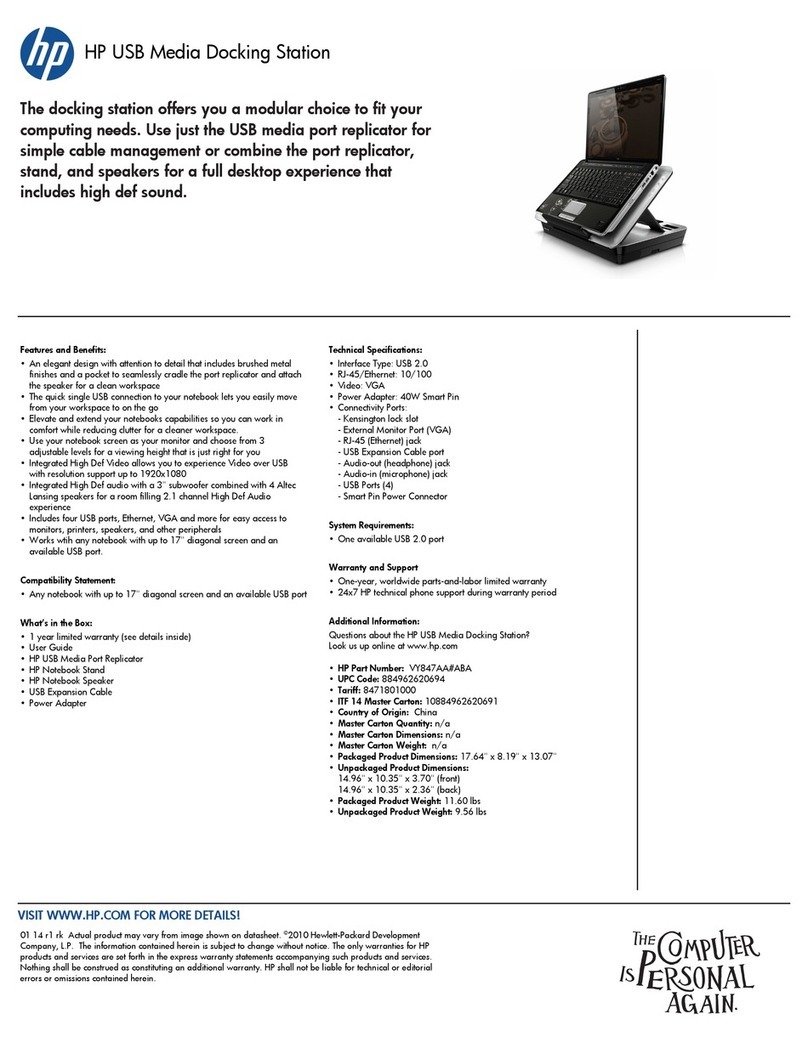
HP USB Media Docking Station specification

HP

HP USB Media Docking Station specification

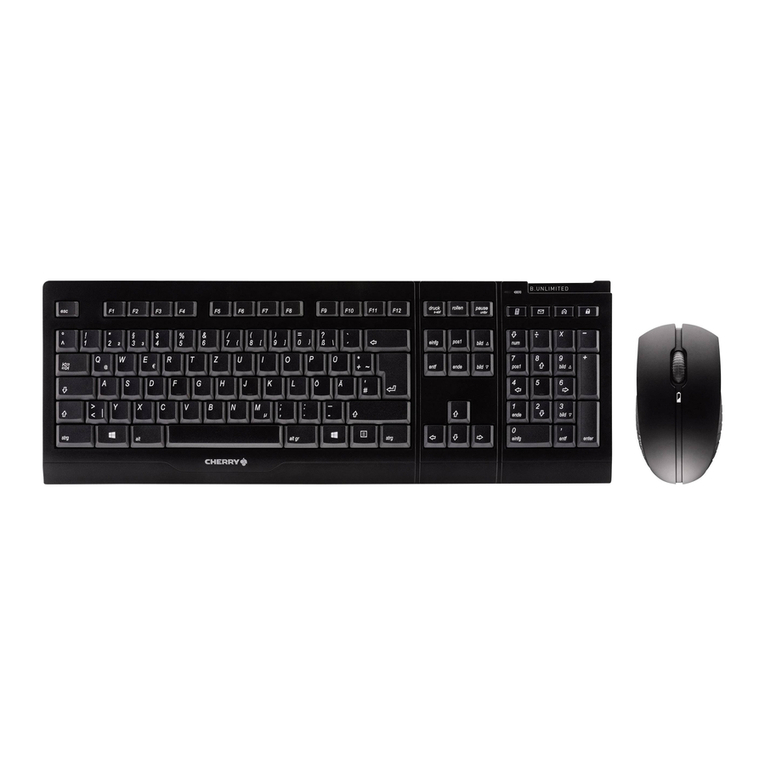
Cherry B.UNLIMITED 3.0 user manual

Cherry

Cherry B.UNLIMITED 3.0 user manual

Bartec TC 7 Series user guide

Bartec

Bartec TC 7 Series user guide

Philips SPC3540 Specifications

Philips

Philips SPC3540 Specifications

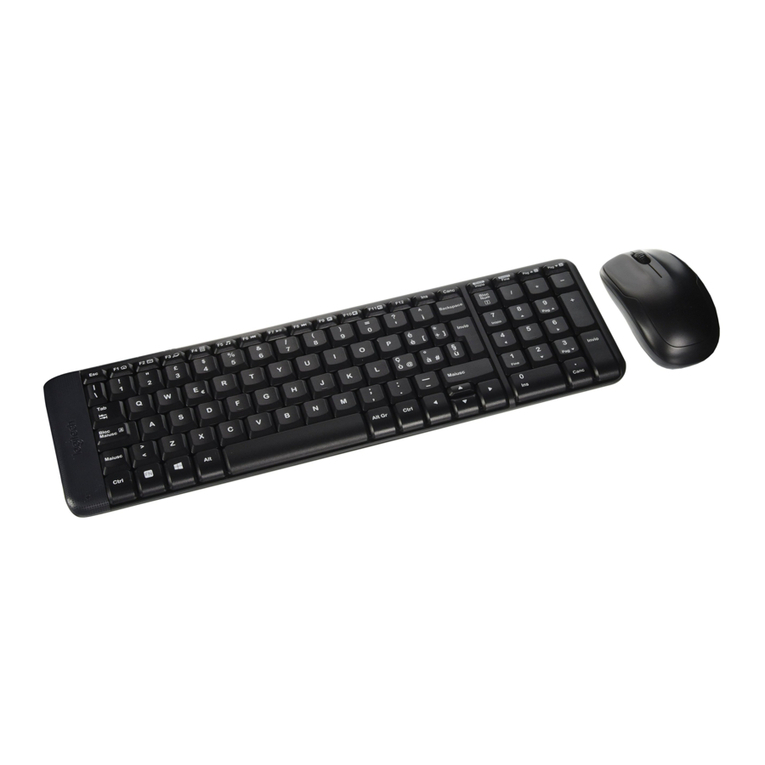
Logitech mk220 user manual

Logitech

Logitech mk220 user manual

Vivo MOUNT-KB05-4DW instruction manual

Vivo

Vivo MOUNT-KB05-4DW instruction manual

SilverStone LC02 manual

SilverStone

SilverStone LC02 manual

Flexispot ML2B installation guide

Flexispot

Flexispot ML2B installation guide

Hamlet UNIVERSAL COVER 101 KBT2 user manual

Hamlet

Hamlet UNIVERSAL COVER 101 KBT2 user manual

Adam Equipment RS-485 manual 

Adam Equipment

Adam Equipment RS-485 manual 

Sven Base 305 сombo instructions

Sven

Sven Base 305 сombo instructions

Hama 108310 Operating	 instruction

Hama

Hama 108310 Operating instruction

SpeechWare FlexyMike FMK03 user manual

SpeechWare

SpeechWare FlexyMike FMK03 user manual

manuals.online logo
manuals.online logoBrands
  • About & Mission
  • Contact us
  • Privacy Policy
  • Terms and Conditions

Copyright 2025 Manuals.Online. All Rights Reserved.

www.dell.com
®
Dell PowerVault™130T Library
DRIVE INSTALLATION GUIDE
www.dell.com
®
Dell PowerVault™130T Library
DRIVE INSTALLATION GUIDE
____________________
Information in this document is subject to change without notice.
© 1997–1998 Dell Computer Corporation. All rights reserved.
Reproduction in any manner whatsoever without the written permission of Dell Computer Corporation
is strictly forbidden.
Trademarks used in this text: Dell, the DELL logo are registered trademarks, and PowerVault is a trade-
mark of Dell Computer Corporation.
Other trademarks and trade names may be used in this document to refer to either the entities claiming
the marks and names or their products. Dell Computer Corporation disclaims any proprietary interest
in trademarks and trade names other than its own.
October 1998 5085D Vendor P/N 61839
Drive Tray Conversion Instructions 1
PowerVault 130T Drive
Installation Instructions
DLT Drive Tray Assembly
These installation instructions describes how to remove, install and configure a DLT Drive
Tray Assembly into the PowerVault 130T.
Before beginning this procedure be sure to take note of your drive configuration. You may
need this later to reconfigure your new or additional drives.
NOTE: Tape drives are hot swappable, meaning they can be removed and replaced without
powering off the library or interrupting its operations. Hot swapping should only be
performed by trained technicians.
WARNING: HIGH VOLTAGE! DO NOT TOUCH any components on the power
supply located within the electronics module or on the drive trays. Live voltage
could be present even though the unit is powered off. (Refer to U03 in Safety
Booklet)
Removing the DLT Drive Tray Assembly
CAUTION: If the drives are daisy-chained do not disconnect them from the bus
without stopping all data processing on the channel. Before disconnecting the
external SCSI cables, make sure there is no activity on the SCSI bus. The host
must be quiesced, meaning that there is no activity on the SCSI bus. Do not
disconnect a hot bus. Any third party software must be quiesced. All signals
must be terminated at each end of the SCSI bus.
Follow the instructions below to remove a DLT Drive Tray Assembly. The tape drives are
located in the tape drive slots at the left rear of the library.
1. Loosen the three thumbscrews from the hinged door at the rear of the library and
open the door.
2 Drive Tray Assembly Conversion Instructions
Figure 1. Back Vziew of Drive Tray Assembly
Back View of Drive Tray Assembly
Item
Number
Parts Description
1TapeDrive
2 Thumbscrew (3x)
3 Hinged Door
Drive Tray Conversion Instructions 3
Figure 2. Interface Connection and Power
Interface Connection and Power
2. Disconnect the power cable from the tape drive.
CAUTION: Disconnect the tape drive interface cable (P980-P983), as described
in the next step, before removing the tape drive. Make sure the cable is out of
the tape drive bay by removing it from the rectangular hole to prevent the
cable from being damaged.
3. Disconnect the tape drive interface cable from the tape drive.
NOTE: The tape drive interface cable (P980-P983) markings face the rear of the tape drive.
Note this orientation when reinstalling the drive interface cable. The connector is keyed but
it is still possible to insert it incorrectly.
4. Disconnect the SCSI cable connectors and/or terminator from the rear of the drive.
Save the old terminator, if any.
Item
Number
Parts Description
1 PowerReceptacle
2 Tape Drive Interface Connector
3 Thumbscrew (2x)
4 Drive Tray Assembly Conversion Instructions
5. Loosen the two thumbscrews at the rear of the drive assembly.
6. Using both hands, remove the drive assembly from the drive slot, placing it on a flat,
stable surface.
WARNING: DO NOT apply power to the tape drive when it is outside of the
drive slot. To avoid damaging the drive, do not operate the load latch manually
while the drive is outside the library.
Replacing the Tape Drive Tray assembly
1. If you are replacing your drive with a new drive, unpack the assembly and inspect it for
damage such as bent, broken, or loose parts.
•Verify that the tape drive model and serial numbers match those on the shipping
invoice. Labels on top of the drive show either DLT4000 or DLT7000.
•Verify that required cables are present.
•Report any damaged or missing items to your Dell representative.
WARNING: Do not touch any components on the power supply. Live voltage
could be present even though the unit is powered off.
Figure 3. Setting TermPwr
3
1
2
A
Drive Tray Conversion Instructions 5
Setting TermPwr
2. To check terminator power (TERMPWR), remove the two power supply cover screws
using a Torx driver with a T-15 bit, and lift the cover (pulling forward slightly) enough to
see the jumpers. For safety, do not remove the cover completely.
3. Set the TERMPWR on or off (enabled or disabled) on the new tape drive to match the
drive you are replacing. The figure shows the right side of the tape drive (as you face
its front). The drives are shipped from the factory with TERMPWR on.
•Install the jumper on the pins as shown to set TERMPWR on.
•Remove the jumper from the pins to set TERMPWR off. You may store the
jumper by placing it on one pin only.
4. Return the power supply cover to its previous position and reinstall the two screws
holding it in place.
CAUTION: When sliding the drive into its bay, make sure the tape drive
interface cable (with connectors P980-P983) is out of the way. Do not force the
tape drive into the drive slot.
5. Slide the drive into its slot, being careful not to catch or crush any cables.
6. Tighten the two thumbscrews on the back of the tape drive.
CAUTION: efore connecting the external SCSI cables, make sure there is no
activity on the SCSI bus. Do not connect to a hot bus. Any third party software
must be quiesced. All signals must be terminated at each end of the SCSI bus.
Do not mix single-ended and differential terminators.
Item
Number
Parts Description
1 Power Supply Cover
2 Power Supply Cover Screw Location
(2x)
3 TermPwr Jumper, second pair of pins
from end of connector (shown enabled)
6 Drive Tray Assembly Conversion Instructions
Figure 4. Connecting the SCSI cable
Connecting the SCSI cable
CAUTION: The tape drive interface cable (P980-P983) marking faces the rear of
the tape drive. Note this orientation when reinstalling. The connector is keyed
but it is still possible to insert it incorrectly.
7. Connect the tape drive interface cable (P983) to the tape drive interface connector on
the tape drive.
8. Connect the tape drive power cable to the tape drive.
Item
Number
Parts Description
1 Tape Drive Interface Cable (P983)
2 Thumbscrew (2x)
3 SCSI Connector (2x Per Drive)
4Drive0
Drive
Number
Drive Interface Connector
Drive 0 P983
Drive 1 P982
Drive 2 P981
Drive 3 P980