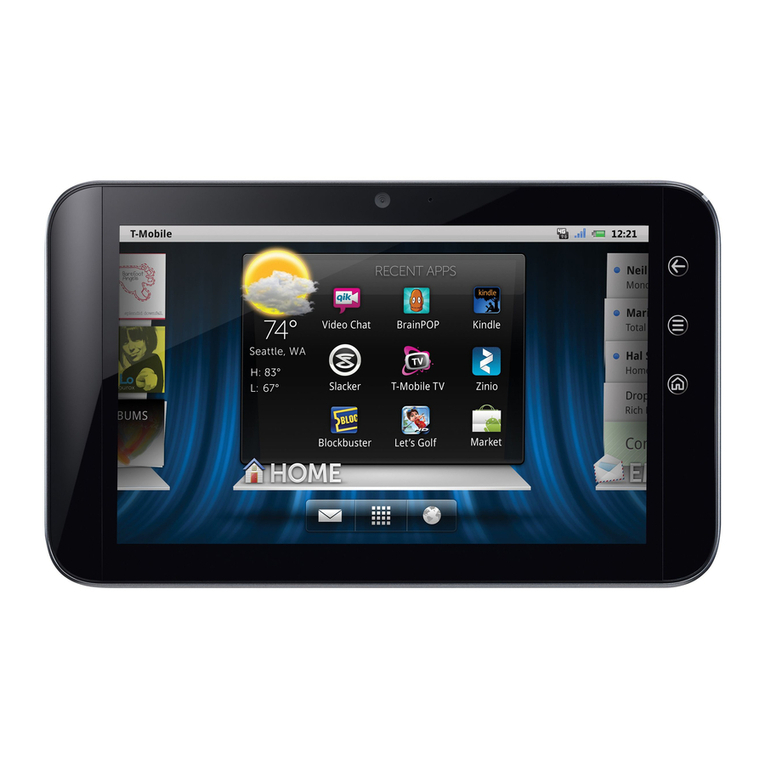
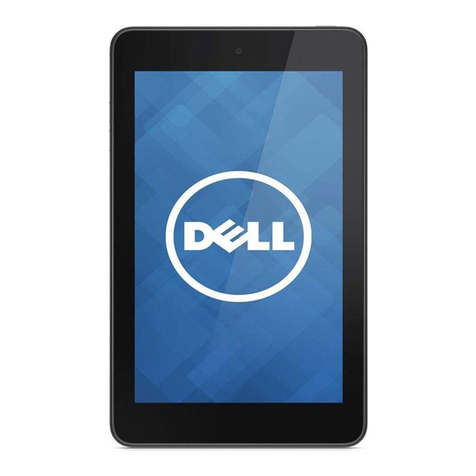
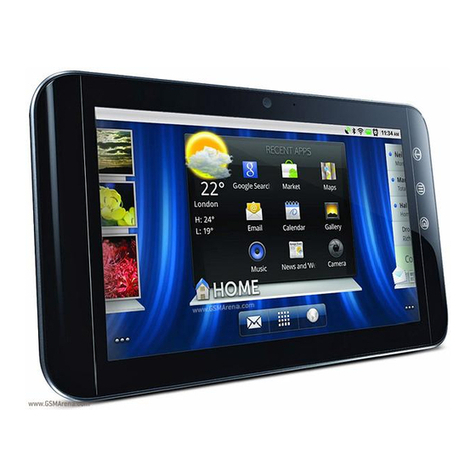
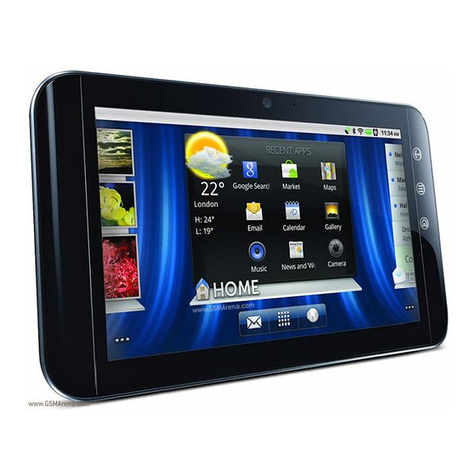
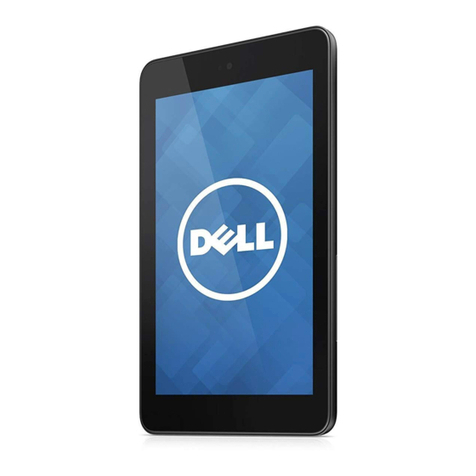
Dell Streak7 Guide

START GUIDE
TM1745
Y56X4
TM1745_Dell Claire Start Guide Cover.ai
FILE NAME PRI N T ING STAT I O NS: 6 MATCH COLORS:
11.15.10
DATE
CREATIVE APPROVAL
PRODUCT SUPPLIER
PRINTER CONTACT
PRODUCTION APPROVAL PROOFREADING APPROVAL
mb/vlo
DRAWN BY DIELINE INFORMATION
CLIENT SIGNATURE INDICATES THAT THE CLIENT HAS PROOFREAD COPY AND CLOSELY EXAMINED ART FOR FINAL APPROVAL OF THIS MECHANICAL FILE TO PROCEED TO THE PRINTER. PHILIPPEBECKER IS NOT RESPONCIBLE FOR PROOFREADING
COPY OF OTHER MATERIALS SUPPLIED. SPELLING, PUNCTUATION, GRAMMAR, AND CONTECT ARE THE SOLE RESPONSIBILITY OF THE CLIENT. THIS MECHANICAL FILE CONTAINS PROPRIETARY INFORMATION AND IS CONFIDENTIAL.
CONFIDENTIAL
THIS PROOF
IS NOT FOR
COLOR MATCH
612 Howard Street | Suite 200
San Francisco, CA 94105
T 415 348 0054 | F 415 348 0063
beckersf.com
CYAN MAGENTA YELLOW BLACK
SPOT SPOTSPOT
T-Mobile
MAGENTA
PMS 877
SPOT

OVERVIEW
This guide helps you get started, but
if you need more information:
n For software, hardware, troubleshooting, warranty
questions, please go to www.support.dell.com or
call 1-800-308-3355. For Dell hearing and speech
impaired support, call via TTY at 1-877-DELLTTY.
n For billing, coverage, and connectivity questions,
please go to www.support.t-mobile.com or call
1-800-937-8997. For T-Mobile hearing and speech
impaired support, call via TTY at 1-877-296-1018.
n For T-Mobile HotSpot or Wi-Fi questions,
please call 1-877-822-SPOT.
You can also access Help information on your device:
1. From any Home screen, tap the Applications icon.
2. Tap My Device.

TABLE OF CONTENTS
Service Activation ......................................................1
Introducing Your Device ............................................2
Cool Apps .................................................................3
SIM Card ...................................................................4
Memory Card ............................................................5
Battery .......................................................................6
Power ........................................................................7
Google™ Account ......................................................7
Home Screens ..........................................................8
Application Menu ....................................................10
Notication Screen ..................................................10
Contacts ..................................................................11
Volume & Tones ......................................................12
Typing ......................................................................13
E-mail Setup ............................................................14
Bluetooth® ...............................................................18
Wi-Fi ........................................................................19
Caring for Your Device ............................................20
Tips for Safety .........................................................21
Additional Information .............................................22

12
SERVICE ACTIVATION
You have choices when activating your device with
T-Mobile. For more information on which is the right
plan for you, please go to www.t-mobile.com.
Prepaid Mobile Broadband
If you choose to sign up for Prepaid Mobile Broadband
service, you will be directed to a Web page where
you can activate your device for use on the T-Mobile
network. After setup, you will be automatically directed
to select and purchase a Mobile Broadband Data Pass,
which will allow you to browse on T-Mobile’s network
on the go without connecting to a Wi-Fi network!
By activating service, you acknowledge that you have read,
understand, and agree to be bound by each of T-Mobile’s Terms and
Conditions and your Service Agreement.
INTRODUCING YOUR DEVICE
Power/
Lock Key
Volume
Keys
Back
Key
Menu
Key
SIM
Card
Slot
Memory
Card
Slot
Applications
Icon
Charger
Port Home
Key
Headset
Jack

34
COOL APPS
Your device comes with the following cool apps:
n T-Mobile TV brings you a selection of
on-demand
TV, including news, sports,
and full episodes of kids’ programming.
n T-Mobile Video Chat powered by Qik will
keep you close to friends and family through
two-way live Video Chat and Video Mail.
Other apps include:
n Educational content and games that engage
kids both at home and at school.
n Thousands of books and full color
magazines on the go.
n Watch the newest movies, play your favorite games,
and listen to free personalized radio on the go.
SIM CARD
Your Subscriber Identity Module (SIM) card
identies you to the wireless network. Your
device will not work without the SIM card.
Your SIM card is already in your device:
If you need to remove the SIM card:
1. Open the SIM and memory card slot cover.
2. Gently press the SIM card in and then
release. The card will pop out of the slot.
To insert the SIM card:
1. Open the SIM and memory card slot cover.
2. Insert the SIM card as shown. Gently press the card
in until it is fully inserted and then close the cover.
SIM / Memory Card Slot Cover

56
MEMORY CARD
Your device has 16 GB of built in memory and an
extendable memory card slot, but does not come
with a removable SD memory card. You can purchase
a card separately to store multimedia les, such as
video clips, music tracks, sound les, and images.
Insert the memory card
1. Open the SIM and memory card slot cover.
2. Insert the memory card as shown. Press the
memory card in until it is fully inserted.
3. Close the SIM and memory card slot cover.
BATTERY
Note: You cannot remove your device’s back cover and battery.
1. Attach the plug onto the charger, and connect
the USB end of the cable to the charger.
2.
Insert the
other end of the cable into the charger
port on the bottom of your device as shown, and
then plug the charger into an electrical wall outlet.
Remove the memory card
1. Open the SIM and
memory card slot cover.
2. Press the memory card
in and release. The card
will pop out of the slot.
SIM / Memory Card Slot Cover

78
POWER
To turn on your device, press and hold the
Power key on the top of your device.
To turn it off, press and hold the Power key.
Tap Power Off and tap OK.
GOOGLE™ ACCOUNT
The rst time that you power on your device,
you can go through the tutorial.
You will need to either create a new Google
account or to sign in using an existing one. Follow
instructions on the screen to create or to sign in.
Note: You can skip signing into a Google account, but
you will not be able to take advantage of all your device’s
functionalities.
HOME SCREENS
Your device has seven Home screens. Swipe left and right
to view all the screens. You can customize each screen
with widgets and shortcuts to your favorite applications.
Swipe from
right to left to see
Home screens
to the left.
Swipe from
left to right to see
Home screens
to the right.

910
Dell Stage
The Dell Stage widgets appear on the Home
screen and provide quick access to recently used
applications, contacts, music, pictures, and more.
The Dell Stage Home widget displays the current
weather and your most recent applications. Tap the
Home key to go to Stage Home from anywhere.
Add widgets, shortcuts, and folders to your Home
screen
1. Navigate to the Home screen panel
where you want to add the item.
2. Touch and hold an empty spot on your Home screen.
3. Tap Shortcuts, Widgets, Stage Widgets, or Folders.
4. Tap the item you want to add.
Remove items from your Home screen
1. Touch and hold the item you want to
delete from your Home screen.
2. Drag and drop it onto the Trash icon.
Change your wallpaper
1. Touch and hold an empty spot on your Home screen.
2. Tap Wallpapers.
3. Tap Gallery, Live wallpapers, or Wallpapers.
4. Tap the desired wallpaper.
5. If necessary, touch within the frame to move
the crop box, or touch and drag the frame
edge to adjust the crop boundary.
6. Tap Save or Set wallpaper.
APPLICATIONS MENU
From any Home screen, tap the Applications icon
to open the Applications menu. Touch and slide your
nger left or right on the screen to scroll through your
applications. Applications are in alphabetical order.
NOTIFICATION SCREEN
To view your notications, touch and drag the Status
Bar down to open the Notication screen.
Touch and
drag the
Status
Bar down

11 12
CONTACTS
Add new contact
1. From any Home screen, tap the Applications icon.
2. Tap Contacts.
3. Tap the Menu key.
4. Tap New contact.
5. Tap the First name eld and enter
the contact’s rst name.
6. Tap the Enter key or Next.
7. Enter the contact’s last name.
8. Tap the Enter key or Next.
9. Tap the green Plus icon next to Phone.
10. Tap the Phone eld and enter the phone number.
11. Continue on to enter more contact information.
12. Tap Done when nished.
VOLUME & TONES
Adjust media volume
While watching a video or listening to music, press the
Volume key up or down to the desired volume setting.
Adjust touch tone volume
1. From any Home screen, tap the Menu key.
2. Tap Settings.
3. Tap Sound.
4. Tap to select or clear the Audible Selection check box.
Silence volume
1. From any Home screen, tap the Menu key.
2. Tap Settings.
3. Tap Sound.
4. Tap to select the Silent mode check box to
silence all sounds except media and alarms.
Set notification ringtone
1. From any Home screen, tap the Menu key.
2. Tap Settings.
3. Tap Sound.
4. Tap Notication ringtone.
5. Tap the desired tone.
6. Tap OK.

13 14
TYPING
Use the on-screen keyboard
You can enter text using your on-screen keyboard
in either portrait or landscape view.
n To open the on-screen keyboard, tap a text entry eld.
n To close the on-screen keyboard, tap the Back key.
Use Swype® text entry mode
Swype text entry mode is a fast and easy way to enter
text. Input any word with a continuous nger motion
across the on-screen keyboard. For example, to enter the
word CAT, touch the letter C and slide your nger to A
and then to T and then lift your nger from the screen.
Change keyboard input mode
1. Touch and hold an active text eld.
2. Tap Input method.
3. Tap Swype or Android keyboard.
E-MAIL SETUP
Set up Internet e-mail
If you have already signed in to your Google account when
you rst power on, then you will be directed to your account
e-mail inbox when you tap the Envelope icon on the
Home screen. See the Add more Internet e-mail accounts
section for information on how to add more accounts.
If you have skipped signing in to your Google account
when you rst power on, then you will see the screen to add
a new e-mail account. Follow instructions below to add:
1. From any Home screen, tap the Envelope icon.
2. Tap the Email address eld and
enter your e-mail address.
3. Tap Next.
4. Enter your password.
5. Tap Done.
6. Tap Next.
7. Tap OK.
8. Enter a name for the account (optional).
9. Enter how you want your name
displayed on outgoing e-mails.
10. Tap Done.
Other manuals for Streak7
2
Table of contents
Other Dell Tablet manuals

Dell
Dell Latitude 12 7212 User manual

Dell
Dell 8 User manual

Dell
Dell STREAK 7 User manual

Dell
Dell Streak User manual

Dell
Dell XPS 12 User manual

Dell
Dell M02M002 User manual

Dell
Dell Venue 10 Pro 5056 User manual

Dell
Dell INSPIRON K08A001 User manual

Dell
Dell Venue 8 7000 Series User manual

Dell
Dell Streak User manual

Dell
Dell P08T User manual

Dell
Dell Venue 8 7000 Series User manual

Dell
Dell Venue User manual

Dell
Dell XPS10 User manual

Dell
Dell Venue 7 User manual

Dell
Dell Venue User manual

Dell
Dell Latitude 7212 User manual

Dell
Dell Latitude 12 Rugged 7202 User manual

Dell
Dell Streak User manual

Dell
Dell Streak7 User manual