EnglishDeutsch
 logo
Brands
  1. Home
  2. •
  3. Brands
  4. •
  5. Denver
  6. •
  7. Cell Phone
  8. •
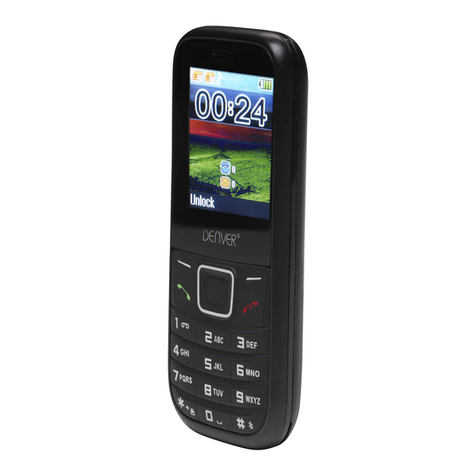
  9. Denver BAS-18500 User manual

Denver BAS-18500 User manual

Other manuals for BAS-18500

1

Other Denver Cell Phone manuals

Denver SCQ-50001G User manual

Denver

Denver SCQ-50001G User manual

Denver FAS-24100M User manual

Denver

Denver FAS-24100M User manual

Denver SDQ-55044L RED User manual

Denver

Denver SDQ-55044L RED User manual

Denver BAS-24400MEB User manual

Denver

Denver BAS-24400MEB User manual

Denver WAS-18110M User manual

Denver

Denver WAS-18110M User manual

Denver BAS-18300M User manual

Denver

Denver BAS-18300M User manual

Denver GSP-120 User manual

Denver

Denver GSP-120 User manual

Denver GSP-131 User manual

Denver

Denver GSP-131 User manual

Denver SDQ-55044L BLACK User manual

Denver

Denver SDQ-55044L BLACK User manual

Denver BAS-24400MEB User manual

Denver

Denver BAS-24400MEB User manual

Denver BAS-24100 User manual

Denver

Denver BAS-24100 User manual

Denver SDQ-55034L User manual

Denver

Denver SDQ-55034L User manual

Denver GSP-100 User manual

Denver

Denver GSP-100 User manual

Denver GSP-110 User manual

Denver

Denver GSP-110 User manual

Denver GSP-120 User manual

Denver

Denver GSP-120 User manual

Denver BAS-24400MNB User manual

Denver

Denver BAS-24400MNB User manual

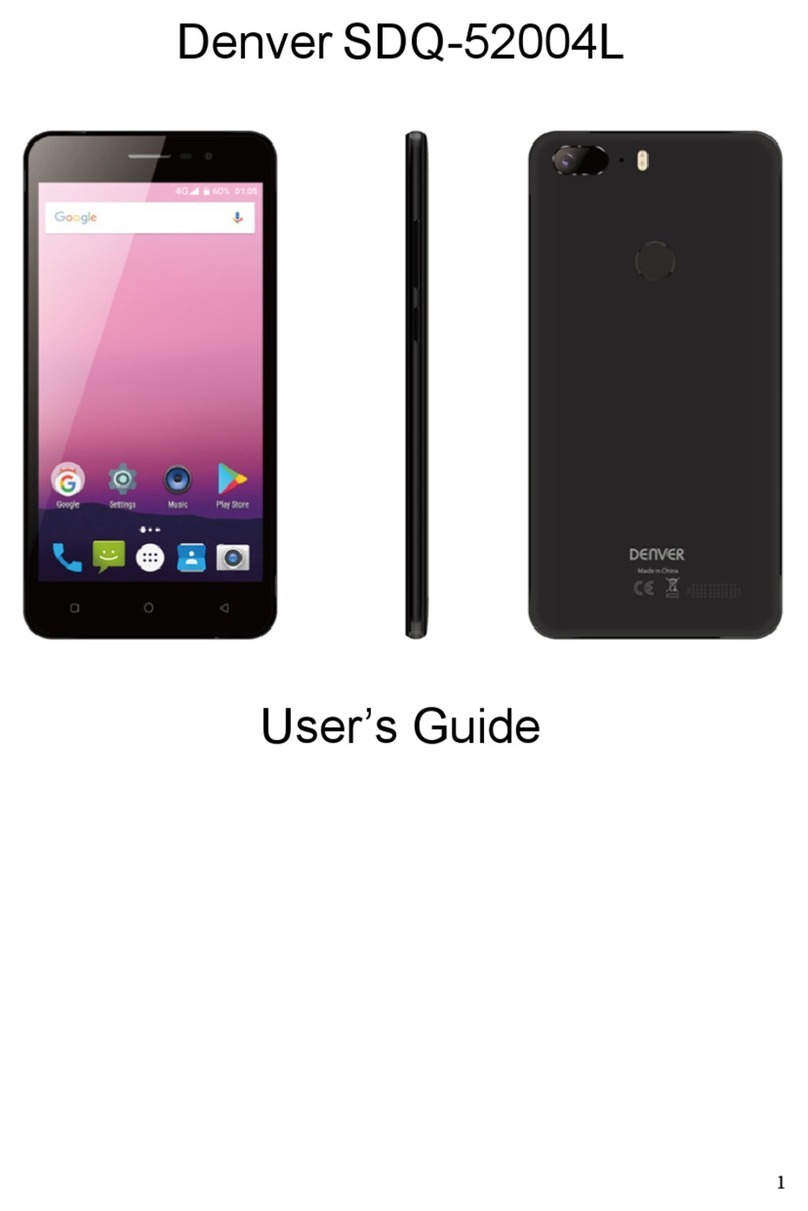
Denver SDQ-52004L User manual

Denver

Denver SDQ-52004L User manual

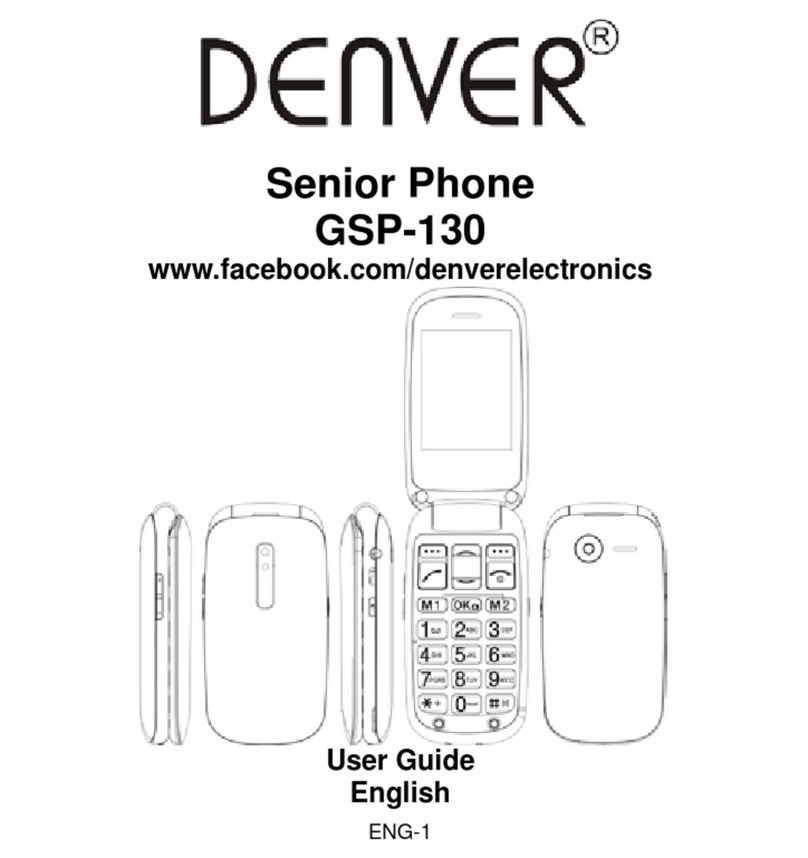
Denver GSP-130 User manual

Denver

Denver GSP-130 User manual

Denver BAS-18300M User manual

Denver

Denver BAS-18300M User manual

Denver FAS-1806 User manual

Denver

Denver FAS-1806 User manual

Denver FAS-18100M User manual

Denver

Denver FAS-18100M User manual

Denver FAS-1805 User manual

Denver

Denver FAS-1805 User manual

Popular Cell Phone manuals by other brands

Gigabyte GSmart t600 null

Gigabyte

Gigabyte GSmart t600 null

Sony Ericsson Z200 null

Sony Ericsson

Sony Ericsson Z200 null

Gigabyte GSmart t600 null

Gigabyte

Gigabyte GSmart t600 null

Gigabyte GSmart t600 null

Gigabyte

Gigabyte GSmart t600 null

Sony Ericsson K700i null

Sony Ericsson

Sony Ericsson K700i null

Zte BLADE A520 quick start guide

Zte

Zte BLADE A520 quick start guide

Nokia Lumia 620 user guide

Nokia

Nokia Lumia 620 user guide

Blackbe;rry KEYone Safety and product information

Blackbe;rry

Blackbe;rry KEYone Safety and product information

Bea-fon X5 Premium quick guide

Bea-fon

Bea-fon X5 Premium quick guide

Blackbe;rry 8707 Series user guide

Blackbe;rry

Blackbe;rry 8707 Series user guide

Blackbe;rry Storm Troubleshooting

Blackbe;rry

Blackbe;rry Storm Troubleshooting

LG LM-X420QN user guide

LG

LG LM-X420QN user guide

LifeWatch V user guide

LifeWatch

LifeWatch V user guide

Bea-fon SILVER LINE SL860 user guide

Bea-fon

Bea-fon SILVER LINE SL860 user guide

IKI Mobile KF4.5i user manual

IKI Mobile

IKI Mobile KF4.5i user manual

Hitech HT-850 user guide

Hitech

Hitech HT-850 user guide

Yezz Fashion F10 user manual

Yezz

Yezz Fashion F10 user manual

Point Mobile PM60 user manual

Point Mobile

Point Mobile PM60 user manual

https://manuals.online logo
https://manuals.online logoBrands
  • About & Mission
  • Contact us
  • Privacy Policy
  • Terms and Conditions

Copyright 2026 Manuals.Online. All Rights Reserved.

User Guide
BAS-18500
Denver.eu
03/2023
Safety information
Please read the safety instructions carefully before using the product
for the first time and keep the instructions for future reference.
1. Warning: This product includes a rechargeable lithium-ion
battery.
2. Keep product out of the reach of children and pets to
avoid chewing and swallowing.
3. Product operating and storage temperature is from 0
degree Celsius to 40 degrees Celsius. Under and over this
temperature might affect the function.
4. Never open the product. Do not touch the inside
electronics, or you may get an electric shock. Repairs or
service should only be performed by qualified personnel.
5. Do not expose to heat, water, moisture or direct sunlight!
6. The unit is not waterproof. If water or foreign objects enter
the unit, it may result in fire or electric shock. If water or a
foreign object enters the unit, stop using it immediately.
7. Only charge with supplied Adaptor. The direct plug-in
adapter is used as a disconnecting device, and shall
remain readily operable. Ensure there is space around the
power outlet for easy access.
8. Do not use non-original accessories together with the
product as this can make the product functionality
abnormal.
1 Overview
1. Enter submenu 1. To select the Option that is shown at the bottom
right of the screen and confirm a selection.
2. Answer or start a call; in standby: press to open Call History.
3. Speed dial key-M1/M2.
4. Long press to call your voicemail.
5. Numeric and alphabetic buttons.
6. Asterisk key. Lock or unlock keypad.
7. Up and down. Use the keys to navigate the menus.
8. Enter submenu 2. To select the Option that is shown at the bottom
right of the screen.
9. Press and hold for power on or off; press to end a call; in menus: press
to exit.
10.Camera.
11.Use the key to switch between the abc, ABC, Abc and 123 input
methods. Press and hold this key to switch between ringing and mute
modes.
12.Press and hold the button to turn Flashlight on or off.
13.Volume controls.
14.Emergency button.
2. Setting up your phone
Remove the rear cover of the phone. Opening is in the bottom left corner.
You can use your fingernail to lift off the cover.
Insert the SIM card(s) into the holder as illustrated below with the chip
facing downwards. SIM cards are not included. SIM cards and contact
point will be easily damaged due to scratches and bending. Please be
careful.
1. SIM 1: Nano SIM
2. SIM 2: Nano SIM
This step is optional and is only needed for storing pictures, videos or
other multimedia files. Insert a microSD card (Max 32GB) into thecard
slot as shown below with gold contacts facing down. MicroSD card is not
included.
Insert the battery into battery slot.
1
2
Put the rear cover on again. You will hear a click when mounted.
Before you start using the phone, charge the battery with the included
power adaptor for at least 4 hours.
3. Managing 2 SIM cards and profiles
When making a call or sending a text message you will be prompted to
select the SIM profile that you want to use (SIM 1 or SIM 2). If you use
different networks for each SIM card, the network name is displayed
clearly according to SIM 1 or SIM 2 selection.
i
4. Icons on the display
Signal strength
Battery indicator
Missed call
New message
Silent (Mute) mode
Vibration mode
Outdoor mode
Home mode
Alarm Clock on
Call forwarding
Bluetooth
5. Menus
Messages
Here you can write and send messages.
Function: Compose a new message, save and/or send it to the recipient.
Note: to send SMS, you need to set the correct SMS service center
number which can be obtained from your network provider.
While composing, press the # button to change the input method. A
text message can be up to 160 characters in length and may contain
pictures and ring tones (EMS).
⚫
Send to: To send the composed message, input the recipient’s
number using the keypad or select a contact from your Phonebook.
⚫
Insert symbol: Insert special symbol
⚫
Input method: Select other input method
⚫
Insert template: Choose preset SMS.
⚫
Advanced: You can also select a contact and then insert the phone
number.
⚫
Save: Save the message to drafts.
Note: 1. To send SMS, you need to set the correct SMS service
center number which can be obtained from network provider.
If [SMS settings/Common settings/Save sent message] is [On], the
successfully/unsuccessfully sent SMS will be both saved to Outbox;
otherwise the SMS will not be saved.
Write messages
While composing, press the # button to change the input method. A text
message can be up to 160 characters in length
Received
Received SMS messages can be stored either in the phone or in SIM
memory.
When you have received a message, you will be alerted by a
ringtone or vibration (as defined in the menu [User profiles/profiles
options/Customize/Tone setup/Message tone]) and the message
icon will also be shown on the screen. Press the left soft key [View]
or the OK button to read the new message, press the right soft key
[Cancel] to return, to access the inbox to read the message.
If the message memory is full, “Memory full” and the message icon
will flash on the display. Before you can receive new messages,
delete some of your old messages in the inbox folder. If the capacity
of new messages is beyond the capacity of the inbox, the
information will be lost.
In the message list, press the OK button or the left soft key [Options] to
enter the following menu:
⚫
View: View information content.
⚫
Reply: Reply to the SMS sender directly.
⚫
Call sender: Call the message sender directly.
⚫
Forward: Forward the message to someone else.
⚫
Delete: Delete the message.
⚫
Delete all: Delete all messages.
⚫
Save to phonebook: Add to a new contact or existing contact
⚫
Advanced: Other phone settings
Note: 1. To send SMS, you need to set the correct SMS service
center number which can be obtained from your network provider.
2. If [SMS settings/Common settings/Save sent message] is [On],
the successfully/unsuccessfully sent SMS will be both saved to
Outbox; otherwise the SMS will not be saved.
If [Save and send] option is selected when sending the message,
the sent SMS will be saved to the Sent folder.
In the sent message list, press the OK button or the left soft key to read
the selected message.
Unsent
Here you can view text messages that have not been sent successfully or
draft text messages.
Sent

If the message is sent successfully, the sent SMS will be saved to the
Sent folder.

Delete message
Here you can delete messages.
Text templates

This menu is a common SMS template, which can also be edited
according to your needs.
Message settings
This menu can set the SMS service center number and SMS storage
location (SIM card or mobile phone).
Contacts
Here you can add and search your contacts.
Search for name
This function can quickly find the contact phone number by
searching the name.
Add contact
This menu allows you to add a new contact to the SIM card or the
phone.
Edit contact
This function can modify the existing contacts and numbers in the
phonebook.
Delete