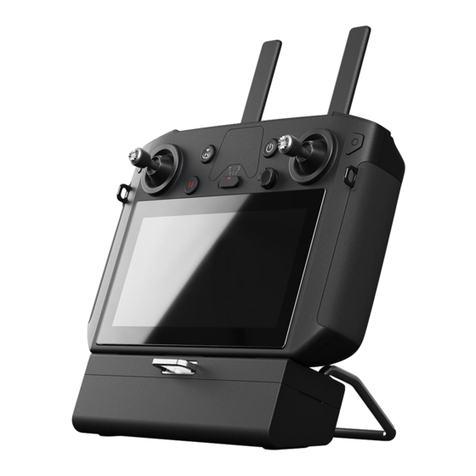
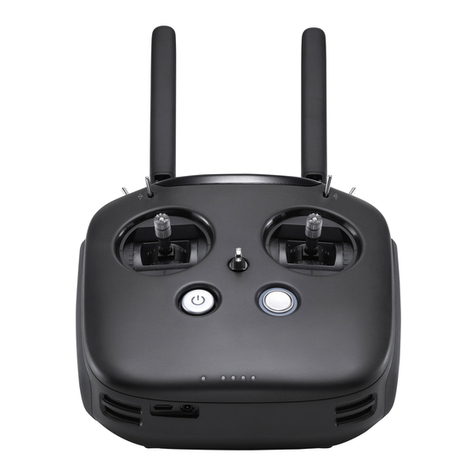
dji Smart Controller User manual

2019.01
DJI Smart Controller
v1.0
User Manual

Searching for Keywords
Search for keywords such as “battery” and “install” to find a topic. If you are using Adobe
Acrobat Reader to read this document, press Ctrl+F on Windows or Command+F on Mac to
begin a search.
Navigating to a Topic
View a complete list of topics in the table of contents. Click on a topic to navigate to that section.
Printing this Document
This document supports high resolution printing.

©2019 DJI All Rights Reserved. 1
Using this Manual
Legends
Warning Important Hints and Tips Explanation
Video Tutorials
Please watch the tutorial videos in the link below, which demonstrate how to use this product safely:
http://www.dji.com/dji-smart-controller
Download DJITM ASSISTANTTM 2
Download DJI Assistant 2 at http://www.dji.com/dji-smart-controller

2©2019 DJI All Rights Reserved.
Contents
Using this Manual1
Legends 1
Video Tutorials 1
Download DJI ASSISTANT 2 1
Product Prole 3
Introduction 3
Overview 4
Preparing the Smart Controller6
Charging the Battery 6
Attaching the Control Sticks 6
Smart Controller Operations7
Turning the Smart Controller On and Off 7
Activating the Smart Controller 7
Linking the Smart Controller 8
Controlling the Aircraft 8
Operating the Camera 12
Display Interface13
Homepage 13
Quick Settings 14
DJI GO 4 App 15
Appendix 16
Changing Storage Locations for Images and Videos 16
Control Stick Navigation 16
DJI GO Share 16
Status LED and Battery Level Indicators Description 17
Smart Controller Warning Sounds 18
System Update 18
Button Combinations 18
Calibrating the Compass 19
Blocking Third-party Notications 20
HDMI 20
After-sales Information 20
Specications21

©2019 DJI All Rights Reserved. 3
Product Prole
Introduction
The DJI Smart Controller features OCUSYNC™ 2.0 technology and is compatible with aircraft which
support OcuSync 2.0. With a wide range of function buttons, the remote controller can perform a variety
of tasks and control the aircraft within a maximum range of 8 km. Dual transmission frequency support
makes HD video downlink stable and reliable.
Ultra-bright Screen: The built-in 5.5 inch screen boasts a high brightness of 1000 cd/m² and a resolution
of 1920×1080 pixels.
Multiple Connections: The Smart Controller supports Wi-Fi and Bluetooth connections.
Video and Audio Management: The Smart Controller has a built-in microphone and speaker, and is
capable of displaying 4K videos at 60 fps in H.264 and 2.3K videos at 60 fps in H.265 formats. In
addition, the videos can be displayed on an external monitor by using the HDMI port.
Extended Storage Capability: The Smart Controller’s storage capability can be increased by using a
microSD card. This allows users to store more images and videos and makes it easier to export them to
a computer.
Reliable in More Environments: The Smart Controller can operate normally within a wide temperature
range from -4° F (20° C) to 104° F (40° C).
DJI GO Share: The brand new DJI GO Share function enable users to transfer images and videos to
smart devices after they have been downloaded from playback in DJI GO™ 4.
Maximum ight time was tested in windless conditions at a consistent speed of 15.5 mph (25
kph) using the MAVICTM 2. This value should be taken for reference only.
Refer to Specications to check compatible aircrafts models.
To comply with local regulations, the 5.8 GHz frequency is not available in some countries
and regions.
4K/60fps is supported for non HDR 10 bit videos. When selecting HDR 10 bit videos, only
4k/30fps is available.

4©2019 DJI All Rights Reserved.
DJI Smart Controller User Manual
Overview
1
69999
1010101010101010101010101010
10
12
10
13
77
8
11
3
24
14
28
15
5
16
17
18 19 20
21
22
23
24
25 26 27
1 Antennas
Relays aircraft control and video signal.
2 Back Button / Function Button
Press once to return to the previous
page and press twice to go back to the
homepage. Hold to view a guide to using
button combinations. Refer to the Button
Combinations section for more information.
3 Control Sticks
Control the orientation and movement of
the aircraft when the remote controller
is linked to an aircraft. Go to Settings >
Control Stick Navigation, to customize the
navigation settings.
4 RTH Button
Press and hold to initiate Return to Home
(RTH). Press again to cancel RTH.
5 Flight Pause Button
Press once to exit TapFly, ActiveTrack,
and other Intelligent Flight Modes.
6 Flight Mode Switch
Switch between T-mode, P-mode, and
S-mode.
7 Status LED
Indicates the linking status and warnings
for the control sticks, low battery level, and
high temperature.
8 Battery Level LEDs
Displays the battery level of the remote
controller.
9 5D Button
The default conguration is listed below. The
functions can be set in DJI GO 4.
Up: Recenter gimbal/move gimbal downward
Down: Focus switch/metering
Left: Decrease EV value
Right: Increase EV value
Press: Open DJI GO 4 Intelligent Flight
Modes menu.
When the remote controller is not linked to
an aircraft, the 5D button can be used to
navigate on the remote controller. Go to
Settings > Control Stick Navigation to enable
this function.
10 Power Button
Use to turn the remote controller on and off.
When the remote controller is powered on,
press the button to enter sleep mode or to
wake up the controller.
11 Conrm Button / Customizable Button C3
When the remote controller is not linked to
an aircraft, press to conrm a selection.
When linked to an aircraft, the button cannot
be used to conrm a selection. However,
the function of the button when linked to an
aircraft can be customized in DJI GO 4.

©2019 DJI All Rights Reserved. 5
DJI Smart Controller User Manual
1
69999
1010101010101010101010101010
10
12
10
13
77
8
11
3
24
14
28
15
5
16
17
18 19 20
21
22
23
24
25 26 27
1
69999
1010101010101010101010101010
10
12
10
13
77
8
11
3
24
14
28
15
5
16
17
18 19 20
21
22
23
24
25 26 27
12 Touchscreen
Tap to select.
13 USB-C Port
Use to charge or update the remote
controller.
14 Microphone
Records audio.
15 Screw Holes
16 Gimbal Dial
Use to control the camera’s tilt.
17 Record Button
Press to start recording video. Press
again to stop recording.
18 HDMI Port
For video output.
19 microSD Card Slot
Use to insert a microSD card.
20 USB-A Port
Use to connect external devices.
21 Focus/Shutter Button
Half press to focus, and then press to
take a photo.
22 Camera Settings Dial
Mavic 2 Pro: Turn the dial to adjust
the exposure compensation (when
in Program mode), aperture (when in
Aperture Priority and Manual mode), or
shutter (when in Shutter Priority mode).
Mavic 2 Zoom: Turn to adjust the zoom
of the Mavic 2 Zoom camera.
23 Air Vent
Used for heat dissipation. DO NOT cover
the air vent during use.
24 Sticks Storage Slot
Use to store a pair of control sticks.
25 Customizable Button C2
The default conguration is playback.
The conguration can be set in DJI GO 4.
26 Speaker
Outputs sound.
27 Customizable Button C1
The default conguration is center focus.
The conguration can be set in DJI GO 4.
28 Air Intake
Used for heat dissipation. DO NOT cover
the air intake during use.

6©2019 DJI All Rights Reserved.
Preparing the Smart Controller
Charging the Battery
There are two built-in 2500 mAh Li-ion batteries in the remote controller. Please charge the remote
controller using the USB-C port.
Please use a DJI ofcal USB power adapter to charge the remote controller. If not, a USB
power adapter certied FCC/CE rated 12 V/2 A is recommended.
The battery will deplete when stored for an extended period of time. Please recharge the
battery at least once every three months to prevent over discharging.
Attaching the Control Sticks
Two pairs of control sticks are included in the packaging for the Smart Controller. One pair is stored
in the sticks storage slot on the back of the remote controller. Follow the steps below to attach the
control sticks stored in the sticks storage slot to the remote controller.
Power Outlet
100 ~ 240 V
USB Power Adapter USB-C Cable
Charging Time: 2 hours (using a standard USB power adapter)
Lift the antennas Remove the control sticks Rotate to attach the
control sticks

©2019 DJI All Rights Reserved. 7
Smart Controller Operations
Turning the Smart Controller On and Off
Follow the steps below to turn the remote controller on and off.
1. Press the power button once to check the current battery level. Charge the remote controller if
the battery level is too low.
2. Hold the power button or press once and the n hold the power button to power on the remote
controller.
3. Repeat Step 2 to power off the remote controller.
Activating the Smart Controller
The Smart Controller needs to be activated before using for the rst time. Make sure the
remote controller can connect to the internet during activation. Follow the steps below to
activate the Smart Controller.
1. Power on the remote controller. Select the language and tap “Next”. Carefully read the terms of
use and privacy policy and tap “Agree”. After conrming, set the country/region.
2. Connect the remote controller to the internet via Wi-Fi. After connecting, tap “Next” to continue
and select the time zone, date, and time.
3. Log in with your DJI account. If you do not have an account, create a DJI account and log in.
4. Tap “Activate” on the activation page.
5. After activating, please select if you would like to join the Smart Controller Improvement Project.
The project helps to improve the user experience by sending diagnostic and usage data
automatically every day. No personal data will be collected by DJI.
6. The remote controller will check for rmware updates. If a rmware update is available, you will
be prompted to download the latest version.
Please check the internet connection if the activation fails. If the internet connection is
normal, please try to activate the remote controller again. Contact DJI if the activation
continues to fail.
Internet

8©2019 DJI All Rights Reserved.
DJI Smart Controller User Manual
Linking the Smart Controller
When the Smart Controller is purchased together with an aircraft, the remote controller has already
been linked to the aircraft, and they can be directly used after activating the remote controller and
aircraft. If the Smart Controller and the aircraft were purchased separately, follow the steps below to
link the remote controller to the aircraft.
Method 1: Using Smart Controller Buttons
1. Power on the remote controller and the aircraft.
2. Press the customizable button C1, C2, and Record button simultaneously. The status LED blinks
blue and the controller beeps twice to indicate the linking has started.
3. Press the linking button on the aircraft. The remote controller’s status LED will be solid green if
the linking is successful.
Method 2: Using DJI GO 4
1. Power on the remote controller and the aircraft. Tap “Go” on the homepage and log in using a
DJI account.
2. Tap “Enter Device”, select “Connect to the aircraft”, and follow the prompts to start linking.
3. Select “Enter the Camera View” and tap in camera view. Scroll to the bottom, tap “Remote
Controller Linking” and tap “OK” to conrm.
4. The status LED blinks blue and the remote controller beeps twice to indicate the linking has
started.
5. Press the linking button on the aircraft. The remote controller's status LED will be solid green if
the linking is successful.
Method 3: Using Quick Settings
1. Power on the remote controller and the aircraft.
2. Swipe down from the top of the screen to open Quick Settings. Tap to start linking.
3. The status LED blinks blue and the remote controller beeps twice to indicate the linking has
started.
4. Press the linking button on the aircraft. The remote controller's status LED will be solid green if
the linking is successful.
Make sure the remote controller is within 1.6 ft (0.5 m) of the aircraft during linking.
Make sure the remote controller is connected to the internet when logging in using a DJI
account.
Controlling the Aircraft
The control sticks control the aircraft’s orientation (yaw), forward and backward movement (pitch),
altitude (throttle), and left and right movement (roll). The control stick mode determines the function
of each control stick. Three preprogrammed modes (Mode 1, Mode 2, and Mode 3) are available
and custom modes can be congured in DJI GO 4. The default mode is Mode 2.
Table of contents
Other dji Remote Control manuals

dji
dji Focus User manual

dji
dji FOCUS CP.ZM.000238.02 User manual

dji
dji RC Motion 2 User manual

dji
dji Smart Controller Enterprise User manual

dji
dji RC Motion 2 User manual

dji
dji Cendence User manual

dji
dji RC User manual

dji
dji Focus User manual

dji
dji FPV AIR UNIT User manual

dji
dji SPARK REMOTE CONTROLLER C2 User manual