Connecting Drobo to Your Mac or DroboShare
After adding the hard drives, connect Drobo to your Mac or DroboShare.
To Connect Drobo to Your Mac:
1. You can choose to connect your Drobo using FireWire 800 or USB 2.0.
a. FireWire 800: Connect one end of the supplied FireWire 800 cable to one of the FireWire 800 ports
on the back of your Drobo. Next, connect the other end of the FireWire 800 cable to an available
FireWire 800 port on your Mac.
b. USB 2.0: Connect the square end of the supplied USB 2.0 cable to the USB 2.0 port on the back of
your Drobo. Next, connect the other end of the USB 2.0 cable to an available USB 2.0 port on your
Mac.
2. Plug the supplied AC power adaptor into the power port on the back of your Drobo.
3. Plug the power cord into a standard 110v power outlet.
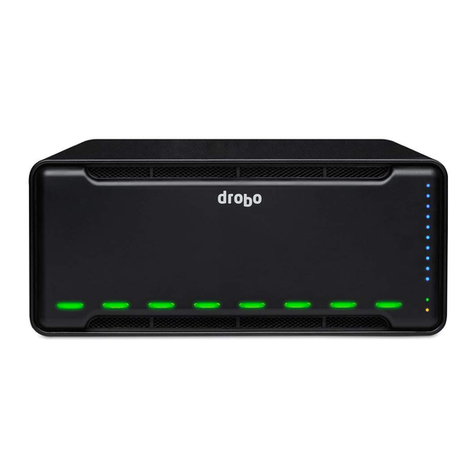
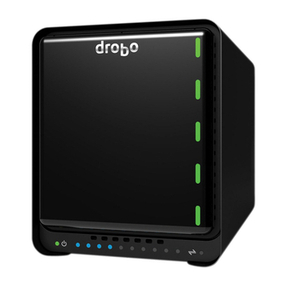
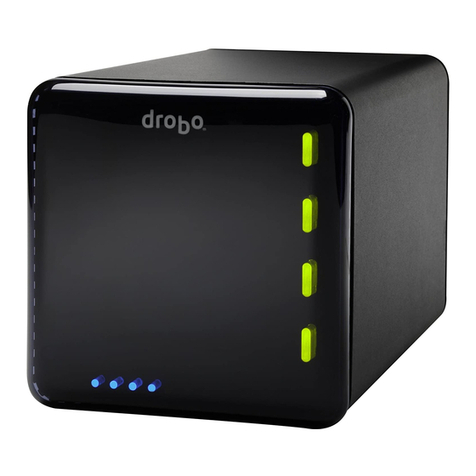
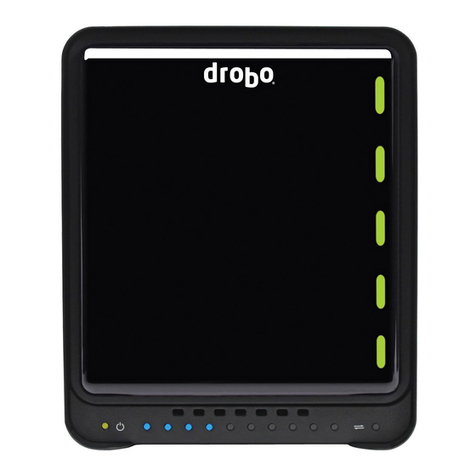
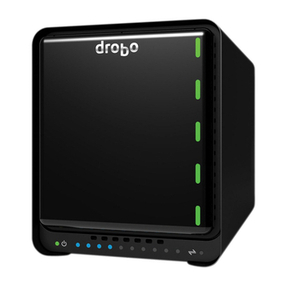
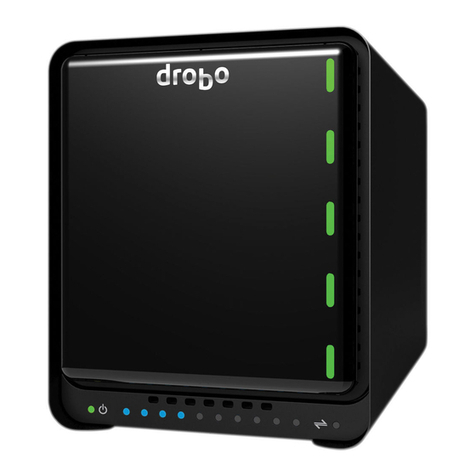
4. Drobo does not have a power switch, so this will start the power-up sequence. During this time, the data bay
indicators will turn red and all 10 blue lights will be displayed on the utilization meter.
5. As the hard drives come online, the data bay indicators will turn to green.
6. You are now ready to format your drives.
To Connect Drobo to Your DroboShare:
1. Connect the provided Ethernet cable between DroboShare and your network router or switch.
2. Connect the square end of the provided, short (~1 ft.) USB 2.0 cable to the USB 2.0 port on the back of your
Drobo.
3. Connect the other end of that USB 2.0 cable to an USB 2.0 port on your DroboShare.
4. Connect the two ends of the supplied Y-cable to Drobo and DroboShare.
5. Connect Drobo’s power supply to the single end of the Y-cable.
6. Plug the power cord into a standard 110 volt power outlet.
7. Drobo and DroboShare do not have a power switch so this will start the power-up sequence. During this time,
the data bay indicators will turn red and all 10 blue lights will be displayed on the utilization meter.
8. As the hard drives come online, the data bay indicators will turn green.
9. You are now ready to format your drives.
Tip: DroboShare requires an assigned IP address on your network in order to be recognized by Drobo Dashboard and
shared automatically on your network. If it cannot obtain an IP address, it will be assigned the default 169.254.213.234 IP
address.
Related Topics
Formatting Drives Using Drobo Dashboard
Formatting Drives Using the Mac OS Disk Utility
6