Dynamix Tiger 2Plus User manual

Tiger 2Plus (4LAN)
ADSL 2+ Router
User Manual
V 1.3

Tiger 2Plus (4LAN) ADSL 2+ Router User Manual
CONTENTS
1.OVERVIEW........................................................................................................................................3
1.1ABOUTADSL........................................................................................................................3
1.2ABOUTADSL2/2+.................................................................................................................3
1.3 FEATURES...........................................................................................................................3
2 SPECIFICATION................................................................................................................................4
2.1 INTERFACE INTRODUCTION ......................................................................................................4
2.1.1 Indicator and Interface ...................................................................................................4
2.1.2 Splitter Spec...................................................................................................................5
2.2 HARDWARE CONNECTION................................................................................................5
2.3 LED STATUS INDICATION .........................................................................................................5
3.CONFIGURATION .............................................................................................................................6
3.1 DEFAULTCONFIGURATION................................................................................................6
3.2 COMPUTER CONFIGURATION...........................................................................................6
3.3ADSLMODEM CONFIGURATION........................................................................................6
3.3.1 Log in .............................................................................................................................6
3.3.2 Save Setting...................................................................................................................7
3.4 WAN CONFIGURATION.......................................................................................................7
3.4.1 Configuration Guide .......................................................................................................7
3.4.2 RFC1483 Bridge Configuration......................................................................................9
3.4.3 PPPoE Configuration ...................................................................................................11
3.4.4 Static Address ..............................................................................................................12
4 OTHER CONFIGURATION..............................................................................................................13
4.1 LAN CONFIGURATION............................................................................................................13
4.1.1 Configuration of modem’s IPAddress..........................................................................13
4.1.2 DHCP configuration......................................................................................................13
4.2 PASSWORD CONFIGURATION .................................................................................................14
5. TROUBLESHOOTING....................................................................................................................15
5.1 UNABLE TO ACCESS INTERNET................................................................................................15
5.1.1 Check the line and the device......................................................................................15
5.1.2 Check your configuration..............................................................................................15
ANNEX:SHIPPING LIST ..................................................................................................................17
Page 2 Total 17 Pages

Tiger 2Plus (4LAN) ADSL 2+ Router User Manual
1.OVERVIEW
1.1 ABOUT ADSL
An ADSL MODEM is a broadband Internet access device, which utilizes the high frequency
segment of the phone line to transmit high-speed data without affecting the voice transmission. The
frequency of the ADSL signal is higher than that of voice, so voice and ADSL signal can coexist in one
line by using a splitter to insulate each from the other. ADSL data transfer adapts the asymmetry model.
It supports upload transmission speed up to 1Mbps and download speed up to 8 Mbps (24Mbps for
ADSL2+). ADSL is an ideal device for broadband access.
1.2 ABOUT ADSL2/2+
Transmission performance of ADSL2 is improved comparing with the first generation of ADSL.
These improvements are mainly concerned with long distance, anti-line-loss, anti-noise, etc. By
doubling the transmission bandwidth, ADSL2+ has implemented a downlink rate as high as 24 Mbps.
Therefore, Internet applications such as synchronous transmission of multi video stream, online
games and huge capacity of downloading files are made possible.
1.3 FEATURES
1、Support ANSI T1.413 ISSUE 2、ITU G.992.1 (G.DMT)、ITU G.992.2 (G.LITE)、ITU G992.3、
ITU G992.5
2、Web-based configuration and monitoring.
3、Support multiple PVCs.
4、Routing function.
5、Four Ethernet interfaces can realize multi users' connection
6、Supports IP filter, IP forwarding, IP Qos
7、Built-in PPPoE, connected with ISP automatically when computer starts, suitable for
small-scale LAN
8、NAPT、DHCP function.
Page 3 Total 17 Pages

Tiger 2Plus (4LAN) ADSL 2+ Router User Manual
2 SPECIFICATION
2.1 INTERFACE INTRODUCTION
2.1.1 INDICATOR AND INTERFACE
Table 2.1
ITEM Name State introduction
⑧POWER A steady red light means the power connection works properly
⑦DSL Yellow, shows DSL line status.
⑥INTERNET Green, Flashing means the Modem is transmitting or receiving data
Indicator
⑤LAN Green, Indicates status of connection to the PC network card
①LINE Connected with phone line or “ADSL” port of the splitter.
②ETHERNET To be connected to a PC network card by a straight-through network cable,
also can use a crossover cable to connect to Hub, Switch or Router.
③POWER Power interface, Connect with power adapter.
④SWITCH To turn on / off the power.
Interface
⑨RST Press the reset button and turn on the power, then keep pressing the reset
button for 5 seconds. Then you can reset the modem with the default
settings.
Page 4 Total 17 Pages

Tiger 2Plus (4LAN) ADSL 2+ Router User Manual
2.1.2 SPLITTER SPEC Table 2.2
Interface Introduction
LINE Connected with telephone line
ADSL Connect with the LINE port of
the ADSL Modem using
telephone line provided.
PHONE Connect with telephone
2.2 HARDWARE CONNECTION
Introduction:
1、Use a telephone cord to connect the LINE port of the splitter with the RJ-11 port (the phone
jack) on the wall.
2、Use another telephone cord to connect the ADSL port of the splitter with the LINE port of the
ADSL Modem.
3、Use another telephone cord to connect the telephone set with the PHONE port of the splitter.
4、Connect Ethernet port of the ADSL MODEM with 10/100BASE-T port of the computer using
the network cable that comes with the modem.
5、Plug in the power cord, and turn on the power.
If you do not want Internet services and telephone voice services simultaneously, please just
connect the LINE port of the ADSL Modem with the RJ-11 port (the phone jack) on the wall using a
telephone cord. In this case, the splitter is not necessary.
2.3 LED STATUS INDICATION
Table 2.3
Status POWER
(red) DSL (yellow) INTERNET (green) LAN(green)
Steady light Power on The modem is in good
connection Connected with PC Ethernet line is
connected
Flashing / In handshaking status / /
Fast
flashing / / Transmitting or
receiving data Transforming data
Off Power off Connection not set up Not connected with
PC properly Ethernet line not
connected properly
Page 5 Total 17 Pages

Tiger 2Plus (4LAN) ADSL 2+ Router User Manual
3.CONFIGURATION
3.1 DEFAULT CONFIGURATION
ADSL MODEM has pre-configured with the VCI/VPI which is in common use. The default dial-up
mode is bridge encapsulation. For bridge mode, no need to configure any more parameter. However,
the third party dial-up software is needed for connection with the Internet
3.2 COMPUTER CONFIGURATION
The default IP address for ADSL MODEM is: 192.168.1.1; The Subnet Mask is:255.255.255.0.
Users can configure ADSL MODEM through an Internet browser. ADSL MODEM can be used as
gateway and DNS server; users need to set the computer’s TCP/IP protocol as follow:
1、Set the computer IP address at same segment of ADSL MODEM, such as set the IP address
of the network card to one of the “192.168.1.2”〜“192.168.1.254”.
2、Set the computer’s gateway the same IP address as the ADSL Modem’s.
3、Set computer’s DNS server the same as ADSL Modem’s IP address or that of an effective
DNS server.
3.3 ADSL MODEM CONFIGURATION
3.3.1 LOG IN
Open the browser; input http://192.168.1.1 at the address column. Press “Enter” key then the
entry dialog box will show up as Figure 3.1. Input Username: admin , Password: password (capital
sensitive), then press Enter.
Figure 3.1
Page 6 Total 17 Pages

Tiger 2Plus (4LAN) ADSL 2+ Router User Manual
3.3.2 SAVE SETTING
After getting through each page for parameters setting, click “Save” or “Save apply” to store the
value in ADSL MODEM. Briefly, we named “Save”.
Note
:
When you save the settings, the web page will be refreshed slowly, please wait it finished.
After you save the settings, it will take effect until next reboot.
Some settings only take effect after rebooting the router.
3.4 WAN CONFIGURATION
If the configuration is bridge encapsulation, there is no need to configure any more parameters.
Only need to use the third party dial-up software to connect the Internet.
Totally, this router supports:PPPoA、PPPoE、MER、IPoA、Bridging. For detail configuration
information, please check the following configuration guide.
3.4.1 CONFIGURATION GUIDE
Click “WAN” on the left page, enter into “WAN” configuration page.
zNote: At most we can have eight connections. If you need to add a new connection, please delete
or modify an existing connection.
Figure 3.2
Page 7 Total 17 Pages

Tiger 2Plus (4LAN) ADSL 2+ Router User Manual
Click on the next connection which you want modify. Press “Edit” button, enter the configure guide,
as Figure 3.3
Figure 3.3
zThe value for VPI/VCI is assigned by your ISP. After inputting the PVC value, press “Next” into
“connection type”. As Figure 3.4.
Figure 3.4
Page 8 Total 17 Pages

Tiger 2Plus (4LAN) ADSL 2+ Router User Manual
The Modem supports five ADSL protocol modes. Choose the protocol which is appointed by ISP
and PVC encapsulation, click “Next” enter to the protocol configure. Below, we introduce the
configuraion of the five protocol modes.
• PPP over ATM (PPPoA) • PPP over Ethernet (PPPoE)
• MAC Encapsulated Routing (MER) • IP over ATM (IPoA)
• Bridging
zSome connection lines need to confirm the LLC or VC, if you can’t confirm, please don’t modify
the default value or ask your ISP.
3.4.2 RFC1483 BRIDGE CONFIGURATION
Select the Bridging mode. Then press “Next” to specify the Service Name, and select the “Enable
Service” as Figure 3.5.
Figure 3.5
Press “Next” to enter into “WAN configuration”, click “save” to save configuration, if you need to
modify the parameter, click “back” as Figure 3.6.
Page 9 Total 17 Pages

Tiger 2Plus (4LAN) ADSL 2+ Router User Manual
Figure 3.6
Note
:
When you use bridge mode, please close “DHCP SERVER”, the result as Figure 3.7
Figure 3.7
Page 10 Total 17 Pages
Table of contents
Other Dynamix Network Router manuals
Dynamix
Dynamix UM-A User manual
Dynamix
Dynamix HP-20C User manual
Dynamix
Dynamix UM-A User manual
Dynamix
Dynamix UM-A User manual
Dynamix
Dynamix UM-A Plus User manual
Dynamix
Dynamix UM-SB User manual
Dynamix
Dynamix HP-30/S User manual
Dynamix
Dynamix ANEXX A User manual
Dynamix
Dynamix UM-S User manual
Dynamix
Dynamix Dynamix HP-30 Coax User manual
Dynamix
Dynamix UM-A User manual
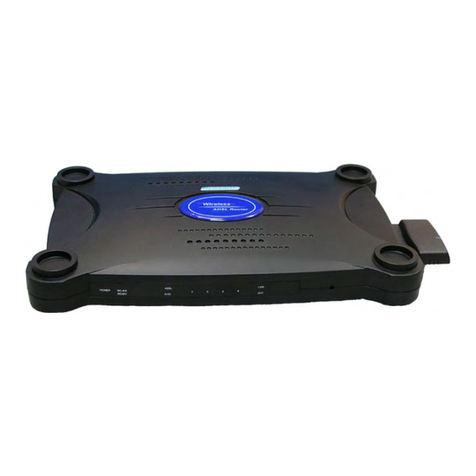
Dynamix
Dynamix UM-A4W User manual
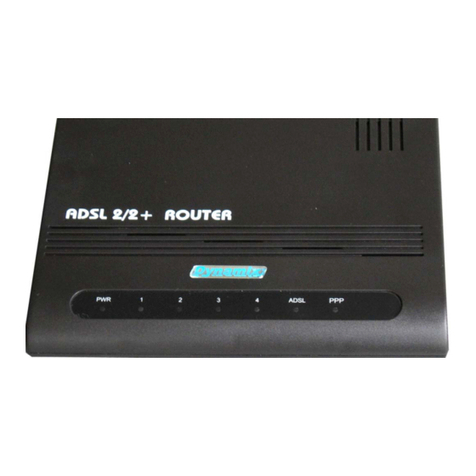
Dynamix
Dynamix UM-A4 Plus User manual
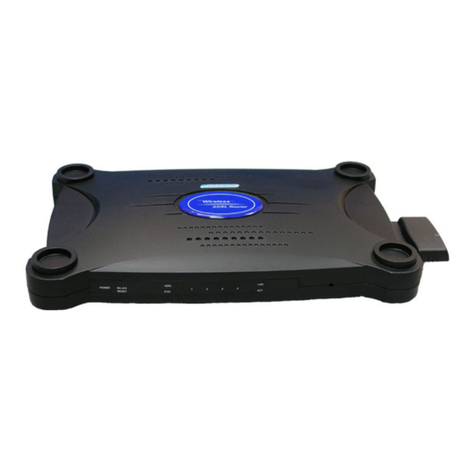
Dynamix
Dynamix M-A4W User manual
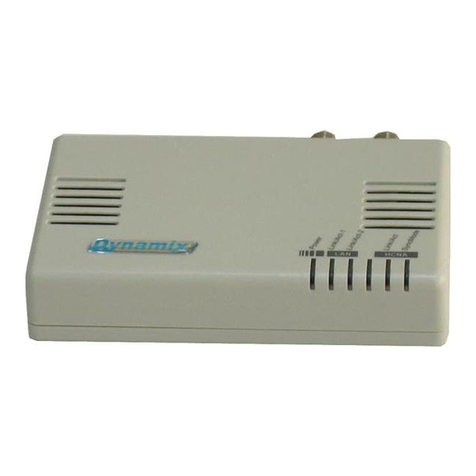
Dynamix
Dynamix HP-51/S User manual
Dynamix
Dynamix DV-24 User manual
Dynamix
Dynamix UM-AI User manual
Dynamix
Dynamix UM-A Plus/PL User manual
Dynamix
Dynamix UM-S4FB User manual