manuals.online logo
Brands
  1. Home
  2. •
  3. Brands
  4. •
  5. ekwb
  6. •
  7. Computer Hardware
  8. •
  9. ekwb EK-FCQK5000 Manual

ekwb EK-FCQK5000 Manual

This manual suits for next models

1

Other ekwb Computer Hardware manuals

ekwb EK-FB MSI X299 GAMING PRO CARBON Monoblock User manual

ekwb

ekwb EK-FB MSI X299 GAMING PRO CARBON Monoblock User manual

ekwb EK-DBAY RES SPIN Guide

ekwb

ekwb EK-DBAY RES SPIN Guide

ekwb EK-FB ASUS CROSSHAIR 3 Manual

ekwb

ekwb EK-FB ASUS CROSSHAIR 3 Manual

ekwb EK-FB ASUS PRIME X299 RGB Monoblock User manual

ekwb

ekwb EK-FB ASUS PRIME X299 RGB Monoblock User manual

ekwb EK-Supreme HF Guide

ekwb

ekwb EK-Supreme HF Guide

ekwb EK-FC1080 GTX Ti TF6 User manual

ekwb

ekwb EK-FC1080 GTX Ti TF6 User manual

ekwb EK-Supremacy EVO X99 Series User manual

ekwb

ekwb EK-Supremacy EVO X99 Series User manual

ekwb 3831109831335 Guide

ekwb

ekwb 3831109831335 Guide

ekwb EK-Vector Trio RTX 2080 User manual

ekwb

ekwb EK-Vector Trio RTX 2080 User manual

ekwb EK-XRES DCP 4.0 Manual

ekwb

ekwb EK-XRES DCP 4.0 Manual

ekwb EK-FCQ6000 Manual

ekwb

ekwb EK-FCQ6000 Manual

ekwb EK-FC1080 GTX Ti Strix User manual

ekwb

ekwb EK-FC1080 GTX Ti Strix User manual

ekwb EK-FC670 GTX Series Manual

ekwb

ekwb EK-FC670 GTX Series Manual

ekwb EK-Vector RTX Aorus 2080 User manual

ekwb

ekwb EK-Vector RTX Aorus 2080 User manual

ekwb 115 Series User manual

ekwb

ekwb 115 Series User manual

ekwb EK-FCTK20 Guide

ekwb

ekwb EK-FCTK20 Guide

ekwb EK-XTOP Revo Dual D5 Serial Manual

ekwb

ekwb EK-XTOP Revo Dual D5 Serial Manual

ekwb EK-Loop User manual

ekwb

ekwb EK-Loop User manual

ekwb CPU Lignum User manual

ekwb

ekwb CPU Lignum User manual

ekwb EK-FC980 GTX TF5 Manual

ekwb

ekwb EK-FC980 GTX TF5 Manual

ekwb EK-XTOP D5 Manual

ekwb

ekwb EK-XTOP D5 Manual

ekwb EK-Quantum Momentum Aorus Z490 Master D-RGB User manual

ekwb

ekwb EK-Quantum Momentum Aorus Z490 Master D-RGB User manual

ekwb EK-FB GA Z87X-OC Force Guide

ekwb

ekwb EK-FB GA Z87X-OC Force Guide

ekwb EK-FC R9-290X SE Backplate Guide

ekwb

ekwb EK-FC R9-290X SE Backplate Guide

Popular Computer Hardware manuals by other brands

Toshiba TOSVERT VF-MB1/S15 IPE002Z Function manual

Toshiba

Toshiba TOSVERT VF-MB1/S15 IPE002Z Function manual

Shenzhen MEITRACK MVT380 user guide

Shenzhen

Shenzhen MEITRACK MVT380 user guide

TRENDnet TEW-601PC - SUPER G MIMO WRLS PC CARD user guide

TRENDnet

TRENDnet TEW-601PC - SUPER G MIMO WRLS PC CARD user guide

StarTech.com CF2IDE18 instruction manual

StarTech.com

StarTech.com CF2IDE18 instruction manual

Texas Instruments LMH0318 Programmer's guide

Texas Instruments

Texas Instruments LMH0318 Programmer's guide

Gateway 8510946 user guide

Gateway

Gateway 8510946 user guide

Devon IT TC2D Quick setup guide

Devon IT

Devon IT TC2D Quick setup guide

Krüger & Matz Air Shair2 owner's manual

Krüger & Matz

Krüger & Matz Air Shair2 owner's manual

Crystalio VPS-2300 quick guide

Crystalio

Crystalio VPS-2300 quick guide

MYiR FZ3 user manual

MYiR

MYiR FZ3 user manual

Protech Systems BC-K200 Quick reference guide

Protech Systems

Protech Systems BC-K200 Quick reference guide

Miranda DENSITE series DAP-1781 Guide to installation and operation

Miranda

Miranda DENSITE series DAP-1781 Guide to installation and operation

Sierra Wireless Sierra Wireless AirCard 890 quick start guide

Sierra Wireless

Sierra Wireless Sierra Wireless AirCard 890 quick start guide

Leadtek Killer Xeno Pro Quick installation guide

Leadtek

Leadtek Killer Xeno Pro Quick installation guide

Star Cooperation FlexTiny 3 Series Instructions for use

Star Cooperation

Star Cooperation FlexTiny 3 Series Instructions for use

Hotone Ampero user manual

Hotone

Hotone Ampero user manual

Connect Tech Xtreme/104-Express user manual

Connect Tech

Connect Tech Xtreme/104-Express user manual

Yealink WF50 user guide

Yealink

Yealink WF50 user guide

manuals.online logo
manuals.online logoBrands
  • About & Mission
  • Contact us
  • Privacy Policy
  • Terms and Conditions

Copyright 2025 Manuals.Online. All Rights Reserved.

All disclosures, notices and warranty conditions are being written on the EKWB website. Please read terms of use. Released on 7th of March, 2013. Revision 1.0
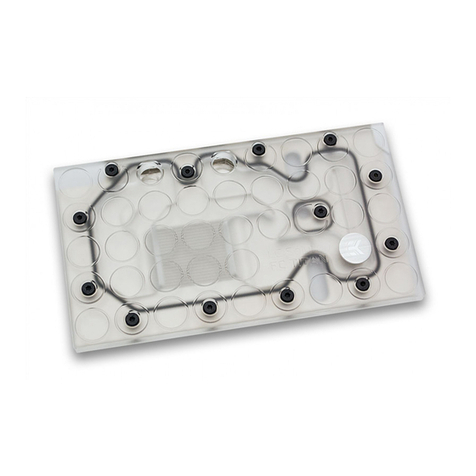
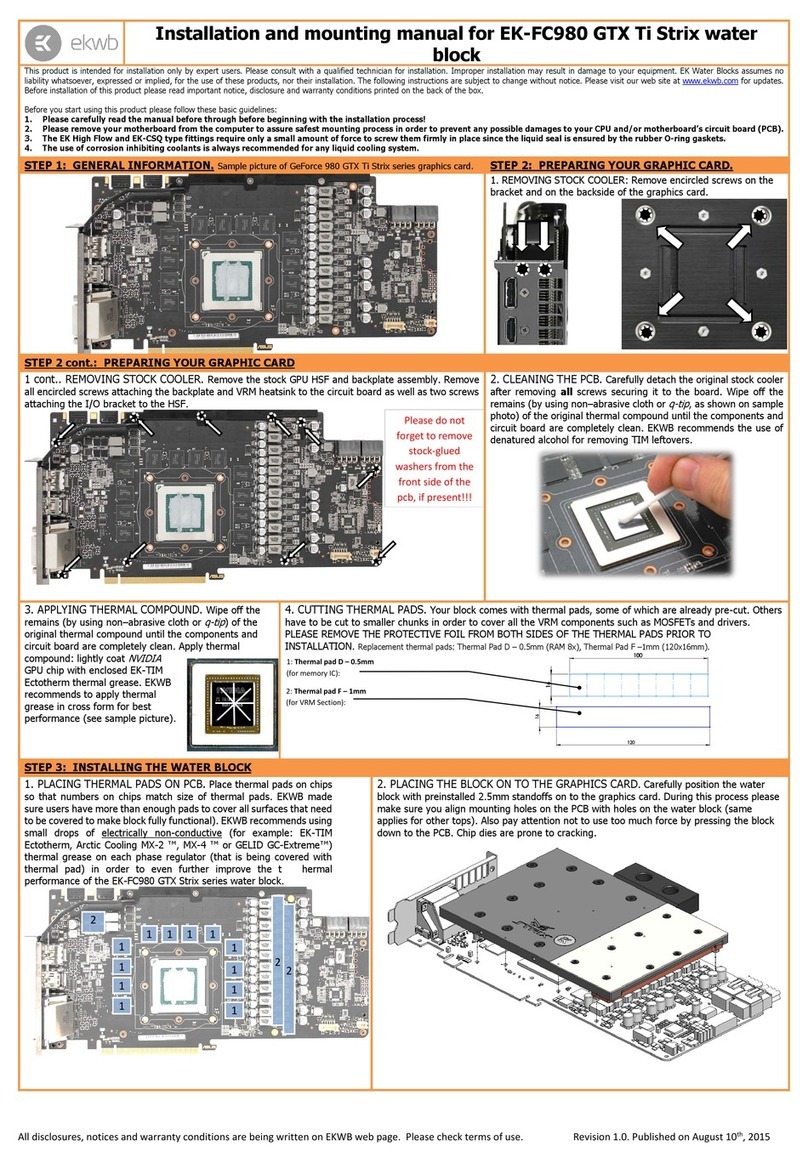
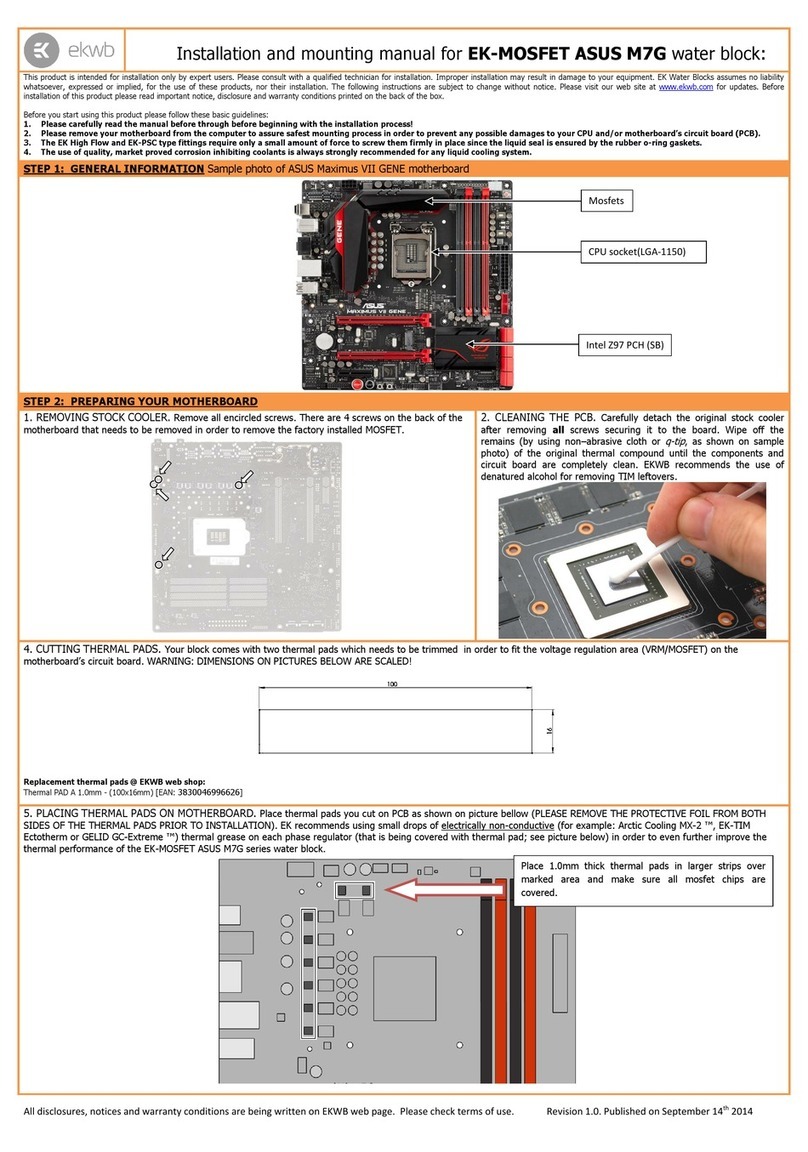
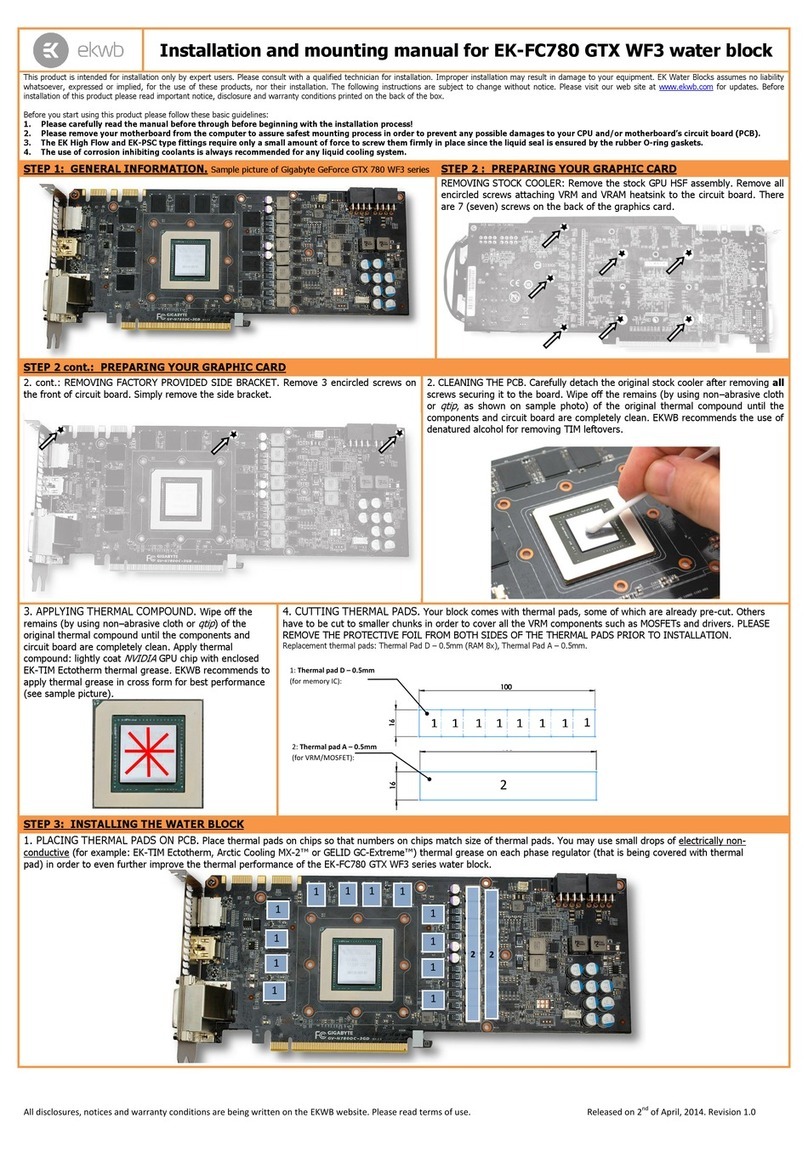
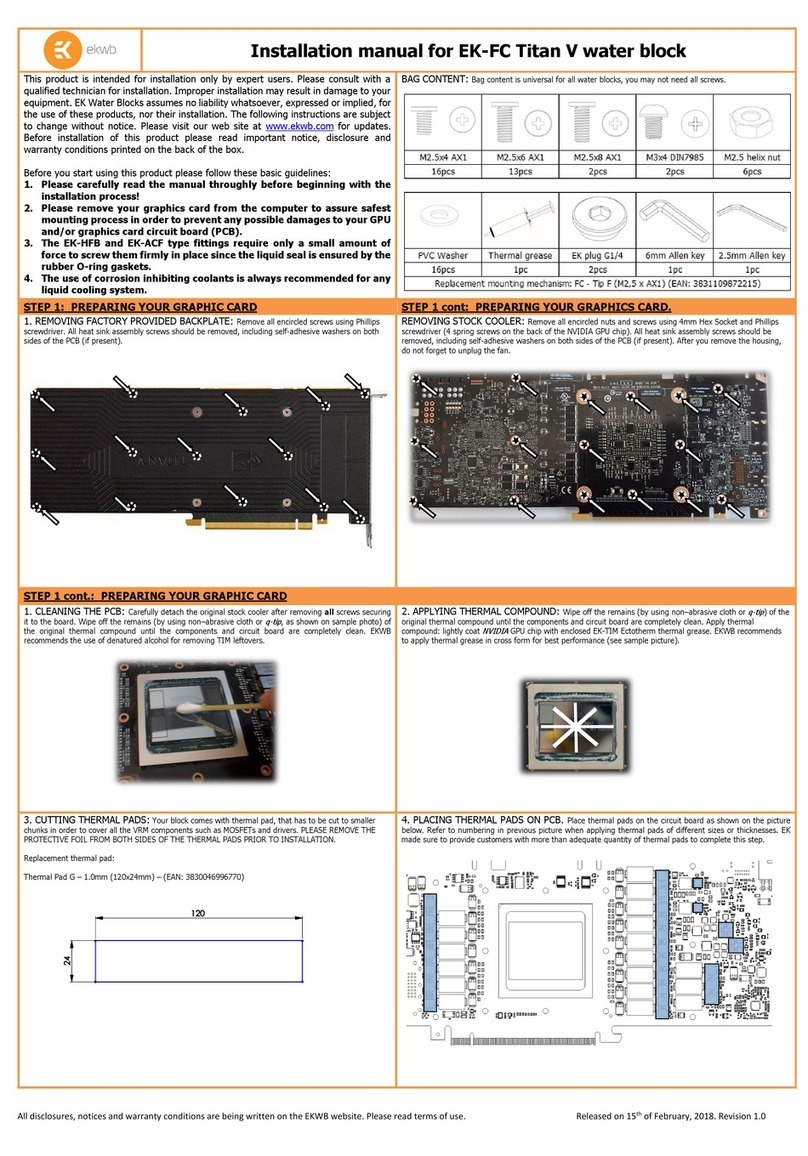
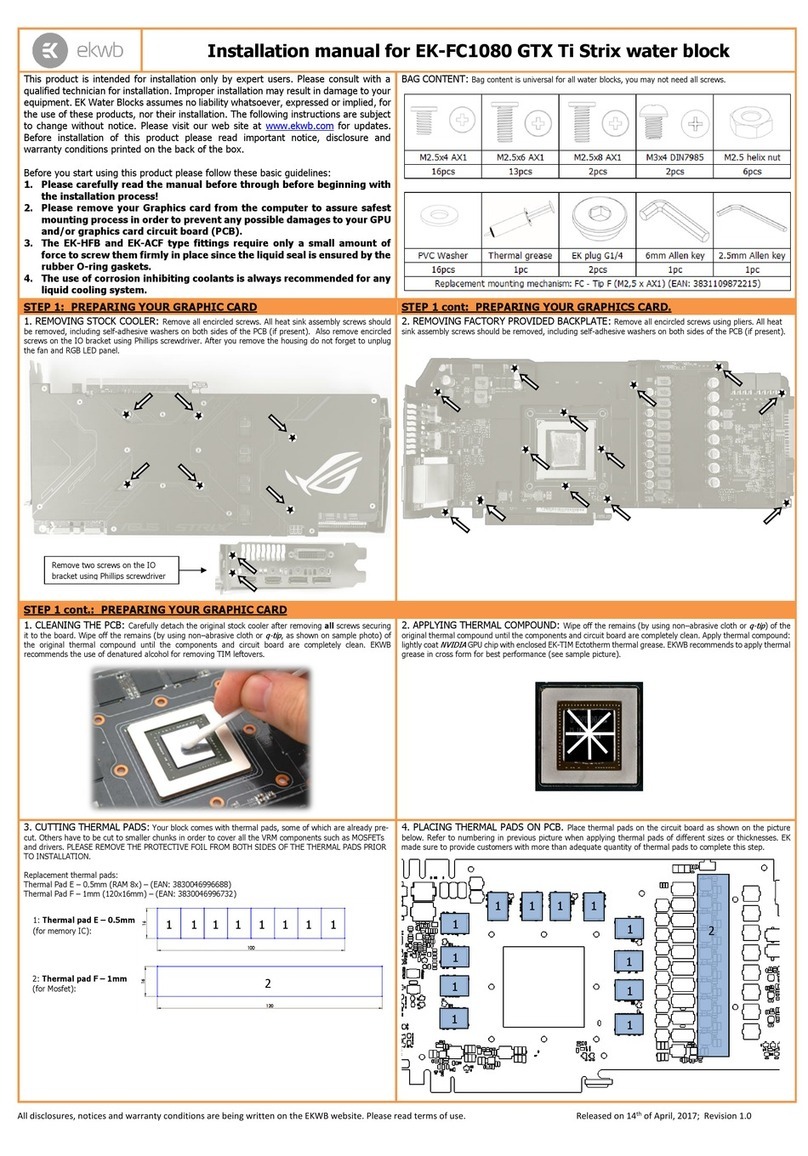
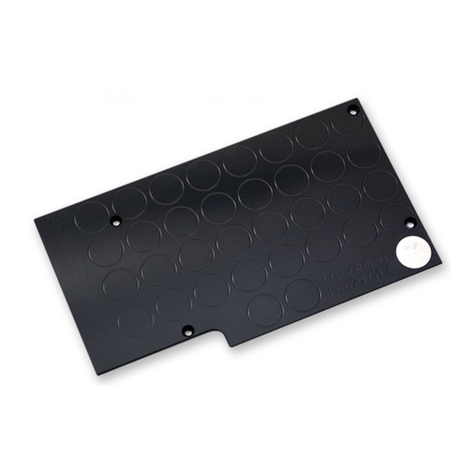
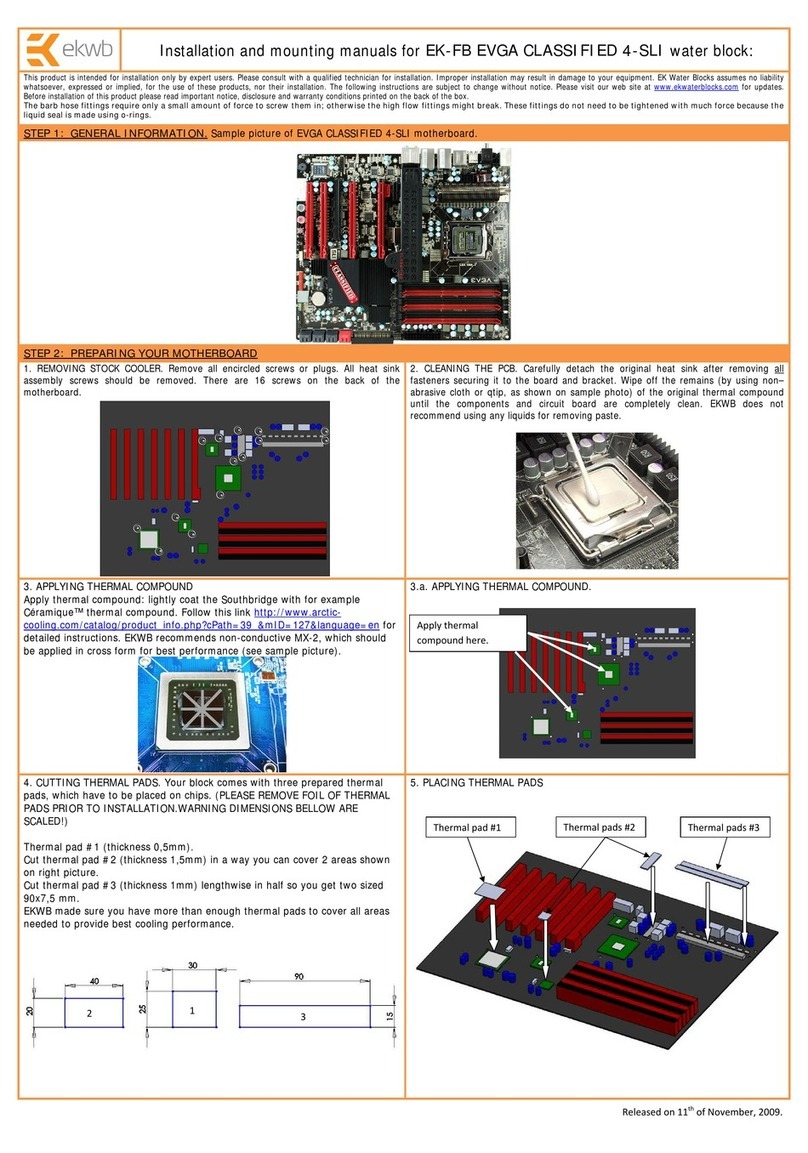
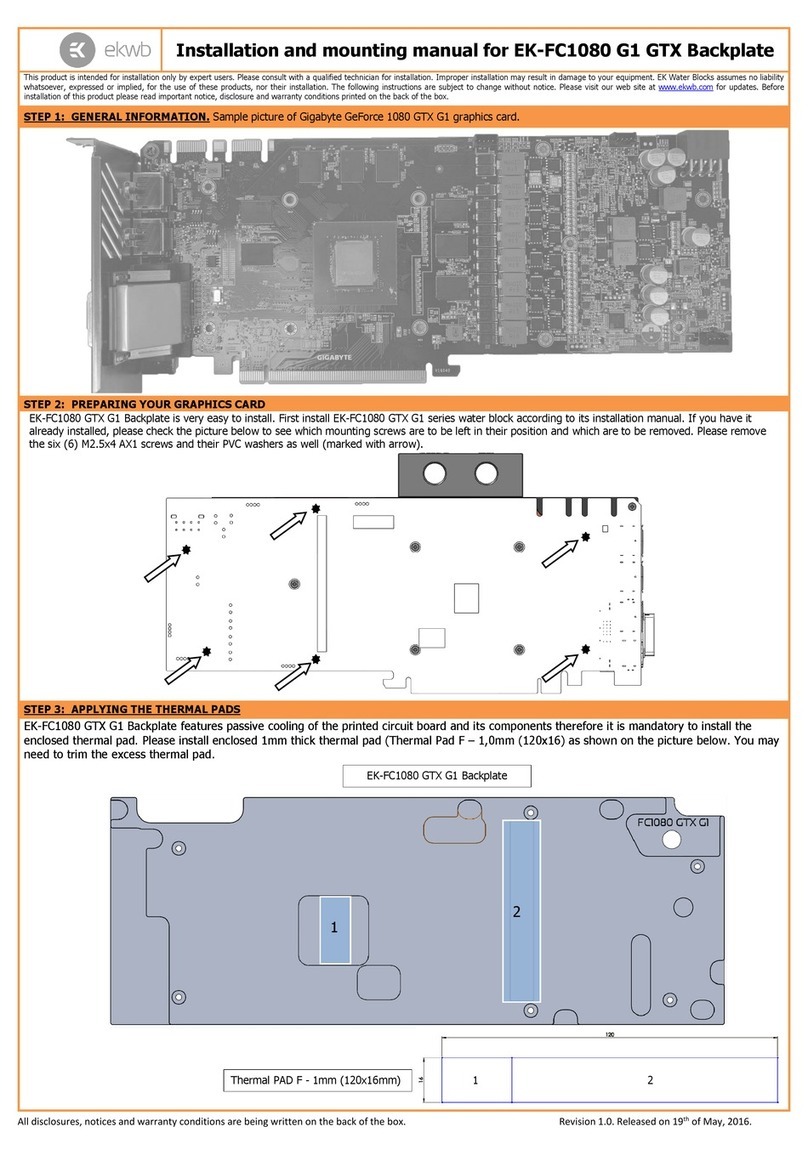
Installation and mounting manual for EK-FCQK5000 water block
This product is intended for installation only by expert users. Please consult with a qualified technician for installation. Improper installation may result in damage to your equipment. EK Water Blocks assumes no liability
whatsoever, expressed or implied, for the use of these products, nor their installation. The following instructions are subject to change without notice. Please visit our web site at www.ekwb.com for updates. Before
installation of this product please read important notice, disclosure and warranty conditions printed on the back of the box.
Before you start using this product please follow these basic guidelines:
1. Please carefully read the manual before through before beginning with the installation process!
2. Please remove your motherboard from the computer to assure safest mounting process in order to prevent any possible damages to your CPU and/or motherboard’s circuit board (PCB).
3. The EK High Flow and EK-PSC type fittings require only a small amount of force to screw them firmly in place since the liquid seal is ensured by the rubber o-ring gaskets.
4. The use of corrosion inhibiting coolants is always recommended for any liquid cooling system.
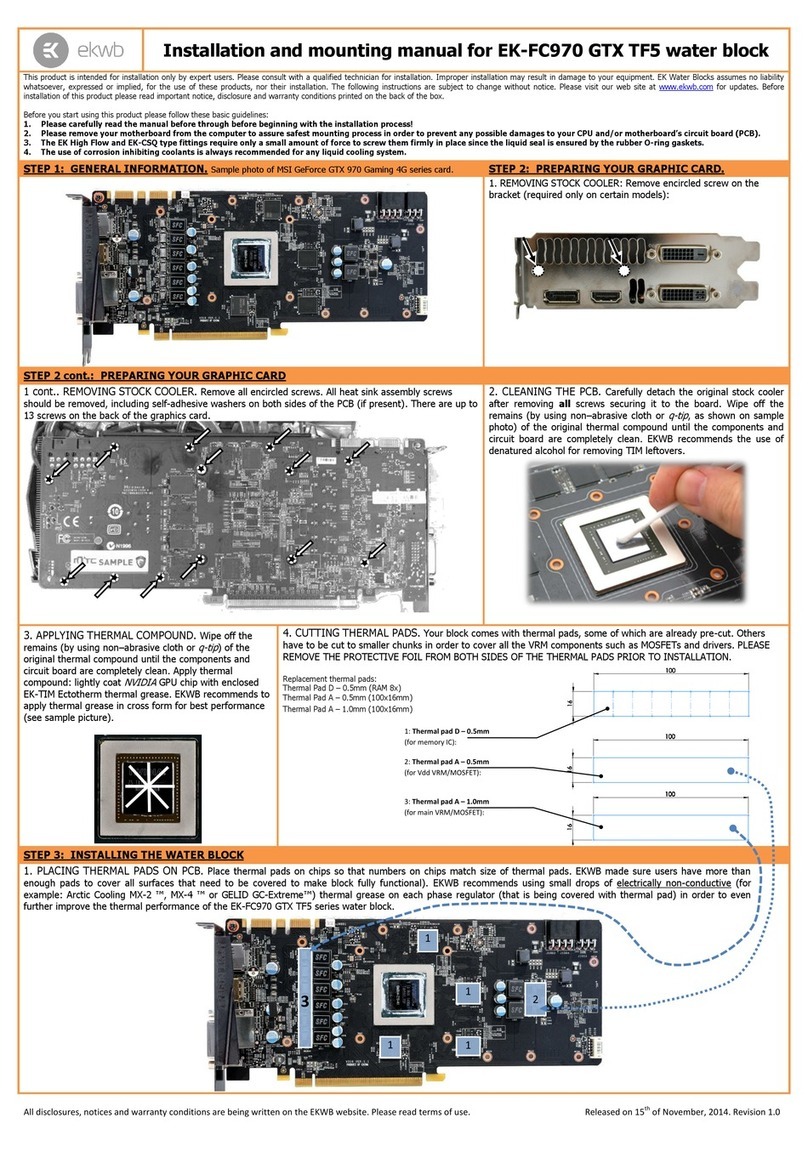
STEP 1: GENERAL INFORMATION. Sample picture of NVIDIA Quadro K5000 graphics card.
STEP 2: PREPARING YOUR GRAPHIC CARD.
1. REMOVING STOCK COOLER: Remove encircled screw on
the bracket. These screws attach the original heat-sink fan
assembly to the circuit board:
STEP 2 cont.: PREPARING YOUR GRAPHIC CARD
1 cont.. REMOVING STOCK COOLER. Remove all encircled screws. All heat sink assembly screws should be
removed. It is necessary to remove the HSF assembly cover from the graphics card (remove 5 screws on the
side of the HSF) in order to remove the power adapter cable from the HSF housing (remove 2 screws). Flip the
card over and remove the remaining screws attaching the HSF to the circuit board. There are up to 16 screws
on the back of the graphics card that needs to be removed.
2. CLEANING THE PCB. Carefully detach the original stock
cooler after removing all screws securing it to the board.
Wipe off the remains (by using non–abrasive cloth or
qtip
, as
shown on sample photo) of the original thermal compound
until the components and circuit board are completely clean.
EKWB recommends the use of denatured alcohol for removing
TIM leftovers.
3. APPLYING THERMAL COMPOUND. Apply thermal
compound: lightly coat
nVidia GK104
GPU chip with
enclosed Arctic Cooling MX-2 ™thermal grease. EKWB
recommends to apply thermal grease in cross form for
best performance (see sample picture).
4. CUTTING THERMAL PADS. Your block comes with thermal pads, some of which are already pre-cut. Others
have to be cut to smaller chunks in order to cover all the VRM components such as MOSFETs and drivers. PLEASE
REMOVE THE PROTECTIVE FOIL FROM BOTH SIDES OF THE THERMAL PADS PRIOR TO INSTALLATION.
Replacement thermal pads: Thermal Pad B –1.0mm (75x50mm), Thermal Pad A –1.0mm (100x16mm).
STEP 3: INSTALLING THE WATER BLOCK
1. PLACING THERMAL PADS ON PCB. Place thermal pads on chips so that numbers on chips match size of thermal pads. EKWB made sure users have more than
enough pads to cover all surfaces that need to be covered to make block fully functional). EKWB recommends using small drops of electrically non-conductive (for
example: Arctic Cooling MX-2 ™, MX-4 ™ or GELID GC-Extreme™) thermal grease on each phase regulator (that is being covered with thermal pad) in order to even
further improve the thermal performance of the EK-FCQK5000 series water block.
2
1
1
1
1
1
1
1
1
1: Thermal pad A –1.0mm
(for memory IC):
1
1
1
1
1
1
1
1
2
2: Thermal pad B –1.0mm
(for VRM):
2
All disclosures, notices and warranty conditions are being written on the EKWB website. Please read terms of use. Released on 7th of March, 2013. Revision 1.0
2. PLACING BLOCK TO GRAPHIC CARD. Carefully position the water block with
preinstalled 2.5mm standoffs on to the graphics card. During this process please make
sure you align mounting holes on PCB with holes on the water block. Also pay attention
not to use too much force by pressing block down to PCB. Chip dies are prone to
cracking.
3. ATTACHING BLOCK TO GRAPHIC CARD. By using Philips screwdriver screw in
enclosed M3x4 DIN7985 screws. EKWB recommends users to start with the M3x4
screws starting near the center and to continue outwards. Use plastic washers
underneath each and every screw!
STEP 4: CHECKING FOR CONTACTS

If necessary temporarily r
emove the water block to check for uniform surface contact between the block and the components, pay special attention to the VRM section of the
graphics card. Check whether the water block makes contact with the intended integrated cirucit. Then repeat sub-steps in previous section to re-attach the block. In case you
fail to obtain good contact, please check again your thermal pad thickness or contact our support service at http://www.ekwb.com/support.
STEP 5: REPLACING THE ORIGINAL I/O BRACKET
STEP 6: INSTALLATION OF FITTINGS AND TUBING
Use one M3x6 screw, one PVC washer and one M3 nut to secure the I/O (also
known as PCI) bracket firmly to the circuit board. This will allow the computer
chassis to carry the weight of the water block thus reducing the tension to the
PCI-express slot. Tighten the screw with Philips head screwdriver while holding
the M3 nut with your thumbs firmly.
Screw in the two G1/4 threaded male fittings. Attach the liquid cooling tubes and connect
the water-block(s) into the cooling circuit. EKWB recommends using EK-PSC fittings
with the EK-FCQK5000 series water blocks. To ensure that the tubes are securely
attached to the barb/fittings, please use hose clamps or an appropriate substitute.
You can use any opening as an inlet/outlet port.
CAUTION: In case of using connectors other than EK-PSC series compression fittings take
special attention to the length of the fittings’ male G1/4” thread. In case the thread is longer
than 5mm please use the enclosed 1.8mm nickel plated distancer! 5mm is the maximum
allowed G1/4” thread length!
STEP 7: FINISHING INSTALLATION - INSERTING THE GRAPHICS
CARD IN YOUR PC CHASSIS
Carefully lift your card with installed water block and insert it into the appropriate
motherboard slot in your computer chassis. Please bear in mind that your card
suddenly withstands extra weight thus again be very careful not to bend it or
cause any other unneeded moves that might damage your card or block during
installation.
REQUIRED TOOLS:
scissors philips or torx T6 screwdriver
Screw M3x4 DIN7985
PVC washer
EK-PSC Fitting
Tubing
EK-Plug G1/4
Acetal Terminal
M3x6 screw
PVC washer
M3 nut