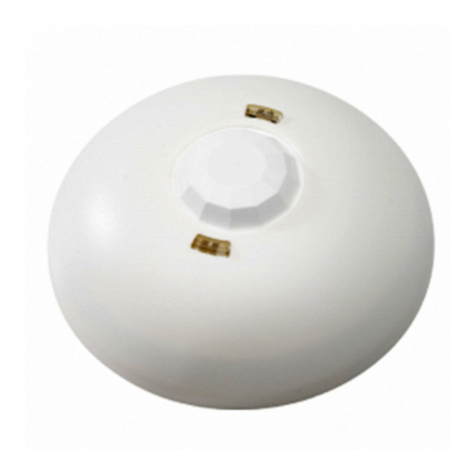
• PIR sensitivity (all occ/vac sensors)
• Audio sensitivity (dual tech only)
• Occupancy sensor timer (dual tech only)
Unlike the other tests, these 3 settings are nested under one main 'sensor setting mode' that you select from the main
menu. Once you enter the sensor setting mode menu, you will notice double blinks instead of single blinks to indicate
mode selection.
For more information on the occupancy sensor timer parameter and how it functions alongside the
occupancy timer of Echoflex output controllers, see this article: Failed Vacancy Operation with
Echoflex Dual Tech Sensors
1. To enter the main test/config menu, press and hold TEACH/TEST button 6 seconds until:
a. occ/vac sensors except OWS: green LED illuminates solid
b. OWS: red/amber/green LEDs blink together
c. light sensors: green LED blinks (slowly)
2. Release button so:
a. occ/vac sensors except OWS: green LED illuminates solid
b. OWS: red/amber/green LEDs blink together
c. light sensors: green LED blinks (quickly)
3. Tap until the red and amber LEDs blink together
4. Press and hold again for 6 seconds until the LEDs de-illuminate
5. Release button, green LED will double blink
6. Tap to the desired blink pattern for each setting (if unit is not DT, will only get double green)
a. double green: PIR sensitivity
b. double amber: audio sensitivity (DT only)
c. double red: occupancy sensor timer (DT only)
7. Press and hold again for 6 seconds until the LED de-illuminates
8. The LED will resume blinking a pattern that indicates the current assignment
a. If you chose PIR sensitivity, the green LED will blink:
I. 1 blink: high (default)
II. 2 blinks: medium
III. 3 blinks: low
b. If you chose Audio Sensitivity, the amber LED will blink:
I. 1 blink: automatic (default)
II. 2 blinks: low
III. 3 blinks: disabled
c. If you chose Sensor Occupancy Timer, the red LED will blink:
https://support.etcconnect.com/ETC/Architectural/Aero_and_EchoFlex/Aero_and_Echoflex_Sensors/Guide_to_Test_and_Co…
Updated: Fri, 17 Sep 2021 16:18:01 G T
Powered by
5