manuals.online logo
Brands
  1. Home
  2. •
  3. Brands
  4. •
  5. EtroVISION
  6. •
  7. IP Camera
  8. •
  9. EtroVISION EtroScan EV8782 Series User manual

EtroVISION EtroScan EV8782 Series User manual

Other EtroVISION IP Camera manuals

EtroVISION EV6250A Series User manual

EtroVISION

EtroVISION EV6250A Series User manual

EtroVISION EV8150A User manual

EtroVISION

EtroVISION EV8150A User manual

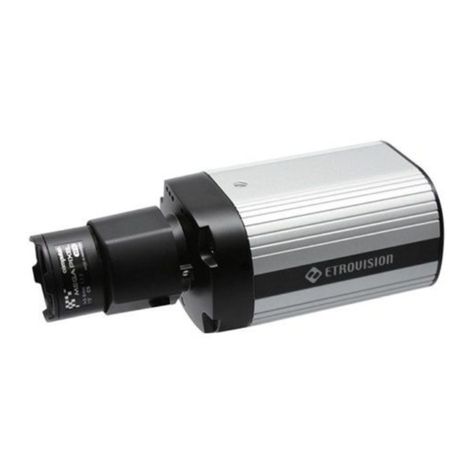
EtroVISION EV6355A-BO User manual

EtroVISION

EtroVISION EV6355A-BO User manual

EtroVISION EV6250A Series User manual

EtroVISION

EtroVISION EV6250A Series User manual

EtroVISION EV6250A Series User manual

EtroVISION

EtroVISION EV6250A Series User manual

EtroVISION EV6150A User manual

EtroVISION

EtroVISION EV6150A User manual

EtroVISION EV6150A-BI User manual

EtroVISION

EtroVISION EV6150A-BI User manual

EtroVISION EV6552A User manual

EtroVISION

EtroVISION EV6552A User manual

EtroVISION 1080p/5M series User manual

EtroVISION

EtroVISION 1080p/5M series User manual

EtroVISION EV6356A User manual

EtroVISION

EtroVISION EV6356A User manual

EtroVISION EV8180A User manual

EtroVISION

EtroVISION EV8180A User manual

Popular IP Camera manuals by other brands

FLIR Exx series user manual

FLIR

FLIR Exx series user manual

Avigilon H4A-BO1-IR installation guide

Avigilon

Avigilon H4A-BO1-IR installation guide

Digital Watchdog DWCA-C128-64 manual

Digital Watchdog

Digital Watchdog DWCA-C128-64 manual

ShareTech AV1 user manual

ShareTech

ShareTech AV1 user manual

Ezviz C6C quick start guide

Ezviz

Ezviz C6C quick start guide

Melchioni UCAM 2015 manual

Melchioni

Melchioni UCAM 2015 manual

Geutebruck G-Cam/ESD-4630 quick guide

Geutebruck

Geutebruck G-Cam/ESD-4630 quick guide

Arecont Vision MegaBall AV3146DN-3310-D-LG installation manual

Arecont Vision

Arecont Vision MegaBall AV3146DN-3310-D-LG installation manual

Mitel 6800i Series Administrator's guide

Mitel

Mitel 6800i Series Administrator's guide

Vitek VTC-IR403-212NP quick start guide

Vitek

Vitek VTC-IR403-212NP quick start guide

THOMSON DSC - 323W user guide

THOMSON

THOMSON DSC - 323W user guide

AVer FB2027 user manual

AVer

AVer FB2027 user manual

ENFORCER EV-T5105-N2SQ manual

ENFORCER

ENFORCER EV-T5105-N2SQ manual

Wansview NC543 user manual

Wansview

Wansview NC543 user manual

Eneo MCB-64A0003M0A Quick installation guide

Eneo

Eneo MCB-64A0003M0A Quick installation guide

deView electronics CBDNI36F instruction manual

deView electronics

deView electronics CBDNI36F instruction manual

Swann SwannEye user manual

Swann

Swann SwannEye user manual

LevelOne IP CamSecure user manual

LevelOne

LevelOne IP CamSecure user manual

manuals.online logo
manuals.online logoBrands
  • About & Mission
  • Contact us
  • Privacy Policy
  • Terms and Conditions

Copyright 2025 Manuals.Online. All Rights Reserved.

E41000001600
EV8782 Series–Quick Installation Guide
1 Install EtroScan on a Windows PC
EtroScan™ is a utility is used to configure network settings for cameras & video servers. EtroScan™ is available on the
CD-ROM or can be downloaded from the Tools section at http://www.etrovision.com/Download_list.aspx?no=5.
Run Setup.exe to install EtroScan™.
2 Basic Physical
installation
Please review the steps before starting. The steps
outlined below are the suggested installation path, but
certain steps may need to be switched depending on
the installation environment.
1. Fix camera to wall (or other surface) for mounting
by using the 2 wall mount screws in the mount
holes.
2. The cable connections are as shown.
3. If using 12V DC, use the terminal block bridge and
power cable adapter supplied in the plastic
packaging.
WARNING: Disconnect power before opening the
camera to avoid electrical accidents.
If PoE will be used (not using 12V DC), use the
RJ45 Network cable port for PoE.
4. To adjust the lens, use the 2nd reset button or
access in the inside of the camera; unscrew the
front glass cover to remove the cover.

5. To adjust the lens focus, remove the rubber lens
cover and twist the lens right or left to adjust the
focus.
6. To access the inside of the camera (for SD card
access or replacing dry pack), remove the 2
securing screws and gently pull out the internal
part by holding the lens.
WARNING: Disconnect power before opening the
camera to avoid electrical accidents.
7. To access the micro SD card slot, pull out the
internal part to expose the PCB boards. The SD
card slot is near the back.
8. A 2nd drying agent pack is included in the plastic
packaging (silver package). If the lens is
experiencing fogging, then replace the existing dry
pack (the white rectangular object below labeled
DESICANT).
9. The camera has a triple axis design for flexible
mounting. Below are the different joints which can
be adjusted.
3 Configure the Network Settings
The factory default IP address settings:
IP Address 192.168.1.2
Subnet Mask 255.255.255.0
Gateway 192.168.1.1
Run EtroScan™ (program available via Start -> All Programs -> Etrovision Technology menu)
4 Access IP Camera Web Interface
When accessing an IP camera using the web interface for the first time (or when the IP address changes), some
configuration for ActiveX controls are required.
1. Open an IE browser
2. Type in the IP address in the URL: http://<IP ADDRESS> (e.g. http://10.1.21.53)
Pop-up windows and messages for download/run Active X controls (examples below) will likely be displayed. Select
Install or Run to all such messages.
Click on the add-on message, and choose Run Add-on
Repeat the above until all ActiveX controls have been initiated. Once the process is complete, the Live View will be
displayed in IE.
5 Restoring Factory Default Settings
There are 2 methods for restoring the factory default settings:
1. Power on the camera, push and hold down the reset button (either the cable reset button or the reset button above
the camera lens) for 6 seconds. The camera will revert to factory default settings (e.g. IP will reset to 192.168.1.2).
2. The web UI Setup (System -> Factory Default) ; network and user account data can be saved if desired. Please
refer to the User’s Manual for more information on the web UI Factory Default functionality.