manuals.online logo
Brands
  1. Home
  2. •
  3. Brands
  4. •
  5. FrSky
  6. •
  7. Control Unit
  8. •
  9. FrSky R9M 2019 LBT User manual

FrSky R9M 2019 LBT User manual

FrSky Electronic Co., Ltd. www.frsky-rc.com Contact us : [email protected]
Add:F-4,Building C, Zhongxiu Technology Park, No.3 Yuanxi Road, Wuxi, 214125, Jiangsu, China Technical Support: [email protected]
FrSky Electronic Co., Ltd. www.frsky-rc.com Contact us : [email protected]
Add:F-4,Building C, Zhongxiu Technology Park, No.3 Yuanxi Road, Wuxi, 214125, Jiangsu, China Technical Support: [email protected]
Instruction Manual for FrSky R9M 2019 ( Non-LBT ) Module Instruction Manual for FrSky R9M 2019 ( Non-LBT ) Module
Thank you for purchasing FrSky R9M 2019 telemetry module. FrSky R9M 2019 radio control system is FrSky long range system
which works in 900MHz. The R9M 2019 module offers 4 switchable RF power outputs so you can choose the appropriate power for
different flight situations. In order to fully enjoy the benefits of this system, please read the instruction manual carefully and set up the
device as described below.
Introduction
5. Connect the battery to the receiver, the GREEN LED on the receiver will be on, indicating into the [Bind] status. Select the RX, the
GREEN LED on the receiver will keep lit, the RED LED will flash, and the transmitter displays [Bind successful].
6. The transmitter exit [Bind], the receiver GREEN LED will flash, RED LED will be off, indicating working normally.
With the FrSky ACCESS protocol, the transmitter/transmitter module can bind receiver without using the "F/S" button.
Follow the step below to finish the Registration & binding procedure:
1. Put the transmitter/transmitter module into [Reg] status.
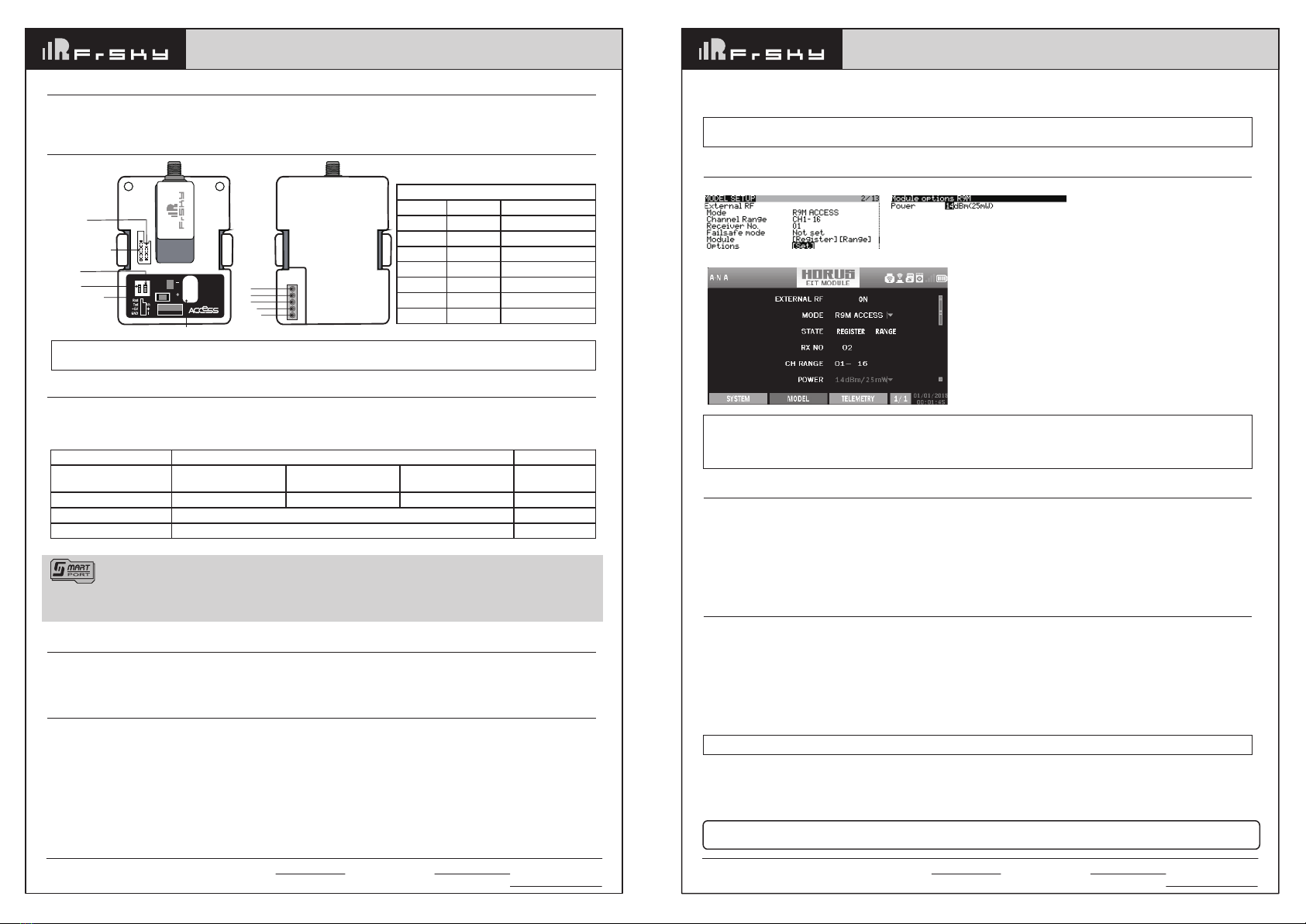
1.1 For Taranis X9D Plus 2019 as an example, turn on the transmitter, go to the MENU-MODEL SETUP-PAGE 2,choose External
RF-Mode R9M ACCESS, then select [Register].
1.2 For Horus X10 Express as an example, turn on the transmitter, go to the MODEL- EXT MODULE, Turn on the EXTERNAL RF,
choose MODE [R9M ACCESS], then select STATE [REGISTER].
2. Connect the battery to the receiver while holding the F/S button on the receiver. The RED LED and GREEN LED on the receiver will
be on, indicating into the [Reg] status. Select [ENTER] on the transmitter, The RED LED and GREEN LED on the receiver will flash,
and the transmitter displays [Registration ok].
3. Turn off the receiver.
4. Move the cursor to select the receiver 1 [Bind].
Registration & Automatic binding (Smart Match )
Note: After binding procedure is completed, resupply the power and check if the receiver is truly communicating with
the transmitter.
A pre-flight range check should be done before each flying session. Reflections from nearby metal fences, concrete buildings or trees
can cause loss of signal both during range check and during the flight. Normally,the RSSI is about 45-50 at 150m in range check
mode.
1. Place the model at least 60cm (two feet) above non-metal contaminated ground (e.g on a wooden bench). The receiver antenna
should be in vertical position.
2. For Taranis X9D Plus 2019 as an example, turn on the transmitter and the receiver, go to: MODEL/SETUP/External RF Mode R9M
ACCESS/Range.
3. For Horus X10 Express as an example, turn on the transmitter and the receiver, go to: MDL/RF SYSTEM/External RF (ON)/STATE
(RANGE).
Range Check
More information please refer to the introduction manual for transmitter.
Note: If failsafe is not set, the model will hold the last position after signal is lost, thus it may fly away or cause injury.
There are 3 failsafe modes: No Pulse, Hold, Custom
• No Pulse: on loss of signal the receiver produces no pulses on any channel. To use this type, select it in the menu and wait 9 seconds
for the failsafe to take effect.
• Hold: the model will maintain the last position after the signal is lost. To use this type, select it in the menu and wait 9 seconds for
the failsafe to take effect.
• Custom: the customized position of each individual channel. The model will move to the pre-set position after the signal is lost. Move
the cursor to “Set” and press ENTER, you will see FAILSAFE SETTING screen below. Move the cursor to the channel you want to
set failsafe on, and press ENTER. When moving the crresponding sticks or switches, you will see the channel bar moving. Move the
channel bar to the place you want for failsafe and long press ENTER to finish the setting. Wait 9 seconds before the failsafe takes
effect.
How to Set Failsafe mode (on the transmitter)
Smart Port (S. Port) is a signal wire full duplex digital transmission interface developed by FrSky Electronic Co., Ltd. All
products enabled with Smart Port (including XJT module, RX8R receiver, new hub-less sensors, new Smart Dashboard, etc), serial
port user data and other user input/output devices can be connected without limitations for numbers or sequences at a high transmis
sion speed.
about the output power and operating current :
Non-LBT Version Range Check
Operating voltage/current
Numbers of channel 16CH /
Compatibility R9 ACCESS series and TD series /
RF Power 10mW 100mW 500mW
100mW~1W
(Self-adaptive)
0.001mW
7.2V@120mA 7.2V@160mA 7.2V@270mA 7.2V@360mA 7.2V@50mA
• Vin Voltage Range: DC 6.5V~13V
• External Power Supply: DC 6.5V~13V
• Telemetry Interface: Smart Port
Specifications
• Upgrade Interface: Smart Port
• ACCESS Protocol
• RF Operating Frequency: 915MHz
• Long range, low latency and high precision RC system
• 4 Optional RF power
• Smart Port enabled and support telemetry data transmission
Features
How to set RF power
-- For Taranis Series transmitters, turn on the transmitter, go to the MENU-MODEL SETUP-PAGE2. Select the RF Power.
-- For Horus Series transmitters, turn on the transmitter, go to the MODEL and choose the EXT MODULE, Select the Power.
External
Power
6.5V~13V
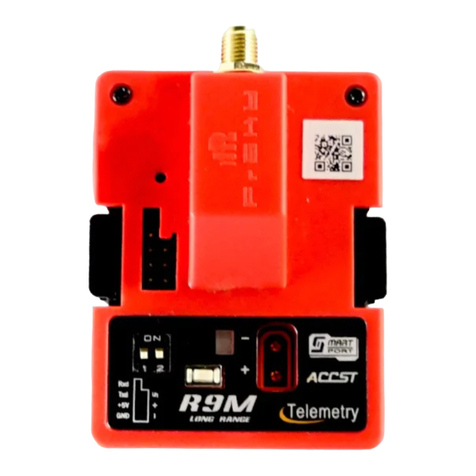
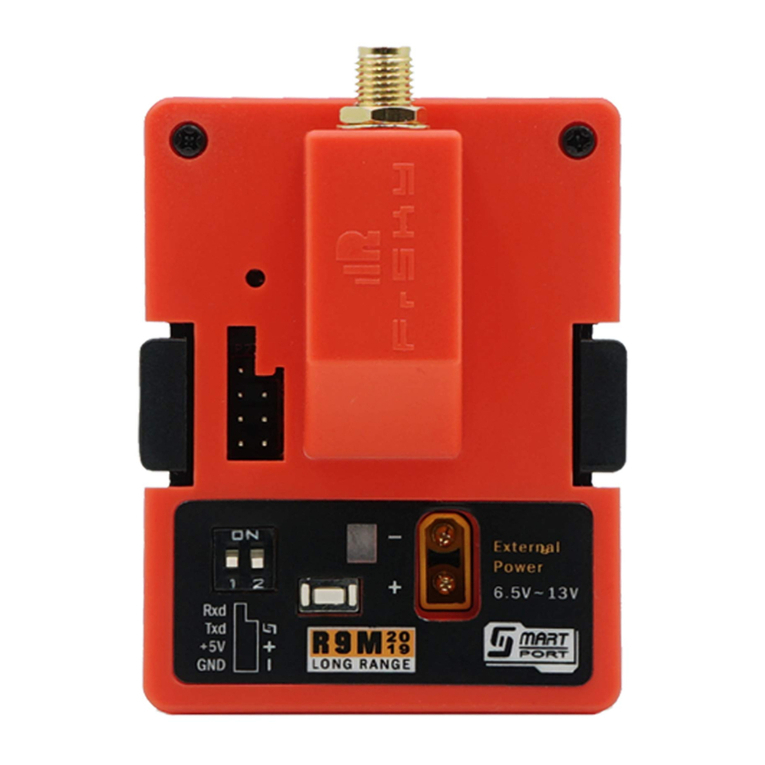
R9M
20
19
LONG RANGE
Smart Port
RS232 Serial Port
Function Button
Switch 2
Switch 1
RX
TX
Vin
GND
S.Port
External Power Supply Port
ON
1 2
F/S
Overview
LED Indication
On
Off
Flash
Flash
On
On
On
RED LED
Flash
Off
Off
On
Flash
On
Off
Green LED
Register
Register successfully
Bind
Bind successfully
Range
Tele
Non-Tele
Status
* If the module is connected to both an external power and a transmitter, it will automatically be powered by the one
with highervoltage.

FrSky is continuously adding features and improvements to our products. To get the most from your product, please check
the download section of the FrSky website www.frsky-rc.com for the latest update firmware and manuals
With the FrSky ACCESS protocol, the transmitter/transmitter module can bind receiver without using the "F/S" button.
Follow the step below to finish the Registration & binding procedure:
1. Put the transmitter/transmitter module into [Reg] status.
1.1 For Taranis X9D Plus 2019 as an example, turn on the transmitter, go to the MENU-MODEL SETUP-PAGE 2,choose External
RF-Mode R9M ACCESS, then select [Register].
1.2 For Horus X10 Express as an example, turn on the transmitter, go to the MODEL- EXT MODULE, Turn on the EXTERNAL RF,
choose MODE [R9M ACCESS], then select STATE [REGISTER].
2. Connect the battery to the receiver while holding the F/S button on the receiver. The RED LED and GREEN LED on the receiver will
be on, indicating into the [Reg] status. Select [ENTER] on the transmitter, The RED LED and GREEN LED on the receiver will flash,
and the transmitter displays [Registration ok].
3. Turn off the receiver.
4. Move the cursor to select the receiver 1 [Bind].
Registration & Automatic binding (Smart Match )
A pre-flight range check should be done before each flying session. Reflections from nearby metal fences, concrete buildings or trees
can cause loss of signal both during range check and during the flight. Normally,the RSSI is about 45-50 at 150m in range check
mode.
1. Place the model at least 60cm (two feet) above non-metal contaminated ground (e.g on a wooden bench). The receiver antenna
should be in vertical position.
2. For Taranis X9D Plus 2019 as an example, turn on the transmitter and the receiver, go to: MODEL/SETUP/External RF Mode R9M
ACCESS/Range.
3. For Horus X10 Express as an example, turn on the transmitter and the receiver, go to: MDL/RF SYSTEM/External RF (ON)/STATE
(RANGE).
Range Check
FrSky Electronic Co., Ltd. www.frsky-rc.com Contact us : [email protected]
Add:F-4,Building C, Zhongxiu Technology Park, No.3 Yuanxi Road, Wuxi, 214125, Jiangsu, China Technical Support: [email protected]
Instruction Manual for FrSky R9M 2019 ( LBT ) Module Instruction Manual for FrSky R9M 2019 ( LBT ) Module
Thank you for purchasing FrSky R9M 2019 telemetry module. As Frsky long range system works in 868MHz, it offers two modes
by way of adapting to different flight situations. In order to fully enjoy the benefits of this system, please read the instruction manual
carefully and set up the device as described below.
Introduction
about the output power and operating current :
LBT Version Range Check
Operating voltage/current
Numbers of channel 16CH /
Compatibility R9 ACCESS series and TD series /
RF Power 25mW 500mW 200mW 0.001mW
7.2V@140mA 7.2V@400mA 7.2V@325mA 7.2V@50mA
Smart Port (S. Port) is a signal wire full duplex digital transmission interface developed by FrSky Electronic Co., Ltd. All
products enabled with Smart Port (including XJT module, RX8R receiver, new hub-less sensors, new Smart Dashboard, etc), serial
port user data and other user input/output devices can be connected without limitations for numbers or sequences at a high transmis
sion speed.
• Vin Voltage Range: DC 6.5V~13V
• External Power Supply: DC 6.5V~13V
• Telemetry Interface: Smart Port
Specifications
• Upgrade Interface: Smart Port
• ACCESS Protocol
• RF Operating Frequency: 868MHz
• Long range, low latency and high precision RC system
• Telemetry (25mW) /No Telemetry (500mW/200mW) mode
• Smart Port enabled and support telemetry data transmission
Features
FrSky Electronic Co., Ltd. www.frsky-rc.com Contact us : [email protected]
Add:F-4,Building C, Zhongxiu Technology Park, No.3 Yuanxi Road, Wuxi, 214125, Jiangsu, China Technical Support: [email protected]
5. Connect the battery to the receiver, the GREEN LED on the receiver will be on, indicating into the [Bind] status. Select the RX, the
GREEN LED on the receiver will keep lit, the RED LED will flash, and the transmitter displays [Bind successful].
6. The transmitter exit [Bind], the receiver GREEN LED will flash, RED LED will be off, indicating working normally.
Note: After binding procedure is completed, resupply the power and check if the receiver is truly communicating with
the transmitter.
More information please refer to the introduction manual for transmitter.
Note: If failsafe is not set, the model will hold the last position after signal is lost, thus it may fly away or cause injury.
There are 3 failsafe modes: No Pulse, Hold, Custom
• No Pulse: on loss of signal the receiver produces no pulses on any channel. To use this type, select it in the menu and wait 9 seconds
for the failsafe to take effect.
• Hold: the model will maintain the last position after the signal is lost. To use this type, select it in the menu and wait 9 seconds for
the failsafe to take effect.
• Custom: the customized position of each individual channel. The model will move to the pre-set position after the signal is lost. Move
the cursor to “Set” and press ENTER, you will see FAILSAFE SETTING screen below. Move the cursor to the channel you want to
set failsafe on, and press ENTER. When moving the crresponding sticks or switches, you will see the channel bar moving. Move the
channel bar to the place you want for failsafe and long press ENTER to finish the setting. Wait 9 seconds before the failsafe takes
effect.
How to Set Failsafe mode (on the transmitter)
FrSky is continuously adding features and improvements to our products. To get the most from your product, please check
the download section of the FrSky website www.frsky-rc.com for the latest update firmware and manuals
How to switch Telemetry (25mW) or No Telemetry (500mW/200mW)
-- For Taranis Series transmitters, turn on the transmitter, go to the MENU-MODEL SETUP-PAGE2. Select the RF Power.
-- For Horus Series transmitters, turn on the transmitter, go to the MODEL and choose the EXT MODULE, Select the Power.
Note:
1. The 2 modes both conform to the CE standard.
2. The receiver should be rebound after switching the modes between Telemetry (25mW) and No Telemetry (200mW/
500mW).
External
Power
6.5V~13V
R9M
20
19
LONG RANGE
Smart Port
RS232 Serial Port
Function Button
Switch 2
Switch 1
RX
TX
Vin
GND
S.Port
External Power Supply Port
ON
1 2
F/S
Overview
LED Indication
On
Off
Flash
Flash
On
On
On
RED LED
Flash
Off
Off
On
Flash
On
Off
Green LED
Register
Register successfully
Bind
Bind successfully
Range
Tele
Non-Tele
Status
* If the module is connected to both an external power and a transmitter, it will automatically be powered by the one
with highervoltage.

This manual suits for next models

1

Other FrSky Control Unit manuals

FrSky R9M Lite Pro User manual

FrSky

FrSky R9M Lite Pro User manual

FrSky R9M Lite Pro User manual

FrSky

FrSky R9M Lite Pro User manual

FrSky RB-35 User manual

FrSky

FrSky RB-35 User manual

FrSky R9M Lite Pro User manual

FrSky

FrSky R9M Lite Pro User manual

FrSky R9M Lite Pro User manual

FrSky

FrSky R9M Lite Pro User manual

FrSky XJT Lite User manual

FrSky

FrSky XJT Lite User manual

FrSky Neuron 60 User manual

FrSky

FrSky Neuron 60 User manual

FrSky D6FR User manual

FrSky

FrSky D6FR User manual

FrSky FWTM User manual

FrSky

FrSky FWTM User manual

FrSky RB-25 User manual

FrSky

FrSky RB-25 User manual

FrSky R9M 2019 User manual

FrSky

FrSky R9M 2019 User manual

FrSky ESC Neuron 40 User manual

FrSky

FrSky ESC Neuron 40 User manual

FrSky XJT Lite D8 User manual

FrSky

FrSky XJT Lite D8 User manual

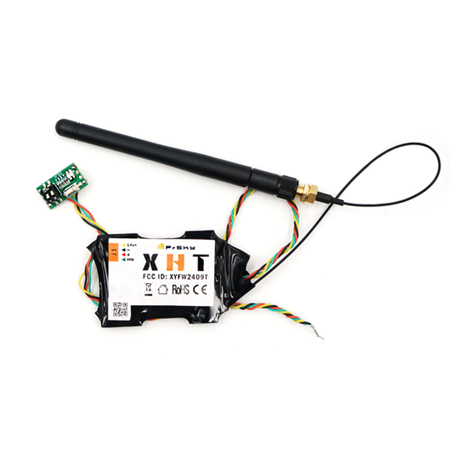
FrSky XHT User manual

FrSky

FrSky XHT User manual

FrSky R9M Lite Pro User manual

FrSky

FrSky R9M Lite Pro User manual

FrSky TWIN Lite Pro User manual

FrSky

FrSky TWIN Lite Pro User manual

FrSky TANDEM X20 Pro User manual

FrSky

FrSky TANDEM X20 Pro User manual

Popular Control Unit manuals by other brands

BERMAD FP 430-UF Installation operation & maintenance

BERMAD

BERMAD FP 430-UF Installation operation & maintenance

WEST PQP-171-P Technical documentation

WEST

WEST PQP-171-P Technical documentation

BFT BOX Installation and user manual

BFT

BFT BOX Installation and user manual

Toro 112-4881 installation instructions

Toro

Toro 112-4881 installation instructions

Aaeon PFM-T096P manual

Aaeon

Aaeon PFM-T096P manual

Danze Treysta D511058TC installation instructions

Danze

Danze Treysta D511058TC installation instructions

BFT B EBA RS 485 LINK installation manual

BFT

BFT B EBA RS 485 LINK installation manual

National Instruments NI PXI-665 Series user manual

National Instruments

National Instruments NI PXI-665 Series user manual

Mitsubishi M800S series Connection and set up manual

Mitsubishi

Mitsubishi M800S series Connection and set up manual

Warren rupp Sandpiper HD20F Service & operating manual

Warren rupp

Warren rupp Sandpiper HD20F Service & operating manual

Channel Vision Central C-0703 manual

Channel Vision

Channel Vision Central C-0703 manual

Iddero DW-GSM user guide

Iddero

Iddero DW-GSM user guide

Emerson Baumann 89000 instruction manual

Emerson

Emerson Baumann 89000 instruction manual

Monacor ATT-412PEU instructions

Monacor

Monacor ATT-412PEU instructions

Wolf BML-EXCELLENT user manual

Wolf

Wolf BML-EXCELLENT user manual

Burkert AirLINE 8652 quick start

Burkert

Burkert AirLINE 8652 quick start

Nortek tvone CM-HDBT-2OUT-1ETH quick start guide

Nortek

Nortek tvone CM-HDBT-2OUT-1ETH quick start guide

Fibocom G510 Hardware user manual

Fibocom

Fibocom G510 Hardware user manual

manuals.online logo
manuals.online logoBrands
  • About & Mission
  • Contact us
  • Privacy Policy
  • Terms and Conditions

Copyright 2025 Manuals.Online. All Rights Reserved.