1
v 1.1
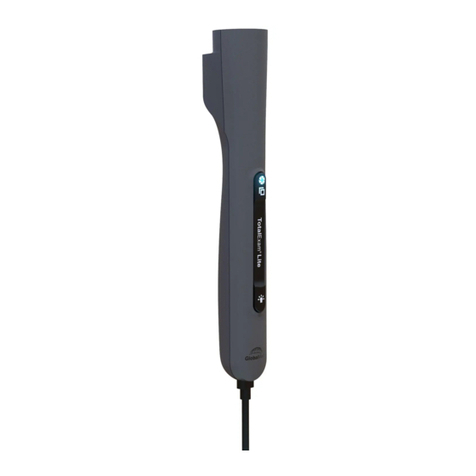
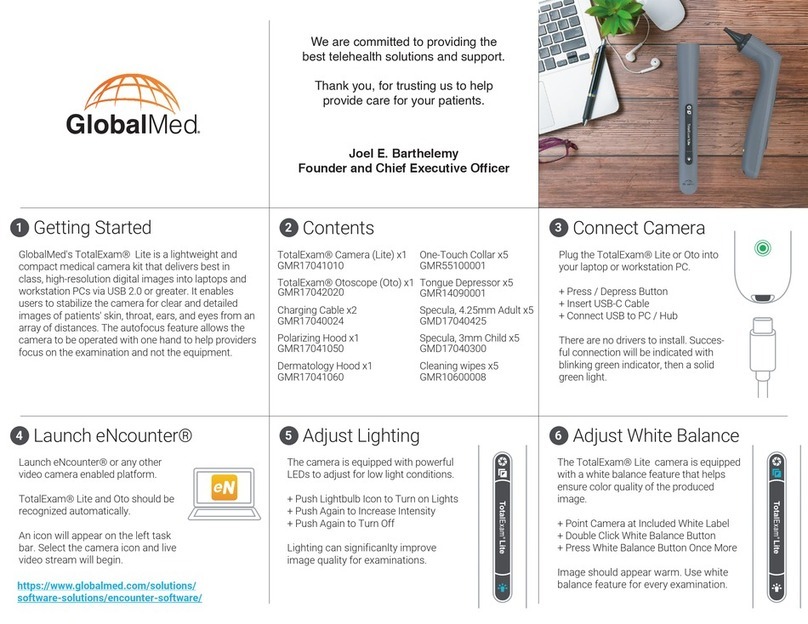
GlobalMed “TotalExam 3” Camera
For further assistance and technical support, contact OTN Technical Support:
Phone: 1-855-654-0888 (option 2) Email: techsupport@otn.ca
Connect the lens to the camera device.
Ensure that the dots match up and turn
the locking ring in a clockwise direction.
1
2
3
4
5
6
7
Connect the USB cable to the computer.
Check that you are using a USB 3.0 connection.
White balance the camera by pressing
the WB button. Ensure that the light is
on and the camera is pointed at a white
card/paper.
Log in at otnhub.ca, go the
Videoconference service and connect to
the desired system.
On the videoconference toolbar, click
the Settings icon ( ), and select the
appropriate peripheral camera.
Position the camera and use the FF button
to capture a static image. To return to the
live camera feed, press the FF button.
To return to the room view, in the video
window’s toolbar, click the Settings icon ( )
and click on the main camera.
Freeze-Frame
(FF)
Auto Focus
(AF)
White Balance
(WB)
Lighting Control
(LED)
Using the Camera with OTNhub Videoconference