Before you do anything else,
please read this
Charge the battery
The battery in your phone hasn’t been charged yet. While your
phone is charging, it’s important that you do not remove the battery
pack. Doing so can damage your phone. Also, please don’t try to
take your phone apart. (If you do, it may invalidate your warranty.)
Choose a rate plan wisely
Depending on how you use your phone, it can use up a lot of
Internet bandwidth really quickly. Before you use your phone, we
strongly recommend that you talk to your mobile operator about
data rates.
Using data services while roaming will be costly. Check with
your mobile operator for data roaming rates before you use data
roaming.
Know about privacy laws
Some countries have strict laws about how and when you can
record phone conversations. It’s a good idea to find out what the
laws are where you live before you use your phone’s recording
feature.
And finally, a few important words from our legal team
(LIMITATION OF DAMAGES)
To the maximum extent permitted by applicable law, in no event
shall HTC or its affiliates be liable to you, any user, or third party for
any indirect, special, consequential, incidental or punitive damages
of any kind, arising in contract, tort, or otherwise, including, but not
limited to, injury, loss of revenue, loss of goodwill, loss of business
opportunity, loss of data, and/or loss of profits, regardless of the
foreseeability thereof or whether HTC or its affiliates have been
advised of the possibility of such damages. And in no event shall the
total liability of HTC or its affiliates exceed the amount received from
you, regardless of the legal theory under which the cause of action
is brought. The foregoing does not affect any statutory rights which
may not be disclaimed.
Get to know your phone Set up your phone
The first time you turn on your phone, you’ll be guided to
transfer contacts to your new HTC phone using Bluetooth,
set up your email and social network accounts, and more.
Be sure to sign in to your Google™ Account so you can
use Google apps such as Android Market™ on your phone.
Your Home screen
Personalize your phone just the
way you want it. There’s up to
seven Home screen panels you can
customize with widgets that show
live updates of weather forecasts,
social network feeds, and
more. You can also keep things
organized on your Home screen
by grouping apps or shortcuts into
separate folders.
Organizing your Home screen with folders
1. Press and hold on an empty space on the Home screen
and then tap Folder > New Folder.
2. Tap . In the apps list, press and hold an app and
then drag it to your folder.
If you have shortcuts created on your Home screen, you
can also drag a shortcut to your folder.
3. Tap your folder to access the apps or shortcuts inside it.
And here’s another tip. When your folder is open, press
and hold its title bar to change the folder name.
Before you turn on your phone
Make sure you prepare your phone correctly before you
press the POWER button.
Removing the thin film from the battery
1. With the phone switched off, hold your phone securely
with the front facing down.
2. With your finger, lift up the back cover from the small
opening at the back of the phone to remove it.
3. With your thumb or finger, lift the battery off from the
opening on the left side of your phone. and remove the
thin film that’s wrapped around the battery.
Where’s the microSD card?
The microSD card is already inserted into your phone. If
you need to remove the microSD card, push it in to eject
it. To reinsert, push it in until it clicks into place.
Inserting your SIM card
With the SIM card’s gold
contacts facing down and
its cut-off corner facing out,
push the SIM card all the way
into the SIM card slot.
After inserting the SIM card,
reinsert the battery into the
battery compartment.
Replacing the back cover
1. Secure the top part of the back cover first by aligning
into the two openings located at the back of the phone
(right below the camera lens).
2. Press the sides and bottom part of the back cover
towards the phone. You’ll hear a click when the back
cover is locked in place.
Charging the battery
Use the supplied power adapter and USB cable to charge
your phone.
Keep your life in order by keeping track of your schedules,
contacts, and email messages.
Keeping track of your events in Calendar
If you’re signed in to your Google Account, Facebook, and
Exchange ActiveSync accounts, you can use the Calendar
app (or the Calendar widget) to view your events from
those accounts.
You can also easily add a new event to any of your
calendars.
1. From the Home screen, tap > Calendar.
2. Press MENU and tap New event.
3. Choose a calendar to which you want to add the event.
4. Fill in the details of the event, and then tap Save.
Keep your life organized
Adding all your contacts in People
In the People app, you’ll see
your contacts from your Google
Account, Facebook®, and even
your Exchange ActiveSync®
account if you’re signed in to
these accounts on your phone.
Aside from their contact details,
you’ll also see their status
updates and birthday reminders
if they’re your Facebook or
Twitter™ friends.
If you have more contacts in your SIM card, you can
import them all to your phone in one go:
1. From the Home screen, tap > People.
2. On the All tab, press MENU. Then tap Import/Export >
Import from SIM card.
If you have a Google and/or Exchange ActiveSync
account on your phone, choose the account where to
put your contacts.
3. Press MENU, and then tap Select all > Save.
You can also add new contacts:
1. From the Home screen, tap > People.
2. Tap Add contact. Then enter the contact information in
the relevant fields.
3. Tap Save.
Managing all your email accounts
If you signed into your Google Account when you first set
up your phone, you’ll be able to send and receive Gmail
messages. From the Home screen, just tap > Gmail.
Use the Mail app to set up and manage your other email
accounts such as webmail, POP3, IMAP, or Exchange
ActiveSync accounts.
1. From the Home screen, tap > Mail.
2. On the Choose a mail provider screen, choose the type
of email account to set up.
If you don’t see this screen, press MENU, tap New
account, and then choose the type of email account.
3. Enter the Email address and Password for your email
account.
4. Follow the onscreen instructions to finish setting up
your email account.
In the Mail app, you can check
your email messages just in one
place without having to switch to
different accounts. Just choose
the All accounts inbox. Email
messages are color coded so
you can easily distinguish which
email accounts they belong to.
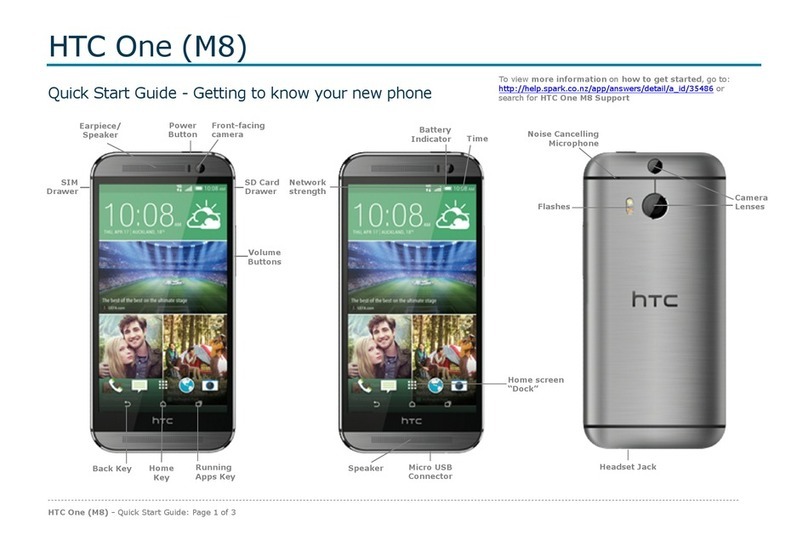
Notification LED
USB connector
Power
Touch screen
MENU SEARCHHOME
Earpiece
BACK
Volume control
3.5mm
headset jack
Front camera
Proximity sensor
Trackpad CAMERA