manuals.online logo
Brands
  1. Home
  2. •
  3. Brands
  4. •
  5. i3 International
  6. •
  7. Security System
  8. •
  9. i3 International 5i00 Series Instruction Manual

i3 International 5i00 Series Instruction Manual

Other i3 International Security System manuals

i3 International 4i00 Series Instruction Manual

i3 International

i3 International 4i00 Series Instruction Manual

i3 International Veo17 User manual

i3 International

i3 International Veo17 User manual

i3 International 6E32 Series Instruction Manual

i3 International

i3 International 6E32 Series Instruction Manual

i3 International 4P16 Series Instruction Manual

i3 International

i3 International 4P16 Series Instruction Manual

i3 International 6P16 Series Instruction Manual

i3 International

i3 International 6P16 Series Instruction Manual

i3 International 2i0008 Series Instruction Manual

i3 International

i3 International 2i0008 Series Instruction Manual

Popular Security System manuals by other brands

Polon-Alfa 4000 Installation and maintenance manual

Polon-Alfa

Polon-Alfa 4000 Installation and maintenance manual

Nexcom NViS 14162 Series user manual

Nexcom

Nexcom NViS 14162 Series user manual

Eminent EM8670 Quick install

Eminent

Eminent EM8670 Quick install

urmet domus alpha 1060 INSTALLATION AND USE BOOKLET

urmet domus

urmet domus alpha 1060 INSTALLATION AND USE BOOKLET

SmartPool YardGuard YG03 manual

SmartPool

SmartPool YardGuard YG03 manual

DSC PC5964 Mounting instructions

DSC

DSC PC5964 Mounting instructions

Secure USAB-1 operating instructions

Secure

Secure USAB-1 operating instructions

B&B 480 SERIES Operation & maintenance manual

B&B

B&B 480 SERIES Operation & maintenance manual

ADEMCO VISTA-20P Series Installation and setup guide

ADEMCO

ADEMCO VISTA-20P Series Installation and setup guide

Inner Range Concept 2000 user manual

Inner Range

Inner Range Concept 2000 user manual

Johnson Controls PENN Connected PC10 Install and Commissioning Guide

Johnson Controls

Johnson Controls PENN Connected PC10 Install and Commissioning Guide

Aeotec Siren Gen5 quick start guide

Aeotec

Aeotec Siren Gen5 quick start guide

Swann SW-P-MC2 Specifications

Swann

Swann SW-P-MC2 Specifications

Ecolink Siren+Chime user manual

Ecolink

Ecolink Siren+Chime user manual

EDM Solution 6+6 Wireless-AE installation manual

EDM

EDM Solution 6+6 Wireless-AE installation manual

Siren LED GSM operating manual

Siren

Siren LED GSM operating manual

Detection Systems 7090i Installation and programming manual

Detection Systems

Detection Systems 7090i Installation and programming manual

FRIEDLAND MA10 Installation and operating instructions

FRIEDLAND

FRIEDLAND MA10 Installation and operating instructions

manuals.online logo
manuals.online logoBrands
  • About & Mission
  • Contact us
  • Privacy Policy
  • Terms and Conditions

Copyright 2025 Manuals.Online. All Rights Reserved.

i3 Technical Support: 1.877.877.7241 Rev. 150501
Quick Connection Guide 5i00XX-series
Thank you for purchasing the i3 Digital Video Management System
(DVMS). The following items should be included in the i3 DVMS box.
If any of these items are missing, please contact your dealer or call
our Customer Care Department toll free at 1.866.840.0004.
Standard accessories:
• HDD SATA keys (2 pcs)
• DVMS door keys (2 pcs), attached to the back of the unit
• USB keyboard
• USB mouse
• Power cord (2 pcs)
• SRX-Pro Software & Utilities DVD
• Motherboard CD(s)
• Security labels (2 pcs)
• Rackmount bracket (Ear x 2 pcs, Aluminum handle x 2 pcs) +
bracket screws (6 pcs)
• Optional. Wallmount bracket (2 pcs) + bracket screws (8 pcs)
Installation Requirements:
When selecting a storage location for your system, be sure to avoid:
• excessive heat, such as direct sunlight or heating appliances
• moisture, dust, and smoke
• magnetic fields or electrical waves
• temperatures below 5º Celsius or 41º Fahrenheit
• any obstructions to the system’s ventilation holes
Before installing this system, always ensure the:
• power source is located within 3 feet or 1 meter of the UPS
• power is switched off (**Do not plug in the DVMS unit)
• system and its connecting cables have sufficient space system is
placed on an even surface system is situated far from electronic
equipment such as microwaves, radios, fridge compressors,
or any type of wireless equipment such as telephones or cell
phones)
• system is at room temperature (18º – 25º C or 64º – 77º F)
POWER
REC
WD
WD SWITCH
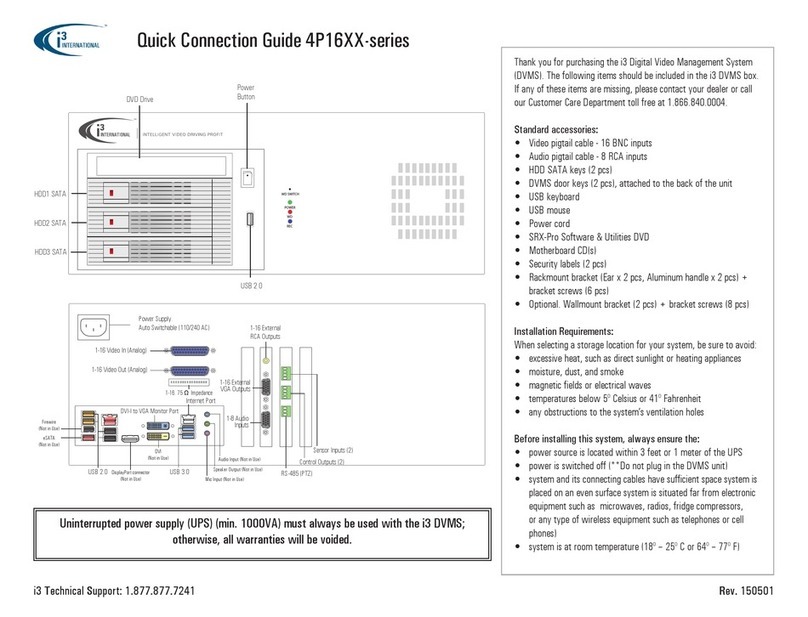
HDD1 SATA
HDD2 SATA
HDD3 SATA
DVD Drive
USB 2.0
Power
Button
Internet Port
DisplayPort connector
(Not in Use)
Firewire
(Not in Use)
USB 3.0
USB 2.0
Mic Input (Not in Use)
Speaker Output (Not in Use)
Audio Input (Not in Use)
DVI-I to VGA Monitor Port
DVI
(Not in Use)
eSATA
(Not in Use) Sensor Inputs (2)
Control Outputs (2)
RS-485 (PTZ)
Internet Port
DisplayPort connector
(Not in Use)
Firewire
(Not in Use)
USB 3.0
USB 2.0
Mic Input (Not in Use)
Speaker Output (Not in Use)
Audio Input (Not in Use)
DVI-I to VGA
Monitor Port
DVI
(Not in Use)
eSATA
(Not in Use)
Internet Port
DisplayPort connector
(Not in Use)
Firewire
(Not in Use)
USB 3.0
USB 2.0
Mic Input (Not in Use)
Speaker Output (Not in Use)
Audio Input (Not in Use)
DVI-I to VGA Monitor Port
DVI
(Not in Use)
eSATA
(Not in Use)
Internet Port
DisplayPort connector
(Not in Use)
Firewire
(Not in Use)
USB 3.0
USB 2.0
Mic Input (Not in Use)
Speaker Output (Not in Use)
Audio Input (Not in Use)
DVI-I to VGA
Monitor Port
DVI
(Not in Use)
eSATA
(Not in Use)
1-16 Video In (Analog)
1-16 Video Out (Analog)
1-16 Video In (IP)+ PoE
Main Power Supply.
Auto Switchable (110/240 AC)
PoE Power Supply.
Auto Switchable (110/240 AC)
Power Toggle Switch
PoE Power Supply.
Auto Switchable (110/240 AC)
Power Toggle Switch
Sensor Inputs (2)
Control Outputs (2)
RS-485 (PTZ)
Main Power Supply.
Auto Switchable (110/240 AC)
Power Supply.
Auto Switchable (110/240 AC)
Power Supply.
Auto Switchable (110/240 AC)
1-16 Video In (Analog)
1-16 Video Out (Analog)
1-16 External
RCA Outputs
1-8 Audio
Inputs
1-16 External
VGA Outputs
1-16 External
RCA Outputs
1-8 Audio
Inputs
1-16 External
VGA Outputs
1-16. 75 ΩImpedance
1-16. 75 ΩImpedance
POWER
REC
WD
WD SWITCH
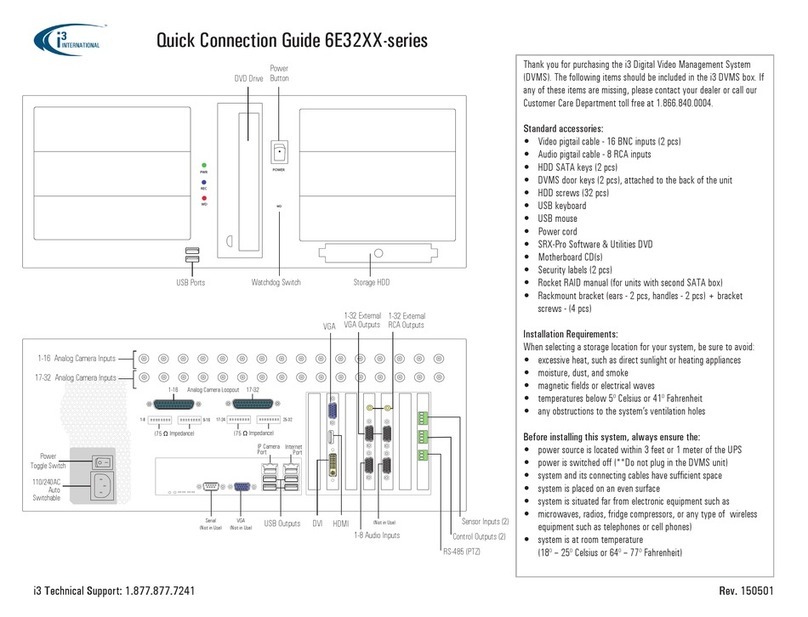
DVD Drive
USB 2.0
Power
Button
POWER
REC
WD
WD SWITCH
HDD1 SATA
HDD2 SATA
HDD3 SATA
DVD Drive
USB 2.0
Power
Button
Internet Port
DisplayPort connector
(Not in Use)
Firewire
(Not in Use)
USB 3.0
USB 2.0
Mic Input (Not in Use)
Speaker Output (Not in Use)
Audio Input (Not in Use)
DVI-I to VGA Monitor Port
DVI
(Not in Use)
eSATA
(Not in Use) Sensor Inputs (2)
Control Outputs (2)
RS-485 (PTZ)
Internet Port
DisplayPort connector
(Not in Use)
Firewire
(Not in Use)
USB 3.0
USB 2.0
Mic Input (Not in Use)
Speaker Output (Not in Use)
Audio Input (Not in Use)
DVI-I to VGA
Monitor Port
DVI
(Not in Use)
eSATA
(Not in Use)
Internet Port
DisplayPort connector
(Not in Use)
Firewire
(Not in Use)
USB 3.0
USB 2.0
Mic Input (Not in Use)
Speaker Output (Not in Use)
Audio Input (Not in Use)
DVI-I to VGA Monitor Port
DVI
(Not in Use)
eSATA
(Not in Use)
Internet Port
DisplayPort connector
(Not in Use)
Firewire
(Not in Use)
USB 3.0
USB 2.0
Mic Input (Not in Use)
Speaker Output (Not in Use)
Audio Input (Not in Use)
DVI-I to VGA
Monitor Port
DVI
(Not in Use)
eSATA
(Not in Use)
1-16 Video In (Analog)
1-16 Video Out (Analog)
1-16 Video In (IP)+ PoE
Main Power Supply.
Auto Switchable (110/240 AC)
PoE Power Supply.
Auto Switchable (110/240 AC)
Power Toggle Switch
PoE Power Supply.
Auto Switchable (110/240 AC)
Power Toggle Switch
Sensor Inputs (2)
Control Outputs (2)
RS-485 (PTZ)
Main Power Supply.
Auto Switchable (110/240 AC)
Power Supply.
Auto Switchable (110/240 AC)
Power Supply.
Auto Switchable (110/240 AC)
1-16 Video In (Analog)
1-16 Video Out (Analog)
1-16 External
RCA Outputs
1-8 Audio
Inputs
1-16 External
VGA Outputs
1-16 External
RCA Outputs
1-8 Audio
Inputs
1-16 External
VGA Outputs
1-16. 75 ΩImpedance
1-16. 75 ΩImpedance
POWER
REC
WD
WD SWITCH
DVD Drive
USB 2.0
Power
Button
Uninterrupted power supply (UPS) (min. 1000VA) must always be used with the i3 DVMS;
otherwise, all warranties will be voided.
i3 Technical Support: 1.877.877.7241 Rev. 150501
Setting Up the SRX-Pro DVMS
Before installation: 1. ground yourself. This will remove any static electrical charge your body might be carrying. 2. Connect all cables and peripheral devices by following instructions below.
Plug in the monitor. For VGA monitors, use the DVI-VGA
adapter included with your accessories. For DVI monitors,
plug in directly into the DVI port on the motherboard.
Plug the mouse and keyboard into the USB ports in
the back of the unit.
Connect BOTH power cables to an Uninterruptible
Power Supply (UPS). UPS must be used to maintain
unit warranty.
Time Zone Adjustment
All DVMS units sold by i3 International are pre-set to Eastern Time zone (GMT -5:00). It is imperative that you configure the time zone setting on the first system startup according to the physical location of the unit. If the
DVMS is later re-located to a different time zone, this setting must be changed once again. All previously-recorded data must be formatted after each time zone change. Failure to do so may result in system malfunction.
Once the SRX-Pro Server starts for the first time, the message in Fig. 1 will be displayed. Click Yes if the DVMS is being installed in the Eastern time zone (GMT -5:00). Click No if the DVMS is being installed in a different time
zone - this will halt the SRX-Pro software startup and allow you a chance to set your DVR/NVR’s timezone.
If the DVMS is being installed in a different time zone, follow instructions below:
1. On Windows Desktop, click on the System Time in the bottom right-hand corner.
2. In the calendar window, click Change date and time settings...
3. In Date and Time tab, click on Change time zone... button and select the correct time zone in the drop down list.
4. Click OK. Click OK again to close Date and Time window.
5. Launch SRX-Pro Server softare by clicking on Start > All Programs > SRX-Pro Server
6. Once the software loads, a message in Fig. 2 will be displayed on the screen.
7. Click OK (highly recommended) to format all storage drives and erase video data recorded in a different time zone.
8. Click OK in the “All old data will be formatted” warning window, Allocation window will be displayed in the top left corner.
9. Wait until the “Start allocating selected drive(s). It may take several minutes to finish.” message changes to “Storage Drives have been allocated”.
10. Click OK in the Allocation window to close it. The login window will be displayed on the screen. The default Administrator Login/Password is i3admin / i3admin
Note: Default administrative Login/
Password for SRX-Pro v.3.1
and above is: i3admin / i3admin
Fig. 1. Time Zone Warning Message on first startup
Fig. 2. Time Zone data format message
Connect the power cable to the PoE power supply
on your DVMS. Then, put the toggle power switch
underneath in the ON position.
Finally, connect the power cable to the the Main
power supply on your DVMS. The system will
power on automatically.
STEP 1
STEP 2
STEP 3
STEP 4
STEP 5
STEP 6
Connect all IP camera cables to the PoE switch ports
on the back of the chassis.
STEP 7
If the unit does not power on automatically, press and hold
the toggle button power switch at the front of your unit for
2 sec. The system will then power on.