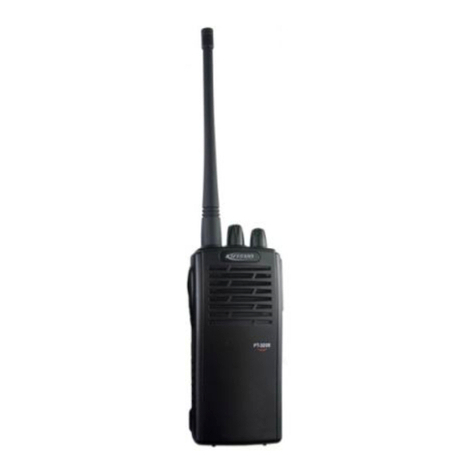
Icom IC-410PRO Setup guide

i
INTRODUCTION
IMPORTANT
READ ALL INSTRUCTIONS carefully before using
the IC-410PRO uhf cb transceiver.
KEEP THIS ADVANCED MANUAL, as it contains
important operating information that may be useful in
the future.
The BASIC MANUAL is supplied with the transceiver.
NOTE
This ADVANCED MANUAL is described, based on
the IC-410PRO factory defaults. However, the setting
values or options on your transceiver may differ from
the descriptions in this manual, depending on the
presetting by your dealer.
Ask your authorized Icom dealer or transceiver
administrator for details.
Icom, Icom Inc. and the Icom logo are registered trademarks
of Icom Incorporated (Japan) in Japan, the United States,
the United Kingdom, Germany, France, Spain, Russia,
Australia, New Zealand and/or other countries.

1ACCESSORIES AND INSTALLATION
1-2
Supplied accessories
Microphone Microphone hanger
and screw set
Microphone
hanger cable
DC power cable Function name
stickers*
Mounting bracket
Flat washers Nuts Mounting screws
Spring washers Bracket bolts Self-tapping screws
* Used for labelling the programmable function keys according to their assigned functions.

1ACCESSORIES AND INSTALLATION
1-3
Rear panel connection
e
r
qw
t
RWARNING! NEVER remove
the fuse holder from the DC
power cable.
qANTENNA CONNECTOR
Connects an antenna cable.
wEXTERNAL SPEAKER JACK
Connecta4–8Ωexternalspeaker. eMICROPHONE HANGER
Connect the supplied microphone
hanger to the vehicle’s ground to
use the microphone ON/OFF hook
functions.
rOPTIONAL CABLE (OPC-1939)
Connectanexternalhorn,andsoon.
Ask your dealer for details.
tDC POWER RECEPTACLE
Connects to a 12 V DC power source.
Pay attention to polarities.
RWARNING! NEVER connect
to a 24 V battery. This could
damage the transceiver.
Antenna
Optional speaker
12 V
Battery
NOTE: Use the terminals as shown
below for the cable connections.
Red
Solder
Crimp
Black
Microphone
hanger cable
Mounting the transceiver
Flat washer
Felt*
Spring washer
When using
self-tapping screws *Felt reduces vibration

2-1
Section 2BASIC OPERATION
Power ON password..............................................................2-2
Keylock...................................................................................2-2
Channel selection..................................................................2-2
Zone selection .......................................................................2-2
Priority channel .....................................................................2-3
DSetting the Priority channel..............................................................2-3
DSelecting the Priority channel ..........................................................2-3
DCancelling the Priority channel ........................................................2-3
Monitor ...................................................................................2-3
Squelch...................................................................................2-3

2BASIC OPERATION
2-2
Power ON password
If the transceiver is set with a power ON password,
enter the password when turning ON the transceiver.
To enter the password, see the illustration below.
KEY
NUMBER 0
5
1
6
2
7
3
8
4
9
The password is a 4 digit code (example: 1234).
➥Push the corresponding keys to enter your
password.
• Note that each key represents two digits. That means,
“3764” and “8769” are entered in exactly the same way
(requires no multiple or extended pushing.)
• The entered password will not be displayed.
• If “PASSWORD” does not disappear after entering, the
entered password is incorrect. Turn OFF the transceiver,
and then try again.
Keylock
Hold down for 2 seconds to electronically lock all
keys except [DUP], [FUNC], and [MONI] to prevent
accidental channel changing and function access.
To lock the keys:
➥Hold down [DUP] for 2 seconds.
To unlock the keys:
➥Hold down [DUP] for 2 seconds again.
DNon-locked keys
Even when the Keylock function is ON, you can use
the following keys for certain conditions.
[PTT]: You can hold down to
transmit, and release to
receive.
[DUP] (Normal mode): You can hold down for 2
seconds to unlock the keys.
[FUNC] (Normal mode): You can push to change
between Normal mode and
Function mode.
[MONI] (Normal mode): You can push to turn the
Monitor (open squelch)
function ON or OFF.
Channel selection
There are 80 channels on the UHF CB and you have
access to the designated repeater channels.
You can select between them to communicate with the
intended person(s). The IC-410PRO is also capable
of storing a combination of up to 32 receive only and
private channels, using the optional CS-410PRO
cloning software.
Push [UP]/[DOWN] to select the channels.
(Selectable only when more than 1 zones are set,
using the optional CS-410PRO cloning software)
A zone is a group of private channels, mainly used for
commercial applications. It allows only certain groups
or business departments to communicate within the
allocated zone.
1) Turn ON the Function mode.
➥Push [FUNC].
• “ ” is displayed.
2) Enter the Zone Selection mode.
➥Hold down [FUNC] for 2 seconds.
3) Select the desired zone.
➥Push [UP]/[DOWN].
4) Return to the Standby mode.
➥Push [FUNC].
Zone selection
NOTE:
• The transceiver remains in the selected mode when
turned OFF and then ON again.
• CB-05, CB-R05 and CB-35 channels are for emergency
use, and are required to be left open for only
emergency use. CB-22 and CB-23 are used for only
receiving.

2BASIC OPERATION
2-3
Priority channel
The Priority channel enables you to have quick access
to a specic channel. Only one channel can be set as
the Priority channel. “P” is displayed when the Priority
channel is set.
DSetting the Priority channel
1) Select a desired channel.
➥Push [UP]/[DOWN].
2) Turn ON the Function mode.
➥Push [FUNC].
• “ ” is displayed.
3) Set the selected channel as the Priority channel.
➥Hold down [DUP] for 2 seconds.
• “P” is displayed.
DSelecting the Priority channel
1) Turn ON the Function mode.
➥Push [FUNC].
• “ ” is displayed.
2) Select the Priority channel.
➥Push [DUP].
• “N/A” is displayed when no Priority channel is set.
DCancelling the Priority channel
1) Turn ON the Function mode.
➥Push [FUNC].
• “ ” is displayed.
2) Select the Priority channel.
➥Push [DUP].
3) Turn ON the Function mode.
➥Push [FUNC].
• “ ” is displayed.
4) Cancelling the Priority channel.
➥Hold down [DUP] for 2 seconds.
• “P” disappears.
Monitor
The Monitor function opens the any squelch, enabling
you to receive weak signals. This allows quick access
to the open squelch setting.
Push [MONI] to turn the Monitor function ON or OFF.
Squelch
In order to quietly receive signals, set the squelch
level to suit your environment. This eliminates
background noise when there are no signals present.
A higher level is better for inner cities or noisy areas,
and a lower level is more benecial in quiet, rural and
country areas.
Setting the squelch level:
1) Enter the Set mode.
➥Hold down [FUNC] for 2 seconds.
2) Select the “SQL” menu.
➥Push [FUNC] until the “SQL” menu is displayed.
3) Set the squelch level to between 0 and 9.
➥Push [UP]/[DOWN].
4) Exit the Set mode.
➥Hold down [FUNC] for 2 seconds.

3-1
Section 3SET MODE
Set mode items......................................................................3-2
DSet mode sequence.........................................................................3-2
DSquelch Level “SQL”........................................................................3-3
DScan mode “SCAN-M” .....................................................................3-3
DCTCSS/DTCS..................................................................................3-3
DBacklight “LIGT”...............................................................................3-3
DBeep “BEEP”....................................................................................3-3
DBeep Level “BEPV”..........................................................................3-3
DRF Power “RFPOW” ........................................................................3-3
DQuiet mode “QUIET”........................................................................3-4
DLockout “LOCK-O” ...........................................................................3-4
DRoger beep “RGR-B” .......................................................................3-4
DBattery Voltage “BATT” ....................................................................3-4
DAuto Power OFF “AP-OFF”..............................................................3-4
DSignal Monitor “SMON”....................................................................3-4
DHorn “HORN” ...................................................................................3-4
DRX VFO “RX VFO”...........................................................................3-4
DScan Stop Timer “S-TIME”...............................................................3-4
DScan Restart “SCAN-R”...................................................................3-4
DMic Gain “MIC”.................................................................................3-5
DLone Worker “LONE” .......................................................................3-5
DAF Minimum Level “AFMIN”.............................................................3-5
DOwn ID.............................................................................................3-5

3SET MODE
3-2
DSet mode sequence
The table below describes the sequence of the items in the Set mode.
• The sequence is as shown below when you push [FUNC] in the Set mode.
Set mode items
• Squelch level
Starting item
• Own ID*2 *3
• Scan mode
• CTCSS/DTCS*1
• Backlight
• Beep
• Beep Level
• RF Power • Quiet mode
• Lockout
• Roger Beep
• Battery Voltage
• Auto Power Off
• Signal Monitor
• Horn • RX VFO
• Scan Stop Timer
• Scan Restart
• Mic Gain
• Lone Worker*2
• AF Minimum Level*2
*1 Selected CTCSS or DTCS code is displayed.
*2 May not be displayed, depending on the transceiver’s setting.
*3 5 digit Own ID is displayed.
Other manuals for IC-410PRO
2
Table of contents
Other Icom Transceiver manuals

Icom
Icom IC-A210 User manual

Icom
Icom IC-F9010 SERIES User manual

Icom
Icom IC-F3100D series User manual

Icom
Icom IC-706MKIIG User manual

Icom
Icom ic-2730A User manual

Icom
Icom IC-F2000 series User manual

Icom
Icom VHF IC-F50 Installation and operating instructions

Icom
Icom IC-M402A User manual

Icom
Icom GM600 Installation guide

Icom
Icom IC-A210E User manual