Interlogix NX-595E User manual
Other Interlogix Control Unit manuals
Interlogix
Interlogix 600-1046-95 User manual
Interlogix
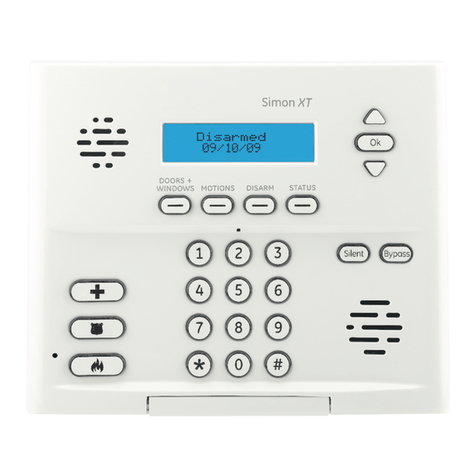
Interlogix Simon XT User manual
Interlogix
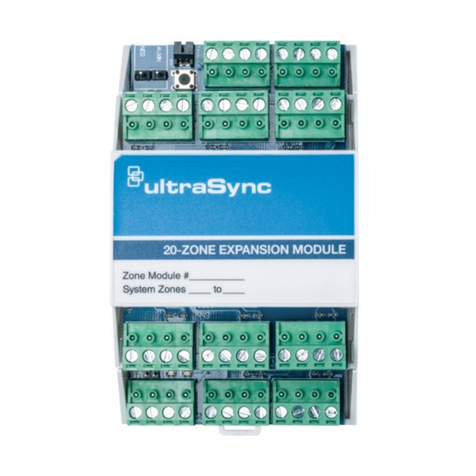
Interlogix UltraSync UM-C-H1 Assembly instructions
Interlogix
Interlogix UltraSync UM-Z8 Assembly instructions
Interlogix
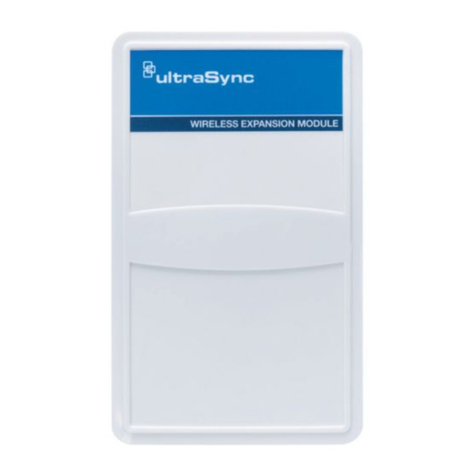
Interlogix UltraSync UM-W7 Assembly instructions
Interlogix
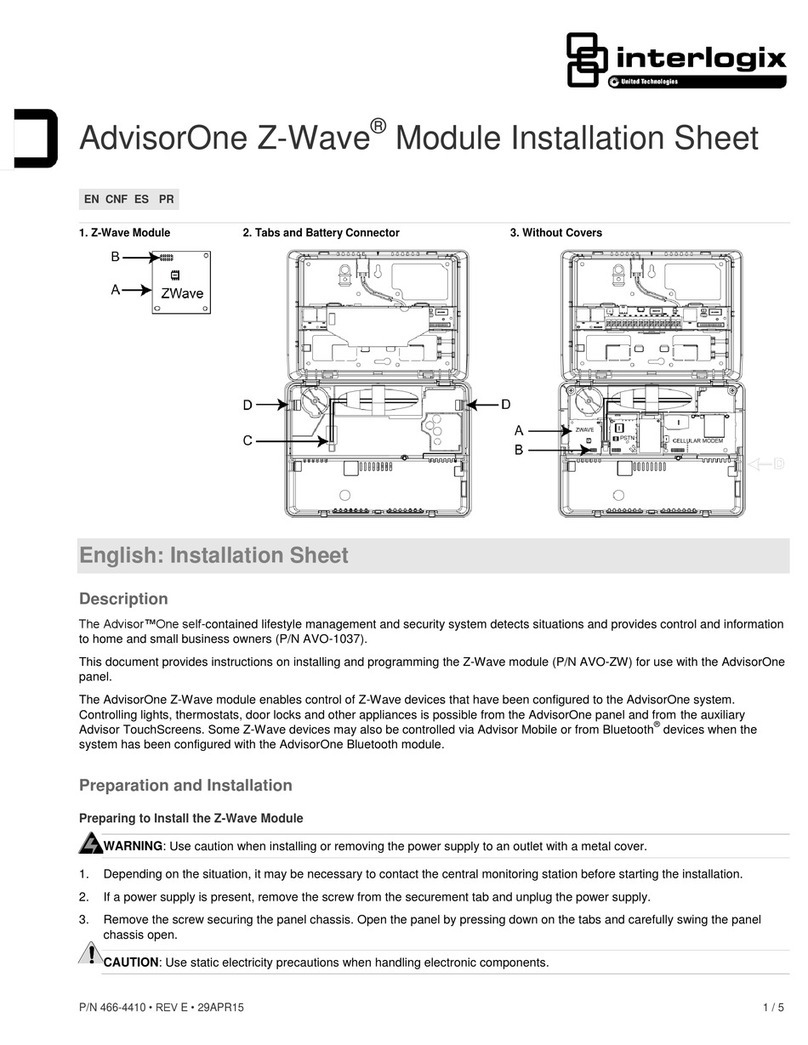
Interlogix AdvisorOne AVO-ZW Assembly instructions
Interlogix
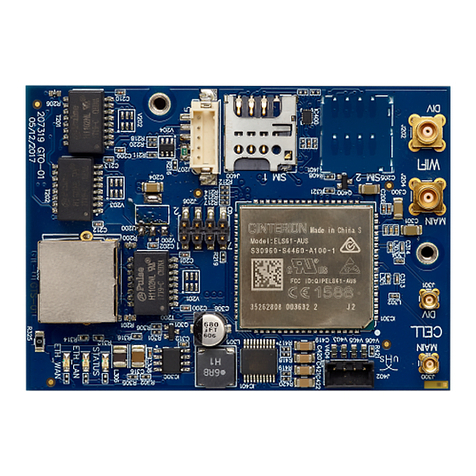
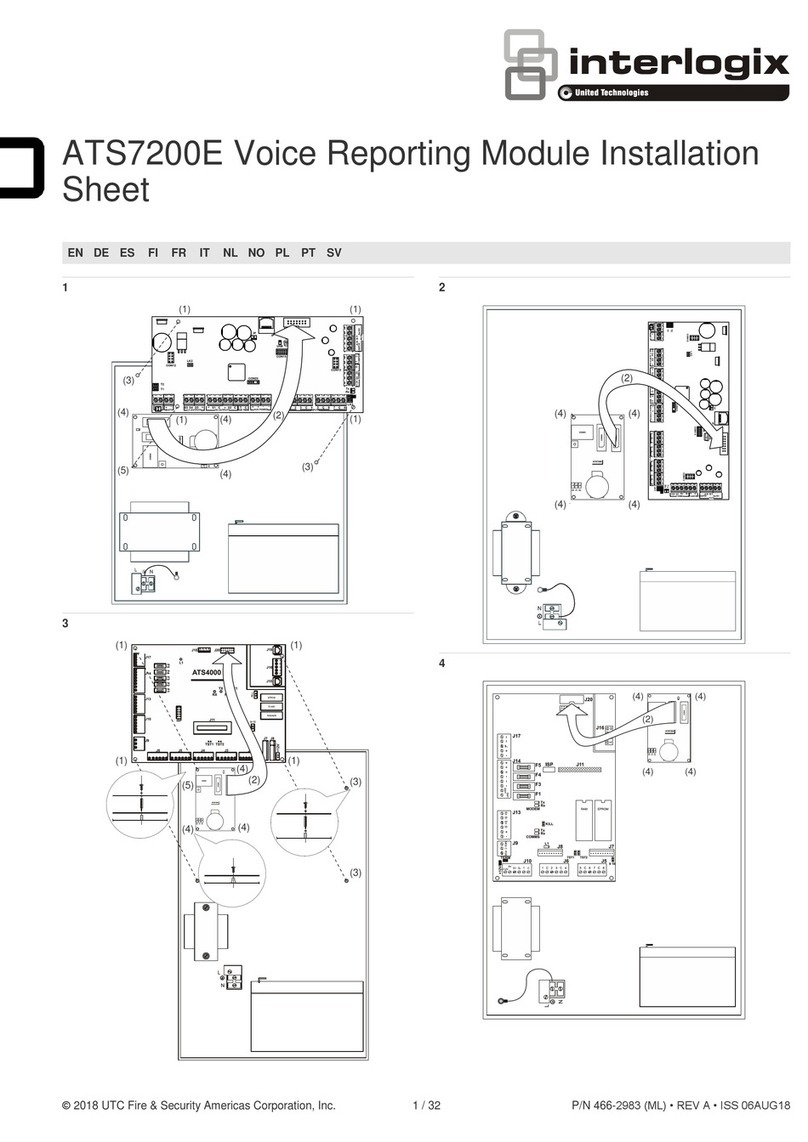
Interlogix NXG-7002 Assembly instructions
Interlogix
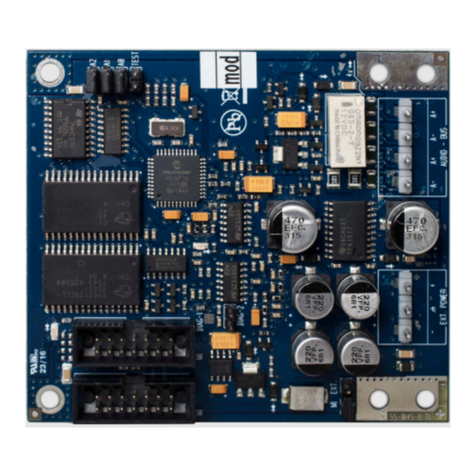
Interlogix ATS7200E Assembly instructions
Interlogix
Interlogix ATS1520 Assembly instructions

Interlogix
Interlogix VT1101M-AC Installation instructions

Interlogix
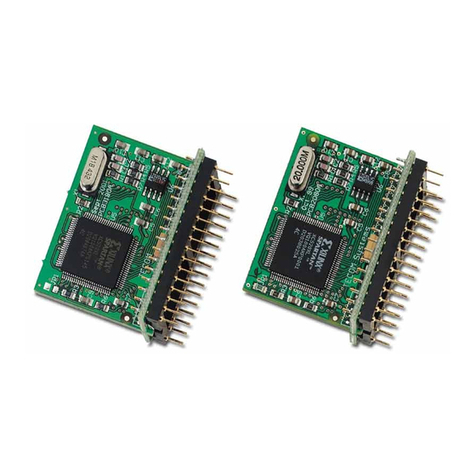
Interlogix NX-586E User manual
Interlogix
Interlogix ATS1831 Assembly instructions
Interlogix
Interlogix NX-586E User manual

Interlogix
Interlogix RF-KF101-K4 Assembly instructions
Interlogix
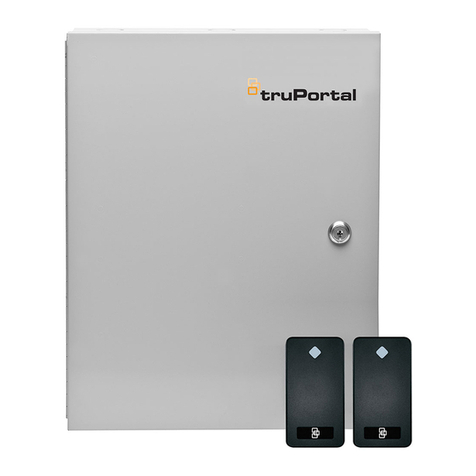
Interlogix TruPortal TP-ADD-2D Series User manual
Interlogix
Interlogix VR1101M Installation instructions
Interlogix
Interlogix DTIM Assembly instructions

Interlogix
Interlogix TX-E121 User manual
Interlogix
Interlogix DIGITAL INVERTER GENERATOR Assembly instructions
Interlogix
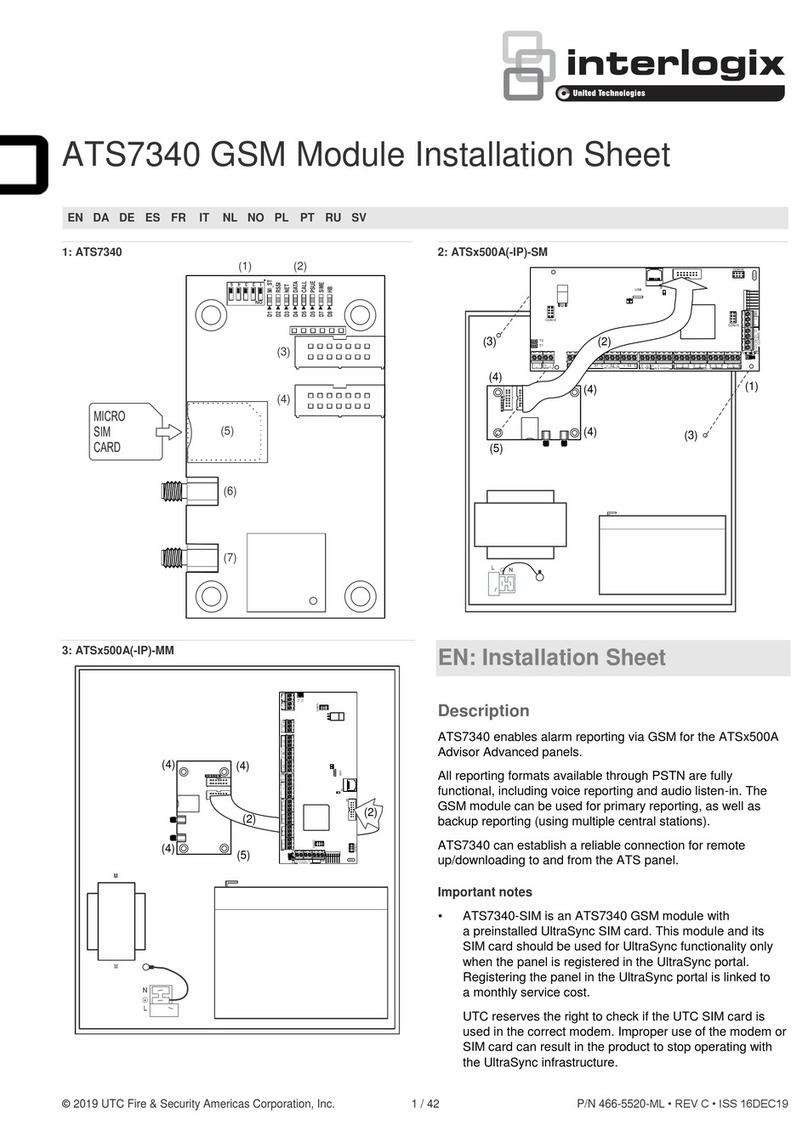
Interlogix ATS7340 Assembly instructions
Popular Control Unit manuals by other brands
Festo
Festo Compact Performance CP-FB6-E Brief description
Elo TouchSystems
Elo TouchSystems DMS-SA19P-EXTME Quick installation guide
JS Automation
JS Automation MPC3034A user manual
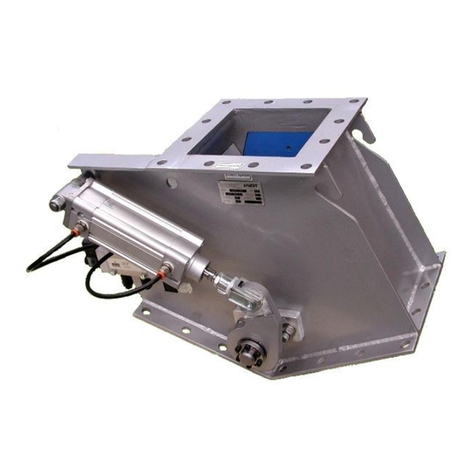
JAUDT
JAUDT SW GII 6406 Series Translation of the original operating instructions
Spektrum
Spektrum Air Module System manual
BOC Edwards
BOC Edwards Q Series instruction manual

KHADAS
KHADAS BT Magic quick start
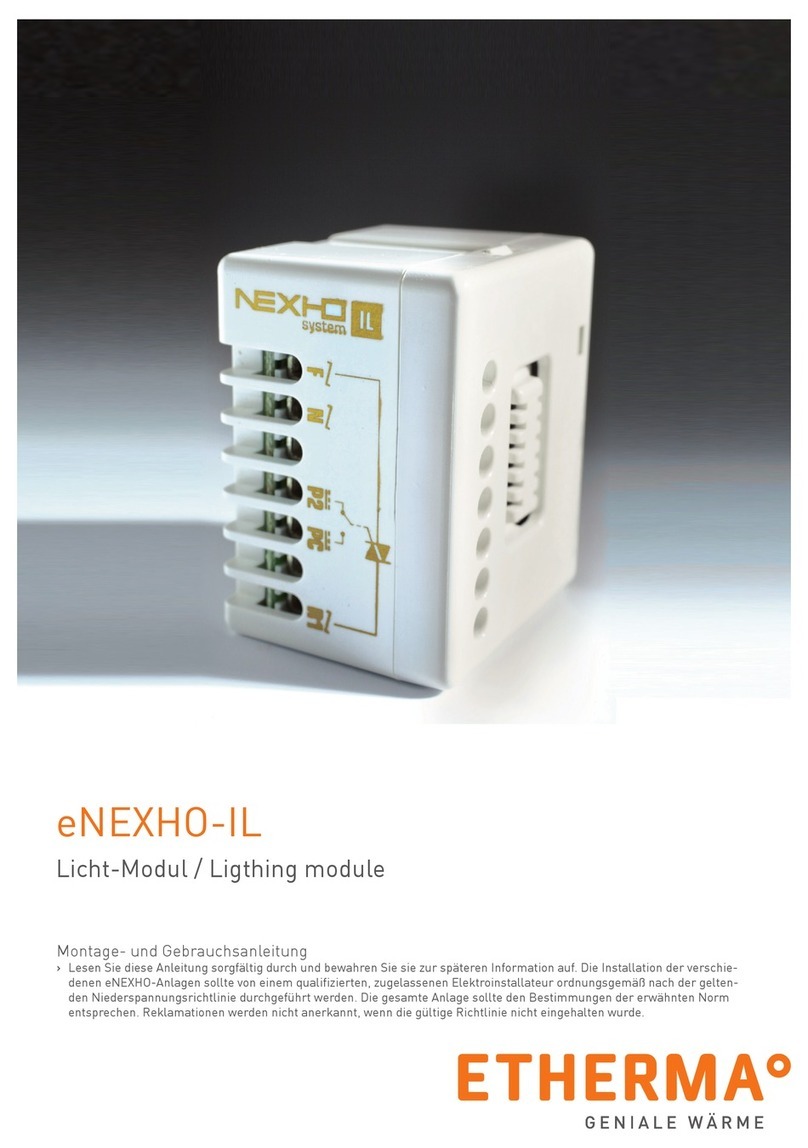
Etherma
Etherma eNEXHO-IL Assembly and operating instructions
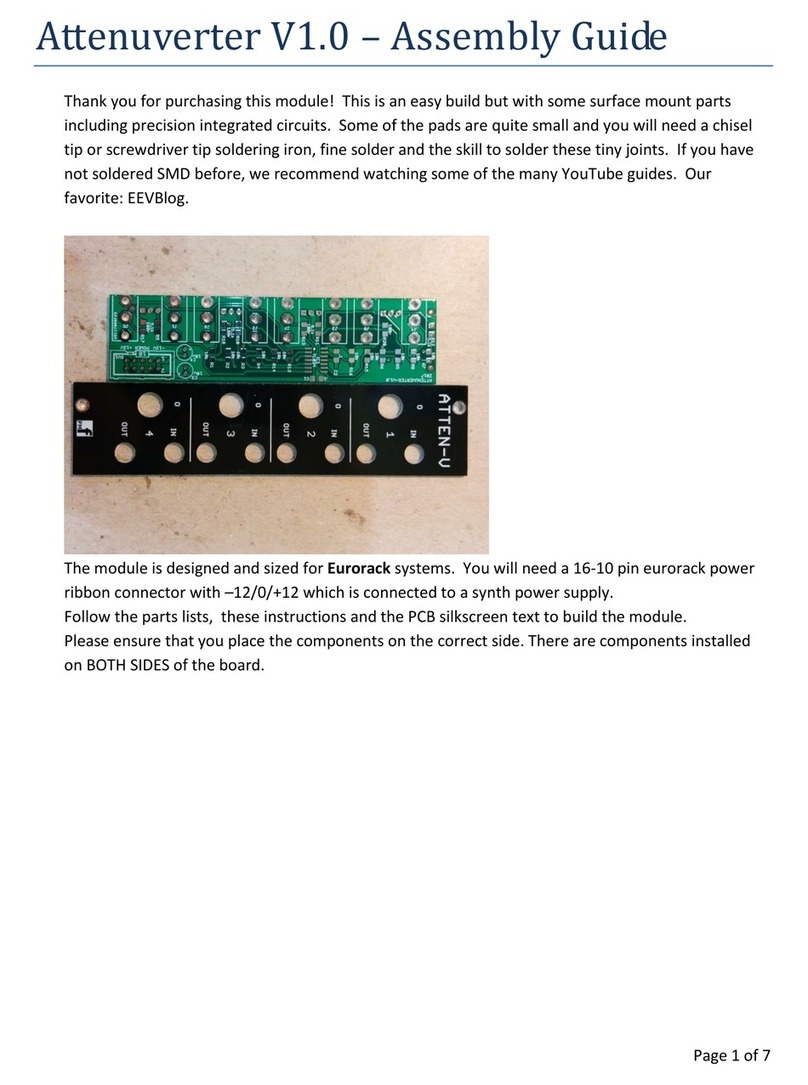
PMFoundations
PMFoundations Attenuverter Assembly guide
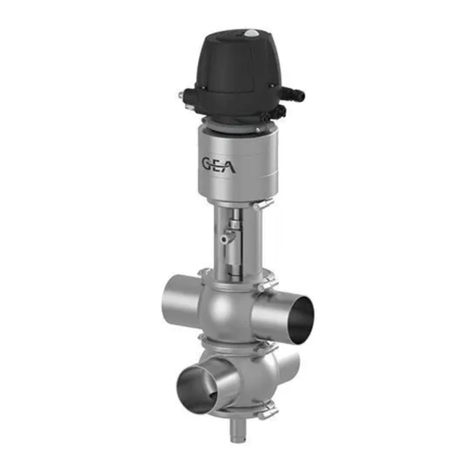
GEA
GEA VARIVENT Operating instruction
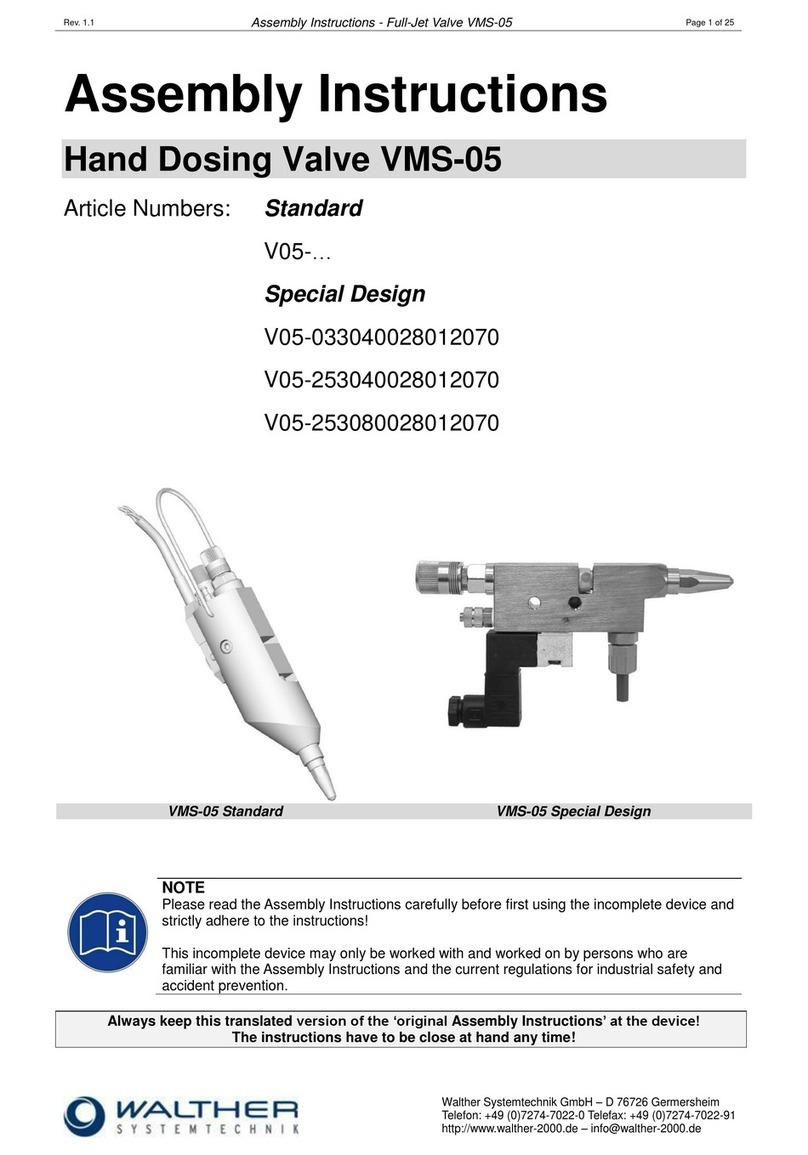
Walther Systemtechnik
Walther Systemtechnik VMS-05 Assembly instructions
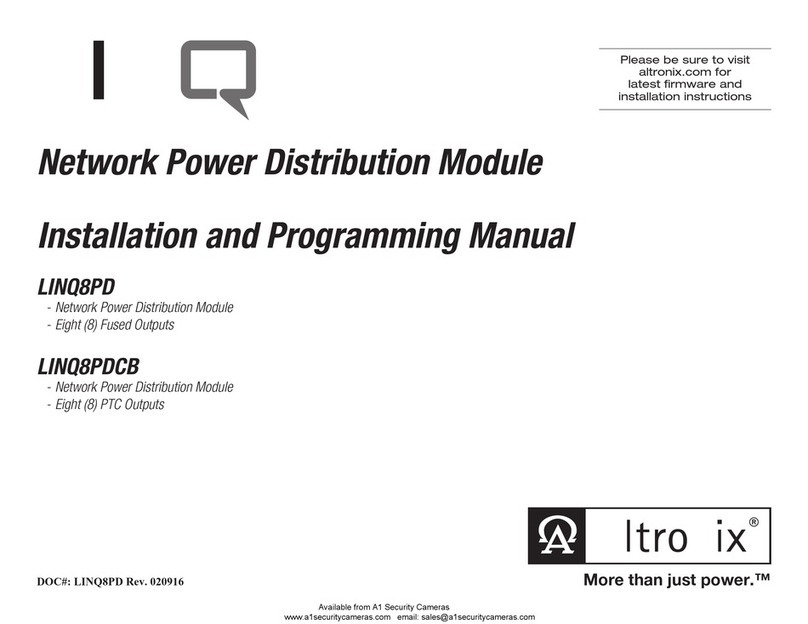
Altronix
Altronix LINQ8PD Installation and programming manual