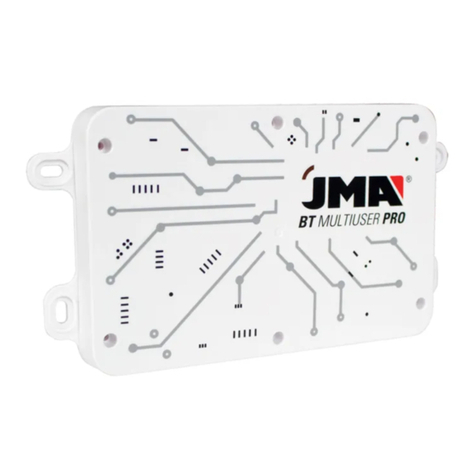
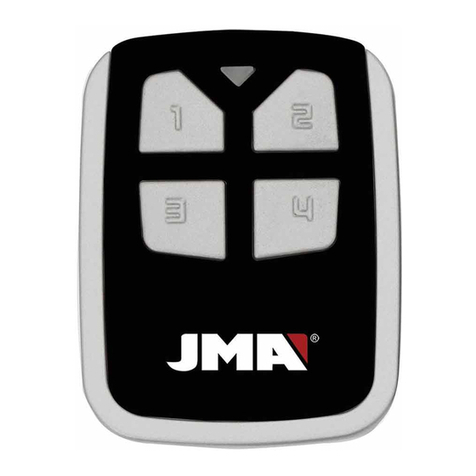
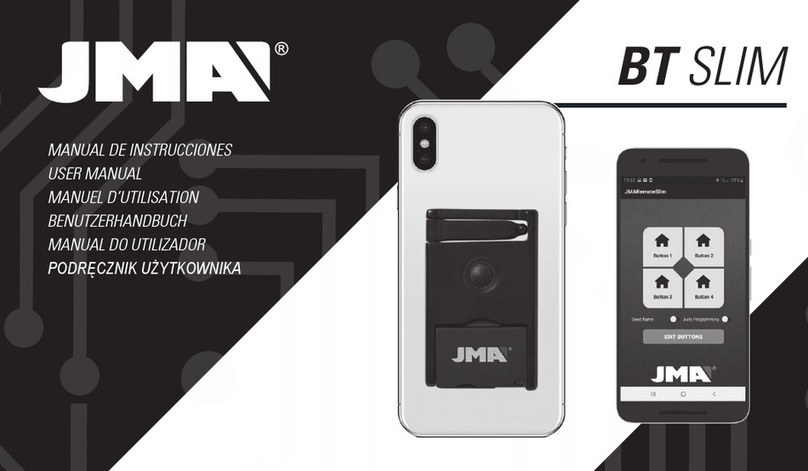
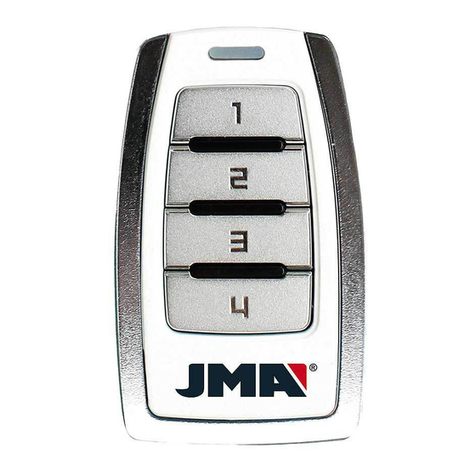
JMA BT SLIM User manual

USER MANUAL
BT SLIM

2

ENGLISH
8
BLUETOOTH MODE
GREEN LED
For copying, reading and creating
the remote control. This mode is also used for
opening garage doors via a smartphone, as well
as for the remote camera shutter button function.
To SWITCH BETWEEN BLUETOOTH MODE
AND CONVENTIONAL REMOTE CONTROL
MODE or vice-versa, press the button three or
four times in a row. The LED will change colour.
It will switch from green to red or from red to
green each time you do this.
The BT SLIM remote control has three functions:
1) A garage door remote control activated via a smartphone and the JMARemoteSlim app. *
2) A conventional garage door remote control activated by simply pressing the button on the remote. *
3) A remote camera shutter button for smartphones.
(*) For the BT SLIM to work as a garage door remote control, the code from one or more original remote controls (maximum
of four) must be saved onto the device. We recommend that this be done by a duplication professional.
REMOTE CONTROL MODE
RED LED
This mode is for use as a conventional garage
door remote control by pressing the button
on the BT SLIM device.
1. MODES OF USE

ENGLISH
9
2. INSTRUCTIONS FOR THE USER
2.1.USAGE IN TRIGGER MODE
To use the trigger mode:
1. Link the remote control to the mobile phone. See the
section LINKING (pg. 11).
2. Press the BT SLIM button to connect it to the mobile
phone.
3. Open the photo camera app on the phone and press the
BT SLIM button to capture a photo.
*Note: If the photo is not captured upon pressing the button when
using an Android device, it may be because the volume button is
not the default option for taking a photo. Go to camera settings and
switch the Volume button option to “Take a Photo”.
2.2. OPENING GARAGE DOORS
The code for one or several original garage door openers
must be recorded on the device in order to use BT SLIM as
a remote garage door opener. This recording must be done
using the JMARemotesPRO app. Check with your JMA
distributor for more information.
2.2.1. OPEN A GARAGE DOOR VIA A SMARTPHONE
Once the original garage door opener codes are copied on the
BT SLIM device, follow these steps:
1. Set the remote in “Bluetooth Mode” (See pg. 8).
2. Link the remote control to the mobile phone. See the
section LINKING (pg. 11).
3. Download the JMARemoteSlim app. It has 4 buttons that
can be linked with the original garage door opener codes
saved in BT SLIM. The buttons can be edited with an icon
and text to help identify the place where the door(s) to be
opened is/are located. See Images on the next page (pg. 10).
4. Press the BT SLIM button. Since the garage door opener is
linked, it will automatically connect to the mobile device.
5. Open the JMARemoteSlim app.
6. Press the desired virtual button the screen to send the
garage door opener code.
7. The remote garage door opener will disconnect after 60
seconds of inactivity.

ENGLISH
10
2.2.2. OPEN A GARAGE DOOR VIA THE CONVENTIONAL
SYSTEM
The following actions may be performed once an original remote
control has been copied onto the BT SLIM device (with the
device in Remote Control mode):
A) Hold the BT SLIM button for one second
to send the code saved on Button 1.
B) Press the BT SLIM button twice
to send the code saved on Button 2.
Note: Only two of the maximum four original remote controls that can be
saved onto the BT SLIM remote control can be used when the device is
in Conventional Remote Control Mode. When the device is set to Mobile
Mode, garage doors can be opened using all the original remote controls
saved to the device.
2. INSTRUCTIONS FOR THE USER

ENGLISH
11
3. INSTRUCTIONS FOR THE DUPLICATOR
4. LINKING DEVICES
COPYING REMOTE CONTROLS:
The JMARemotesPro app is needed to copy original remote
controls onto the BT SLIM device.
Process:
1. The BT SLIM device must be in Bluetooth Mode and not
connected to your smartphone.
2. Hold the BT SLIM button for seven seconds until the
green LED starts to flash. Then release the button.
3. Open the JMARemotesPro app and begin the “Remote
Control Copy” process. We recommend that users leave this
process in the hands of a duplication professional at the
point of sale where they purchased the BT SLIM device.
Auto Registration:
This is done by holding the BT SLIM button for 14 seconds
while in Remote Control Mode, either by holding the first
press to send the registration packet for the first button or
holding the second press to send the registration packet for
Link device
1. On the mobile phone, go to Settings->Connections-
>Bluetooth and turn on Bluetooth. If the Bluetooth was on,
it should be turned off and turned back on to delete any
pending connections.
2. Press the button on your BT SLIM device and check that
the LED turns green. If it turns red, switch mode (see pg. 8).
3. “SLIM” should appear on the list of devices found.
4. Choose it and link it to your mobile phone.
When the device is linked, it will automatically connect to
the mobile phone each time the button is pressed on the BT
SLIM. The connection will last for 30 seconds.
the second button saved.
While in Bluetooth Mode, this process can be done
by activating the Auto Registration option in the
JMARemoteSLIM app and pressing the code you wish to
register.

ENGLISH
12
Delete linking data in BT SLIM
Follow these steps to erase data from a BT SLIM device. Hold
the button on the device for 14 seconds. (The green LED will
flash after seven seconds. It is important to continue holding
the button until both LEDs start to flash).
This process will erase all connection data with all smartphones
that may have been linked, as well as all copies of original remote
controls. Mobile handsets will therefore need to be linked again
to re-establish an automatic connection.
ELIMINATING THE NOTIFICATION SOUND ON THE
PHYSICAL KEYPAD
1. Go to “Settings” on the mobile phone and choose the
“Apps” option.
2. Instead of searching for an app from the list on the Apps
screen, press the “Menu” button and select “Show system
apps”.
3. Select “Android System” from the list of “System Apps”.
4. Select “Notifications” in “Android System”.
5. Select “Physical keypad” on this screen.
6. Switch the notification sound to “Silence”.
Unlink device
To unlink the mobile phone and BT SLIM pairing, go back to
Settings->Connections->Bluetooth, select the SLIM device
from the list of linked devices and choose Unlink.
Once the device is unlinked, the linking data in the BT SLIM
must be deleted in order to re-link it to the same mobile
phone.
5. OTHER FUNCTIONS

www.jma.es
Tel +34 943 79 30 00
Fax +34 943 79 72 43
Bidekurtzeta, 6 P.O.Box - Apdo. 70
20500 Arrasate - Mondragón
Gipuzkoa – SPAIN
www.altuna.com
Other manuals for BT SLIM
1
Table of contents
Other JMA Remote Control manuals