manuals.online logo
Brands
  1. Home
  2. •
  3. Brands
  4. •
  5. Kramer
  6. •
  7. Receiver
  8. •
  9. Kramer KIT-500 User manual

Kramer KIT-500 User manual

Other manuals for KIT-500

1

This manual suits for next models

2

Other Kramer Receiver manuals

Kramer DigiTOOLS TP-551 User manual

Kramer

Kramer DigiTOOLS TP-551 User manual

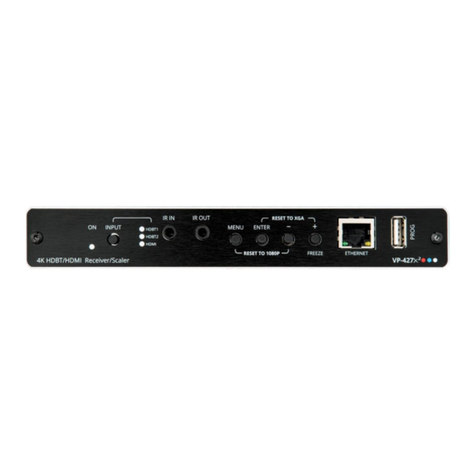
Kramer VP-427H2 User manual

Kramer

Kramer VP-427H2 User manual

Kramer VP-427X1 User manual

Kramer

Kramer VP-427X1 User manual

Kramer 640T User manual

Kramer

Kramer 640T User manual

Kramer TOOLS TP-220HD User manual

Kramer

Kramer TOOLS TP-220HD User manual

Kramer TP-583T User manual

Kramer

Kramer TP-583T User manual

Kramer WP-872xr-EU-80/86-W User manual

Kramer

Kramer WP-872xr-EU-80/86-W User manual

Kramer PT-573 User manual

Kramer

Kramer PT-573 User manual

Kramer PT-571 User manual

Kramer

Kramer PT-571 User manual

Kramer VP-427A User manual

Kramer

Kramer VP-427A User manual

Kramer 613T User manual

Kramer

Kramer 613T User manual

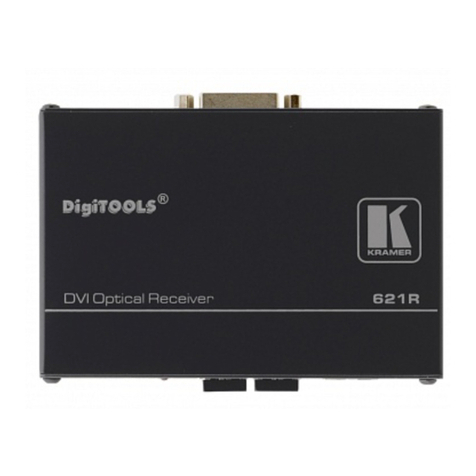
Kramer 621R User manual

Kramer

Kramer 621R User manual

Kramer 670T User manual

Kramer

Kramer 670T User manual

Kramer TP-578H User manual

Kramer

Kramer TP-578H User manual

Kramer Cobra R500-2 User manual

Kramer

Kramer Cobra R500-2 User manual

Kramer TP-122N User manual

Kramer

Kramer TP-122N User manual

Kramer 631R User manual

Kramer

Kramer 631R User manual

Kramer 610T User manual

Kramer

Kramer 610T User manual

Kramer WP-580Txr User manual

Kramer

Kramer WP-580Txr User manual

Kramer PT-571 User manual

Kramer

Kramer PT-571 User manual

Kramer TP-141 User manual

Kramer

Kramer TP-141 User manual

Kramer TP-594Txr User manual

Kramer

Kramer TP-594Txr User manual

Kramer KIT-400 User manual

Kramer

Kramer KIT-400 User manual

Kramer TP-752T User manual

Kramer

Kramer TP-752T User manual

Popular Receiver manuals by other brands

Greenheck 06 null

Greenheck

Greenheck 06 null

Garmin GA 23 Owner's manual and reference guide

Garmin

Garmin GA 23 Owner's manual and reference guide

Aiphone PS-12F instructions

Aiphone

Aiphone PS-12F instructions

IMES TCS-01CA-PMI Original Operating Instruction

IMES

IMES TCS-01CA-PMI Original Operating Instruction

BWI Eagle AIR-EAGLE SR Product information bulletin

BWI Eagle

BWI Eagle AIR-EAGLE SR Product information bulletin

AMIMON AMN12310 WHDI datasheet

AMIMON

AMIMON AMN12310 WHDI datasheet

Dual DMCPA79BT Installation & owner's manual

Dual

Dual DMCPA79BT Installation & owner's manual

Sound Associates SA652P Operation manual

Sound Associates

Sound Associates SA652P Operation manual

Sherwood NewCastle R-772 Service manual

Sherwood

Sherwood NewCastle R-772 Service manual

Audio A10-RX Series user guide

Audio

Audio A10-RX Series user guide

AllSee PushShare PSRV1.1 user manual

AllSee

AllSee PushShare PSRV1.1 user manual

DEMAG DRC-DR D2 operating instructions

DEMAG

DEMAG DRC-DR D2 operating instructions

Teleco TVRCL868A02 manual

Teleco

Teleco TVRCL868A02 manual

Bosch RF3222E installation instructions

Bosch

Bosch RF3222E installation instructions

Xpress xmc10 installation guide

Xpress

Xpress xmc10 installation guide

JVC KD-MR1BTS instruction manual

JVC

JVC KD-MR1BTS instruction manual

Omega Engineering UWTC-REC3 user guide

Omega Engineering

Omega Engineering UWTC-REC3 user guide

e-survey E300 Pro user manual

e-survey

e-survey E300 Pro user manual

manuals.online logo
manuals.online logoBrands
  • About & Mission
  • Contact us
  • Privacy Policy
  • Terms and Conditions

Copyright 2025 Manuals.Online. All Rights Reserved.

KIT-500 Quick Start
P/N:
2900- 301617QS
Rev:
4
Scan for full manual
KIT-500 Quick Start Guide
This guide helps you install and use your KIT-500 for the first time.
Go to www.kramerav.com/downloads/KIT-500 to download the latest user manual and check if firmware
upgrades are available.
Step 1: Check what’s in the box
KIT-500 including:
KIT-500T 4K HDMI/USB-C Auto Transmitter
KIT-500R 4K HDBT/HDMI Receiver/Scaler
2 Bracket sets
8 Rubber feet
1 Power adapter
1 Quick start guide
1 Multi-signal USB-C cable (1m)
1 EU power cord
1 US power cord
Step 2: Get to know your KIT-500
KIT-500T
#
Feature
Function
1
OUTPUT
Select Button
Press to select the output to be switched when a selected input button is pressed.
HDMI/HDBT LEDs
LED lights green when selected.
2
INPUT
Buttons
USB-C (1 and 2)
Press to select a USB-C input. Button illuminates when that input is selected.
HDMI (1 and 2)
Press to select an HDMI input. Button illuminates when that input is selected.
REMOTE
Press to select the HDMI (REMOTE) input as the input to KIT-500R. Button
illuminates when that input is selected.
Note that this button is only operational if HDBT is selected via the OUTPUT button.
3
USB
Select Button
Press to select the USB HOST port to connect to the USB HUB devices.
1/2 LEDs
Lights green when selected.
4
MENU Button
Press to display the KIT-500 OSD menu.
The OSD menu can be viewed on the acceptor that is connected to the
KIT-500R.
5
Navigation
Buttons

Press to decrease numerical values or select from several definitions.
When not in the OSD menu, press to reduce the output volume.

Press to move up the menu list values.

Press to increase numerical values or select from several definitions.
When not in the OSD menu, press to increase the output volume.

Press to move down the menu list.
ENTER
Press to accept changes and change the SETUP parameters.
6
RESET TO 1080p Button
Press and hold for about 5 seconds to reset the output resolution. The first press
resets the resolution to 720p and the next press resets to 1080p.
7
PANEL LOCK Button
Press to lock/unlock the front panel buttons.
8
USB HUB USB 3.0 Type A
Ports (3)
Connect to USB devices. The user can select which USB host (USB 1 or USB 2 on
the transmitter) is connected to the USB devices.
9
USB 3.0 Host Port (1 and 2)
Connect to USB hosts.
#
Feature
Function
10
AUDIO IN
AUX 3.5mm
Mini Jack
Connect to an unbalanced, analog audio source (for example, the audio output of the
laptop).
MIC 3-pin
Terminal Block
Connect to a dynamic or condenser (with 48V phantom power) microphone.
11
AUDIO OUT 5-pin Terminal
Block
Connect to a balanced, stereo audio acceptor (for example, active speakers).
12
RS-232
DATA 3-pin Terminal
Block Connector
Connect to a serial data source or acceptor to extend RS-232 between KIT-500T and
KIT-500R.
CONTROL 3-pin
Terminal Block
Connector
Connect to a serial controller or PC to control KIT-500 or for KIT-500 to control an
external device.
13
PROGRAM USB Connector
Connect to a PC to perform a firmware upgrade.
14
ETH RJ-45 Connector
Connect to the LAN (Ethernet traffic or PC controller).
15
USB-C Port (1 and 2)
Connect to USB-C sources.
Ports support DP Alt mode, Ethernet and USB data transfer, and up to 60W charging
capabilities. If both ports are connected to devices requiring charging, the priority for
charging is as follows:
1. The port that is selected as the input that is routed to the HDBT output.
2. The port that is selected as the input that is routed to the HDMI output.
3. USBC-C input 1.
4. USB-C input 2.
Power delivery to USB-C is not supported when KIT-500R delivers power to
KIT-500T via PoC.
16
HDMI Connector
Connect to an HDMI source.
17
HDMI OUT Connector
Connect to an HDMI acceptor.
18
HDBT OUT RJ-45 Connector
Connect to KIT-500R.
Follow powering instructions in Step 5: Connect power.
Failure to use PoC and power connector correctly may destroy the devices!
19
PoC (Power over Cable) Switch
Set the PoC switch to ON on both KIT-500T and KIT-500R.
20
24V DC Connector
Connect to the supplied power adapter, unless the power adapter is connected
to KIT-500R.
KIT-500R
#
Feature
Function
21
PROG USB Connector
Connect to a USB stick to perform firmware upgrades.
22
INPUTS
SELECT Button
Press to toggle between the HDBT and HDMI inputs to select the input (HDBT
or HDMI).
By default, the SELECT button is locked. You can unlock it via the ADVANCED
menu in the OSD.
HDBT LED
Lights blue when the HDBT input is selected.
HDMI LED
Lights blue when the HDMI input is selected.
23
USB DEVICE USB 2.0 Type A Ports (2)
Connect to USB devices. The user can select which USB host (USB 1 or USB
2 on the transmitter) is connected to the USB devices.
24
MENU Button
Press to enter/exit the on-screen display (OSD) menu.
Press together with the –button to reset to 1080p.
25
ENTER Button
In OSD, press to choose the highlighted menu item. Press together with the
FREEZE/+ button to reset to XGA.
26
–
In OSD, PRESS to move back through menus or decrement parameter values.
27
FREEZE/+ Button
In OSD, press to move forward through menus or increment parameter values.
When not in OSD, press to freeze the display.
28
LINK LED
Lights blue when a link is established with the transmitter.
29
ON LED
Lights green when device is powered.
30
INPUTS
HDBT RJ-45 Connector
Connect to KIT-500T.
31
HDMI (REMOTE)
Connector
Connect to an HDMI source.
#
Feature
Function
32
REMOTE Contact-Closure 4-pin
Terminal Block Connector
Connect to contact closure switches to send CEC commands to the display.
The TOGGLE pin may be configured for toggling (edge-triggered), or for ON /
OFF (level-triggered). See Step 6: Operate KIT-500.
33
RS-232
CONTROL 3-pin Terminal
Block Connector
Connect to a serial controller or PC to control KIT-500 using P3K, or for KIT-
500 to control an external device.
34
DATA 3-pin Terminal Block
Connector
Connect to a serial data source or acceptor for extending RS-232 between
KIT-500T and KIT-500R via HDBT.
35
RELAY SPDT 3-pin Terminal Block
Connector
Connections to the internal relay’s contact terminals: Normally open (NO),
normally closed (NC), and common (C). Connect to devices to be controlled by
relay (for example, a motorized projection screen).
36
OUTPUT
AUDIO 5-pin Terminal
Block Connector
Connect to a balanced analog stereo audio acceptor.
37
HDMI Connector
Connect to an HDMI acceptor.
Follow powering instructions in Step 5: Connect power.
Failure to use PoC and power connector correctly may destroy the devices!
38
PoC (Power Over Cable) Switch
Set the PoC switch to ON on both KIT-500T and KIT-500R.
39
24V DC Connector
Connect to the supplied power adapter, unless the power adapter is connected
to KIT-500T.
Step 3: Mount KIT-500
Install KIT-500 using one of the following methods:
•Attach the rubber feet and place the unit on a flat surface.
•Fasten a bracket (included) on each side of the unit and attach it to a flat surface
(see www.kramerav.com/downloads/KIT-500).
•Mount the unit in a rack using the recommended rack adapter
(see www.kramerav.com/product/KIT-500).
•Ensure that the environment (e.g., maximum ambient temperature &
air flow) is compatible for the device.
•Avoid uneven mechanical loading.
•Appropriate consideration of equipment nameplate ratings should be
used for avoiding overloading of the circuits.
•Reliable earthing of rack-mounted equipment should be maintained.
•Maximum mounting height for the device is 2 meters.
Step 4: Connect inputs and outputs
Connecting the audio output
Wiring the RJ-45 connectors
To a balanced
stereo audio
acceptor:
This section defines the TP pinout, using
a straight pin-to-pin cable with RJ-45
connectors.
EIA /TIA 568B
PIN
Wire Color
1
Orange / White
2
Orange
3
Green / White
To an unbalanced
stereo audio
acceptor:
For HDBT cables, it is recommended
that the cable ground shielding be
connected/soldered to the connector
shield.
4
Blue
5
Blue / White
6
Green
7
Brown / White
8
Brown
To achieve specified extension distances, use the recommended Kramer cables available at www.kramerav.com/product/KIT-400.
Using third-party cables may cause damage!
Step 5: Connect power
To power the devices:
1. Set the PoC switches to ON on both
devices.
2. Connect the power adapter to one of the
devices (KIT-500T or KIT-500R).
Safety Instructions (See www.kramerav.com for updated safety information)
Caution:
•For products with relay terminals and GPI\O ports, please refer to the permitted rating for
an external connection, located next to the terminal or in the User Manual.
•There are no operator serviceable parts inside the unit.
Warning:
•Failure to use PoC and power connector correctly may destroy the devices!
•Use only the power cord that is supplied with the unit.
Disconnect the power and unplug the unit from the wall before installing.
Step 6: Operate KIT-500
Operate KIT-500 via:
•Front panel buttons
•Remotely, by RS-232 serial
commands transmitted by a
touch screen system, PC, or
other serial controller
•Embedded web pages via the
Ethernet
•Remote control switches.
•Room Automation Panel.
RS-232 Control / Protocol 3000
Baud Rate:
115,200
Parity:
None
Data Bits:
8
Command Format:
ASCII
Stop Bits:
1
Example: (Set the Audio out volume level to 75): #AUD-LVL 1,1,75
Default IP Parameters –DHCP ON
Fallback IP Address:
192.168.1.39
UDP Port #:
50000
Subnet mask:
255.255.0.0
TCP Port #:
5000
Gateway:
0.0.0.0.
Operating via the remote control switches
Momentarily connect the desired pin to the GND pin to select an input:
Pin Name
Function
KIT-500R
KIT-500R
TOGL
One button toggles between display on and display
off (instead of using two separate buttons for on and
off). Alternatively, using the KIT-500R OSD,
configure turning the display on or off according to
whether a switch is open or closed (for example,
when using an occupancy sensor).
OFF
Turn off the display.
ON
Turn on the display.
The terms HDMI, HDMI High-Definition Multimedia Interface, and the HDMI Logo are trademarks or registered trademarks of HDMI Licensing Administrator, Inc.