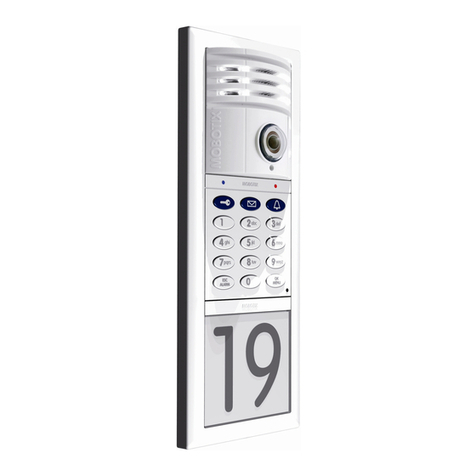
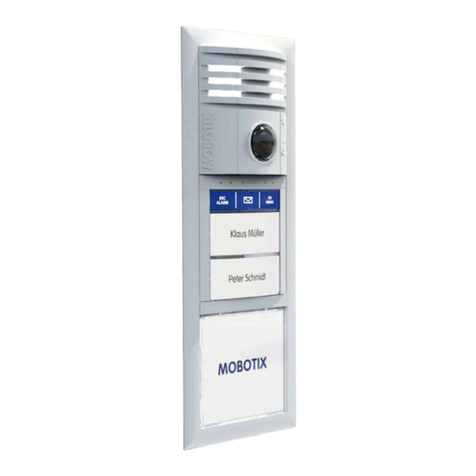
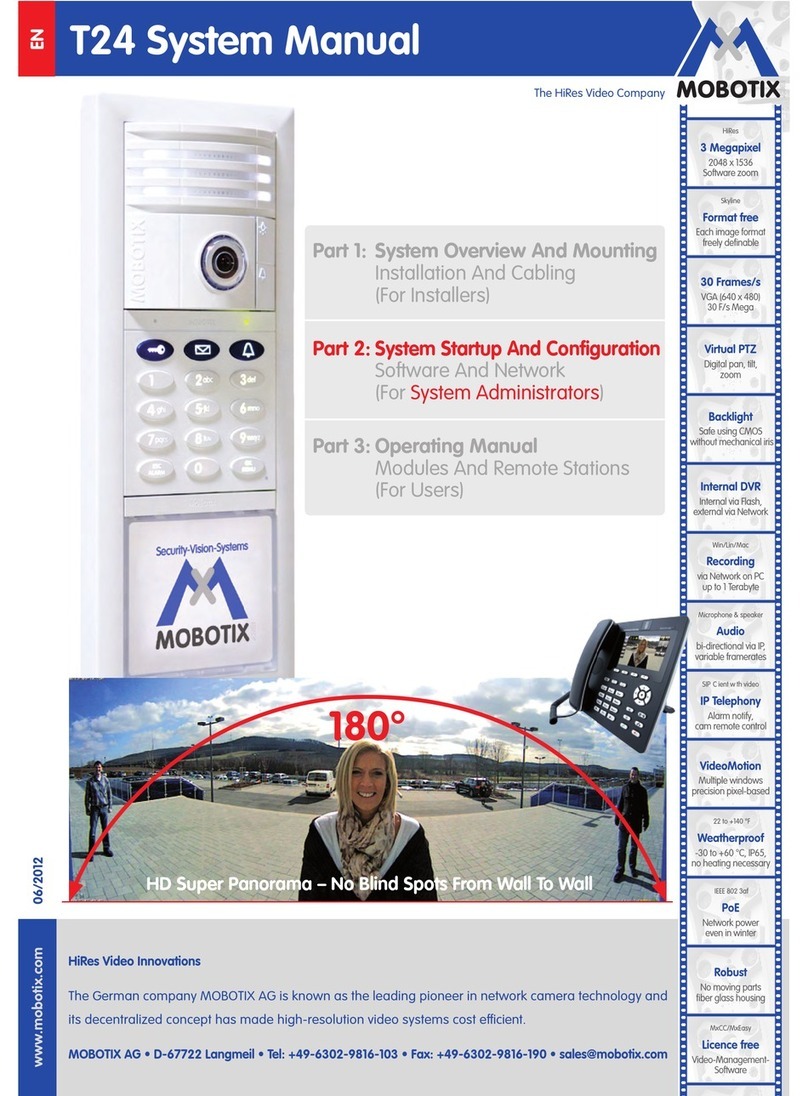
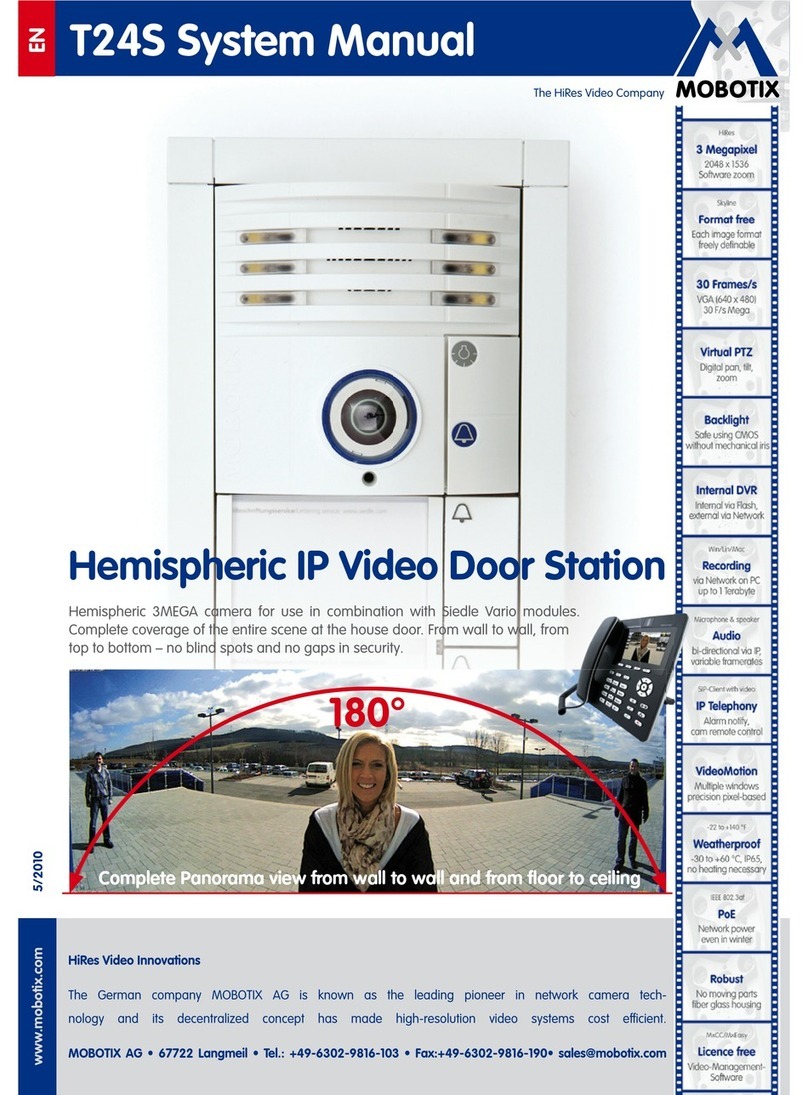
Mobotix T25 Quick start guide

ELAN | SpeakerCraft | Gefen | Furman | Niles | Panamax | Sunfire | BlueBOLT | Proficient | Xantech
1800 South McDowell Blvd., Petaluma CA 94954 • Toll Free: 800.472.5555 • Fax: 707.283.5901
Integration Note
Manufacturer:
Mobotix
Model Number(s):
MOBOTIX T25
Comments:
Board Revision 4.4, Bootloader 7.3.0.0, OS Release 2.6.37.6+, FS
Release MX-V4.4.2.51-r1
Minimum Core Module 7.2.xxx
Document Revision Date:
7/12/17
OVERVIEW AND SUPPORTED FEATURES
The MOBOTIX T25 SIP Door Station is a network based SIP Door Station solution with an integrated
video camera for monitoring door activity. ELAN integration with this door station supports the following
features:
1. Paging- When the “Call” button is pressed on the Door Station, it will call all appropriate Intercom
Stations based on the configured dial plan of the ELAN System. Refer to the Intercom Training
Guide on the ELAN dealer site for extensive details on setting up dial plans.
2. 2 Way Calls- A user at an Intercom Station can converse with the person who pressed the “Call”
button.
3. Video Monitoring- The camera in the Door Station may be accessed from any Intercom Station
to view the caller. Additionally, as of version 8.0 of ELAN the video may be previewed prior to
answering a call on the intercom clients when the doorbell button is pressed.
4. Relay/Door Strike Actuation through the UI and Event Mapper- As of the release of ELAN
7.3, Relays and Door Strikes are supported through the Door Station Interface. See “Setting up
the ELAN Mobotix IP relay control driver” below.

INSTALLATION OVERVIEW
The MOBOTIX T25 Door Station connects to ELAN via Ethernet to provide communication between it
and the various ELAN clients. The door station will need to be configured as follows for proper operation
with the ELAN system.
1. Run a CAT5 or better network cable from the location of the door station back to a PoE (power
over Ethernet) port the ELAN control network.
2. Physically install the door station and configure it for the ELAN system. Refer to Mobotix
Configuration below.
3. Configure the ELAN controller for the Mobotix door station. Refer to ELAN Configuration Details
below.
4. Test the door station for proper operation with the ELAN system.
MOBOTIX CONFIGURATION
The MOBOTIX T25 door station must be configured as described below for proper operation with
ELAN. The following procedure is based on the door station at its factory default state and
running the firmware listed at the top of the page.
1. Power up the door station on the network and let it boot and acquire an IP address. These units
are set to DHCP by default.
2. Find the door station’s IP Address. Use the MOBOTIX MXEasy utility (available for download
from the MOBOTIX web site) or alternatively, you can use a network IP address scanning utility to
locate the device.
3. Enter the door station’s IP Address into a Web Browser. You will be taken to the login page for
the Door Station. Log in to the door station. By default, the user name is admin and the password
is either t25 for US versions or meinsm for euro versions. You will be taken to the Configuration
Utility as shown below:

4. Select the “Admin Menu” button on the left to access the Administration Overview screen.
Note: If a Quick Installation window pops up then click the Skip button at the bottom to access the
page shown below:
:
5. Scroll down to the Network Setup section and click the link for Ethernet Interface (for experts).
a. Under the General Interface Setup section set the “BOOTP/DHCP” to Off.
b. Under the IPv4 Ethernet Parameters section set the following:
i. Additional IPv4 Address to Off
ii. IP Address to a the static IP address you have chosen for this device on your
network.
iii. Set the network mask to 255.255.255.0
c. Under the Routing section set the “Default Route and Gateway IP Address: to Default
gateway and enter the gateway address for your network.
d. Click the Set button at the bottom.
e. Click the “Return to Menu” button (left arrow) located in the header of the page to go back
to the Admin menu page.

6. Scroll down to the Configuration section and Select the “Store” link.
i. Click the “Store Permanently” button.
ii. Follow the on-screen setups to Reboot the camera.
7. Wait for the camera to come back online then browse to the camera at its new IP address. Click
the Admin Menu to continue configuring the door station.
Note: If a Quick Installation window pops up then click the Skip button at the bottom to access the
admin setup menu.
8. Scroll down the screen to find the “Audio and VoIP Telephony” section
a. Select the SIP Server Settings link
i. Set SIP Server to “Off”
ii. Click the Set button at the bottom.
iii. Click the “Return to Menu” button (left arrow) located in the header of the page to
go back to the Admin menu page.
b. Select the SIP Client Settings link
i. Scroll to the bottom of the page and change “Setup Mode” to “Expert Setup”
ii. At the top of the page, under General Phone Settings
1. set SIP Client to Enabled
2. Set Parallel Dialing to “Disabled”
iii. Under the SIP Accounts heading, click the “Add new SIP account” button
1. Set the SIP Address Username as the name of the door station
2. Set the SIP Address Domain as the IP Address of the ELAN Controller
3. Set the Authentication User Name as the name of the door station (this
will show in Configurator. The Authentication password field is not used
and should be left blank.
4. Set the Server Hostname/Address as the IP Address of the ELAN
Controller and set the port to 5060
5. Check the “Use as Registrar” box
6. All other settings can remain at default

iv. Under “Network Settings” change the “Audio Data Timeout” to “60 sec.”
v. Under Audio Message Settings
1. Change “Welcome Message for Incoming Calls” to “Disabled”
2. Change “Welcome Message for Outbound Calls” to “Disabled”
3. Change “Delay Before Welcome Message” to “Disabled”
4. Change “DTMF Key Confirmation for Inbound Calls to “Disabled”
5. Change “DTMF Key Confirmation for Outbound Calls” to “Disabled”
6. Change “Call Status on Camera Speaker” to “Disabled”

vi. Under OSD Settings
1. Set “Auto Hide OSD” to “Enabled”
2. Set “Setup OSD to “Disabled”
vii. Under Audio Codec Settings
1. Uncheck Use G.722 & PCMA Codecs
2. Check Use PCMU & GSM Codecs
viii. Under “Video Settings”
1. Set “Video” to “Enabled”
2. Set “Video Bit Rate” to “90 kbit/s”
3. Set “Preferred Codec” to “H.264”
ix. Click the “Set” button in the lower left to save all the changes
x. Click the “Return to Menu” button (left arrow) located in the header of the page to
go back to the Admin menu page.

c. Select “Outgoing Call Settings”
i. Click the “Add new profile” button to create a new Profile
1. Set “Phone Number or SIP Address” to [email protected], where x.x.x.x is the
local IP Address of the ELAN controller
2. Set “Connection Type” to “SIP Video”
3. Set “Message Name” to “DoorBell”
4. Leave “Confirm Call with PIN Code” blank
5. Set “After the message has been sent” to “Intercom”
6. Set “Camera Remote Control” to “On”
7. Set “Hangup after” to “Never”
8. Click the “Set” button in the lower left
9. Click the Test button at the top of the screen
10. Click the “Return to Menu” button (left arrow) located in the header of the
page to go back to the Admin menu page.

d. Select “Incoming Call Settings”
i. Set “Phone Call-In” to “VoIP”
ii. In the “Accepted Phone Numbers or SIP Addresses” field, enter sip:[email protected],
where x.x.x.x is the local IP address of the ELAN Controller
iii. Clear out the Pin Code field.
iv. Click Set in the lower left corner.
v. Click the “Return to Menu” button (left arrow) located in the header of the page to
go back to the Admin menu page.
e. From the “Video Door Station” heading, Select the “Bell Behavior and Video Mailbox” link
i. Click the “More” button in the lower right
ii. Scroll down to “Assign Bell Button/Contact Number”. Click the “Assign Wires”
link in the description of the Bell Buttons section.
1. In the Bell section click Add New Bell button and set the input to Camera:
Bell Button.
2. Click Set at the bottom of the page.
3. Click the “Return to Menu” button (left arrow) located in the header of the
page to go back to the Admin menu page.

f. From the “Video Door Station” heading, Select the “Bell Behavior and Video Mailbox” link
i. Click the “More” button in the lower right.
ii. Optional: Under Basic Settings, Check the box for Door Station Bell Sound and
select DoorBell in the dropdown.
iii. In the section labeled “Set Remote Stations for Door Station”, select the Call
Profile added previously from the “Outgoing Call Profiles” heading then click the
“Add selected devices” button to add the profile as a “Remote Station for Door
Station.”
iv. Scroll down to “Per-Addressee Settings.” Click the “Add Addressee” button.
v. Under the Assign Bell Button/Contact Number, select the Bell_1 that was created
previously.
vi. In the Call Profiles section, click the “Add Call Profile” button.
vii. In the “Order of Signaling of the Remote Stations” section, select the Call Profile
created previously and then check the “Signaling Phase 1” check box.
viii. Click Set on the lower left.
ix. Click the “Return to Menu” button (left arrow) located in the header of the page to
go back to the Admin menu page.

g. From the Security heading select the Group Access Control Lists
i. Verify the MxCC box under the Public Access settings is checked.
ii. Click Set on the lower left.
iii. Click the “Return to Menu” button (left arrow) located in the header of the page to
go back to the Admin menu page.
h. From the Hardware Configuration section select the Signal Out Profiles link.
NOTE: This step is for configuring the relay outputs on the door station. Since some of
the Mobotix units do NOT support this functionality this link maybe inactive. If this is the
case then skip to the next step to Store the configuration below.
i. Click the “Add New Profile” button.
ii. Enter the Value as out1 for the first output.
iii. Set the Signal Out Action (SO) as the Relay Output 1 On.
iv. Repeat for the second output using the Value as out2 and the (SO) as Relay
Output 2.
v. Click the Set button on the lower left.
i. Scroll down to the Configuration section and select the “Store” link
i. Click the “Store Permanently” button
ii. Follow the on-screen setups to Reboot the camera to complete Admin Setup.
Other manuals for T25
4
Table of contents
Other Mobotix Intercom System manuals
Mobotix
Mobotix T25 User manual
Mobotix
Mobotix T25 Original operating instructions
Mobotix
Mobotix T25 User guide
Mobotix
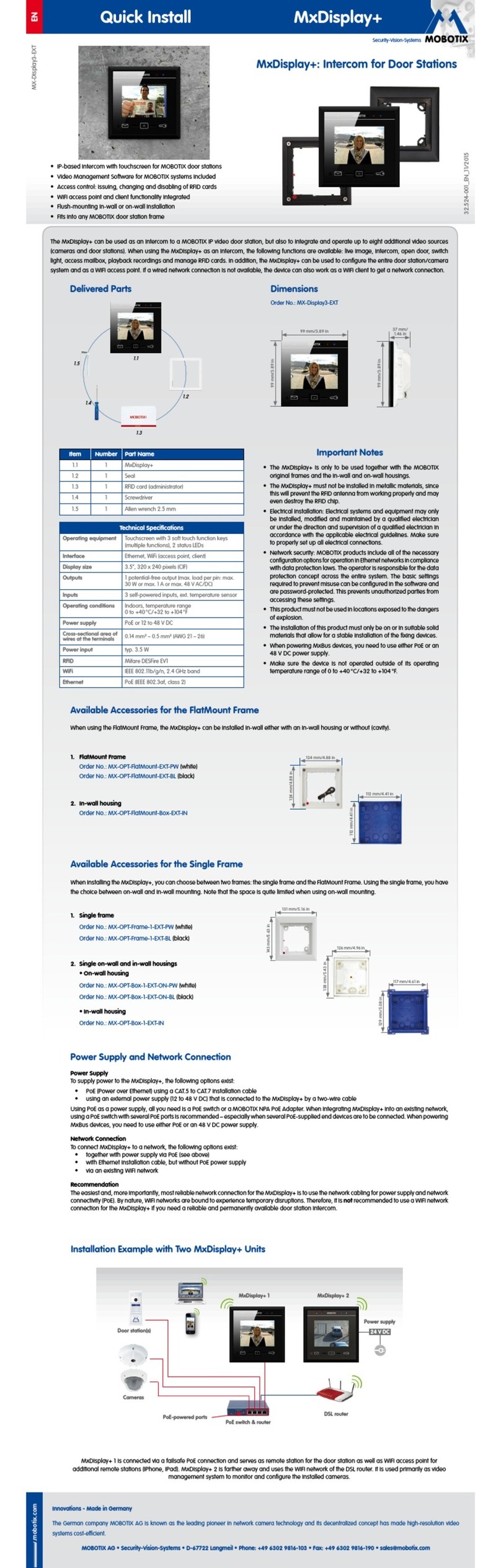
Mobotix MxDisplay Plus Instructions for use
Mobotix
Mobotix T26 User guide
Mobotix
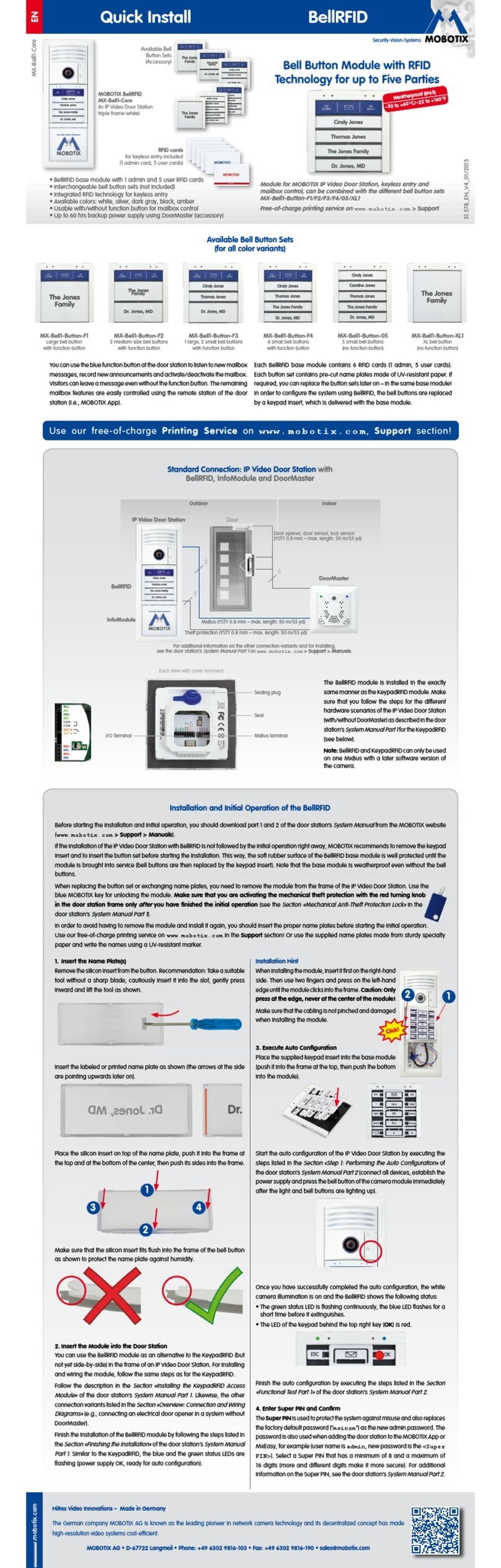
Mobotix BellRFID MX-Bell1-Core Instructions for use
Mobotix
Mobotix T24 Guide
Mobotix
Mobotix PC-IP102ID User manual
Mobotix
Mobotix T25 Original operating instructions
Mobotix
Mobotix T24 User manual