manuals.online logo
Brands
  1. Home
  2. •
  3. Brands
  4. •
  5. Moxa Technologies
  6. •
  7. PCI Card
  8. •
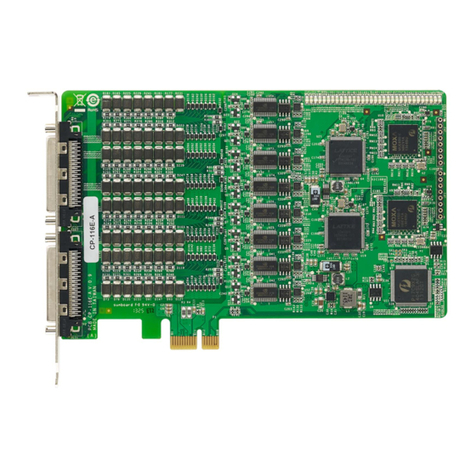
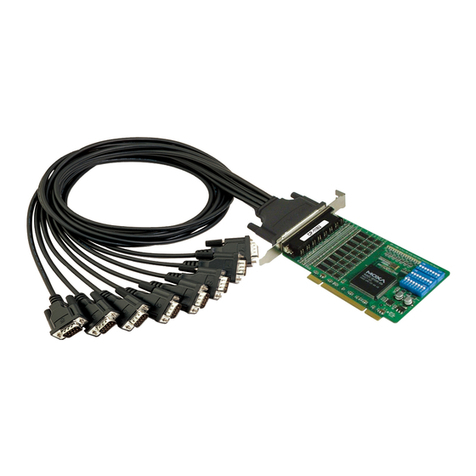
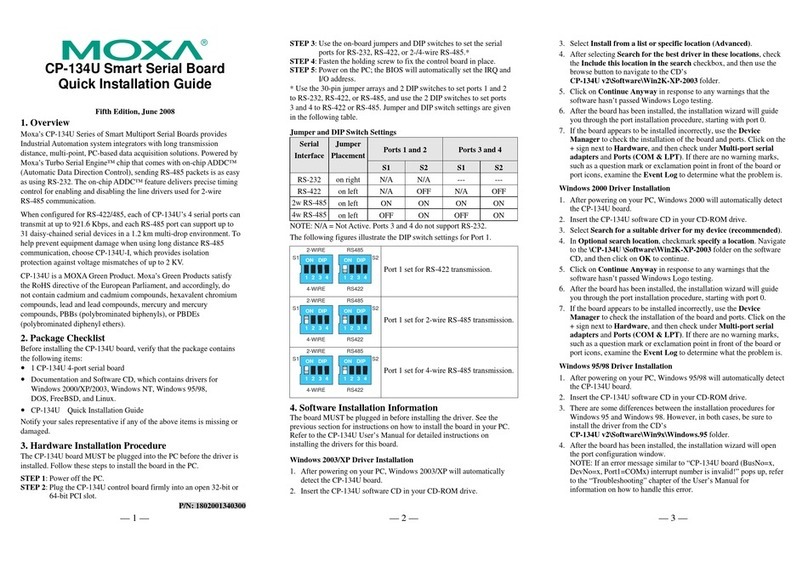
  9. Moxa Technologies CP-118U Series User manual

Moxa Technologies CP-118U Series User manual

Other manuals for CP-118U Series

5

This manual suits for next models

1

Other Moxa Technologies PCI Card manuals

Moxa Technologies Industio CP134-UI User manual

Moxa Technologies

Moxa Technologies Industio CP134-UI User manual

Moxa Technologies CP-204J User manual

Moxa Technologies

Moxa Technologies CP-204J User manual

Moxa Technologies C320 User manual

Moxa Technologies

Moxa Technologies C320 User manual

Moxa Technologies CP-114EL-DB9M User manual

Moxa Technologies

Moxa Technologies CP-114EL-DB9M User manual

Moxa Technologies PCI Express Board User manual

Moxa Technologies

Moxa Technologies PCI Express Board User manual

Moxa Technologies WAPN002 User manual

Moxa Technologies

Moxa Technologies WAPN002 User manual

Moxa Technologies CP-102U Series User manual

Moxa Technologies

Moxa Technologies CP-102U Series User manual

Moxa Technologies CP-138U Series User manual

Moxa Technologies

Moxa Technologies CP-138U Series User manual

Moxa Technologies CP-134U Series User manual

Moxa Technologies

Moxa Technologies CP-134U Series User manual

Moxa Technologies CP-118-U-I-T User manual

Moxa Technologies

Moxa Technologies CP-118-U-I-T User manual

Moxa Technologies CP-132EL Series User manual

Moxa Technologies

Moxa Technologies CP-132EL Series User manual

Moxa Technologies CP-118U Series User manual

Moxa Technologies

Moxa Technologies CP-118U Series User manual

Moxa Technologies CP-118U-I Series User manual

Moxa Technologies

Moxa Technologies CP-118U-I Series User manual

Moxa Technologies CP-118EL User manual

Moxa Technologies

Moxa Technologies CP-118EL User manual

Moxa Technologies CP-104JU V2 User manual

Moxa Technologies

Moxa Technologies CP-104JU V2 User manual

Moxa Technologies Smartio C104H/PCI Series User manual

Moxa Technologies

Moxa Technologies Smartio C104H/PCI Series User manual

Moxa Technologies 1802001142326 User manual

Moxa Technologies

Moxa Technologies 1802001142326 User manual

Moxa Technologies CP-132EL Series User manual

Moxa Technologies

Moxa Technologies CP-132EL Series User manual

Moxa Technologies Moxa Smartio C168H User manual

Moxa Technologies

Moxa Technologies Moxa Smartio C168H User manual

Moxa Technologies CP-114UL Series User manual

Moxa Technologies

Moxa Technologies CP-114UL Series User manual

Moxa Technologies CP-134U Series User manual

Moxa Technologies

Moxa Technologies CP-134U Series User manual

Moxa Technologies PCI Express Board User manual

Moxa Technologies

Moxa Technologies PCI Express Board User manual

Moxa Technologies Smartio CP-104UL User manual

Moxa Technologies

Moxa Technologies Smartio CP-104UL User manual

Moxa Technologies INTELLIO C218 User manual

Moxa Technologies

Moxa Technologies INTELLIO C218 User manual

Popular PCI Card manuals by other brands

Avermedia ER330 Quick installation guide

Avermedia

Avermedia ER330 Quick installation guide

ERMA SSI 1417 instruction manual

ERMA

ERMA SSI 1417 instruction manual

SIIG CyberSerial Dual PCI Software installation

SIIG

SIIG CyberSerial Dual PCI Software installation

Airlink101 AWLH3028 user manual

Airlink101

Airlink101 AWLH3028 user manual

Dolphin MXH932 user guide

Dolphin

Dolphin MXH932 user guide

I-Bus IBC2602 user guide

I-Bus

I-Bus IBC2602 user guide

ICP DAS USA PCI-1002H user manual

ICP DAS USA

ICP DAS USA PCI-1002H user manual

Exsys EX-60102 manual

Exsys

Exsys EX-60102 manual

Chelsio Communications T5 Series Installation and user guide

Chelsio Communications

Chelsio Communications T5 Series Installation and user guide

Conrad Electronic 97 46 71 operating instructions

Conrad Electronic

Conrad Electronic 97 46 71 operating instructions

Micro Innovations USB650A Quick installation guide

Micro Innovations

Micro Innovations USB650A Quick installation guide

KTI Networks KF-310 user guide

KTI Networks

KTI Networks KF-310 user guide

Intellinet 500517 user manual

Intellinet

Intellinet 500517 user manual

Asus SpaceLink WL230 user manual

Asus

Asus SpaceLink WL230 user manual

SIIG SC2475 Quick installation guide

SIIG

SIIG SC2475 Quick installation guide

TRENDnet TEW-703PI Quick installation guide

TRENDnet

TRENDnet TEW-703PI Quick installation guide

Pericom PI7C7100 manual

Pericom

Pericom PI7C7100 manual

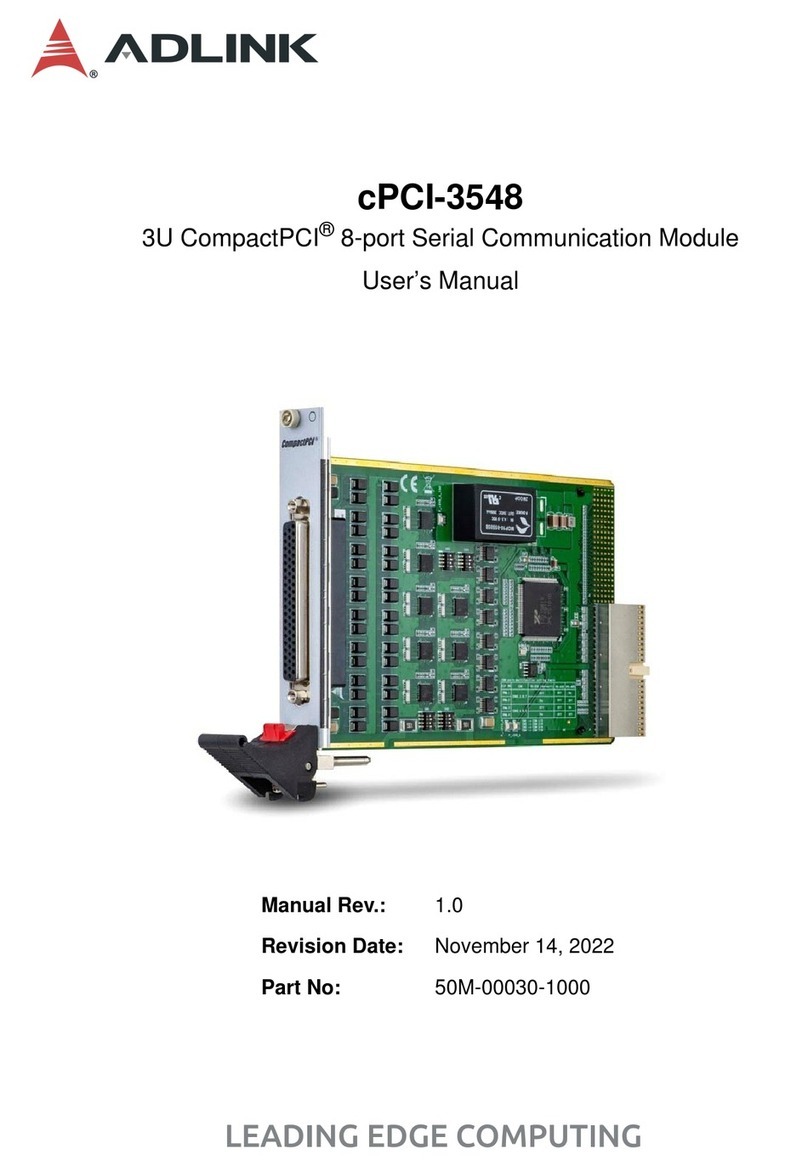
ADLINK Technology cPCI-3548 user manual

ADLINK Technology

ADLINK Technology cPCI-3548 user manual

manuals.online logo
manuals.online logoBrands
  • About & Mission
  • Contact us
  • Privacy Policy
  • Terms and Conditions

Copyright 2025 Manuals.Online. All Rights Reserved.

— 1 — — 2 — — 3 —
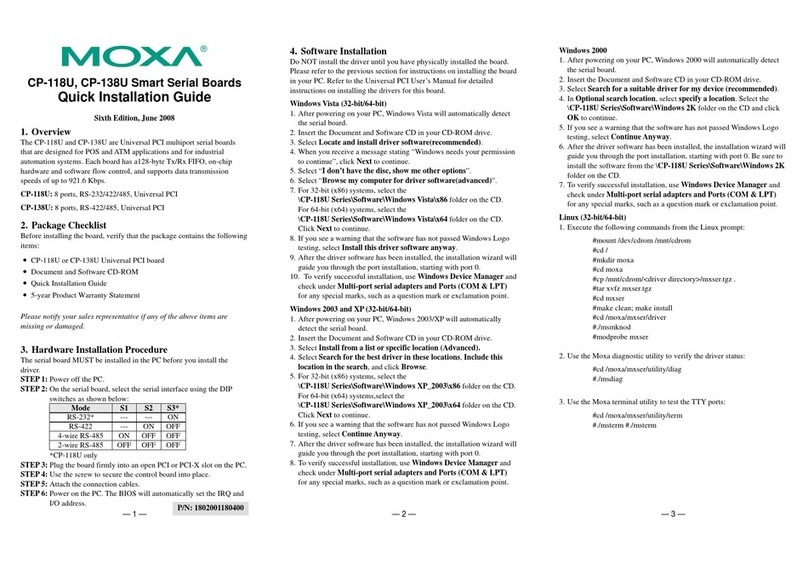
CP-118U, CP-138U Smart Serial Boards
Quick Installation Guide
Fifth Edition, June 2007
1. Overview
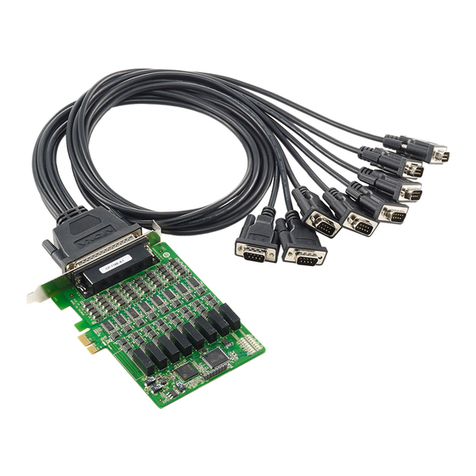
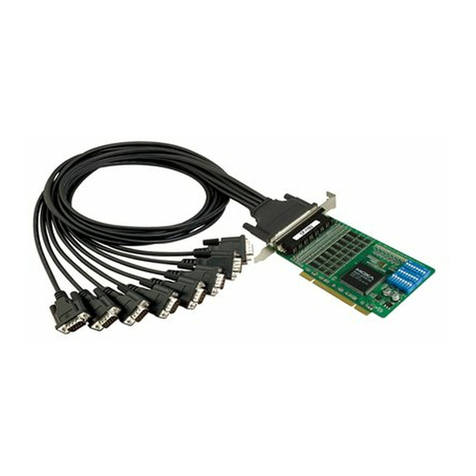
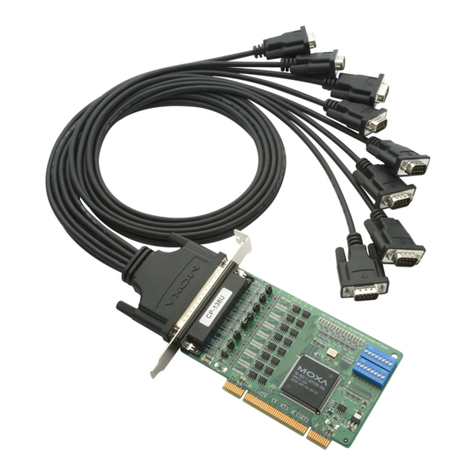
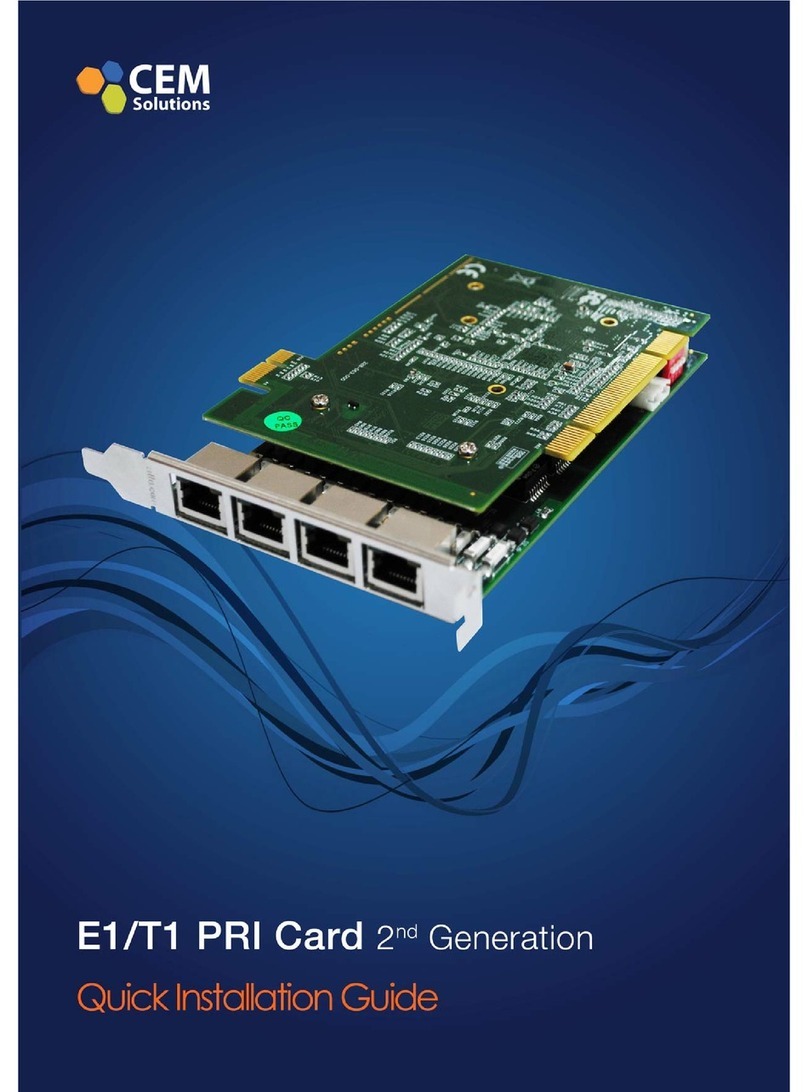
The CP-118U and CP-138U are Universal PCI multiport serial boards
that are designed for POS and ATM applications and for industrial
automation systems. Each board has a128-byte Tx/Rx FIFO, on-chip
hardware and software flow control, and supports data transmission
speeds of up to 921.6 Kbps.
CP-118U: 8 ports, RS-232/422/485, Universal PCI
CP-138U: 8 ports, RS-422/485, Universal PCI
2. Package Checklist
Before installing the board, verify that the package contains the following
items:
yCP-118U or CP-138U Universal PCI board
yDocument and Software CD-ROM
yQuick Installation Guide
y5-year Product Warranty Statement
Please notify your sales representative if any of the above items are
missing or damaged.
3. Hardware Installation Procedure
The serial board MUST be installed in the PC before you install the
driver.
STEP 1: Power off the PC.
STEP 2: On the serial board, select the serial interface using the DIP
switches as shown below:
Mode S1 S2 S3*
RS-232* --- --- ON
RS-422 --- ON OFF
4-wire RS-485 ON OFF OFF
2-wire RS-485 OFF OFF OFF
*CP-118U only
STEP 3: Plug the board firmly into an open PCI or PCI-X slot on the PC.
STEP 4: Use the screw to secure the control board into place.
STEP 5: Attach the connection cables.
STEP 6: Power on the PC. The BIOS will automatically set the IRQ and
I/O address.
4. Software Installation
Do NOT install the driver until you have physically installed the board.
Please refer to the previous section for instructions on installing the board
in your PC. Refer to the Universal PCI User’s Manual for detailed
instructions on installing the drivers for this board.
Windows Vista (32-bit/64-bit)
1. After powering on your PC, Windows Vista will automatically detect
the serial board.
2. Insert the Document and Software CD in your CD-ROM drive.
3. Select Locate and install driver software(recommended).
4. When you receive a message stating “Windows needs your permission
to continue”, click Next to continue.
5. Select “I don’t have the disc, show me other options”.
6. Select “Browse my computer for driver software(advanced)”.
7. For 32-bit (x86) systems, select the
\CP-118U Series\Software\Windows Vista\x86 folder on the CD.
For 64-bit (x64) systems, select the
\CP-118U Series\Software\Windows Vista\x64 folder on the CD.
Click Next to continue.
8. If you see a warning that the software has not passed Windows Logo
testing, select Install this driver software anyway.
9. After the driver software has been installed, the installation wizard will
guide you through the port installation, starting with port 0.
10. To verify successful installation, use Windows Device Manager and
check under Multi-port serial adapters and Ports (COM & LPT)
for any special marks, such as a question mark or exclamation point.
Windows 2003 and XP (32-bit/64-bit)
1. After powering on your PC, Windows 2003/XP will automatically
detect the serial board.
2. Insert the Document and Software CD in your CD-ROM drive.
3. Select Install from a list orspecific location (Advanced).
4. Select Search for the best driver in these locations, Include this
location in the search, and click Browse.
5. For 32-bit (x86) systems, select the
\CP-118U Series\Software\Windows XP_2003\x86 folder on the CD.
For 64-bit (x64) systems,select the
\CP-118U Series\Software\Windows XP_2003\x64 folder on the CD.
Click Next to continue.
6. If you see a warning that the software has not passed Windows Logo
testing, select Continue Anyway.
7. After the driver software has been installed, the installation wizard will
guide you through the port installation, starting with port 0.
8. To verify successful installation, use Windows Device Manager and
check under Multi-port serial adapters and Ports (COM & LPT)
for any special marks, such as a question mark or exclamation point.
Windows 2000
1. After powering on your PC, Windows 2000 will automatically detect
the serial board.
2. Insert the Document and Software CD in your CD-ROM drive.
3. Select Search for a suitable driver for my device (recommended).
4. In Optional search location, select specify a location. Select the
\CP-118U Series\Software\Windows 2K folder on the CD and click
OK to continue.
5. If you see a warning that the software has not passed Windows Logo
testing, select Continue Anyway.
6. After the driver software has been installed, the installation wizard will
guide you through the port installation, starting with port 0. Be sure to
install the software from the \CP-118U Series\Software\Windows 2K
folder on the CD.
7. To verify successful installation, use Windows Device Manager and
check under Multi-port serial adapters and Ports (COM & LPT)
for any special marks, such as a question mark or exclamation point.
Linux (32-bit/64-bit)
1. Execute the following commands from the Linux prompt:
#mount /dev/cdrom /mnt/cdrom
#cd /
#mkdir moxa
#cd moxa
#cp /mnt/cdrom/<driver directory>/mxser.tgz .
#tar xvfz mxser.tgz
#cd mxser
#make clean; make install
#cd /moxa/mxser/driver
#./msmknod
#modprobe mxser
2. Use the Moxa diagnostic utility to verify the driver status:
#cd /moxa/mxser/utility/diag
#./msdiag
3. Use the Moxa terminal utility to test the TTY ports:
#cd /moxa/mxser/utility/term
#./msterm #./msterm
P/N: 1802001180400

All manuals and user guides at all-guides.com
all-guides.com
— 4 — — 5 — — 6 —
5. Pin Assignments and Cable Wiring
The CP-118U and CP-138U each have a female DB62 connector on the
board. Cables with different connectors are available to help you connect
your device to the board.
15
69
Male DB9 (CBL-M62M9x8-100, Opt8-M9)
Pin RS-232* RS-422
4-wire RS-485 2-wire RS-485
1 DCD TxD-(A) ---
2 RxD TxD+(B) ---
3 TxD RxD+(B) Data+(B)
4 DTR RxD-(A) Data-(A)
5 GND GND GND
6 DSR --- ---
7 RTS --- ---
8 CTS --- ---
*CP-118U only
1
14
13
25
Male DB25 (CBL-M62M25x8-100, Opt8B)
Pin RS-232* RS-422
4-wire RS-485 2-wire RS-485
2 TxD RxD+(B) Data+(B)
3 RxD TxD+(B) ---
4 RTS --- ---
5 CTS --- ---
6 DSR --- ---
7 GND GND GND
8 DCD TxD-(A) ---
20 DTR RxD-(A) Data-(A)
*CP-118U only
13 1
25 14
Female DB25 (Opt8A/S)
Pin RS-232* RS-422
4-wire RS-485 2-wire RS-485
2 RxD TxD+(B) ---
3 TxD RxD+(B) Data+(B)
4 CTS --- ---
5 RTS --- ---
6 DTR RxD-(A) Data-(A)
7 GND GND GND
8 DCD TxD-(A) ---
20 DSR --- ---
*CP-118U only
18
RJ45 (Opt8-RJ45)
Pin RS-232* RS-422
4-wire RS-485 2-wire RS-485
1 DSR --- ---
2 RTS --- ---
3 GND GND GND
4 TxD RxD+(B) Data+(B)
5 RxD TxD+(B) ---
6 DCD TxD-(A) ---
7 CTS --- ---
8 DTR RxD-(A) Data-(A)
*CP-118U only
Copyright ©2007
Moxa Technologies Co., Ltd.
All rights reserved.
Reproduction without permission is prohibited.
Tel: +886-2-8919-1230 www.moxa.com
Fax: +886-2-8919-1231 support@moxa.com
All manuals and user guides at all-guides.com