manuals.online logo
Brands
  1. Home
  2. •
  3. Brands
  4. •
  5. NexSens
  6. •
  7. Data Logger
  8. •
  9. NexSens X2 User manual

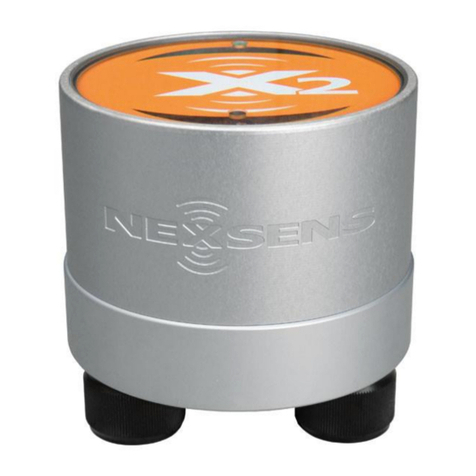
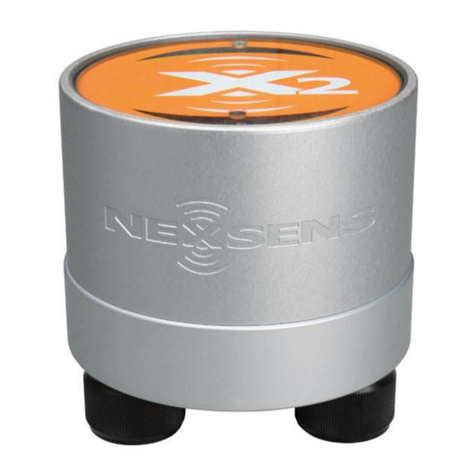
NexSens X2 User manual

Other manuals for X2

8

Other NexSens Data Logger manuals

NexSens X2-CB-C User manual

NexSens

NexSens X2-CB-C User manual

NexSens CB-1250 Data Buoy User manual

NexSens

NexSens CB-1250 Data Buoy User manual

NexSens X2-SDLMC User manual

NexSens

NexSens X2-SDLMC User manual

NexSens 3100-iSIC User manual

NexSens

NexSens 3100-iSIC User manual

NexSens X2 User manual

NexSens

NexSens X2 User manual

NexSens X2-Cell User manual

NexSens

NexSens X2-Cell User manual

NexSens X2-CBMC-C User manual

NexSens

NexSens X2-CBMC-C User manual

NexSens X2 User manual

NexSens

NexSens X2 User manual

NexSens X2-SDL User manual

NexSens

NexSens X2-SDL User manual

NexSens SDL500 User manual

NexSens

NexSens SDL500 User manual

NexSens CB-50 Data Buoy User manual

NexSens

NexSens CB-50 Data Buoy User manual

NexSens X2-CB User manual

NexSens

NexSens X2-CB User manual

NexSens CB-1250 Data Buoy User manual

NexSens

NexSens CB-1250 Data Buoy User manual

NexSens X2 User manual

NexSens

NexSens X2 User manual

NexSens X2 User manual

NexSens

NexSens X2 User manual

NexSens X2 User manual

NexSens

NexSens X2 User manual

NexSens X2-SDL User manual

NexSens

NexSens X2-SDL User manual

NexSens X2 User manual

NexSens

NexSens X2 User manual

NexSens X2 User manual

NexSens

NexSens X2 User manual

NexSens CB-150 Data Buoy User manual

NexSens

NexSens CB-150 Data Buoy User manual

Popular Data Logger manuals by other brands

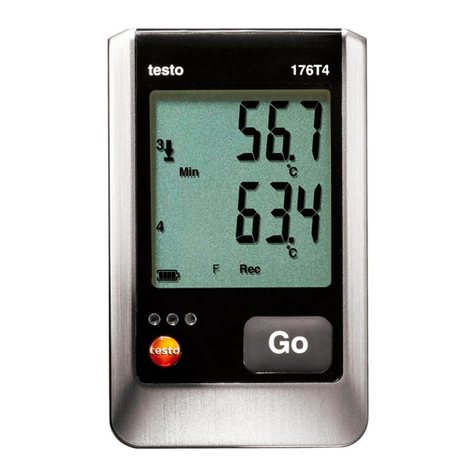
TESTO 176 instruction manual

TESTO

TESTO 176 instruction manual

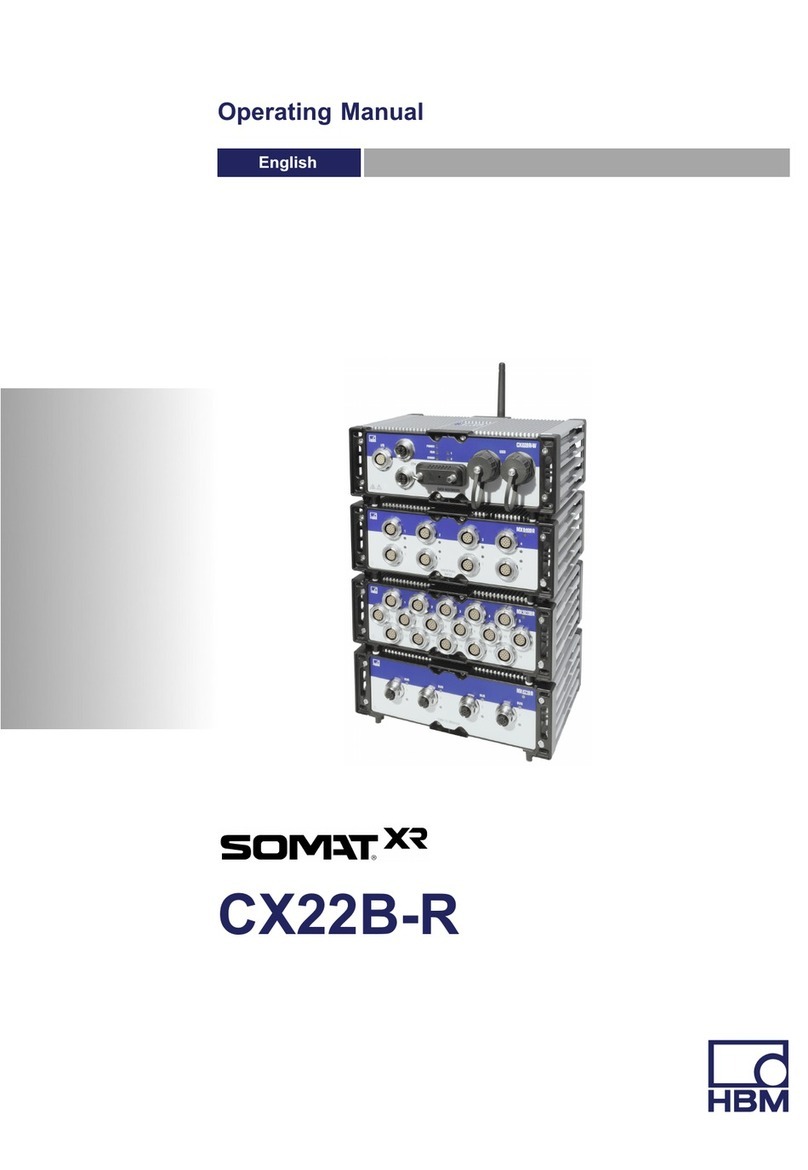
HBM SOMAT XR CX22B-R operating manual

HBM

HBM SOMAT XR CX22B-R operating manual

Agtrix 380i manual

Agtrix

Agtrix 380i manual

Hobo H8 Pro user manual

Hobo

Hobo H8 Pro user manual

Beijing ART Tech PCI2320 user manual

Beijing ART Tech

Beijing ART Tech PCI2320 user manual

Athena GET SL1 user manual

Athena

Athena GET SL1 user manual

Motec Systems C185 user manual

Motec Systems

Motec Systems C185 user manual

Beijing ART Tech USB2832 user manual

Beijing ART Tech

Beijing ART Tech USB2832 user manual

HT Italia XL421 user manual

HT Italia

HT Italia XL421 user manual

Rotronic HygroLog HL20 Short instruction manual

Rotronic

Rotronic HygroLog HL20 Short instruction manual

MRC DW-6092 Operation manual

MRC

MRC DW-6092 Operation manual

Racelogic VBOX LapTimer quick start guide

Racelogic

Racelogic VBOX LapTimer quick start guide

Edu-Logger 900-240 Guide

Edu-Logger

Edu-Logger 900-240 Guide

Elma DT173 manual

Elma

Elma DT173 manual

MadgeTech PRTemp140 Product user guide

MadgeTech

MadgeTech PRTemp140 Product user guide

Comet U0121M user guide

Comet

Comet U0121M user guide

pico Technology PT-104 user guide

pico Technology

pico Technology PT-104 user guide

Soil Instruments GTecLink user manual

Soil Instruments

Soil Instruments GTecLink user manual

manuals.online logo
manuals.online logoBrands
  • About & Mission
  • Contact us
  • Privacy Policy
  • Terms and Conditions

Copyright 2025 Manuals.Online. All Rights Reserved.

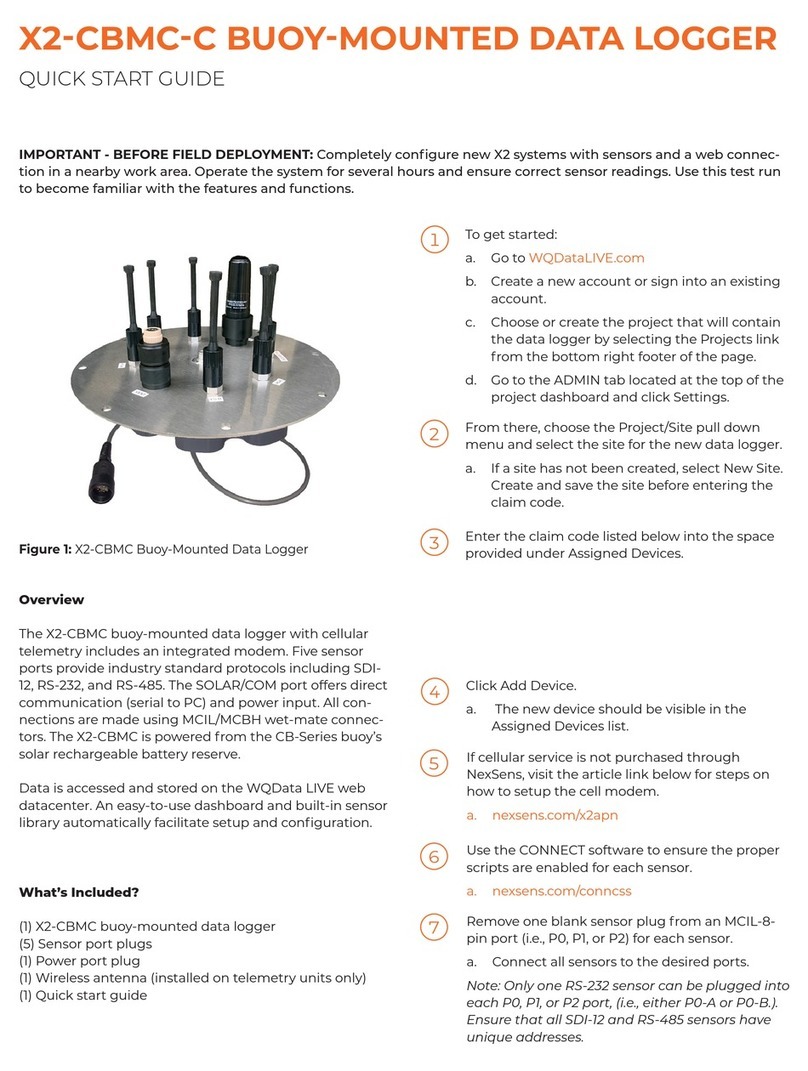
IMPORTANT - BEFORE FIELD DEPLOYMENT: Completely configure new X2 systems with sensors and a web connec-
tion in a nearby work area. Operate the system for several hours and ensure correct sensor readings. Use this test run to
become familiar with the features and functions.
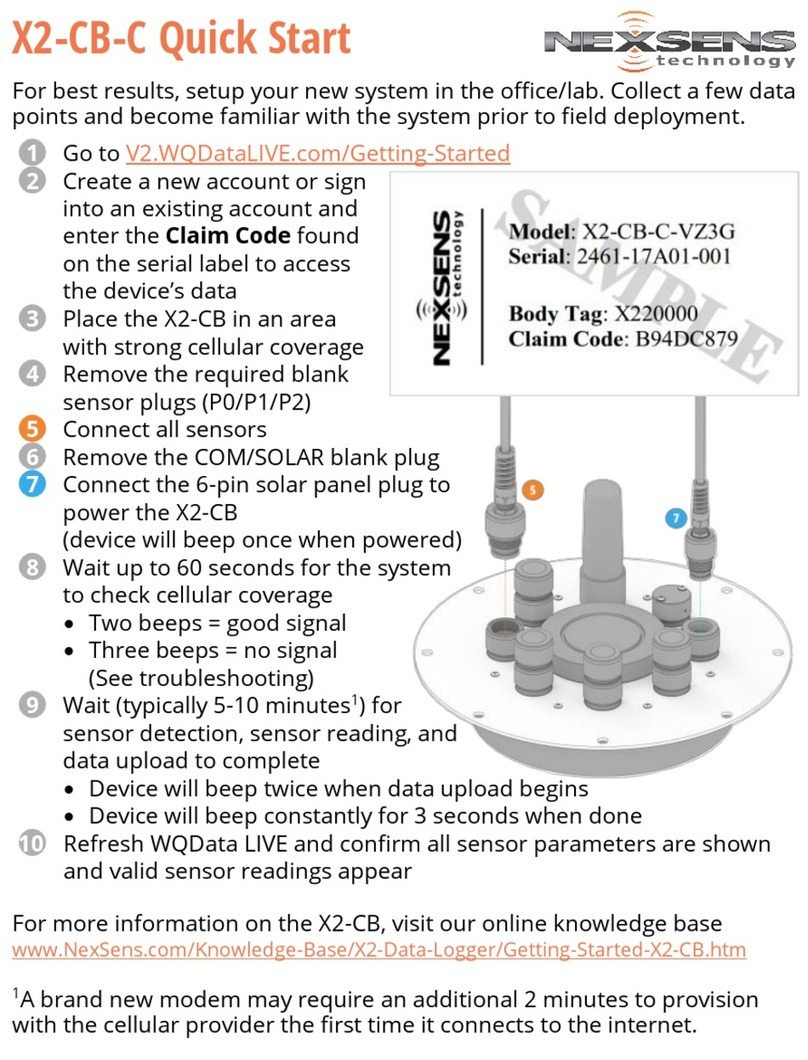
To get started:
a. Go to WQDataLIVE.com
b. Create a new account or sign into an existing
account.
c. Choose or create the project that will contain
the data logger by selecting the Projects link
from the bottom right footer of the page.
d. Open the project and go to the ADMIN tab
located at the top of the project dashboard
and click Settings.
From there, choose the Project/Site pull down
menu and select the site for the new data logger.
a. If a site has not been created, select New Site.
Create and save the site before entering the
claim code.
Enter the claim code listed below into the space
provided under Assigned Devices.
Click Add Device.
a. The new device should be visible in the
Assigned Devices list.
If cellular service is not purchased through
NexSens, visit the article link below for steps on
how to setup the cell modem.
a. nexsens.com/x2apn
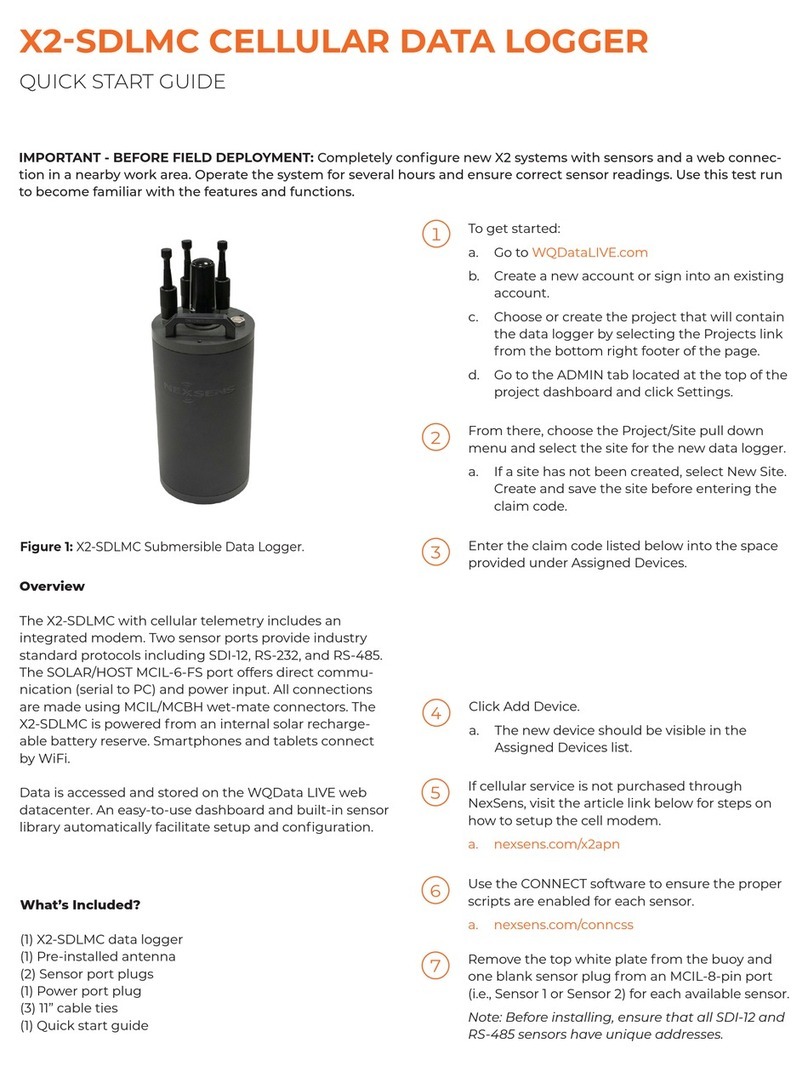
X2 - CELLULAR DATA LOGGER
QUICK START GUIDE
Overview
The X2 with cellular telemetry includes an integrated mo-
dem. Three sensor ports provide industry standard proto-
cols including SDI-12, RS-232, and RS-485. The center port
offers direct communication (serial to PC) and power
input. Smartphones and tablets connect via WiFi.
Data is accessed and stored on the WQData LIVE web
datacenter. An easy-to-use dashboard and built-in sensor
library automatically facilitate setup and configuration.
What’s Included?
(1) X2 data logger
(1) X2 grounding kit
(3) Sensor port plugs, spare orings
(1) Power port plug, spare oring
(1) Oring grease
(1) Screwdriver with magnet tip
(1) Antenna with angle adapter
(1) Quick start guide
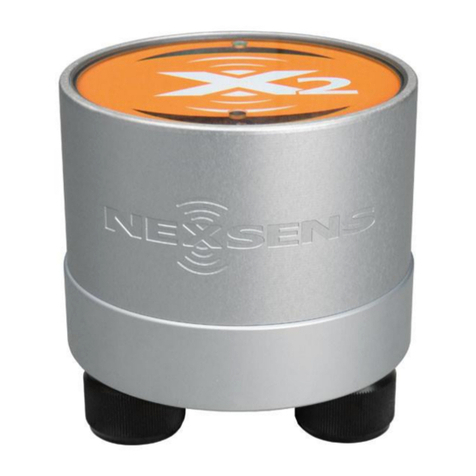
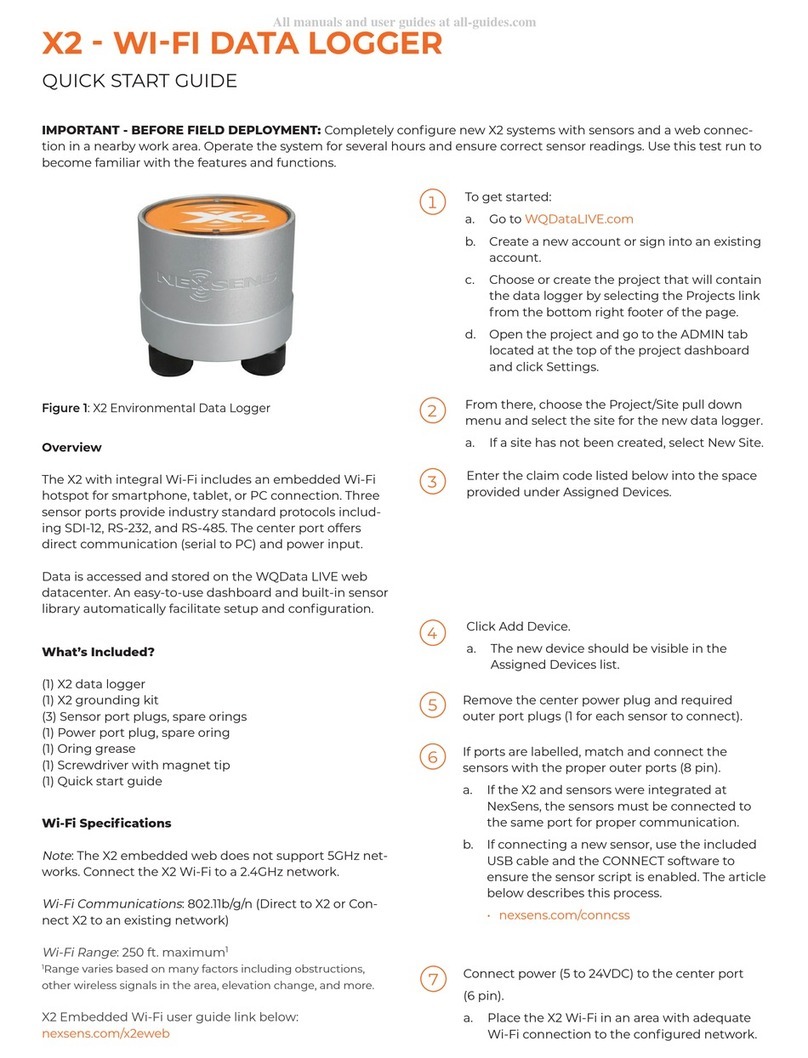
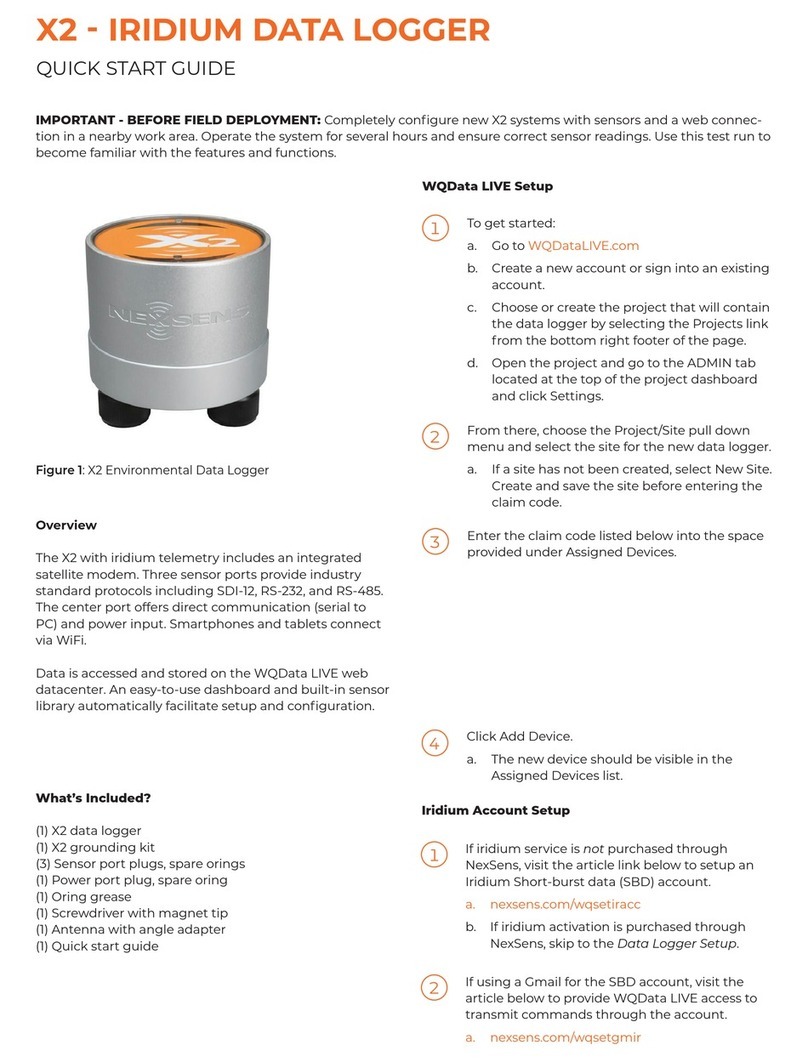
Figure 1: X2 Environmental Data Logger
Figure 2: Step 6 - Antenna connection.
Rotate the antenna clockwise onto the threads of
the 90 degree angle adapter.


 After 20 minutes, refresh WQData Live and
confirm all sensor parameters are shown and
valid sensor readings appear.
a. The blue LED will be on (solid) when setup is
complete.
For additional information, please reference the X2 Resource Library on the NexSens Knowledge Base.
nexsens.com/x2kb
937-426-2703
www.nexsens.com
2091 Exchange Court
Fairborn, Ohio 45324


Remove one blank sensor plug from an 8-pin port
(i.e., P0, P1, or P2) for each sensor.
a. Connect all sensors to the desired ports.
Note: Ensure that all SDI-12 and RS-485 sensors
have unique addresses.
Connect power (5 to 24VDC) to the center port
(6 pin).
Figure 3: Steps 8 & 9 - Sensor and power connection.
Figure 4: X2 LED light indicators.
LED
Color
Green
LED Light Indicators
1 Second
Interval
Blue
Yellow
Red
3 Second
Interval
5 Second
Interval
3 Blinks
Per
5 Seconds
Solid
Primary
power
heartbeat
Significant
system
error2
Secondary
power
heartbeat
Backup
power
heartbeat
Weak/No
cell signal
Data
acquisition
in progress
Strong
radio
signal
N/A
WQData
LIVE setup
successful1
Sensor
calibration
in progress
Table 1: X2 Environmental Data Logger LED Indicators.
1WQData LIVE setup is automatically done after sensor
detection.
2System errors can result from internal sensors detecting
high current, humidity, or pressure. These errors can
be indicative of a leak or other major problem with the
system that requires attention.
N/AN/A
N/A
N/A
N/AN/A
N/A
N/AN/A
N/A
Wait up to 60 seconds for the system to check
cellular coverage.
a. If the blue LED repeatedly blinks three times,
the cellular strength is sufficient to connect
the X2 with WQData LIVE.
b. If the blue LED repeatedly blinks once, cell
coverage is low. Move the X2 to a location with
better cell coverage and cycle power.

Use the CONNECT software to ensure the proper
scripts are enabled for each sensor.
a. nexsens.com/conncss