manuals.online logo
Brands
  1. Home
  2. •
  3. Brands
  4. •
  5. Nortel
  6. •
  7. Telephone
  8. •
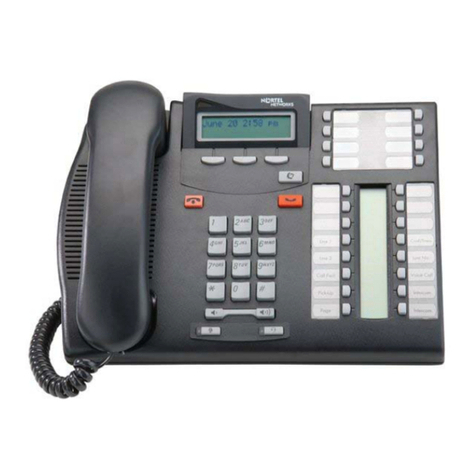
  9. Nortel T7208 Parts list manual

Nortel T7208 Parts list manual

Other manuals for T7208

2

Other Nortel Telephone manuals

Nortel M 7000 Parts list manual

Nortel

Nortel M 7000 Parts list manual

Nortel Enterprise Edge Feature Programming... User manual

Nortel

Nortel Enterprise Edge Feature Programming... User manual

Nortel P0609347 02 User manual

Nortel

Nortel P0609347 02 User manual

Nortel Companion C3060 User manual

Nortel

Nortel Companion C3060 User manual

Nortel Meridian M5112 User manual

Nortel

Nortel Meridian M5112 User manual

Nortel Norstar M7100 User manual

Nortel

Nortel Norstar M7100 User manual

Nortel M3905 User manual

Nortel

Nortel M3905 User manual

Nortel i2021 Series User manual

Nortel

Nortel i2021 Series User manual

Nortel MERIDIAN 1 M2216ACD User manual

Nortel

Nortel MERIDIAN 1 M2216ACD User manual

Nortel Norstar T7316E User manual

Nortel

Nortel Norstar T7316E User manual

Nortel Norstar T7316E User manual

Nortel

Nortel Norstar T7316E User manual

Nortel Enterprise Edge M7208N Parts list manual

Nortel

Nortel Enterprise Edge M7208N Parts list manual

Nortel i2004 User manual

Nortel

Nortel i2004 User manual

Nortel M7100N User manual

Nortel

Nortel M7100N User manual

Nortel Norstar T7316E User manual

Nortel

Nortel Norstar T7316E User manual

Nortel T7100 Parts list manual

Nortel

Nortel T7100 Parts list manual

Nortel M2016S Secure Set User manual

Nortel

Nortel M2016S Secure Set User manual

Nortel T7208 Parts list manual

Nortel

Nortel T7208 Parts list manual

Nortel Norstar Plus User manual

Nortel

Nortel Norstar Plus User manual

Nortel IP 1120E User manual

Nortel

Nortel IP 1120E User manual

Nortel Meridian M2006 User manual

Nortel

Nortel Meridian M2006 User manual

Nortel BCM400 User manual

Nortel

Nortel BCM400 User manual

Nortel Enterprise Edge ATA 2 User manual

Nortel

Nortel Enterprise Edge ATA 2 User manual

Nortel ICS 6.1 User manual

Nortel

Nortel ICS 6.1 User manual

Popular Telephone manuals by other brands

Philips BaseLine Pro manual

Philips

Philips BaseLine Pro manual

V-tech i6772 user guide

V-tech

V-tech i6772 user guide

BT FREELANCE XD 5100 quick start guide

BT

BT FREELANCE XD 5100 quick start guide

Uniden 1360 user guide

Uniden

Uniden 1360 user guide

Fanvil D800 user manual

Fanvil

Fanvil D800 user manual

Avaya IP500 user guide

Avaya

Avaya IP500 user guide

NEC Univerge SV9100 installation manual

NEC

NEC Univerge SV9100 installation manual

Amanda MiniSOHO Installation and programming manual

Amanda

Amanda MiniSOHO Installation and programming manual

Hitachi SelecSet 900 Series user guide

Hitachi

Hitachi SelecSet 900 Series user guide

mPTech HAMMER BS21 quick start guide

mPTech

mPTech HAMMER BS21 quick start guide

NEC 2000IVX user guide

NEC

NEC 2000IVX user guide

ooma Phone Genie quick start guide

ooma

ooma Phone Genie quick start guide

Siemens Gigaset S450 user guide

Siemens

Siemens Gigaset S450 user guide

Clarity RC100 operating instructions

Clarity

Clarity RC100 operating instructions

GE 2-9480 user guide

GE

GE 2-9480 user guide

Geemarc PHOTOPHONE 155 user guide

Geemarc

Geemarc PHOTOPHONE 155 user guide

Interquartz Gemini IQ333 operating instructions

Interquartz

Interquartz Gemini IQ333 operating instructions

SSS Siedle HT 840-0 operating instructions

SSS Siedle

SSS Siedle HT 840-0 operating instructions

manuals.online logo
manuals.online logoBrands
  • About & Mission
  • Contact us
  • Privacy Policy
  • Terms and Conditions

Copyright 2025 Manuals.Online. All Rights Reserved.

Your T7208 telephone
©Mute button
Turns the microphone off or on when you are on a call.
¬Headset button
Turns the headset mode on.
≤Feature button
Starts or ends a feature.
≥Hold button
Places calls on hold.
Memory and line buttons
ΩIndicators
Appear next to active line and memory buttons.
Feature card plate
Storage compartment for your feature card.
Number card
Write your extension number on this card.
F
G
H
I
J
K
L
M
T7208 Telephone User Card
1-800-4 NORTEL
www.nortelnetworks.com
© 2004 Nortel Networks
P0609622 01
Printed in Canada
A
C
D
E
FG
H
I
J
K
B
M
L
Cord connections
Wall mount without a telephone stand
1
2
Headset option
Connect cord to headset.
Connect cord to handset.
Connect line cord to wall jack.
Desk mount option
Route line cord
Press here to remove the stand.
Mount stand on telephone.
through the stand
as shown. Place
line cord
line cord into the
slot on the stand.
3
Slide feature card plate
down.
Insert line
cord.
The earpiece/mouthcap region
on the handset may attract and
retain small objects.
Warning
Press here to remove the stand.
Place the telephone onto the
wall mount plate and slide
it down.
Connect line cord to
wall jack.
1
2
Connect cords to the telephone,
refer to “Cord connections”
illustrations.
Your T7208 telephone
Telephone light
Flashes for incoming calls.
Lights up when Message Waiting Indication (MWI) is
supported by system software. Contact your system
administrator for more information.
Adjustable display
Shows the time and date, call and feature information.
Adjust the display to your personal preference.
®Release button
Ends an active call or feature.
Dial pad
√Volume control
Adjusts the handset, handsfree, headset and ringer
volume.
A
B
C
D
E
Wall mount with a telephone stand
Mount the telephone
onto the screws and
slide it down.
1
Mount the stand as shown.
Use the key hole slots on the stand
to mark the location for the screws.
key hole slots
2
Connect line cord to
wall jack.
Connect cords to the telephone,
refer to “Cord connections”
illustrations.
Press here to remove the stand.
Tighten screws for a secure fit.
3
Display contrast level
Adjust the contrast of your display.
1. Press ≤•‡.
2. Press ⁄ to · to select a contrast level. The higher
the number the higher the contrast level.
Language choice
≤•fi‚⁄
Select Primary Language for the telephone display.
≤•fi‚¤
Select Alternate Language for the telephone display.
≤•fi‚‹
Select Alternate Language 2 for the telephone display.
≤•fi‚›
Select Alternate Language 3 for the telephone display.
Ring type
Select a different ring for your telephone.
1. Press ≤•fl.
2. Press ⁄,¤,‹,›to hear the different ring types.
3. Press ≤to store the ring type.
Telephone setup
Check what is programmed on your buttons.
1. Press ≤•‚.
2. Press the button(s) that you want to check.
3. Read the display. Button assignment examples are
shown below.
4. Press ≤when finished.
Use the button label strip on the telephone to show what is
programmed on the buttons. Spare button label strips are
provided with your telephone.
How to label your buttons
1. Remove the plastic lens and button label strip from the
telephone.
2. Write the name of each button on the button label strip.
3. Insert the button label strip back on the telephone.
4. Insert plastic lens, matching the tabs on the lens with
the notches on the telephone.
Tip
Use the Desktop Assistant application to customize
button label strips for your telephone.
Go to www.nortelnetworks.com and download the
Desktop Assistant application to your personal computer.
Button inquiry
Line Intercom
Internal autodial External autodial
Feature Handsfree
Button labels
XXX (LINENAME) XXXX (SETNAME)
Autodial (XXXX) (XXXXXXXXXX)
(FEATURENAME) Handsfree
Align tabs
Memory buttons are buttons with Ωindicators not
assigned as line, intercom or handsfree buttons.
Memory buttons store internal and external numbers or
features to give you one touch dialing or feature activation.
You can program a memory button with a new number or
feature.
External autodial
1. Press ≤•⁄.
2. Press a memory button.
3. Dial the external number.
4. Press ≥to store the number.
5. Label your new button.
Internal autodial
1. Press ≤•¤.
2. Press a memory button.
3. Dial the extension number.
4. Label your new button.
Features
1. Press ≤ • ‹.
2. Press a memory button.
3. Press ≤and enter the feature code.
4. Label your new button.
How to erase memory buttons
1. Press ≤•⁄.
2. Press a memory button.
3. Press ≥to erase the button.
Memory buttons
Programming memory buttons
Making calls
There are many ways to make a call, depending on your
telephone programming and the type of call.
External calls using line buttons
1. Lift the handset.
2. Press a line button.
3. Dial the external telephone number.
External calls using intercom buttons
1. Lift the handset.
2. Press an intercom button and enter a line pool access
code.
3. When you hear an external dial tone, dial the external
telephone number.
Contact your system administrator for a list of line pool
codes.
Internal calls using intercom buttons
1. Lift the handset.
2. Press an intercom button.
3. Dial the extension number.
Contact your system administrator for a list of extension
numbers.
Answering calls
When your telephone rings and the display light flashes or
when an intercom or line button Ωindicator flashes:
• Lift the handset.
OR
Press the button with the flashing Ωindicator before
you lift the handset.
How to hold calls
• While on a call, press ≥. The Ωindicator for the line
on hold will flash.
• To retrieve a held call, press the line button with the
flashing Ωindicator.
• Calls are put on hold automatically when you switch
from one line to another.
Making and answering calls
Handsfree calls
Your system administrator must program the handsfree
feature on your telephone.
• Press the handsfree button on your telephone to
make or answer a call.
• To switch to handsfree when you are on a call, press
the handsfree button and replace the handset. Lift

the handset to switch back.
When programmed, the handsfree feature is assigned to
button 8 on your telephone.
How to mute calls
• While on a call, press ©to turn the microphone off.
The ©light flashes when the microphone is off.
• Press ©again to turn the microphone on.
• Use ©on handset, handsfree or headset calls.
Headset calls
• Press ¬to activate the headset mode. When the
¬light is on, press a line or intercom button to
make a call.
• Press ¬to answer a call when the telephone rings
or when an intercom or line button Ωindicator
flashes.
• To switch to your headset when you are on a call,
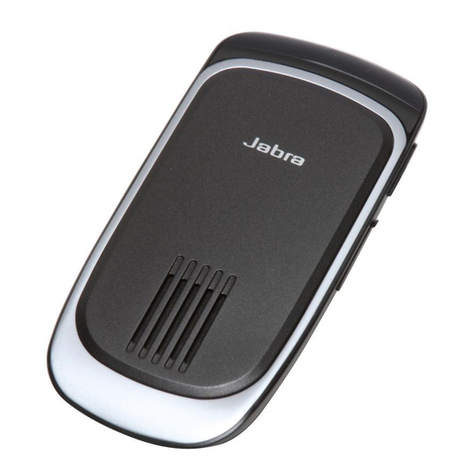
press ¬and replace the handset. Lift the handset
to switch back.
Warning
Nortel Networks does not support the connection of a
headset to the T7208 telephone, unless handsfree is
enabled within the system programming. If handsfree is
not enabled, certain call handling features may not work
as intended.
More on making and answering calls
8
Handsfree button