manuals.online logo
Brands
  1. Home
  2. •
  3. Brands
  4. •
  5. Panasonic
  6. •
  7. Controllers
  8. •
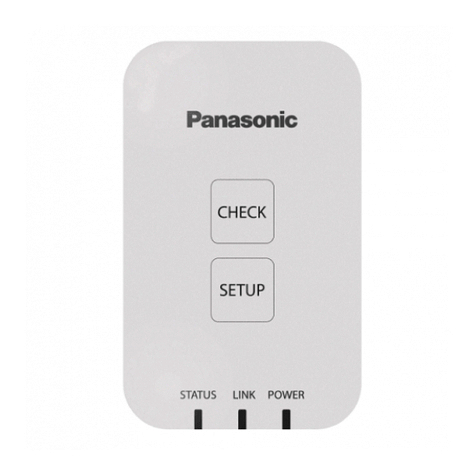
  9. Panasonic CZ-TACG1 User manual

Panasonic CZ-TACG1 User manual

Other manuals for CZ-TACG1

3

Other Panasonic Controllers manuals

Panasonic AW-RP50 User manual

Panasonic

Panasonic AW-RP50 User manual

Panasonic FP7 Series User manual

Panasonic

Panasonic FP7 Series User manual

Panasonic DPC-100 Series User manual

Panasonic

Panasonic DPC-100 Series User manual

Panasonic Vossloh-Schwabe Light Controller IP/DALI 2CH User manual

Panasonic

Panasonic Vossloh-Schwabe Light Controller IP/DALI 2CH User manual

Panasonic CZ-256ESMC2U User manual

Panasonic

Panasonic CZ-256ESMC2U User manual

Panasonic GM1 Series User manual

Panasonic

Panasonic GM1 Series User manual

Panasonic S-Link FP2 User manual

Panasonic

Panasonic S-Link FP2 User manual

Panasonic KT4R Use and care manual

Panasonic

Panasonic KT4R Use and care manual

Panasonic PAW-HPM 1 User manual

Panasonic

Panasonic PAW-HPM 1 User manual

Panasonic SL-VGU1-EC User manual

Panasonic

Panasonic SL-VGU1-EC User manual

Panasonic AFP7X16DW User manual

Panasonic

Panasonic AFP7X16DW User manual

Panasonic AW-RP60G User manual

Panasonic

Panasonic AW-RP60G User manual

Panasonic SQ4-C11 User manual

Panasonic

Panasonic SQ4-C11 User manual

Panasonic WV-CU101 User manual

Panasonic

Panasonic WV-CU101 User manual

Panasonic CZ-ANC3 User manual

Panasonic

Panasonic CZ-ANC3 User manual

Panasonic AFPX-COM5 User manual

Panasonic

Panasonic AFPX-COM5 User manual

Panasonic FP0H Series User manual

Panasonic

Panasonic FP0H Series User manual

Panasonic AWRP605 - CCU & PAN/TILT CONTR User manual

Panasonic

Panasonic AWRP605 - CCU & PAN/TILT CONTR User manual

Panasonic WV-ASM100 User manual

Panasonic

Panasonic WV-ASM100 User manual

Panasonic EYFLA7AR Operating instructions
Panasonic

Panasonic EYFLA7AR Operating instructions

Panasonic EYFRZ01 User manual

Panasonic

Panasonic EYFRZ01 User manual

Panasonic FP3 User manual

Panasonic

Panasonic FP3 User manual
Panasonic CZ-256ESMC2 User manual

Panasonic

Panasonic CZ-256ESMC2 User manual

Panasonic CZ-256ESMC2U User manual

Panasonic

Panasonic CZ-256ESMC2U User manual

Popular Controllers manuals by other brands

Sunricher SR-ZV9003T3-RGBW-US Installation

Sunricher

Sunricher SR-ZV9003T3-RGBW-US Installation

Ksenia intro Installation and configuration manual

Ksenia

Ksenia intro Installation and configuration manual

Inovance CAN200 Series manual

Inovance

Inovance CAN200 Series manual

Gauzy LC6 FLEX Controller Installation and operation guide

Gauzy

Gauzy LC6 FLEX Controller Installation and operation guide

Viking SLP-1 Technical practice

Viking

Viking SLP-1 Technical practice

CKD KBX-30E-U Series instruction manual

CKD

CKD KBX-30E-U Series instruction manual

Sharp Energy Sun Flux User manual & installation guide

Sharp Energy

Sharp Energy Sun Flux User manual & installation guide

Yamaha RCX40 user manual

Yamaha

Yamaha RCX40 user manual

AB Quality PowerFlex 400 Frames D-H Service bulletin

AB Quality

AB Quality PowerFlex 400 Frames D-H Service bulletin

Yamaha MJC8 owner's manual

Yamaha

Yamaha MJC8 owner's manual

AL-KO ATC operating instructions

AL-KO

AL-KO ATC operating instructions

Savant SmartControl 2 Deployment guide

Savant

Savant SmartControl 2 Deployment guide

GameSir T3S user manual

GameSir

GameSir T3S user manual

Kostal inveor operating manual

Kostal

Kostal inveor operating manual

Emerson Yarway 20-55 Operating and safety instructions

Emerson

Emerson Yarway 20-55 Operating and safety instructions

CoCo ACM-LV24 Quick installation guide

CoCo

CoCo ACM-LV24 Quick installation guide

Brooks SLA5810/20 Installation and operation manual

Brooks

Brooks SLA5810/20 Installation and operation manual

SIGMA TEK SR 011 Technical manual

SIGMA TEK

SIGMA TEK SR 011 Technical manual

manuals.online logo
manuals.online logoBrands
  • About & Mission
  • Contact us
  • Privacy Policy
  • Terms and Conditions

Copyright 2025 Manuals.Online. All Rights Reserved.

Model No. CZ-TACG1
USER’S MANUAL
Controller (Network Adaptor)
POWER LINK STATUS
SETUP
HE K
2
Safety Precautions .................................................2 ~ 3
System Overview..........................................................4
Before Installing the Adaptor ......................................4
Parts IdentiÞcation .......................................................4
Parts...............................................................................5
Adaptor Installation......................................................5
Connecting Network.....................................................6
Starting Panasonic AC controller ...............................6
Use the Panasonic AC controller................................9
Troubleshooting .........................................................14
Information..................................................................15
Firmware Update Function ........................................15
Software License Information ...................................16
Thank you for purchasing this Panasonic product.
Please read these instructions carefully before using this product, and save this
manual for future use.
Table of Contents
Model No. CZ-TACG1
Controller (Network Adaptor) Safety Precautions
ORead the following “SAFETY PRECAUTIONS” carefully before
installation.
OElectrical work must be installed by a licensed electrician. Be
sure to use the correct rating and main circuit for the model to
be installed.
OThe caution items stated here must be followed because
these important contents are related to safety. The meaning of
each indication used is as below. Incorrect installation due to
ignoring of the instruction will cause harm or damage, and the
seriousness is classified by the following indications.
OPlease provide this setup guide to the user after installation.
Instruct user to keep it with the instruction manuals of the air
conditioner in safe location.
WARNING This indication shows the possibility
of causing death or serious injury.
CAUTION
This indication shows the possibility
of causing injury or damage to
properties.
The items to be followed are classified by the symbols:
Symbol with white background denotes item that is
PROHIBITED from doing.
Symbol with dark background denotes item that must
be carried out.
WARNING
ODo not set up in places where there is a lot of
steam, such as bathrooms.
- This can cause electric shock or ignition due to
shorting.
ODo not disassemble or modify.
- This can cause electric shock or ignition.
3
ODo not touch with wet hands.
- This can cause electric shock or ignition due to
shorting.
ODo not set up in hospitals or places where
electronic medical devices are located.
- Radio waves emitting from this adaptor may interfere
with electronic medical devices and cause them to
malfunction.
ODo not set up where children can reach the adaptor.
- They may pull on it or cause themselves an injury.
ODo not wipe with wet cloths or wash in water.
- This can cause electric shock or ignition.
WARNING
OThis appliance is not intended for use by persons
(including children) with reduced physical, sensory
or mental capabilities, or lack of experience
and knowledge, unless they have been given
supervision or instruction concerning use of the
appliance by a person responsible for their safety.
Children should be supervised to ensure that they
do not play with the appliance.
ORequest installation only from the place of purchase
or an installer.
- Not doing so may cause electric shock or ignition.
OShut off the power supply when installing this
adaptor.
- Not doing so may cause electric shock.
OUse only the speciÞed parts when installing the
adaptor and perform the installation correctly by
following the instructions.
- Not doing so may cause electric shock or ignition.
OEnsure cables are installed properly so that external
forces cannot affect them.
- Not doing so may cause overheating which can lead
to ignition.
OStop use as soon as you notice any problems or
malfunctions and shut off the electric supply to the
connected appliance.
- Not doing so may cause smoke, ignition, electric
shock, or burns.
- Examples of problems and malfunctions
• There is a burning smell
• Water or a foreign object has gotten inside
oImmediately request repair from the place of
purchase or the installer.
CAUTION
OThe adaptor is indoor use only. Do not set up
outside or in unsecured locations.
- It may provide an entry point for unauthorised network
access.
ODo not set up in locations exposed to direct
sunlight, where the temperature may exceed 40°C or
go below 0°C.
- This can cause deformation.
ODo not install in locations where oils are used a lot
or where steam or sulphurous gases are emitted.
- This can cause loss of performance or deformation.
OBefore connecting wires and cables, discharge any
static electricity.
- Not doing so may cause malfunction.
4
System Overview
CAUTION
ODo not stand on an unstable surface when operating
or checking the adaptor.
- This can cause injury from falls.
Indoor unit
Network adaptor
CZ-TACG1
Wireless LAN
Router
Internet
Before Installing the Adaptor
• Requires a Smartphone that is iOS/Android compatible;
• The Network adaptor (adaptor) is designed specifically as a terminal for the
Panasonic AC controller;
• Do not attach the adaptor to metal as wireless performance will be adversely
affected;
• The adaptor recommended to be installed outside of the indoor unit. (It needs to
be accessed when connecting it or when there is a problem.);
• The Wireless LAN network coverage must include the air conditioner installation
location;
• Do connect the Wireless LAN to a compatible Panasonic Air Conditioner with a
connectivity interface port.
Specification
Input Voltage DC 12V (From air conditioner indoor unit)
Power consumption Max: 660 mW
Size 66 mm (H) x 36 mm (W) x 12 mm (D)
Weight Approx. 85g
Interface 1x Wireless LAN
Wireless LAN standard IEEE 802.11 b/g/n
Frequency range 2.4 GHz band
Encryption WPA2-PSK (TKIP/AES)
Parts IdentiÞcation
5
4
321
6
No Item Description
1 Power LED Indicates that the adaptor is being supplied with
power.
2 Link LED Indicate the communication status of adaptor to
the server.
3 Status LED Indicate the communication status of adaptor to
the air-conditional.
Green: status without weekly timer
Orange: status with weekly timer
Red: Abnormality
Red oOrange oGreen : Auto updating
adaptor firmware
During signal strength checking:-
Strong: OO{OO{OO{{{{{{
Medium: OO{OO{{{{{{
Weak: OO{{{{{{
No signal: {{{{{
4 Setup Switch* Connection setup mode switching
5 Check Switch* Signal strength checking (press and hold for 5
seconds then release)
Disable LEDs display (press and hold for 10
seconds then release)
6 Reset* Soft reset
* The device factory reset can be done by press and hold CHECK and SETUP
button for 10 seconds. After release the CHECK and SETUP button, press the
reset button.
5
Parts
Adaptor Unit
(CZ-TACG1)
POWER LINK STATUS
SETUP
HE K
Screw for mounting
(M4 x 20 – 1 piece)
Mounting cord clamp
(1 piece)
Cable tie (1 piece)
Double-sided
adhesive tape
Wall plug
Adaptor Installation
1. Attach the Adaptor unit with double-sided adhesive tape
on the wall near the indoor unit.
- Shut off the power supply when installing this adaptor.
- Make sure the wall is clean and free from dirt.
Adaptor
Adhesive tape
Wall
2. Use the cord clamp to Þx the cable to the wall.
Pull the cable around as shown in the diagram so that the external force cannot
act on the connector in the adaptor. Furthermore, on the indoor unit end, use
the included cable tie to fix the cables together when necessary.
L N 1 2 3 Cable tie
Cord clamp
General illustration for
installation use
3. Connect the cable to the CN-CNT connector at the indoor
unit.
Take note each indoor unit CN-CNT connector location might be different.
Please consult authorized dealer.
6
Connecting Network
Establish network connection to the internet via Wireless mode.
1. Turn on the power supply to the indoor unit.
- The Power LED lights (green).
- The Status LED blinking (green).
S TA T U S L I N K P O W E R
2. Download and install the Panasonic AC controller.
3. Follow the instruction of the app to complete the
installation setup. Refer to next page.
- All LEDs lights (green).
S TA T U S L I N K P O W E R
Starting Panasonic AC controller
Use a Smartphone that is iOS/Android compatible.
• User interface image may change without notification.
• There is no charge for using this application. However, other charges may be
incurred for connection and operation.
• Updates to the service may mean there are changes to the design of the screen
and display.
1. Login to the Panasonic AC controller
Login with your Panasonic ID and password.
Panasonic ID can be registered free from the link on the
page or at the following URL.
(https://csapl.pcpf.panasonic.com/Account/Register 001)
2. Connection Guide
i. At My Home screen, tap “+” to add new product.
ii. Select the product that you want to add.
iii. Tap “Start” to begin the connection setup.
7
iv. Tap “Next” after confirming the POWER LED of the
network adaptor is ON.
v. If you are the first user (administrator) to operate the
air conditioner via this application, reset the network
adaptor with a pin and tap “Next”.
vi. Choose the button that matches the status of LINK
LED on the network adaptor.
vii. Tap on the preferred connection setup mode.
- To “Connect with WPS mode”, proceed to
instruction 3.1 (For router that supports WPS)
- To “Connect with AP mode”, proceed to instruction
3.2 (For router that does not support WPS)
3.1 Connect with WPS Mode
i. Press the “WPS” button on the router to establish
connection.
ii. Tap “Next” after the router is ready for connection.
iii. Press and hold the “SETUP” button on the network
adaptor for 5 seconds.
iv. Release the “SETUP” button when both STATUS
LED and LINK LED start to blink. Tap “NEXT”.
v. Wait until LINK LED is ON indicates the connection
setup is complete. Tap “NEXT” and proceed to
instruction 4.
8
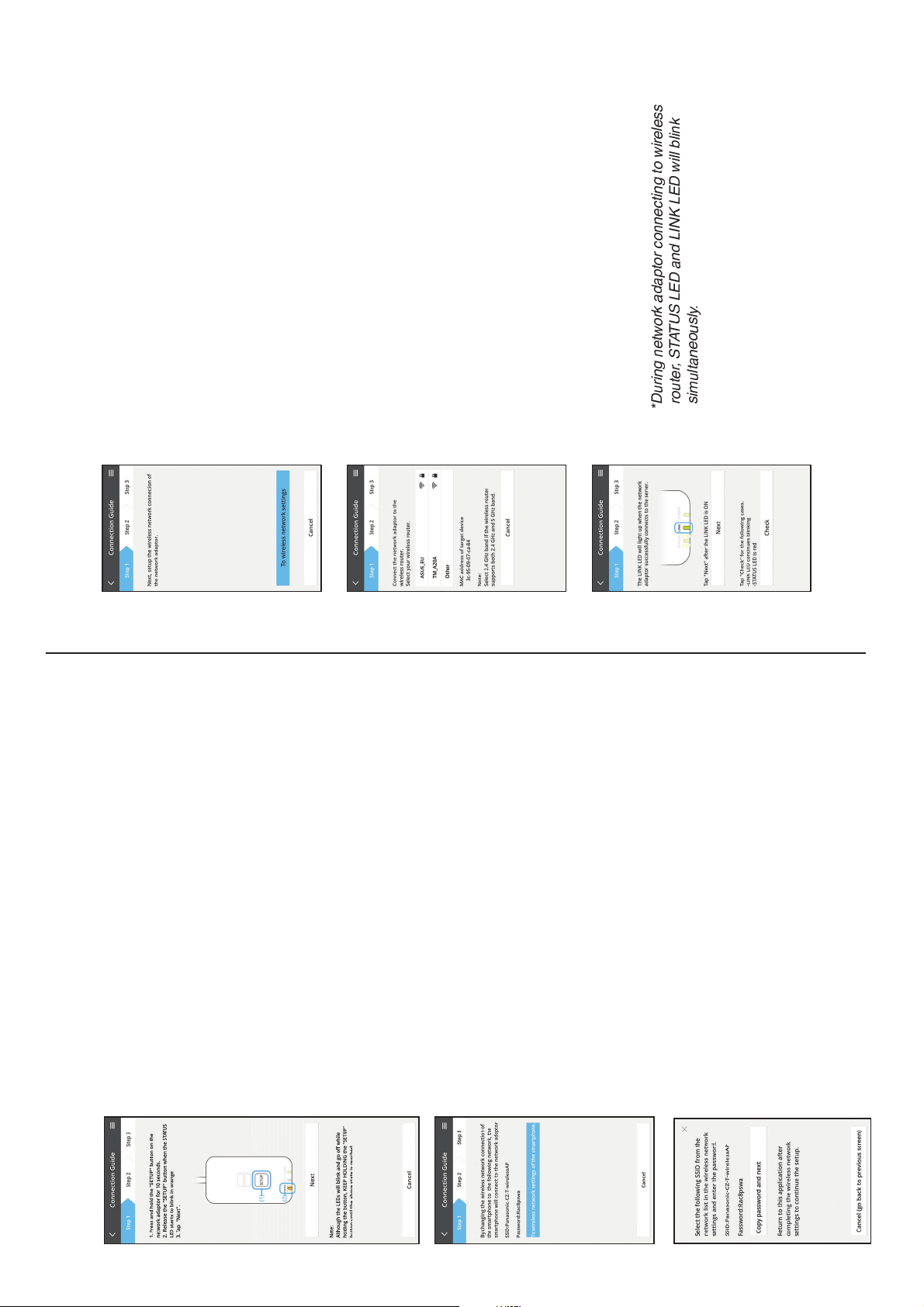
3.2 Connect with AP Mode
i. Press and hold the “SETUP” button on the network
adaptor for 10 seconds.
ii. Release the “SETUP” button when the STATUS LED
starts to blink in orange.
iii. Tap “NEXT”.
iv. Tap “To wireless network settings of the smartphone”
to change the wireless network connection of the
smartphone to the following network, the smartphone
will connect to the network adaptor.
SSID: Panasonic-CZ-T-wirelessAP
Password: Rac8pswa
v. A window will prompt, tap “Copy password and next”
to proceed to smartphone wireless network setting.
vi. Connect to “Panasonic-CZ-T-wirelessAP” network
and back to the application to continue with the
setup.
vii. Tap “To wireless network setting” to setup the
wireless network connection of the network
adaptor.
viii. Connect the network adaptor to wireless router.
Select your wireless router.
ix. Enter the password of the selected wireless router.
x. The LINK LED will light up when the network
adaptor successfully connects to the server.
Tap “NEXT” and proceed to instruction 4.

 

 



 


 













 
















 




























 









  
9
4. Setup completion
i. Input the Device ID. Device ID is written at name
plate attached to the network adaptor or label
attached on the packaging.
ii. Set the password for the network adaptor.
iii. Tap “Register” to complete the setup.
iv. You can name the air conditioner unit to help you
identify it.
Use the Panasonic AC controller
User's manual can be found under Menu tab.
The Panasonic AC controller is connected to the
network adaptor and ready for use.
Login
Install and launch the app
Panasonic AC controller
(Android 4.4 and above)
Panasonic AC controller
(iOS 9 and above)
Login Page
Home Screen
Panasonic ID
Password
Reset Panasonic ID / Password
Register for new Panasonic ID
Start a demostration
Main Menu (Page 10)
1st Group
Device
2nd Group
Add new device
10
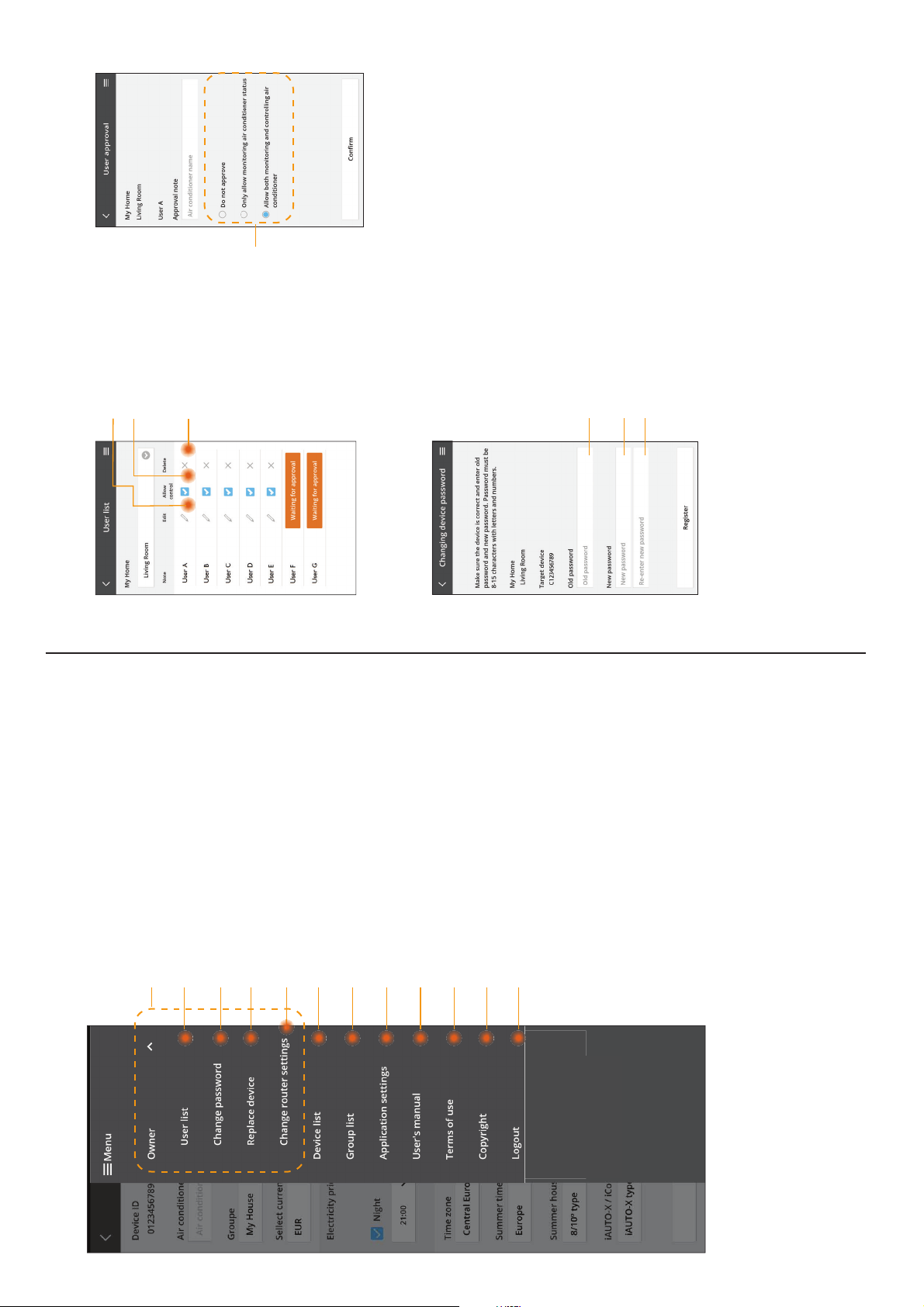
Main Menu
Options for administrator only
User list (Page 10)
Change device password (Page 10)
Replace the device (Page 11)
Change router setting (Page 11)
List of device (Page 11)
List of group (Page 12)
Change the language of the app
User Manual
Terms of use
Copyright
Logout from current Panasonic ID
User list
Change of device password
Edit the name of the user
Enable control of user
User’s control rights
Input old password
Input new password
Retype new password
Edit / delete the user control