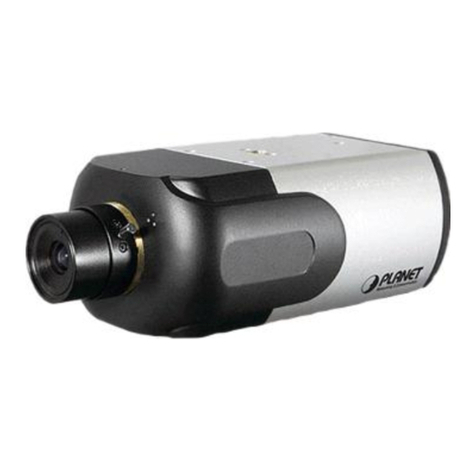
WirelessCubeFish-EyeIPCamera
ICA-W8100
4
Table of Contents
Chapter 1.Product Introduction......................................................................... 6
1.1 Package Contents ............................................................................................. 6
1.2 Overview ............................................................................................................. 6
1.3 Features .............................................................................................................. 8
1.4 Product Specifications....................................................................................... 9
Chapter 2.Hardware Interface......................................................................... 11
2.1 Physical Descriptions...................................................................................... 11
2.2 Hardware Installation ...................................................................................... 14
2.3 Initial Utility Installation ................................................................................... 16
2.4 Preparation ....................................................................................................... 18
2.4.1 Configuring Network by PLANET IPInstaller.................................... 18
2.4.2 Opening the Web-based UI of Select Camera ................................ 19
2.5 Using UPnP of Windows XP or 7.................................................................. 20
2.5.1 Windows XP.......................................................................................... 20
2.5.2 Windows 7 ............................................................................................. 24
2.6 Setup ActiveX to use the Internet Camera .................................................. 25
2.6.1 Internet Explorer 6 for Windows XP .................................................. 26
2.6.2 Internet Explorer 7 for Windows XP .................................................. 26
2.6.3 Internet Explorer 7 for Windows Vista............................................... 27
Chapter 3.Cloud Installation............................................................................ 29
3.1CloudLync Account Registration by PC & Notebook................................. 29
3.1.1 Registration through CloudLync “Create Account”.......................... 29
3.1.2 Registration through Google Account ............................................... 30
3.2Binding Camera into CloudLync by PC & Notebook ................................. 31
3.2.1 Binding Camera for the First Time..................................................... 31
3.2.2 Modifying Camera Default Names..................................................... 34
3.3CloudLync Account Registration by Smartphone & Tablet ....................... 35
3.3.1 Downloading CloudLync App.............................................................. 35
3.3.2 CloudLync Registration through “Create Account”.......................... 35
3.3.3 CloudLync Registration through “Google Account”......................... 36
3.4Binding Camera into CloudLync by Smartphone & Tablet........................ 38
Chapter 4.Web-based Management.............................................................. 40
4.1 Introduction ....................................................................................................... 40
4.2 Connecting to Internet Camera ..................................................................... 40
4.3 Live View........................................................................................................... 41
4.4 System Configuration...................................................................................... 43
4.4.1 Information Tab ..................................................................................... 43
4.4.2 Time Tab ................................................................................................ 44
4.4.3 Security Tab........................................................................................... 45
4.4.4 Maintenance Tab .................................................................................. 46
4.5Network Setup Execution .............................................................................. 47
4.5.1 General Tab........................................................................................... 47
4.5.2 Wireless Tab.......................................................................................... 49
4.5.3 DDNS Tab.............................................................................................. 50
4.6Video & Audio Setup Execution .................................................................... 51
4.6.1 Stream Tab ............................................................................................ 51
4.6.2 Video Tab............................................................................................... 54
4.6.3 Audio Tab ............................................................................................... 55