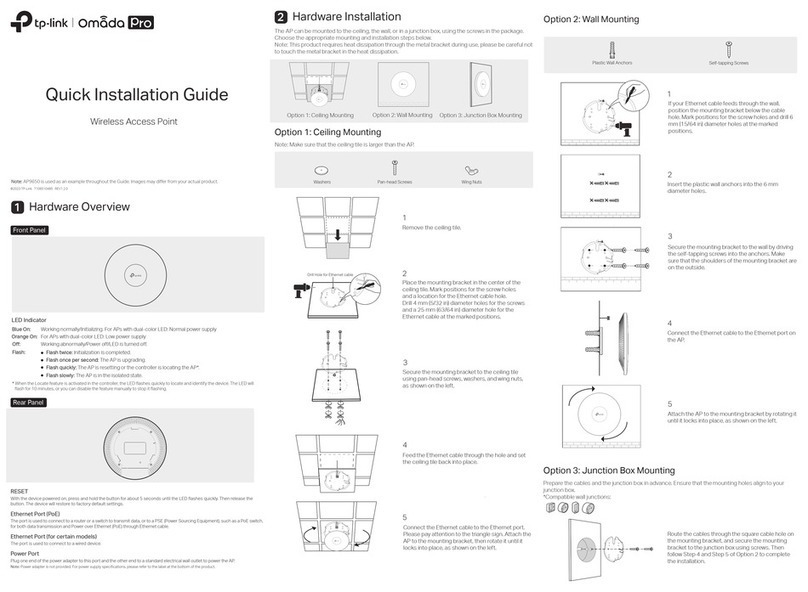
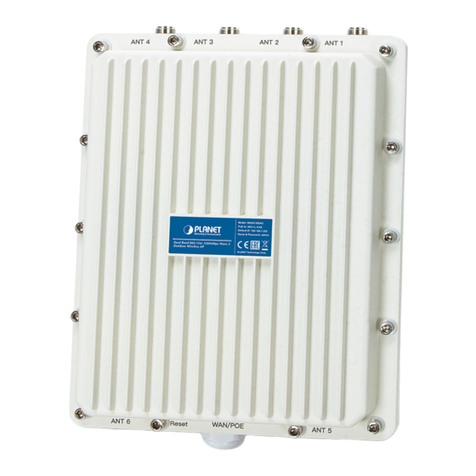
Planet WAP-2000 User manual


Table of contents
Other Planet Wireless Access Point manuals
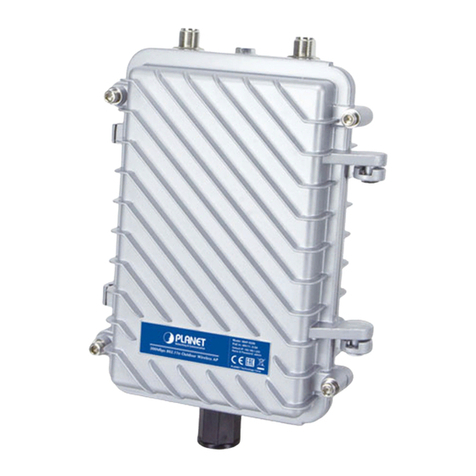
Planet
Planet WAP-252N User manual
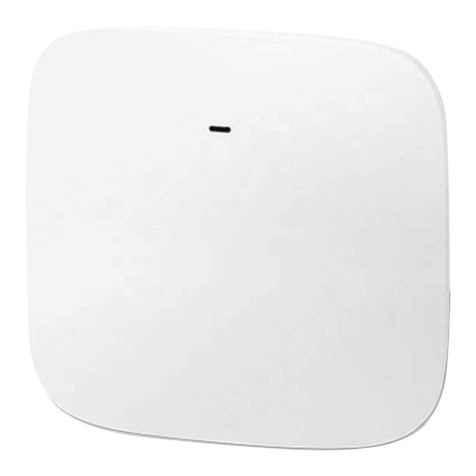
Planet
Planet WDAP-C1800AX User manual
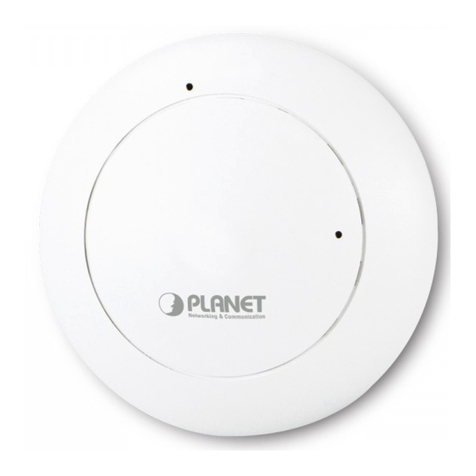
Planet
Planet WDAP-C7200AC User manual
Planet
Planet WDAP-C3000AX User manual
Planet
Planet WNAP-6305 User manual
Planet
Planet 802.11n Wireless Access Point WNAP-1120 User manual
Planet
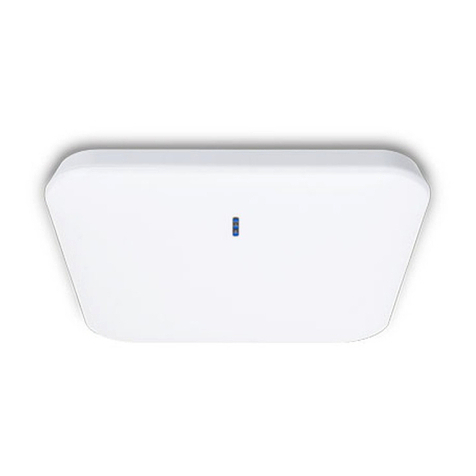
Planet WAP-1965 User manual
Planet
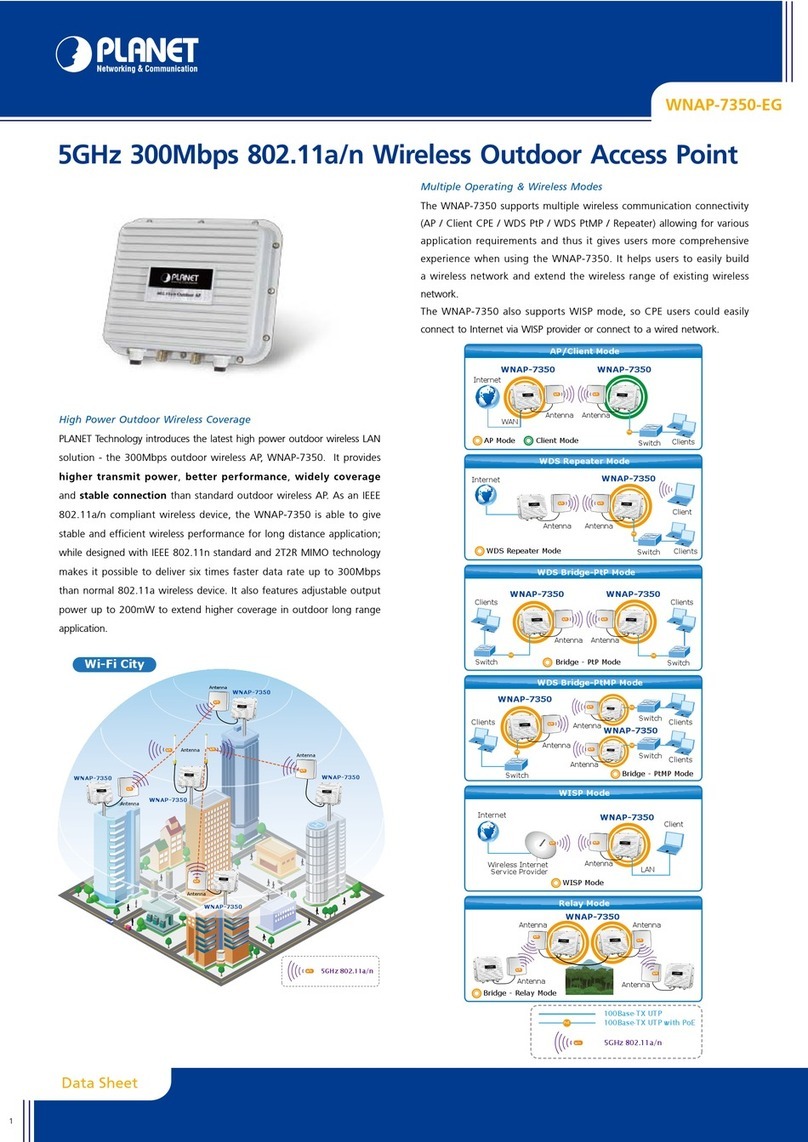
Planet WDAP-C7200E User manual
Planet
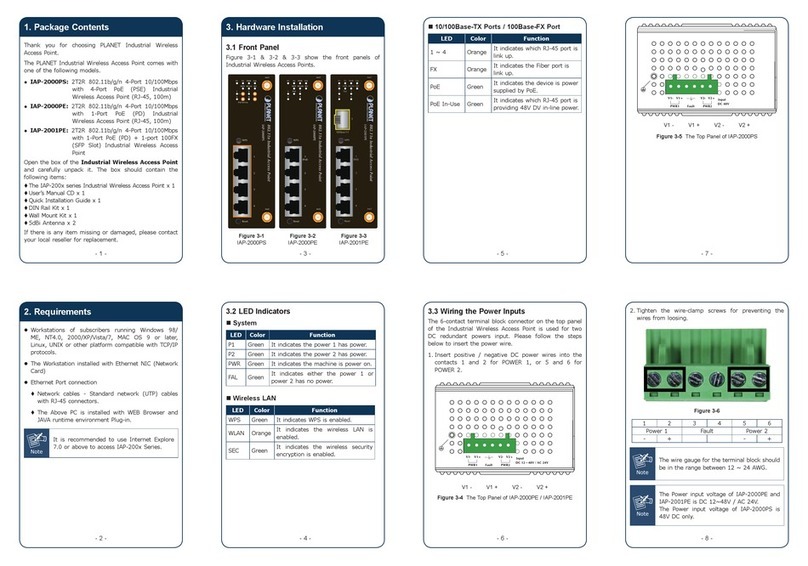
Planet RTL8812AU-CG User manual
Planet
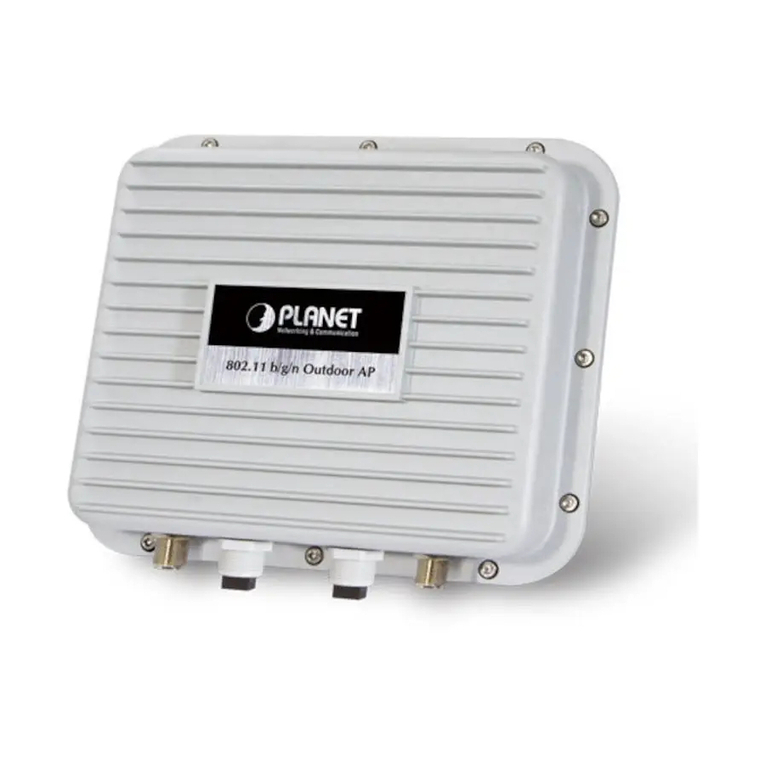
Planet IAP-2000PS User manual
Planet
Planet WNAP-6350 User manual
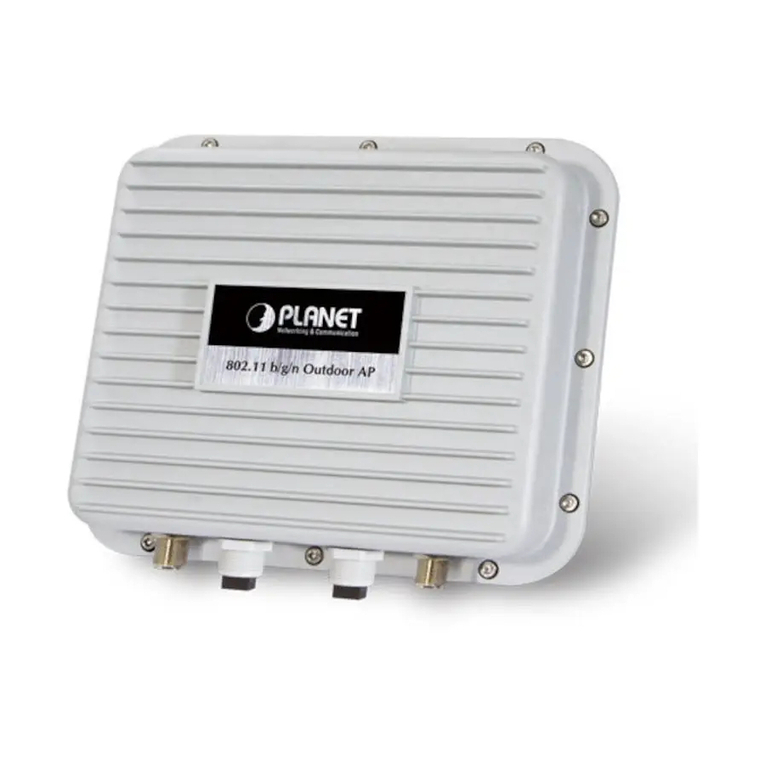
Planet
Planet WNAP-6350 User manual
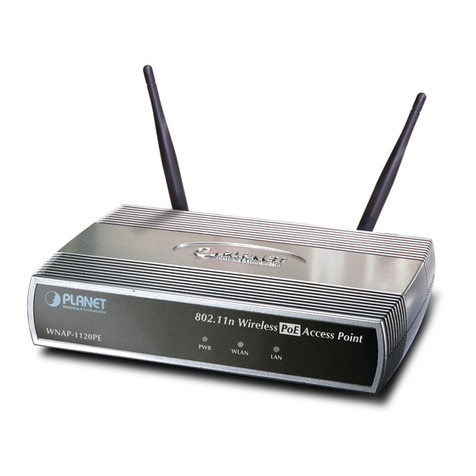
Planet
Planet 802.11n Wireless Access Point WNAP-1120 User manual
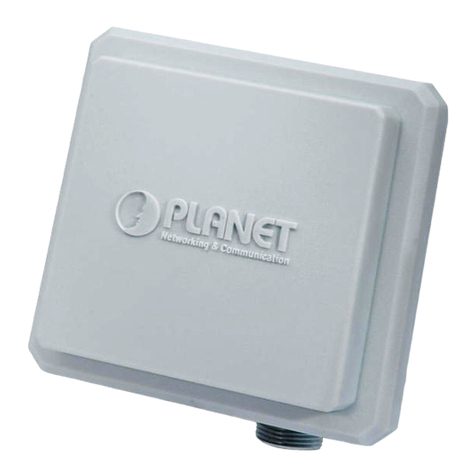
Planet
Planet WAP-8000 User manual
Planet
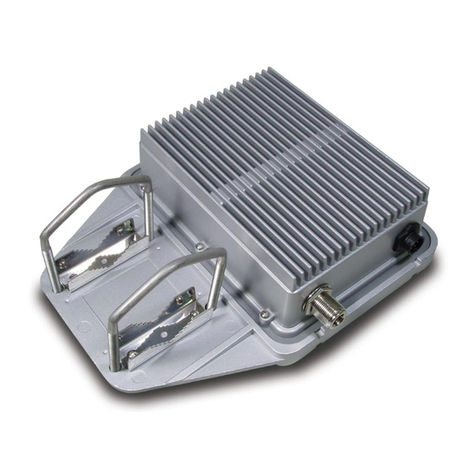
Planet Network Device WAP-4033PE User manual
Planet
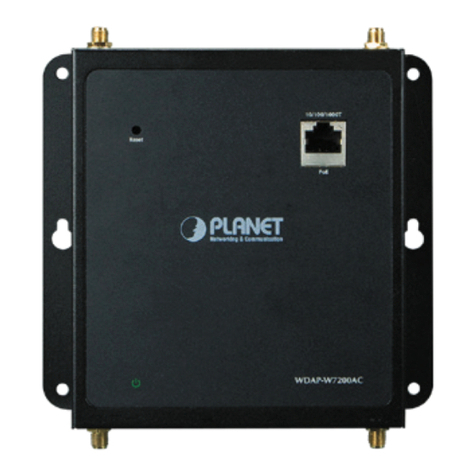
Planet WDAP-W7200AC User manual
Planet
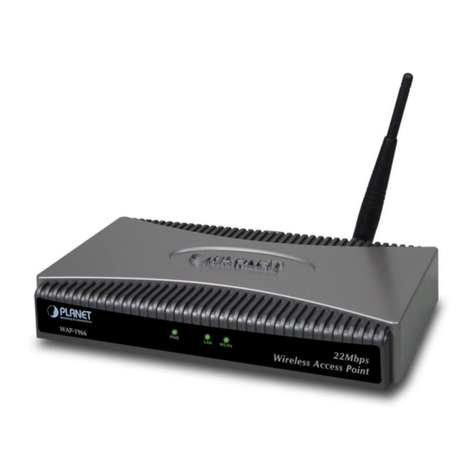
Planet WAP-1966 User manual
Planet
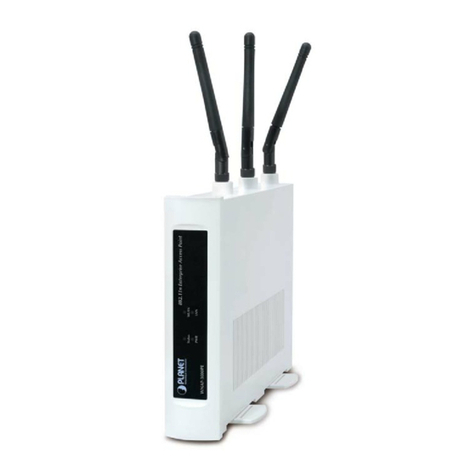
Planet WNAP-3000PE User manual
Planet
Planet Network Device WAP5 User manual
Planet
Planet WDAP-850AC User manual