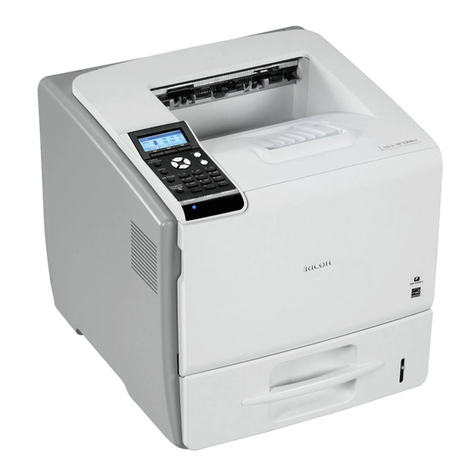
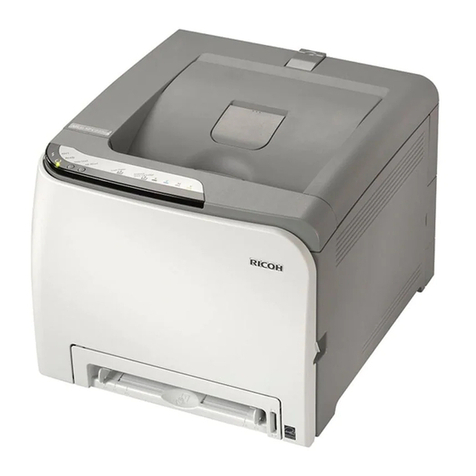
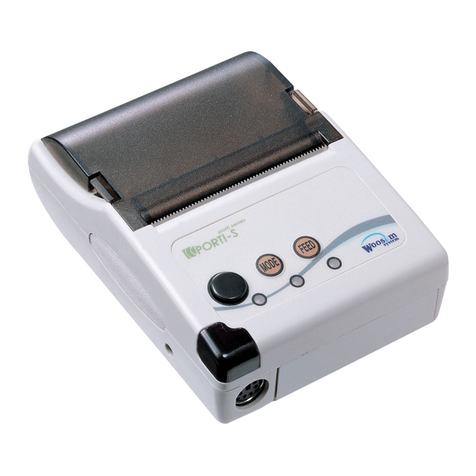
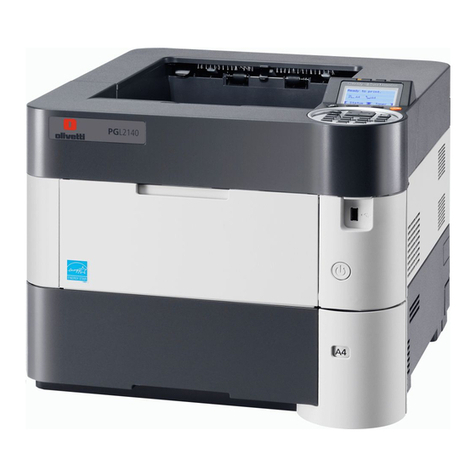
RICOH SP 311SFNw B&W Multifunction Laser Printer
Getting Started Guide
4
Contents
Preface.................................................................................................................................. 5
Guides for This Solution ............................................................................................................................ 5
How to Read This Guide............................................................................................................................ 5
Acronym Reference................................................................................................................................... 6
STEP 1: Before You Begin ....................................................................................................... 7
1.1 Unpack Machine................................................................................................................................. 7
1.2 Choose Setup Method........................................................................................................................ 7
1.3 Navigate Printer Settings ................................................................................................................... 8
STEP 2:Connect Printer ......................................................................................................... 9
2.1 USB Connection.................................................................................................................................. 9
2.2 Network Connection .......................................................................................................................... 9
2.2.1 Wired (Ethernet) Connection .................................................................................................. 9
2.2.2 Wireless Connection..............................................................................................................10
Enable Wi-Fi Setting............................................................................................................... 11
Select Wireless Configuration Method..................................................................................11
PBC (WPS) Method............................................................................................................ 11
PIN Method .......................................................................................................................12
Manual Method................................................................................................................. 14
STEP 3:Install Printer/Scanner Drivers................................................................................. 18
3.1 USB Quick Install ..............................................................................................................................18
3.2 Network Quick Install.......................................................................................................................23
STEP 4:Scan a Document..................................................................................................... 28
4.1 Local Scanning ..................................................................................................................................28
4.2 Network Scanning ............................................................................................................................ 30
4.2.1 Create New Folder and Share................................................................................................30
4.2.2 Register Scan Destination (via Web Image Monitor) ............................................................31
4.2.3 Scan Document......................................................................................................................34
APPENDIX
A. Check Wi-Fi Connection Status ........................................................................................ 35
B.Print Configuration Report............................................................................................... 36
C.Printer Driver Download.................................................................................................. 37
D.Add New Port.................................................................................................................. 42
E. Specifications................................................................................................................... 45
Printer ..................................................................................................................................................... 45
Scanner.................................................................................................................................................... 45