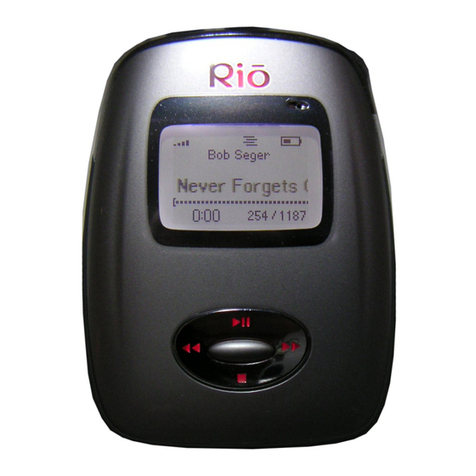
Rio PMP300 64MB User manual

RIO PMP300
USER’S GUIDE
Diamond Multimedia Systems, Inc.
2880 Junction Avenue
San Jose, CA 95134-1922 USA

Copyright Notices
Xaudio MPEG Audio engine Copyright © 1998 by MpegTV.
Cdda is a product of Computall
Winamp is a product of NullSoft
Licensed to Diamond Multimedia Systems, Inc.
This manual is copyrighted. All rights reserved. This document
may not, in whole or part, be copied, reproduced, reduced or
translated by any means, either mechanical or electronic,
without prior consent in writing from Diamond Multimedia
Systems, Incorporated. The information in this manual has
been carefully checked and is believed to be accurate.
However, Diamond Multimedia Systems assumes no
responsibility for any inaccuracies that may be contained in
this manual. In no event will Diamond Multimedia Systems be
liable for direct, indirect, special, incidental, or consequential
damages resulting from any defect or omission in this manual,
even if advised of the possibility of such damages.
In the interest of continued product development, Diamond
Multimedia Systems reserves the right to make improvements
in this manual and the products it describes at any time,
without notice or obligation.
Copyright © 1998, Diamond Multimedia Systems, Inc. 2880 Junction
Avenue, San Jose, CA 95134

Table of Contents
Table of Contents
1INTRODUCTION............................................................................1
What is MP3? ...........................................................................1
The Rio PMP300 Player..........................................................1
How Does Rio Work?............................................................2
MP3 Internet Sites ...................................................................2
2INSTALLING RIO............................................................................3
General System Requirements...............................................3
Rio Kit Overview.....................................................................4
Rio Hardware Installation.......................................................4
Rio Software Installation.........................................................5
3USING THE RIO PLAYER..............................................................7
Connecting Rio to Your PC ..................................................7
Using the RioPMP300 Player..................................................9
Making MP3 Files .....................................................................16
4TROUBLESHOOTING ....................................................................17
ACONTACTING DIAMOND..........................................................19
USA Customer Service ...........................................................19
Technical Support ...................................................................19
BTECHNICAL SPECIFICATIONS .....................................................21
CTRADEMARK, WARRANTY AND CERTIFICATION
INFORMATION ...............................................................................23


Introduction 1
1INTRODUCTION
Welcome to the world of Rio! The Rio PMP300 plays your
favorite audio soundtracks formatted with the popular MP3
standard. This chapter introduces you to the MP3 audio
technology, and provides a general overview on how to use Rio.
♦♦ WHAT IS MP3?
♦♦ THE RIO PMP300 PLAYER
♦♦ HOW TO USE RIO
♦♦ MP3 INTERNET SITES
WHAT IS MP3?
MP3 stands for MPEG 1 layer 3. It is an efficient way to store
high-quality music or other audio content on your computer.
MP3 files can be 1/4 to 1/20 the size of a commercial CD audio
file—yet retain a high sound quality. MP3 files usually have the
extension .mp3, and can be downloaded from the Internet, or can
be legally made for personal use from your favorite CDs that you
purchased.
Warning!—It is illegal to encode MP3 files for trade or sale unless
you have the expressed and explicit permission of the copyright
holder(s).
THE RIO PMP300 PLAYER
The Rio PMP300 player stores your favorite MP3 files in its flash
memory so that they can be played anywhere you want to go.
Rio’s solid-state design makes it impervious to the skipping and
jitter experienced with portable CD players. Rio is lightweight,
and about the size of a pager. It is perfect for activities like

2
jogging or walking, hiking—just about any activity you like to
do.
HOW DOES RIO WORK?
The Rio PMP300 player is easy to use. It takes only three steps to
start playing your favorite music titles using Rio:
1. Obtain legal MP3 files from many MP3 Internet sites, or
create them from CD disks you purchased using the
MusicMatch JukeBox software provided on the installation
CD.
2. Use the Rio Manger to download your MP3 files into Rio’s
flash memory.
3. Put your headphones on and press the Play button on the
Rio PMP300 player to listen to great digital sound!
The following chapters go into greater detail on how to work
with Rio. Soon you can start taking your favorite personal, and
legally-obtained MP3 files anywhere you go.
MP3 INTERNET SITES
You can obtain legal MP3 files and the latest information on
MP3 technology from a growing number of Internet sites. Some
sites you might want to explore:
♦ www.mp3.com
♦ www.mpeg.org
♦ www.goodnoise.com
♦ www.musicmatch.com
♦ www.mp3bench.com
♦ www.nordicdms.com
♦ www.diamondmm.com
MP3 files are also available on the MP3 sampler and the
installation CD.

Installing Rio 3
2INSTALLING RIO
This chapter provides an overview of the Rio components and
instructions on the Rio hardware and software installation.
♦♦ GENERAL SYSTEM REQUIREMENTS
♦♦ RIO KIT OVERVIEW
♦♦ RIO HARDWARE INSTALLATION
♦♦ RIO SOFTWARE INSTALLATION
GENERAL SYSTEM REQUIREMENTS
The following system is recommended:
♦ Pentium 90MHz or faster
♦ Windows 98/95
♦ 20 MB free hard disk space
♦ 1 available parallel port
♦ CD-ROM drive (some drives may not accept encoding of MP3
files, see www.mp3.com for more information)
♦ 1 installed sound card
You may have acceptable performance with older or slower
systems. Be aware that certain operations, like creating MP3 files,
may take several minutes or longer.

4
RIO KIT OVERVIEW
Take a moment to examine the components provided with your
Rio PMP300 kit in the following photo:
A –Rio PMP300 player E –Installation and MP3
sampler CDs
B
–
Headphones
F
–
AA battery
C
–
15-pin data transfer cable
G
*
–
Add-on flash memory
D –Parallel port adapter *Not included. To order, contact Diamond
Customer Service at 1-800-4-MULTIMEDIA
Rio is designed to connect easily to your PC for downloading
MP3 files. Before you can enjoy high-quality audio with your Rio
Player, you must first connect the parallel port adapter (see
following section) and install the Rio software (see Chapter 2).
Chapter 3 instructs you on how to download MP3 files into Rio’s
flash memory using the Rio Manager.
RIO HARDWARE INSTALLATION
Rio takes advantage of the parallel port on your computer for
MP3 data transfer. To set up Rio for MP3 file transfers, you need
A
B
C
D
E
F
G*

Installing Rio 5
to attach the parallel port adapter to the parallel port. Leave the
adapter permanently connected to your PC—a pass-through
connector allows a printer, or other device, to remain coupled to
your computer.
1. With your computer turned off, remove the printer cable or
other device from your parallel port.
2. Take the parallel port adapter (item D from the table on page
4) and attach it to your parallel port. (see figure below)
Note—The parallel port adapter includes a pass-through
connector to allow shared operation of both Rio and your
printer (or other device). Reattach the printer or other device
cable to the parallel port using the pass-through connector.
When you want to load files into Rio, simply attach one end of
the 15-pin data transfer cable (item C, page 4) to the Rio PMP300
player, and the other end to the parallel port adapter. You then
run the Rio Manager. See Chapter 3 for information on using the
Rio software and hardware to download MP3 files.
RIO SOFTWARE INSTALLATION
Installing the Rio software is a quick and simple procedure. To
install the Rio PMP300 software:
1. Turn on your computer. After it has booted, insert the Rio
Installation CD disk. The Rio installation program should
automatically launch if your computer is set to “auto-play”
the CD-ROM drive. After you see the Welcome screen, click
Next.
Attach to computer
parallel port
Figure - Rio parallel port adapter
Printer/device pass-
through connector

6
If the installation program does not start automatically, then
from My Computer, double-click the letter of your CD-ROM
drive (usually labeled D), then double-click Setup.exe.
2. You are requested to select a destination directory. We
recommend you use the default directory paths. Click Next.
3. In the Select Components screen, click the check boxes to
install the software you want. We recommend you install all
pre-checked options. Click Next. The Ready to Install screen
appears.
4. Click Next to proceed with the installation.
5. Click Finish when the Install Complete screen appears.
After the Rio software has been installed, the MusicMatch
Jukebox installation program should automatically begin—if you
selected MusicMatch in the installation options in step 3 above.
Follow the on-screen directions to complete the MusicMatch
installation.
You are now ready to enjoy the wonderful world of Rio!
This manual suits for next models
1
Table of contents
Other Rio MP3 Player manuals