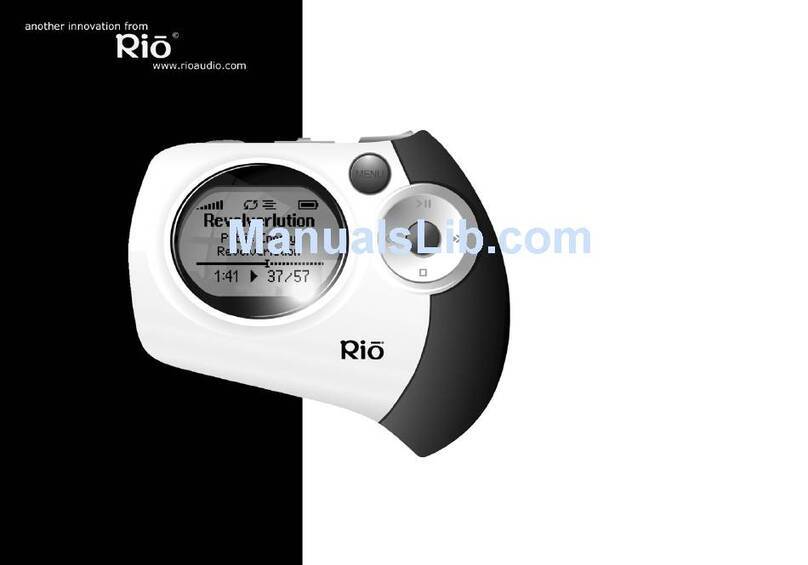
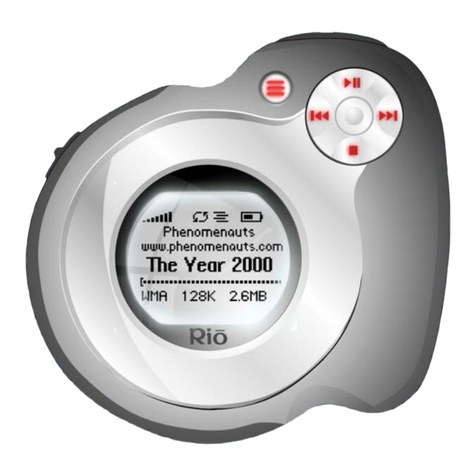
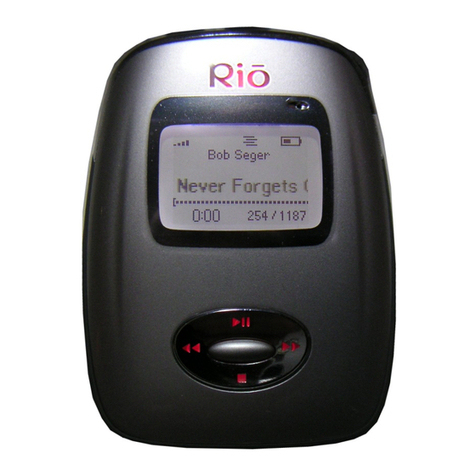
Rio Carbon User manual

Table of Contents
Getting Started
Connections
Software Setup
PlaysForSure™
Basic Operations
Advanced Features
Help
Index
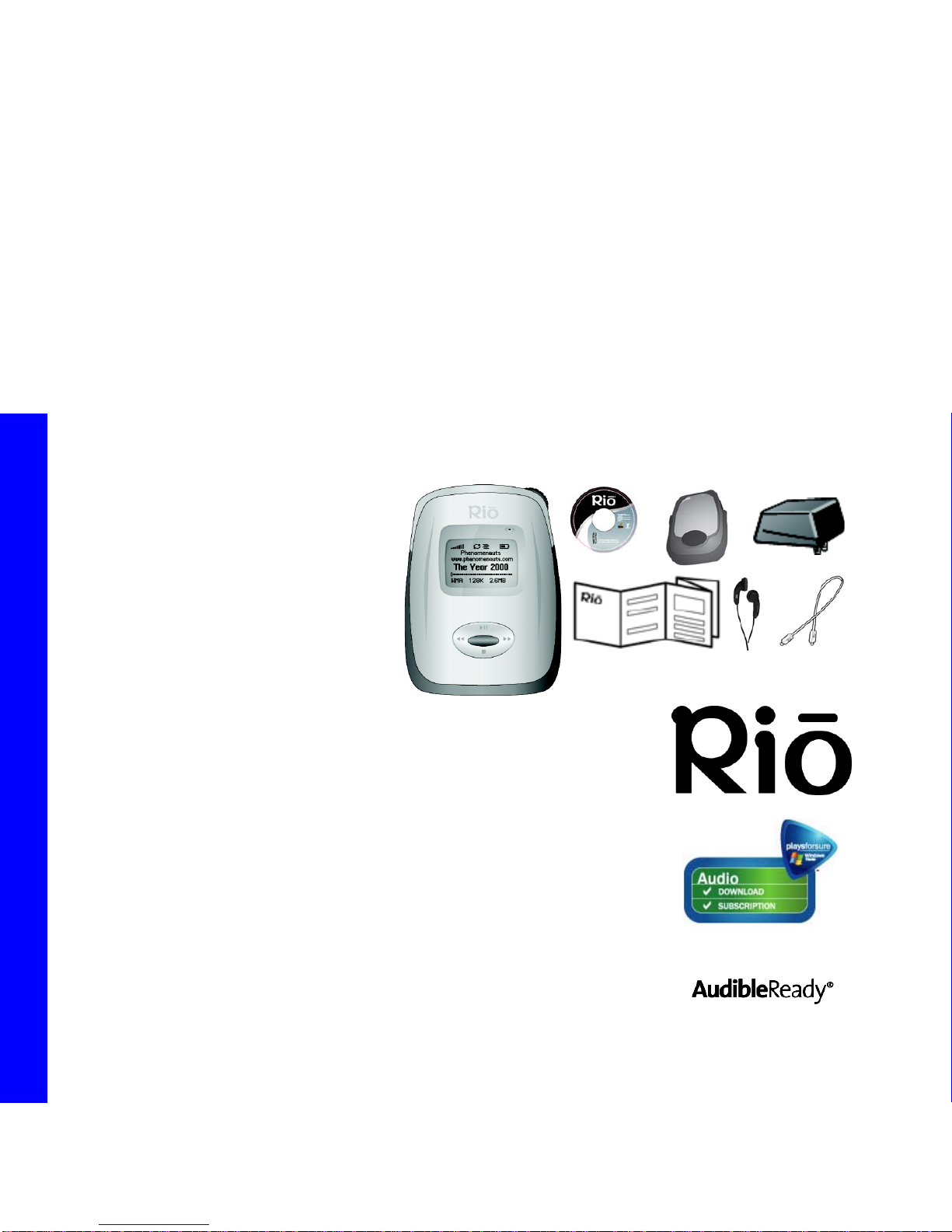
Table of Contents Index
ii
Rio Carbon
Package Contents
Copyright/Trademarks
© 2005 Digital Networks North America, Inc. All rights reserved.
Digital Networks North America, Inc. shall not be liable for any errors contained herein or for
any damages arising out of or related to this document or the information contained herein,
even if Digital Networks North America has been advised of the possibility of such damages.
This document is intended for informational and instructional purposes only. Digital Networks
North America, Inc. reserves the right to make changes in the specifications and other infor-
mation contained in this document without prior notification. Digital Networks North America,
Inc. disclaims any obligation to update the information contained herein. Rio®is a registered
trademark of Digital Networks North America, Inc.
Microsoft, Windows Media and the Windows Logo are trademarks or registered trademarks of
Microsoft Corporation in the United States and/or other countries.
AudibleReady is a registered trademark of Audible, Inc.
All other product names may be trademarks of the companies with which they are associated.
P/N 75550298-001
•RioCarbon
• Installation CD
• Carrying Case
• USB-AC Adapter
•Earphones
• Quick Start Poster
• Mini USB Cable

Table of Contents Index
iii
Rio Carbon
Table of Contents
1 - Getting Started
Welcome.......................................................1
• Learning More.................................................1
Tour of the Rio Carbon.........................2
Display Overview ....................................4
• Player Mode....................................................4
• Menu Mode .....................................................4
• Time Code View..............................................5
• Date View........................................................5
• Track Format View.........................................5
• Play Screens...................................................5
2 - Connections
Basic Connections...................................6
• Earphones.......................................................6
• USB-AC ...........................................................6
• Additional Accessories ...................................7
3 - Software Setup
Software Installation............................8
• Rio Music Manager.........................................9
4 - PlaysForSure™
PlaysForSure™ Logo............................10
• Audio Download ...........................................11
• Audio Subscription .......................................11
5 - Basic Operations
Learning the Basics .............................12
Copy Tracks..............................................13
• Copy Tracks using
Rio Music Manager.......................................13
Transfer Tracks ......................................14
• Transfer Tracks using
Rio Music Manager.......................................15
• Transfer Tracks using
Windows Explorer........................................16
• MTP mode transfers.....................................17
• MSC mode transfers ....................................18
• Transfer Tracks using
Online Music Stores.....................................19
Control the Player.................................20
Play Music..................................................21
• Play All ..........................................................22
• Album............................................................22
• Artist .............................................................22
• Genre ............................................................23
• Track .............................................................23
• Year...............................................................23
• New Music.....................................................24
• Playlist...........................................................24
• Spoken Word................................................24
• Recordings....................................................25
• Folder............................................................25
Delete Tracks...........................................26

Table of Contents Index
iv
Rio Carbon
6 - Advanced Features
Learning to use the Advanced
Features......................................................27
Bookmarks ................................................28
Settings.......................................................29
• Playback........................................................30
• Equalizer .......................................................31
• Custom..........................................................31
• EQ Off............................................................31
• Preset............................................................31
• Power ............................................................32
• Resume.........................................................33
• Display ..........................................................34
• Time ..............................................................35
• Lock Setup....................................................36
• Lock Mode.....................................................37
• Tags...............................................................38
• Transfer Mode...............................................39
Voice Record............................................40
Recordings ................................................41
Stopwatch..................................................42
About............................................................43
7 - Help
Troubleshooting.....................................44
• Customer Service Information....................44
• Frequently Asked Questions........................45
Glossary of Digital Audio Terms...54
• Bass...............................................................54
• Bitrate...........................................................54
• Codec ............................................................54
• DRM...............................................................54
• Firmware.......................................................55
• Gain...............................................................55
• ID3 Tags .......................................................55
• Mass Storage Class......................................55
• Media Transfer Protocol...............................55
• MP3 ...............................................................56
• Playlist...........................................................56
• PlaysForSure™ .............................................56
• Rip and Encode.............................................56
• Synchronize..................................................56
• Treble............................................................56
• VBR................................................................57
• WMA..............................................................57
ECC, FCC, and Industry Canada
Compliance ...............................................58
• Statement of Compliance............................58
• Federal Communications Commission........58
• Industry Canada...........................................58
Safety...........................................................59
• IMPORTANT SAFETY INSTRUCTIONS.........59
• CAUTION.......................................................59

Table of Contents Index
1
Rio Carbon
Chapter 1 Getting Started
:: Welcome
Thank you for purchasing the Rio Carbon. Small and powerful, the Rio Carbon can store thousands of songs on its
hard drive. The Rio Carbon includes a USB-AC adapter, earphones, an illuminated display, a long lasting built-in
battery, and high speed USB 2.0 connectivity.
Learning More
• Refer to the Quick Start poster for the basics on how to set up and start using the Rio Carbon.
• Visit the Rio website at www.rioaudio.com.

Table of Contents Index
2
Rio Carbon
:: Tour of the Rio Carbon
MENU
In Player mode, press to enter
Menu mode.
In Menu mode, press to return
to Player mode.
FORWARD and
REVERSE
Press to skip to the next or
previous track.
Select and hold to scan forward
or reverse.
WHEEL
In Player mode, rotate to
adjust volume level.
In Menu mode, press or rotate
to control menu navigation.
POWER
Press to turn the Rio Carbon on.
Press and hold to turn the Rio
Carbon off.
PLAY/PAUSE
Press to play or pause playback.
STOP
Press to stop playback.
CENTER
In Menu mode, press to select
options.
In Player mode press to cycle
through Time Code View,
Track Format View, and Date
View.
MICROPHONE
Records sound when the Voice
Recorder is in use.

Table of Contents Index
3
Rio Carbon
invisible text
EARPHONES
Connects to earphones, headphones, or auxiliary connections. USB
Connects to the USB cable.
MENU
In Player mode, press to enter Menu mode.
In Menu mode, press to return to Player
mode.
MICROPHONE
Records sound when the Voice Recorder is in use.
POWER
Press to turn the Rio
Carbon on.
Press and hold to turn
the Rio Carbon off.
EMERGENCY RESET
Insert a small pin or paperclip to reboot the Rio Carbon.

Table of Contents Index
4
Rio Carbon
:: Display Overview
Repeat Playback Indicator
Shuffle Playback Indicator
Lock Indicator
Power Indicator
Player Mode
Menu Title
Menu Mode
Track Position Bar
Track Number/Total
Number of Tracks
Selected Option
Options
Volume Level
Album
Track Time
Play Indicator
Artist
Track

Table of Contents Index
5
Rio Carbon
Date View
Time Code View
Track Format View
Track Number/Total
Number of Tracks
Track Size
Time
Codec
Bitrate
Track Time
Date
Play Screens
Press CENTER to cycle through
Time Code, Date, Track Format,
and EQ setting views.
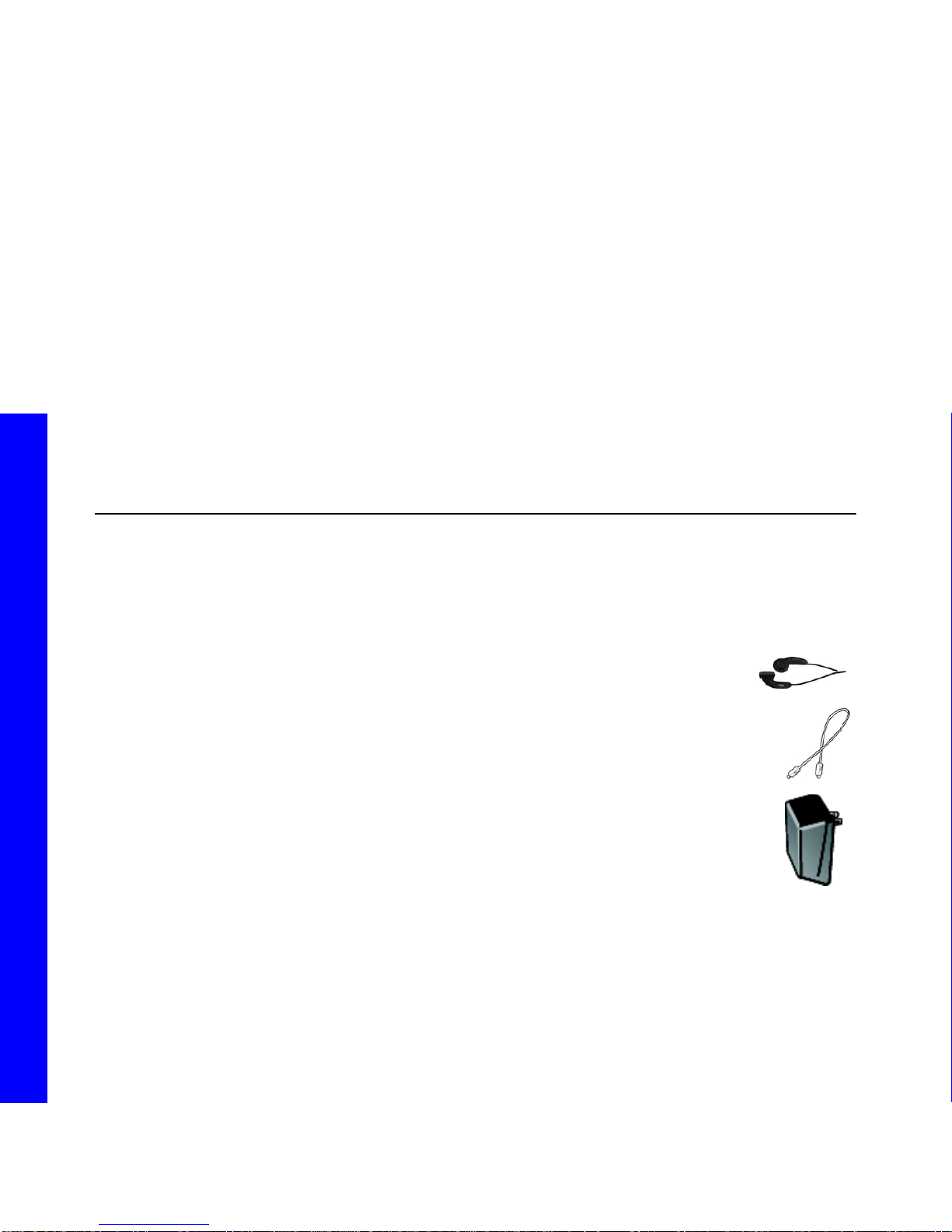
Table of Contents Index
6
Rio Carbon
Chapter 2 Connections
:: Basic Connections
This chapter describes how to connect the Rio Carbon to Earphones, USB cables, and alternate devices. Basic
connections include:
Earphones
Connect the supplied earphones to the EARPHONES port on the top of the Rio Carbon.
USB-AC
The Rio Carbon requires a USB connection to transfer files and/or recharge its battery. If using a USB
hub, connect to a powered USB hub. Unpowered USB hubs may not work.
Use the USB cable to connect the Rio Carbon to the USB port on your computer, transfer music and
files, and update the Rio Carbon’s firmware. The Rio Carbon cannot play music when it is connected to
the USB port on your computer.
Use the USB cable to connect the Rio Carbon to the USB port on the USB-AC adapter to quickly
recharge the battery on the Rio Carbon. When connected to the USB port on the USB-AC adapter, the
Rio Carbon can play music and recharge its battery at the same time.
Other manuals for Carbon
3
This manual suits for next models
3
Table of contents
Other Rio MP3 Player manuals