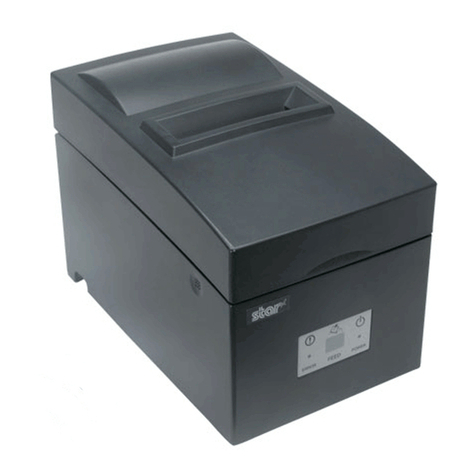
Star SP500 SERIES User manual

DOT MATRIX PRINTER
SP500 SERIES
USER’S MANUAL
MODE D’EMPLOI
BEDIENUNGSANLEITUNG
MANUALE DI ISTRUZIONI

Federal Communications Commission
Radio Frequency Interference
Statement
This equipment has been tested and found to comply with the limits for a Class A digital
device, pursuant to Part 15 of the FCC Rules. These limits are designed to provide
reasonable protection against harmful interference when the equipment is operated in a
commercial environment. This equipment generates, uses and can radiate radio frequency
energy and, if not installed and used in accordance with the instruction manual, may cause
harmful interference to radio communications. Operation of this equipment in a residential
area is likely to cause harmful interference in which case the user will be required to correct
the interference at his own expense.
For compliance with the Federal Noise Interference Standard, this equipment requires a
shielded cable.
This statement will be applied only for the printers marketed in U.S.A.
Statement of
The Canadian Department of Communications
Radio Interference Regulations
This digital apparatus does not exceed the Class A limits for radio noise emissions from
digital apparatus set out in the Radio Interference Regulations of the Canadian Department
of Communications.
Le présent appareil numérique n’émet pas de bruits radioélectriques dépassant les limites
applicables aux appareils numériques de la classe A prescrites dans le Règlement sur le
brouillage radioélectrique édicté par le ministère des Communications du Canada.
The above statement applies only to printers marketed in Canada.
CE
Manufacturer’s Declaration of Conformity
EC Council Directive 89/336/EEC of 3 May 1989
This product, has been designed and manufactured in accordance with the International
Standards EN 50081-1/01.92 and EN 50082-1/01.92, following the provisions of the
ElectroMagneticCompatibilityDirectiveoftheEuropeanCommunitiesasofMay1989.
EC Council Directive 73/23/EEC and 93/68/EEC of 22 July 1993
This product, has been designed and manufactured in accordance with the International
Standards EN 60950, following the provisions of the Low Voltage Directive of the
European Communities as of July 1993.
The above statement applies only to printers marketed in EU.
Trademark acknowledgments
SP500 Series: Star Micronics Co., Ltd.
ESC/POS: Seiko Epson Corporation
Notice
•All rights reserved. Reproduction of any part of this manual in any form whatsoever,
without STAR’s express permission is forbidden.
•The contents of this manual are subject to change without notice.
•All efforts have been made to ensure the accuracy of the contents of this manual at the
time of going to press. However, should any errors be detected, STAR would greatly
appreciate being informed of them.
•The above notwithstanding, STAR can assume no responsibility for any errors in this
manual.
©Copyright 2002 Star Micronics Co., Ltd.

TABLE OF CONTENTS
1. Outline ...............................................................................................................1
2. Unpacking and Installation................................................................................2
2-1. Unpacking ..............................................................................................2
2-2. Locating the Printer ...............................................................................3
2-3. Handling Care ........................................................................................3
2-4. Maintenance ...........................................................................................3
3. Parts Identification and Nomenclature ..............................................................4
4. Connecting Cables and Power Cord..................................................................6
4-1. Connecting the Interface Cable..............................................................6
4-2. Connecting to a Peripheral Unit.............................................................7
4-3. Connecting the Power Cord ...................................................................8
4-4. Turning Power On .................................................................................9
4-5. Attaching the Rear Cover.......................................................................9
4-6. Installing the cable ...............................................................................10
4-7. Switch Blind Installation .....................................................................11
5. Loading the Ribbon Cartridge and Paper ........................................................12
5-1. Tear Bar Model ....................................................................................12
5-2. Auto Cutter Model ...............................................................................15
5-3. Installing the Roll Paper Guide............................................................18
6. Control Panel and Other Functions .................................................................19
6-1. Control Panel .......................................................................................19
6-2. Basic Indicators....................................................................................19
6-3. Errors ...................................................................................................20
6-4. Adjustment Mode ................................................................................22
Appendix A: General Specifications .................................................................104
Appendix B: Serial Interface .............................................................................107
B-1. Pins and Signal Names ......................................................................107
B-2. Interface Connections ........................................................................108
Appendix C: Parallel Interface ..........................................................................109
C-1. Table of Connection Signals for Each Mode .....................................109
Appendix D: DIP Switch Setting ......................................................................111
D-1. Parallel Interface ................................................................................111
D-2. Serial Interface ...................................................................................112
Appendix E: Memory Switch Settings ..............................................................114
Appendix F: Peripheral Unit Driver Circuit ......................................................115
Appendix G: Adjusting the Dot Alignment Mode ............................................117
Appendix H: Black Mark Sensor Alignment Mode ..........................................119

– 1 –
ENGLISH
The SP500 Series Serial Impact Dot Matrix Printer is designed for use with
electronic instruments such as POS, banking equipment, computer peripheral
equipment, etc.
The major features of the SP500 series are as follows:
1. Bi-directional printing at approx. 4 lines/sec.
2. Serial interface or parallel interface.
3. The data buffer allows the unit to receive print data even during printing.
4. Peripheral unit drive circuit enables control of external devices such as cash
drawers.
SP5 1 2 M D 42
No. of print columns
42 : 42 columns (16.9 CPI)
Interface
D : Serial interface (RS-232C)
C : Parallel interface
Paper feed
M : Friction paper feed method
Mechanism
2 : Single color, 42columns (16.9 CPI)
Printer type
1 : Tear bar type
4 : Auto cutter equipped type
SP500 series printer
1. Outline

–2 –
ENGLISH
2-1. Unpacking
After unpacking the unit, check that all the necessary accessories are included in
the package.
Tear bar model Auto cutter model
Fig. 2-1 Unpacking
If anything is missing, contact the dealer where you bought the printer and ask
themtosupplythemissingpart.Notethatitisagoodideatokeeptheoriginalbox
andallthepackingmaterialsjustincaseyouneedtopacktheprinterupagainand
send it somewhere at a later date.
H
V
OFF
OFF
ON
ON
ERROR
ERROR
POWER
POWER
FEED
FEED
2. Unpacking and Installation
Printer Printer
Rear cover Switch blind
Power cordRoll paper guide
H
V
OFF
OFF
ON
ON
ERROR
ERROR
POWER
POWER
FEED
FEED
Ribbon cartridge
User’s manual

–3 –
ENGLISH
2-2. Locating the Printer
When you locate your printer, keep the following tips in mind:
1. Protectyourprinterfromexcessiveheatsuchasdirectsunlightorheaters,and
keep it away from moisture and dust.
2. Place the printer on a firm, level surface which is fairly vibration-free.
3. Asteadypowersupplythatisnotsubjecttopowersurgesshouldbeconnected
to the printer.
For example, do not connect it to the same circuit as a large, noise-producing
appliance such as a refrigerator or an air conditioner.
4. Make sure the line voltage is the voltage specified on the printer’s identifica-
tion plate.
5. Todisconnecttheprinter,theplughastobedisconnectedfromthewallsocket,
which has to be located close to the printer, and easy to access.
2-3. Handling Care
1. Be careful not to drop paper clips, pins or other foreign matter into the unit as
these cause the printer to malfunction.
2. Do not attempt to print when either paper or ribbon cartridge is not located in
the printer, otherwise the print head can be damaged.

3. Do not open the cover while printing.
4. Do not touch the print head immediately after printing as it gets very hot.
5. Use only roll paper that is not glued to the core.
6. When the paper end mark appears on the paper, replace the roll paper before
it runs out.
2-4. Maintenance
Essentially,yourprinterisarobustpieceofequipment,butshouldbetreatedwith
a modicum of care in order to avoid malfunctions. For example:
1. Keep your printer in a “comfortable”environment. Roughly speaking, if you
feel comfortable, then the environment is suitable for your printer.
2. Do not subject the printer to physical shocks or excessive vibration.
3. Avoid over-dusty environments. Dust is the enemy of all precision mechani-
cal devices.
4. To clean the exterior of the printer, use a cloth barely dampened with either
water with a little detergent or a little alcohol, but do not allow any liquid to
fall inside the printer.
5. The interior of the printer may be cleaned with a small cleaner or a com-
pressed-air aerosol (sold for this purpose). When performing this operation,
be sure not to bend or damage any cable connections or electronic compo-
nents.

–4 –
ENGLISH
ON
ON
OFF
OFF
H
V
OFF
OFF
ON
ON
ERROR
ERROR
POWER
POWER
FEED
FEED
3. Parts Identification and Nomenclature
Tear bar model
Fig. 3-1 External view of the printer (Tear bar model)
Cover
Protects the printer from dust and reduces noise.
Do not open the cover while printing.
Control panel
Features one control switch and
two indicators to indicate printer
status.
Interface connector
Connects the printer with
host computer.
Power switch
Turns printer power on
and off.
Peripheral unit drive circuit
connector
Connects to peripheral units
such as cash drawers, etc.
Do not connect this to a
telephone.
Power connector
For connection of
the power cord.

–5 –
ENGLISH
ON
ON
OFF
OFF
H
V
OFF
OFF
ON
ON
ERROR
ERROR
POWER
POWER
FEED
FEED
Auto cutter model
Fig. 3-2 External view of the printer (Auto cutter model)
Cover
Protects the printer from dust and reduces noise.
Do not open the cover while printing.
Control panel
Features one control switch and
two indicators to indicate printer
status.
Interface connector
Connects the printer with
host computer.
Peripheral unit drive circuit
connector
Connects to peripheral units
such as cash drawers, etc.
Do not connect this to a
telephone.
Power switch
Turns printer power on
and off.
Power connector
For connection of
the power cord.

–6 –
ENGLISH
ON
OFF
ON
ON
OFF
4. Connecting Cables and Power Cord
4-1. Connecting the Interface Cable
Note: Before connecting/disconnecting the interface cable, make sure that
power to the printer and all the devices connected to the printer is
turned off.
Alsomakesurethepowercableplugisdisconnectedfromthe
AC outlet.
(1)Connect the interface cable to the connector on the rear panel of the printer.
(2)In the case of a serial interface, tighten the connector screws. In the case of a
parallel interface, fasten the connector clasps.
Serial interface cable
Parallel interface cable

–7 –
ENGLISH
4-2. Connecting to a Peripheral Unit
You can connect a peripheral unit to the printer using a modular plug. The
followingdescribeshowtoinstalltheferritecoreandmaketheactualconnection.
See “Modular plug”on page 115 for details about the type of modular plug that
is required. Note that this printer does not come with a modular plug or wire, so
it is up to you to obtain one that suits your needs.
Important!
MakesurethattheprinteristurnedoffandunpluggedfromtheACoutlet
and that the computer is turned off before making connections.
(1)Connect the peripheral drive cable to the connector on the rear panel of the
printer.
Important!
Do not connect a telephone line into the peripheral drive connector.
Failure to observe this may result in damage to the printer.
Also, for safety purposes, do not connect wiring to the external drive
connector if there is a chance it may carry peripheral voltage.
ON
OFF
Other manuals for SP500 SERIES
1
Table of contents
Languages:
Other Star Printer manuals

Star
Star SM-S301 User manual

Star
Star SM-S401 User manual

Star
Star LaserPrinter 4 Instructions for use

Star
Star FVP-10U User manual

Star
Star SM-S220I SERIES User manual

Star
Star TSP800II SERIES User manual

Star
Star SM-L200 SERIES User manual

Star
Star LC-1511 User manual

Star
Star SM-S201 User manual

Star
Star TSP700 SERIES User manual

Star
Star Gemini-10X User manual

Star
Star TSP654II Series User manual

Star
Star TSP650 SERIES Mounting instructions

Star
Star SM-S220I SERIES User manual

Star
Star TSP847II User manual

Star
Star TSP650 SERIES User manual

Star
Star SP712R series User manual

Star
Star SP312F User manual

Star
Star TSP100 futurePRNT User manual

Star
Star SM-T300 User manual