8 EN
videoscope BO26
Menu item Function
Date format Opens the submenu for setting the date format.
Using the Down(15) and Up(19) button, you
can select the desired format. Using the back
button(13), you can confirm your selection.
Viewing recordings
1. Press the Menubutton(14).
ðThe main menu will be displayed.
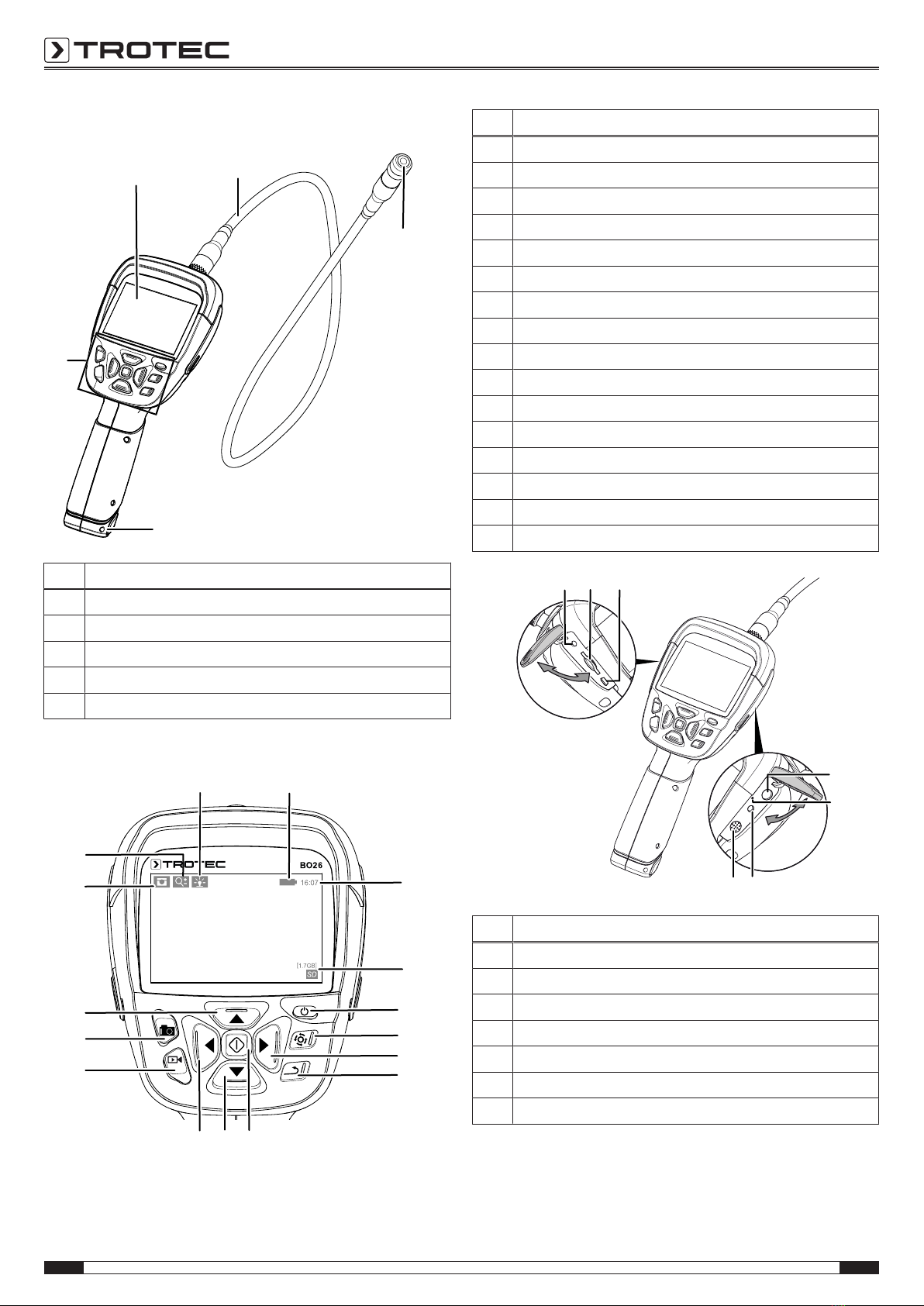
2. Press the Left(16) or Right button(12) until the Mode
menu is displayed.
3. Use the Downbutton(15) to select the photo or video
menu item and confirm your selection with the Menu
button(14).
ðThe different recordings will be displayed on the screen.
4. Select a recording and press the Menu button(14) to view
a picture or play a video and, if required, to pause.
5. Press the Back button(13) to leave the screen.
ðThe selection list of the recordings is displayed.
6. Press the Back button(13) again to return to the main
menu.
Advanced picture settings
If you view a previously taken photo, you can display
information regarding the photo, zoom in/out or delete it. To do
so, please proceed as follows:
1. View the photo as described above.
ðThe photo is displayed.
2. Press the Menubutton(14).
ðThe submenu for pictures will be displayed. You can
choose from the following menu items:
Menu item Function
Photo
information
Display extended information about the photo
Deact.
information
Disable the information display
Select photo
mode
Zoom mode: Having selected the zoom mode
and by pressing the Back button(13), you can
zoom in or out using the Down(15) and Up(19)
buttons
Motion mode: Having selected the motion
mode and by pressing the Back button(13),
you can move the image section using the
arrow buttons.
Delete photo Deleting a file
Exit Exit the submenu
Delete pictures/videos
1. Via the menu item Mode, you can view a list of all saved
photos or videos, as described above.
ðThe list of photos or videos is displayed.
2. Press the image rotationbutton(11).
ðThe submenu for deleting will be displayed.
3. Using the Down(15) or Up(19) button, navigate to the
menu item Select.
4. Confirm the menu item Select by pressing the Menu
button(14).
ðThe list of photos or videos is displayed again.
5. Using the Down(15) or Up(19) button, navigate to the
photo or video that you want to delete.
6. Select the photo or video by pressing the Menu
button(14).
ðWithin the list, the photo or video is framed in red.
7. If desired, select additional photos or videos as described
before.
8. Press the image rotationbutton(11).
ðThe submenu for deleting will be displayed.
9. Using the Down(15) or Up(19) button, navigate to the
menu item Delete selection.
10. Confirm the menu item Delete selection by pressing the
Menu button(14).
ðThe selected photos or videos are deleted.
Watch videos via an external screen
For playback on a screen, the videoscope must be connected
with the video output(22) and the screen via the video cable.
You can adapt the output format to the video standard of the
screen in the main menu. In the submenu TV Output, the
following options are available:
Menu item Function
Deactivate Deactivates the TV Output
PAL Activates the video formatPAL
(e.g. in Western Europe, Australia, New
Zealand and in parts of Asia)
NTSC Activates the video formatNTSC
(e.g. in the USA, Canada, Mexico and Japan)