manuals.online logo
Brands
  1. Home
  2. •
  3. Brands
  4. •
  5. Xblue Networks
  6. •
  7. Telephone
  8. •
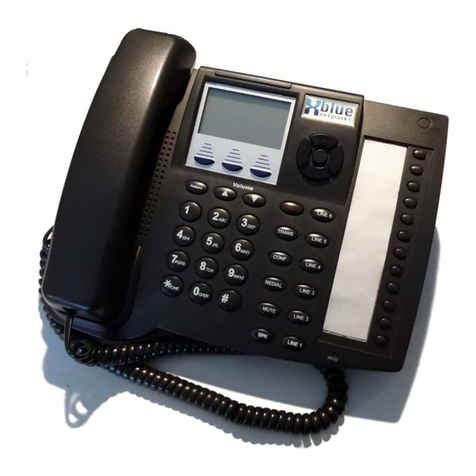
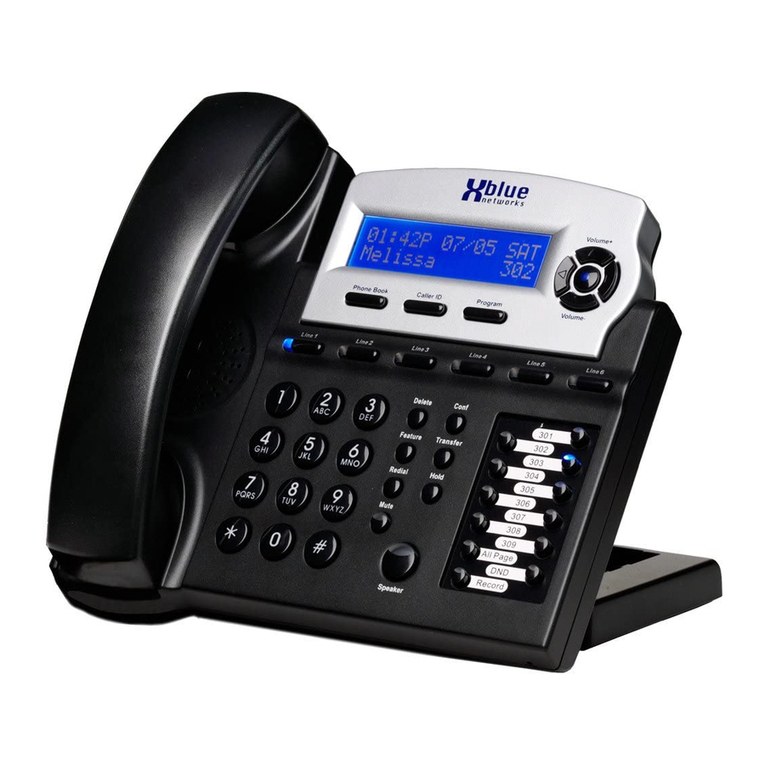
  9. Xblue Networks XB-2022-04 User manual

Xblue Networks XB-2022-04 User manual

This manual suits for next models

1

Other Xblue Networks Telephone manuals

Xblue Networks X16 plus Instruction Manual

Xblue Networks

Xblue Networks X16 plus Instruction Manual

Xblue Networks WiOS User manual

Xblue Networks

Xblue Networks WiOS User manual

Xblue Networks Xplus100 User manual

Xblue Networks

Xblue Networks Xplus100 User manual

Xblue Networks SP-9598 User manual

Xblue Networks

Xblue Networks SP-9598 User manual

Xblue Networks PCS digital User manual

Xblue Networks

Xblue Networks PCS digital User manual

Xblue Networks X16 User manual

Xblue Networks

Xblue Networks X16 User manual

Xblue Networks X16 Reference guide

Xblue Networks

Xblue Networks X16 Reference guide

Xblue Networks X16 User manual

Xblue Networks

Xblue Networks X16 User manual

Xblue Networks Single Line User manual

Xblue Networks

Xblue Networks Single Line User manual

Xblue Networks X16 Reference guide

Xblue Networks

Xblue Networks X16 Reference guide

Xblue Networks PCS digital Reference guide

Xblue Networks

Xblue Networks PCS digital Reference guide

Xblue Networks X16 User manual

Xblue Networks

Xblue Networks X16 User manual

Xblue Networks X16 User manual

Xblue Networks

Xblue Networks X16 User manual

Xblue Networks PCS digital Instruction and safety manual

Xblue Networks

Xblue Networks PCS digital Instruction and safety manual

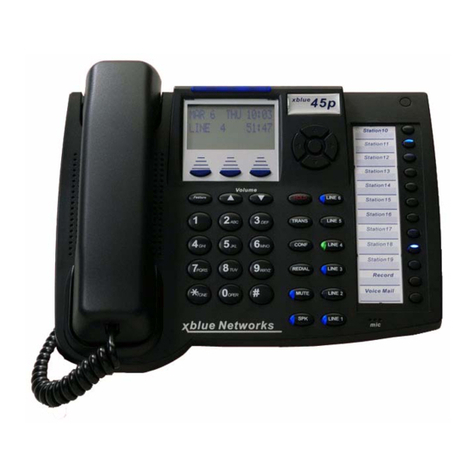
Xblue Networks 45P Instruction Manual

Xblue Networks

Xblue Networks 45P Instruction Manual

Xblue Networks X16 User manual

Xblue Networks

Xblue Networks X16 User manual

Xblue Networks X-50 User manual

Xblue Networks

Xblue Networks X-50 User manual

Xblue Networks SP2014 User manual

Xblue Networks

Xblue Networks SP2014 User manual

Xblue Networks 45p SLT User manual

Xblue Networks

Xblue Networks 45p SLT User manual

Xblue Networks 45P Instruction Manual

Xblue Networks

Xblue Networks 45P Instruction Manual

Xblue Networks PCS digital Owner's manual

Xblue Networks

Xblue Networks PCS digital Owner's manual

Xblue Networks 45P Instruction Manual

Xblue Networks

Xblue Networks 45P Instruction Manual

Popular Telephone manuals by other brands

Philips BaseLine Pro manual

Philips

Philips BaseLine Pro manual

V-tech i6772 user guide

V-tech

V-tech i6772 user guide

BT FREELANCE XD 5100 quick start guide

BT

BT FREELANCE XD 5100 quick start guide

Uniden 1360 user guide

Uniden

Uniden 1360 user guide

Fanvil D800 user manual

Fanvil

Fanvil D800 user manual

Avaya IP500 user guide

Avaya

Avaya IP500 user guide

NEC Univerge SV9100 installation manual

NEC

NEC Univerge SV9100 installation manual

Amanda MiniSOHO Installation and programming manual

Amanda

Amanda MiniSOHO Installation and programming manual

Hitachi SelecSet 900 Series user guide

Hitachi

Hitachi SelecSet 900 Series user guide

mPTech HAMMER BS21 quick start guide

mPTech

mPTech HAMMER BS21 quick start guide

NEC 2000IVX user guide

NEC

NEC 2000IVX user guide

ooma Phone Genie quick start guide

ooma

ooma Phone Genie quick start guide

Siemens Gigaset S450 user guide

Siemens

Siemens Gigaset S450 user guide

Clarity RC100 operating instructions

Clarity

Clarity RC100 operating instructions

GE 2-9480 user guide

GE

GE 2-9480 user guide

Geemarc PHOTOPHONE 155 user guide

Geemarc

Geemarc PHOTOPHONE 155 user guide

Interquartz Gemini IQ333 operating instructions

Interquartz

Interquartz Gemini IQ333 operating instructions

SSS Siedle HT 840-0 operating instructions

SSS Siedle

SSS Siedle HT 840-0 operating instructions

manuals.online logo
manuals.online logoBrands
  • About & Mission
  • Contact us
  • Privacy Policy
  • Terms and Conditions

Copyright 2025 Manuals.Online. All Rights Reserved.

X16 User Guide
- 52 -
Index
XBLUE Networks © Copyright 2007
XBLUE Networks
X16
Telephone User guide
X16 User Guide
- 2 -
Table of Contents
Revision Table
Revision Description of Changes Date Released
Preliminary Release – PAL 11/2007
Page 13 – There was a hidden line behind the
graphic.
Page 14 – Adjusted numbering within “Add new
Record”.
Page 18 – added a voice mail button graphic
Page 20 – adjusted graphic to exclude VM
Page 29 – Busy CO Line – added New LIU
function.
Page 33 – fixed typo in call forwarding
Page 36 – fixed typo in Muted Ring
Page 36 – fixed typo in New Message Playback
Page 39 – fixed typo in Set Relocation
Page 40 – fixed typo in Transfer
Page 45 – fixed typo in One Touch Record
Page 46 – fixed typos in Using AME
Reproduction, publication, or duplication of this manual, or any part thereof, in any
manner, mechanically, electronically, or photographically, is strictly prohibited.
© Copyright 2006 by XBLUE Network, LLC. All rights reserved.
The information contained in this document is subject to change without notice and should
not be construed as a commitment by XBLUE Networks, LLC,; XBLUE Networks, reserves
the right, without notice, to make changes to equipment design as advances in engineering
and manufacturing methods warrant.
Trademarks: XBLUE, XBLUE Networks, X16 are trademarks of XBLUE Networks, LLC. All
trademarks are the property of their respective owners.
- 51 -
Index
Set Time and Date, 38
Speakerphone, 38, 39
Volume, 11
Speed dial bins, 38
Telephone
Relocation, 38
Telephone Callouts, 8
Termination Box, 38
Time and Date
Setting, 38
Time in Display, 39
Transfer, 39
Call Transfer, 39
Direct to Voice Mail, 39
Troubleshooting
LCD Idle Mode, 43
Underwriters Laboratories, 6
View Records, 13
Voice Mail, 18, 40
Access, 18
Auto Attendant, 28
Delete Messages, 46
Memo Recording, 35
Operation, 44
Outgoing Message, 46
Personal Mailbox, 37
Play Messages, 36
Play New Messages, 45
Quick Start Guide, 46
Remote Commands, 48
VoIP, 7, 11
Volume
Ringing, 12
Volume Adjustments, 39
Volume Control, 11, 34
Handset, 34
Headset, 34
X16 User Guide
- 50 -
Index
Intercom, 40
Paging, 34
Placing Calls, 10
Tone Plant, 41
Intercom Volume
Forced Tone Ringing, 12
Handset, 12
Speakerphone, 12
Introduction, 7
Lamp Cadence, 41
Lamps on Phone, 41
LCD
Idle Display, 43
Line Status Detection, 34
Mailboxes
Remote Commands, 48
Make a Call, 10
Meet Me
Paging, 36
Meet Me Answer (Paging), 36
Memo Recording, 44
Voice Mail, 35
Message Waiting, 35
Multilingual Display, 35
Music on Hold, 36
Mute, 36, 41
Muted Ringing, 36
Navigation Keys, 9, 20, 36
Network
Calls, 10
Placing Calls, 10, 11
Network Volume
Handset, 12
Speakerphone, 12
One Touch Record, 31
One-Way Paging, 36
Outgoing Message, 44
Voice Mail, 46
Outside Call, 11
Paging, 36
Meet Me, 36
Meet Me Answer, 36
Pause, 37, 41
Personal Mailbox, 44
Phone Book, 13
Add New Phone Book Record,
14
Phone Book Dialing, 37
Privacy Release, 30, 37
Programmable Buttons, 37
Programmable Feature Button
DSS/BLF Key, 26
Feature Keys, 26
Programming Steps, 27
SPD Key, 26
Programming
Feature Buttons, 26
Phone, 19
Phone Setup, 21
Phone Setup Parameters, 20
System, 19
Quick Start
Voice Mail, 46
Record, 41
One Touch, 45
Redial, 37, 41
Remote Access
Codes, 48
Mailbox, 48
Ring Alert, 38
Ringer Volume Control, 38
Ringing, 39
Audible, 38
Visual, 38
Volume, 11
Room Monitor, 38
Set Date & Time
Caller ID, 15
Set Relocation, 38
- 3 -
Table of Contents
Table of Contents
TABLE OF CONTENTS .....................................................................................3
NOTICES........................................................................................................6
FCC INFORMATION ........................................................................................6
INTRODUCTION .............................................................................................7
FEATURES......................................................................................................7
TELEPHONE CALLOUTS .....................................................................................8
BACKLIT LCD DISPLAY ....................................................................................8
DEFAULT BUTTON LAYOUT ................................................................................9
NAVIGATION KEYS ..........................................................................................9
GETTING STARTED....................................................................................... 10
ANSWERING A CALL ....................................................................................... 10
MAKING A CALL............................................................................................ 10
Intercom ...........................................................................................................10

Telephone Line (CO Line) ...................................................................................11

VOLUME CONTROL ........................................................................................ 11
Ringing Volume..................................................................................................12

Speakerphone Intercom Volume .........................................................................12

Speakerphone Network Volume ..........................................................................12

Handset Intercom Volume ..................................................................................12

Handset Network Volume ...................................................................................12

Forced Ringing Intercom Volume ........................................................................12

PHONE BOOK ............................................................................................... 13
View Records.....................................................................................................13

Dial displayed record..........................................................................................13

Delete Phone Book Records ................................................................................13

Add New Record ................................................................................................14

CALLER ID ................................................................................................... 15
Navigating through Caller ID...............................................................................16

Receiving Caller ID.............................................................................................17

VOICE MAIL ................................................................................................. 18
PROGRAMMING............................................................................................ 19
NAVIGATION KEYS ........................................................................................ 20
PHONE SETUP ........................................................................................... 21
PROGRAMMABLE FEATURE BUTTONS .................................................................. 26
X16 User Guide
- 4 -
Table of Contents
Programming Steps............................................................................................27

FEATURES.................................................................................................... 28
DESCRIPTION AND OPERATION ......................................................................... 28
ALL PAGE................................................................................................... 28
ANSWERING MACHINE EMULATION .................................................................... 28
AUTO ATTENDANT -VOICE MAIL (STANDARD)...................................................... 28
BACKLIT BLUE LCD DISPLAY ........................................................................... 28
CALL PICK UP .............................................................................................. 29
CALL TIMER................................................................................................ 29
CALLER ID AND CALL WAITING CALLER ID (TYPE 1&TYPE 2)................................. 29
CO LINE BUSY/IDLE STATUS (LED).................................................................. 29
CO LINE RINGING –PER EXTENSION ................................................................. 30
CONFERENCE –3-WAY................................................................................... 30
CONFERENCE –EXPRESS CONFERENCE ............................................................... 30
CONVERSATION RECORDING –VOICE MAIL (STANDARD)......................................... 31
DAYLIGHT SAVINGS –AUTOMATIC (USING CID)................................................... 31
DIRECT CO LINE ACCESS ............................................................................... 31
DIRECT MAILBOX TRANSFER -VOICE MAIL (STANDARD) ......................................... 31
DIRECT STATION SELECT –BUSY LAMP FIELD ...................................................... 32
DISTINCTIVE RINGING –RINGER TYPE ............................................................... 32
DO NOT DISTURB (DND) .............................................................................. 32
FLASH ....................................................................................................... 32
FLASH TIMER .............................................................................................. 32
FORWARD .................................................................................................. 32
HANDS FREE CALLING.................................................................................... 33
HANDSET/HEADSET VOLUME CONTROL............................................................... 34
HEADSET ACTIVATION ................................................................................... 34
HOLD........................................................................................................ 34
HOT DIAL PAD ............................................................................................ 34
INTERCOM CALLING ...................................................................................... 34
INTERCOM PAGING ....................................................................................... 34
LINE STATUS DETECTION (LINE IN USE)............................................................. 34
MEMO RECORDING -VOICE MAIL (STANDARD)..................................................... 35
MESSAGE WAITING (TELEPHONE COMPANY-FSK) ................................................. 35
MULTILINGUAL EXTENSIONS ............................................................................ 35
MUSIC ON HOLD INPUT.................................................................................. 36
MUTE WITH LED INDICATION .......................................................................... 36
MUTED RING (RING ALERT)............................................................................ 36
NAVIGATION KEYS ........................................................................................ 36
NEW MESSAGE PLAYBACK -VOICE MAIL (STANDARD)............................................. 36
PAGING ..................................................................................................... 36
MEET ME ANSWER (PAGING)........................................................................... 36
- 49 -
Index
Index
All Page, 28, 41
Answer a Call, 10
Answering Machine Emulation, 28,
45
Auto Attendant
Voice Mail, 28
Automatic Daylight Savings
Caller ID, 31
Backlit LCD Display, 28, 29
Busy Lamp Field, 10, 32
Button Layout
Default, 9
Call Timer, 29
Caller ID, 15
Call Waiting Caller ID, 29
Daylight Savings Automatic, 31
Delete, 15
Navigating, 16
Receiving, 17
Review, 15
Central Office, 10
CO Line Busy, 29
CO Line Ringing, 30
Conference, 41
Conference, 30
Express Conference, 30
Operation, 30
Conversation Recording, 31
Daylight Savings, 31
Delete All Records
Phone Book, 14
Delete Phone Book Records, 13
Deleting
Voice Mail Messages, 46
Dial Displayed Record, 13
Dialing
Tone/Pulse, 39
Direct Line Access, 31
Direct Mailbox Transfer
Inside Calls, 31
Outside Calls, 31
Direct Station Select, 10, 32
Distinctive Ringing, 32
DND, 41
Do Not Disturb, 32
FCC Information, 6
Feature Button, 10
Features, 7
Flash
Flash, 32
Key, 41
Timer, 32
Forward, 32
External, 33
TRK2TRK, 32
Voicemail, 32
Function
LED Status, 42
Ringing Cadence, 42
Functions, 41
Hands Free Calling, 33
Handset, 39, 40
Volume, 11
Headset, 41
Headset Activation, 34
Hearing Aid Compatible, 6
Hold, 34
Hot Dial Pad, 34
Intercom
Call, 10
Calling, 34
Calls, 10
X16 User Guide
- 48 -
Voice Mail
Remote Commands
Mailboxes may be accessed from outside of the system using a telephone with
standard DTMF (Touchtone®) dialing.
Remote Access
Call into the system and let the Auto Attendant answer the call and then dial the
desired extension number. If the extension is forwarded to voicemail, and the
mailbox answers, enter the “Remote Access code” (default remote access code is
123) which is programmed in the “Phone Programming Area”.
Once connected remotely, the system will prompt you through the remote
control menu.
1
Replay Previous Message
2
Play All New Messages
2# Play All Messages
3
Skip to Next Message
4
Record Memo
5
Stop
6
Play Personal OGM
7
8 9
Repeat this Menu
**
** - Erase Playing
Message
0
Transfer to Auto
Attendant
#
- 5 -
Table of Contents
PAUSE....................................................................................................... 37
PERSONAL MAILBOX -VOICE MAIL (STANDARD) ................................................... 37
PHONE BOOK DIALING................................................................................... 37
PRIVACY (PRIVACY RELEASE)........................................................................... 37
PROGRAMMABLE BUTTONS (12)........................................................................ 37
REDIAL (LAST 6NUMBER REDIAL) .................................................................... 37
RING ALERT (MUTED RINGING) ....................................................................... 38
RINGING (AUDIBLE AND VISUAL) ....................................................................... 38
RINGER VOLUME CONTROL ............................................................................. 38
ROOM MONITOR .......................................................................................... 38
SET TIME AND DATE (AUTOMATIC) ................................................................... 38
SET RELOCATION ......................................................................................... 38
SPEAKERPHONE WITH LED.............................................................................. 38
SPEED DIAL BINS ......................................................................................... 38
TIME IN DISPLAY.......................................................................................... 39
TONE/PULSE............................................................................................... 39
TRANSFER –EXTENSION TO EXTENSION.............................................................. 39
TRANSFER –DIRECT TO VOICE MAIL ................................................................. 39
VOLUME ADJUSTMENTS .................................................................................. 39
VOICE MAIL (STANDARD) ............................................................................... 40
FUNCTIONS ................................................................................................. 41
Features and LED function..................................................................................41

Lamp Cadence ...................................................................................................41

Lamps on Phone ................................................................................................41

Intercom Tone Plant ..........................................................................................41

LED Cadence and Status Table ...........................................................................42

Ringing Cadence ................................................................................................42

IDLE LCD DISPLAY ....................................................................................... 43
VOICE MAIL ................................................................................................. 44
AUTO ATTENDANT...................................................................................... 44
PERSONAL MAILBOX .................................................................................. 44
Memo Recording ................................................................................................44

Once Touch Record............................................................................................45

Answering Machine Emulation (AME) ..................................................................45

Playing New Messages .......................................................................................45

Deleting Messages .............................................................................................46

Voice Mailbox Quick Start Guide..........................................................................46

Getting Started: .................................................................................................46

INDEX.......................................................................................................... 49
X16 User Guide
- 6 -
Notices
Notices
Hearing Aid Compatibility:
The digital telephone endpoints are hearing aid compatible, as defined in section
68.316 of Part 68 FCC Rules and Regulations.
UL/CSA Safety Compliance:
The X16 system has met all safety requires, and found to be in compliance with
the Underwriters Laboratories (UL) 60950-1.
Warning: This service information is designed for experienced repair technicians
only and is not designed for use by the general public. It does not contain
warnings or cautions to advise non-technical individuals of potential dangers in
attempting to service a product. Products powered by electricity should be
serviced or repaired only by experienced professional technicians. Any attempt to
service or repair the product or products dealt with in this service information by
anyone else could result in serious injury or death.
This equipment generates, uses, and can radiate radio frequency energy, and
if not installed and used properly, that is, in strict accordance with the
instruction manual, may cause interference to radio and television reception.
This equipment has been tested and found to comply with the limits for a
Class B computing device in Subject J of Part 15 of FCC Rules, which are
designed to provide reasonable protection against such interference.
However, there is no guarantee, or warranty, that interference will not occur
in a particular installation. If this equipment causes interference or fails to
operate correctly, due to radio frequency interference (RFI) or
electromagnetic interference (EMI), it will be fixed at the owners’ expense.
FCC Information
Provide the Telephone Company with the following FCC Information:
Item Specification
FCC Registration D6XKH05BX16
Ringer Equivalence 0.5B
Networks Address Signaling E
Required Network Interface RJ11 & RJ14
- 47 -
Voice Mail
Use the up or down navigation buttons to scroll through the programming
choices, Press the center navigation button to select the “VoiceMail Setup”
parameter.
Use the up or down navigation buttons to scroll through the programming
choices, Press the center navigation button to select the “Personal OGM”
parameter.
Press the center navigation button to select “Play” to listen to the current
message.
To change the message use the down navigation button to scroll to
”Re-Record“ and press the center navigation button, and lift the handset to
begin recording.
Press the center navigation button again to “Stop” the recording, and preview
the newly recorded message.
Hang up the handset to accept the new message or select “Re-Record” to
rerecord the Outgoing Message.
AUTO MUTE
ÆPersonal OGM
Clear My VMSG
X16 User Guide
- 46 -
Voice Mail
•Each message is automatically saved after it has been played. To scroll
through saved messages, use the left and/or right navigation keys.
Notes:
1)
Messages will play in order that they are received.
2)
While a message is playing, use the up or down navigation key to scroll
through Pause, Volume, and Exit. Press the select navigation button to
select, the desired action.
3)
While a message is playing and the left navigation key is pressed, the
previous message will be played, or if it is the first message, the
message will be repeated.
4)
While a message is playing and the right navigation key is pressed, the
next message will be played. However, if it is the last message in the
list, a prompt will be played, “End all Messages”.
Deleting Messages
After listening to a message, it will automatically be saved in the voice mailbox.
To delete the message, press the “Delete” button twice or the “Delete” button
and the center Navigation Key while the message is playing. The voice mail
message will be deleted and the next message will automatically begin to play.
Note:
The message is permanently deleted and cannot be recovered. If an extension is
unplugged for more than 120 seconds, all of voice mail messages for that
extension will be deleted.
Voice Mailbox Quick Start Guide
Although each voice mailbox comes with a prerecorded outgoing message,
recording a new outgoing message is a nice way to personalize the way the
mailbox answers incoming calls.
Getting Started:
With your handset on hook...Personal Outgoing Messages are accessed in the
voice mailbox area under the “Programming” Parameter.
Press the “Programming” button to enter the programming mode, and then
Press the center navigation button to access the Phone Setup area.
AUTO MUTE
ÆPhone Setup
System Setup
- 7 -
Introduction
Introduction
The X16 system is a full featured, next generation, multi-line business
telephone system ideal for both home and small office environments. It
comes equipped to interface with 4 Central Office (CO) Lines, equipped to
receive Caller ID, and sixteen (16) proprietary digital telephone endpoints.
The system can be expanded to accommodate an additional two (2) CO
Lines, allowing a maximum configuration of six central office telephone lines.
Or the system may be configured with 4 CO Lines and 2 Voice over IP (VoIP)
Session Initiation Protocol (SIP) Media Gateways and sixteen proprietary
digital telephone endpoints. In addition, the system comes standard with
Auto Attendant and all digital telephone endpoints have a personal digitally
integrated voice mailbox.
Features
Auto Attendant Intercom Paging
Answering Machine Emulation Meet Me Answer (Paging)
Audible and Visual Ringing Memo Recording
Backlit LCD Display Message Waiting (Telco-FSK)
Call Timer Multilingual Display per Extension
Call Transfer Music on Hold Internal/External
Caller ID and Call Waiting Caller ID Mute with LED indication
CO Line Busy/Idle Status (LED) Navigation Keys
CO Line Ringing (programmable) New/All Message Play
Conference (3-way) Voice Mail
Conversation Recording Phone Book Dialing
Daylight Savings (Automatic with
Caller ID)
Programmable Buttons (12)
Direct Mailbox Transfer Programmable Pause (Speed Bins)
Direct Station Select – Busy Lamp
Field
Redial
Display Number Dial Remote Message Pickup
Distinctive Ringing Ringer Volume Control
Do Not Disturb Set Time and Date
Flash Timer Speakerphone with LED
Handset/Headset Volume Control Speed Dial Buttons
Headset Activation Time in Display
Hold Tone/Pulse
Intercom Calling Voice over IP (VoIP) - future

X16 User Guide
- 8 -
Introduction
Telephone Callouts
Backlit LCD Display
Integrated
Headset
Backlit Display
Navi
g
ation Ke
y
s
Programmable
K
e
y
s
Speakerphone Button
T
ime, Date and Da
y
Line Ke
y
s
Pro
g
ram Ke
y
Caller ID Lo
g
Phone Book
New Voicemail Extension
Number
- 45 -
Voice Mail
Once Touch Record
While speaking to an outside party, you may press the record button and record
the current conversation. The message will be saved as a new voice mail
message in your personal mailbox.
Answering Machine Emulation (AME)
This feature “Mimics” the call screening feature of an answering machine. Five
seconds after a call is answered by an extension users’ voice mailbox, that user
can monitor/screen the caller as they leave a message.
The extension user will receive a warning tone, which indicates that a caller has
been answered by their voice mailbox. The user has the option to monitor the
call, or ignore the alert, and allow the caller to leave a message. Once the user
has selected to monitor the caller, they have the option to leave the caller
undisturbed (leaving a message) or to retrieve the caller from the voice mailbox
and be connected to the caller for a live conversation.
Using AME
•The extension must be forwarded to Voice Mail.
•The Telephone Company Central Office Line may be transferred directly
into the user’s voicemail box, or transferred and ring at the extension
until it is forwarded to voice mail.
•If a call is transferred to your extension or directly into your voice
mailbox, AME is available once the Line button turns green. You may
press the center navigation button to monitor the message being left.
•Lift the handset to speak live to the calling party.
•Press the left or right navigation button to exit the AME without
intercepting the call.
Playing New Messages
The center navigation button will flash when you have a new voice mail
message. In addition, the display will indicate how many new voice mail
messages you have.
To access your voice mailbox:
•From an idle telephone
oPress the center navigation key. (No password required)
oThe voice mail count will be announced
oThe time and weekday will be announced
oThe messages will play in the order that they are received.
X16 User Guide
- 44 -
Voice Mail
Voice Mail
The System comes equipped with a 4 channel auto attendant and voice mail
system, which can answer up to 4 different calls simultaneously.
Auto Attendant
The system can be programmed to answer in “Auto Attendant” mode. When
Auto Attendant is set to “On-AA Ring Only” the attendant telephone will ring unit
the “Waiting Time” expires. When Auto Attendant is set to “Off-AllExt Ring” all
telephone programmed to ring will ring until the “Waiting Timer” expires. Once
the Auto Attendant answers the caller may dial the desired extension number.
Personal Mailbox
Each extension is automatically assigned a personal mailbox, which is used to
play a personal greeting and record message. In addition, all extensions are
automatically forwarded to their mailbox.
Once forwarded to voice mail the center navigation key will be lit solid, indicating
that the telephone has been forwarded to voice mail. Be sure to record the OGM
so that callers will receive your personal message. Once forwarded, all calls that
are transferred to your extension will be forwarded to your voice mailbox and will
hear your personal OGM (Outgoing Message).
Memo Recording
Each extension can press their record button to record a memo or a conversation
that is taking place in their office.
1) Press the record button
2) Press the center navigation button to begin, and end recording.
3) The memo will be stored as a new message.
AUTO MUTE
Record Memo
Yes?
AUTO MUTE
Record Memo
Stop
- 9 -
Introduction
Default Button Layout
Navigation keys
Scroll left or right to update the LCD Display.
OK
/
Select
/
Confirm
Voice Mail Access
Scroll Up
Scroll Down
Bac
k
u
p
a level
Scroll Left Scroll Ri
g
ht
CO Lines with
Integrated
CID
Programmable
Feature Buttons
Fixed Keys:
Delete, Conference, Feature,
Transfer, Redial, Hold,
Mute and S
p
eaker
12 Ke
y
Dial Pad
X16 User Guide
- 10 -
Getting Started
Getting Started
Congratulations on purchasing your new XBLUE Networks communications
server. This state of the art server incorporates easy to use features, in a
comprehensive telephone and voice mail system.
Answering a call
There are two types of calls; intercom and network. Calls from one extension to
another extension are considered intercom calls. Network calls are calls made
through a telephone company line and are often called Central Office (CO) lines
or just lines.
Intercom calls – When another extension dials your telephone number the
system allows you to speak to each other without pressing the speaker button or
going off hook.
Network calls – Calls coming from a network facility (Telephone Company) will
ring the telephone. When the telephone is ringing, lift the handset, or press the
speaker button to answer the call.
Making a call
Intercom
Press the preprogrammed feature button or dial the extension number to place a
call to another extension. You may converse freely or lift the handset to speak
privately.
The Direct Station Select (DSS) also known as Busy Lamp Field (BLF) allows you
to press one button to dial an extension and to see if an extension is busy. In
this example, extension 302, 303, 304 and 306 are busy.
- 43 -
Idle LCD Display
Idle LCD Display
07:19P 10/12 FRI
Accounting 312
07:19P 10/12 FRI
New CID:24 312
07:19P 10/12 FRI
NEW VMSG:04 312
07:19P 10/12 FRI
TRK2TRK FWD 312
07:19P 10/12 FRI
External FWD 312
07:19P 10/12 FRI
Accounting DND
Time, Date, Day, Name and Number In DND Mode
4 New Voice Mail Messages 24 New Caller ID Calls
Trunk to Trunk Forwarding External Forwarding