manuals.online logo
Brands
  1. Home
  2. •
  3. Brands
  4. •
  5. ADTRAN
  6. •
  7. Wireless Access Point
  8. •
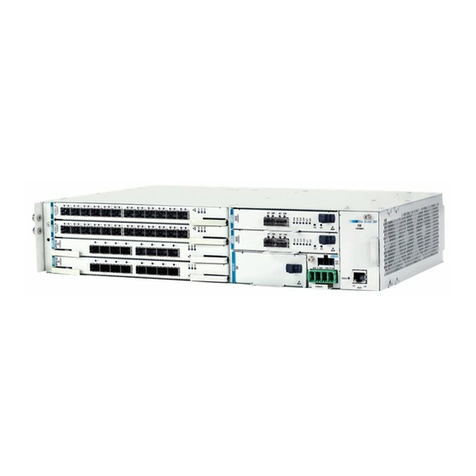
  9. ADTRAN 1700412E1 User manual

ADTRAN 1700412E1 User manual

This manual suits for next models

1

Other ADTRAN Wireless Access Point manuals

ADTRAN Total Access 850 Instruction Manual

ADTRAN

ADTRAN Total Access 850 Instruction Manual

ADTRAN NetVanta 100 Series Manual

ADTRAN

ADTRAN NetVanta 100 Series Manual

ADTRAN BLUESOCKET 1920 User manual

ADTRAN

ADTRAN BLUESOCKET 1920 User manual

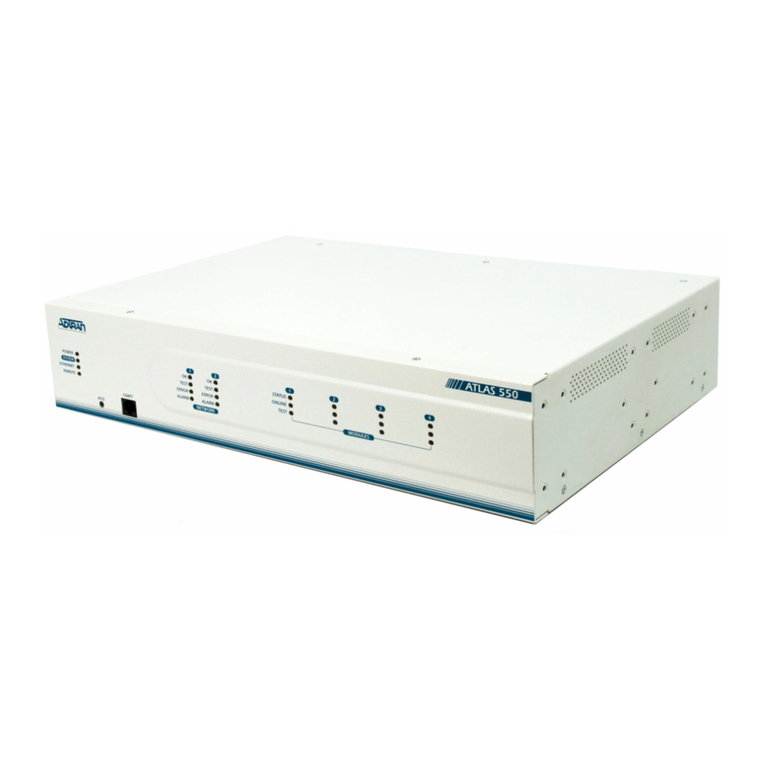
ADTRAN ATLAS 550 User manual

ADTRAN

ADTRAN ATLAS 550 User manual

ADTRAN BLUESOCKET 1940 User manual

ADTRAN

ADTRAN BLUESOCKET 1940 User manual

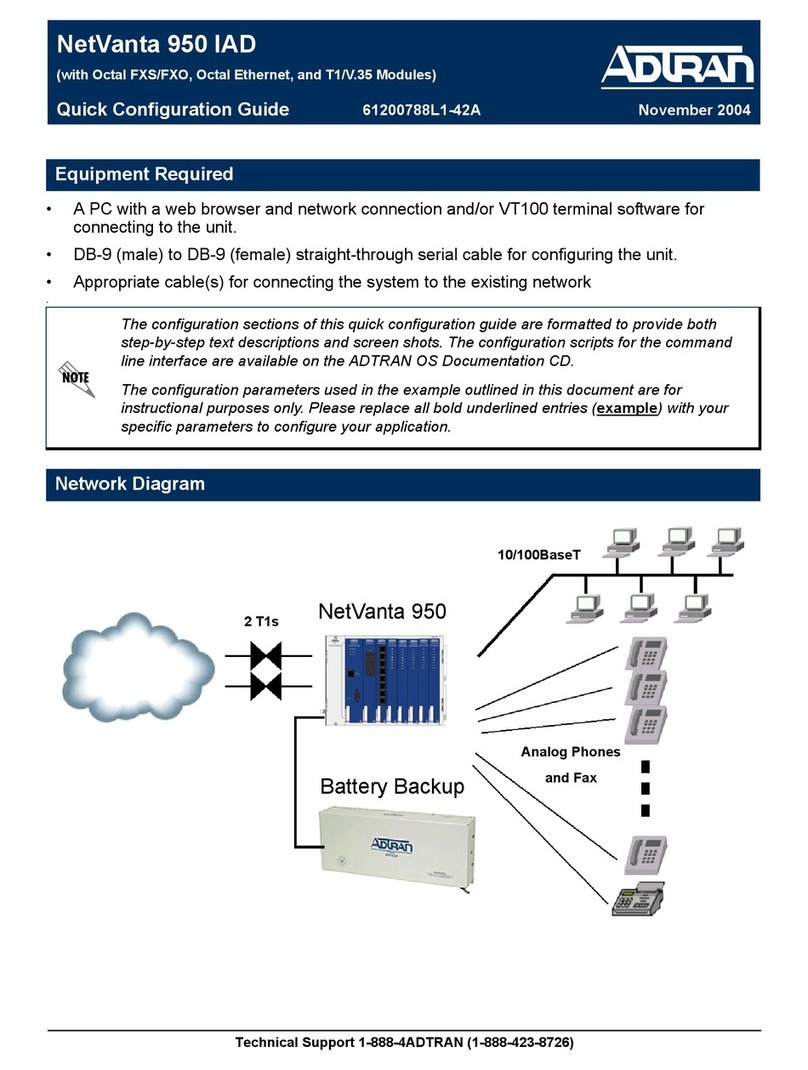
ADTRAN NetVanta 150 User manual

ADTRAN

ADTRAN NetVanta 150 User manual

ADTRAN 1287564G1 User manual

ADTRAN

ADTRAN 1287564G1 User manual

ADTRAN BlueSocket BSAP 1920 User manual

ADTRAN

ADTRAN BlueSocket BSAP 1920 User manual

ADTRAN SMART/RG SR506n User manual

ADTRAN

ADTRAN SMART/RG SR506n User manual

ADTRAN Bluesocket 2020 Series User manual

ADTRAN

ADTRAN Bluesocket 2020 Series User manual

ADTRAN 160 series Manual

ADTRAN

ADTRAN 160 series Manual

ADTRAN Bluesocket 3040 User manual

ADTRAN

ADTRAN Bluesocket 3040 User manual

ADTRAN T400TAC Maintenance and service guide

ADTRAN

ADTRAN T400TAC Maintenance and service guide

ADTRAN Bluesocket 2020 Series User manual

ADTRAN

ADTRAN Bluesocket 2020 Series User manual

ADTRAN BLUESOCKET 1930 User manual

ADTRAN

ADTRAN BLUESOCKET 1930 User manual

ADTRAN BSAP 6040 User manual

ADTRAN

ADTRAN BSAP 6040 User manual

ADTRAN NetVanta 2054 User manual

ADTRAN

ADTRAN NetVanta 2054 User manual

ADTRAN BSAP 6120 User manual

ADTRAN

ADTRAN BSAP 6120 User manual

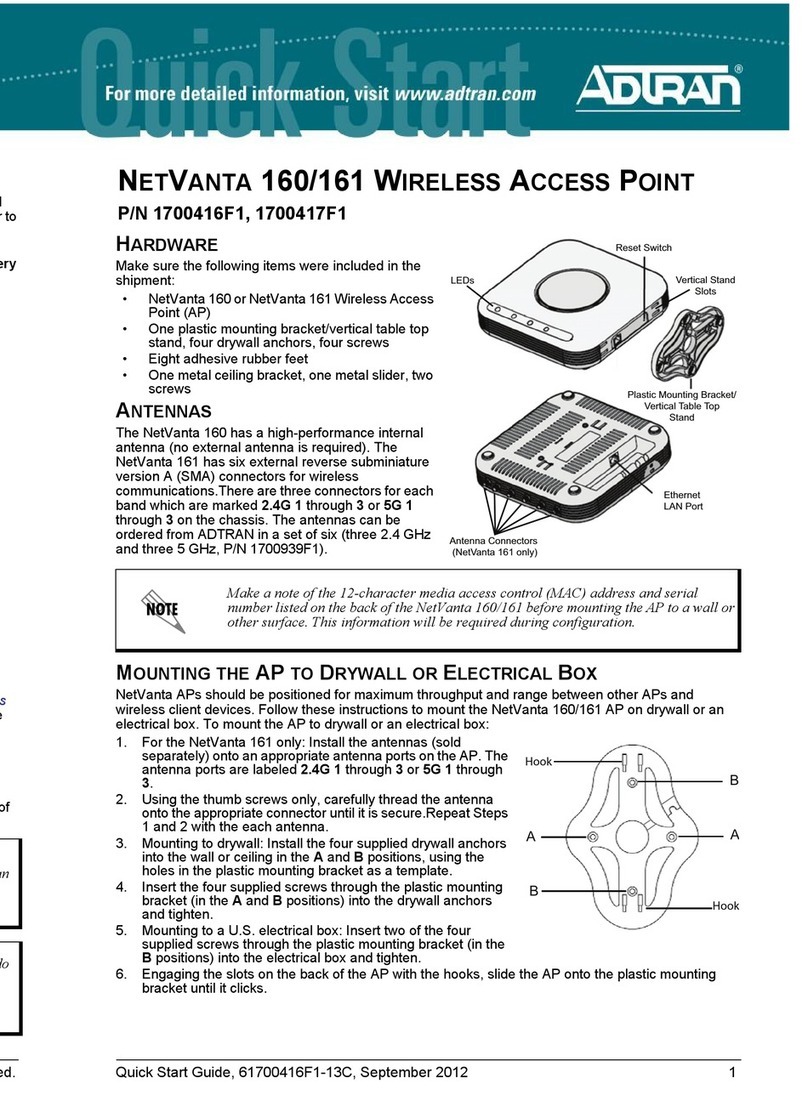
ADTRAN NetVanta 160 Installation instructions

ADTRAN

ADTRAN NetVanta 160 Installation instructions

ADTRAN NetVanta 160 User manual

ADTRAN

ADTRAN NetVanta 160 User manual

ADTRAN 2135 User manual

ADTRAN

ADTRAN 2135 User manual

ADTRAN Total Access 5004 User manual

ADTRAN

ADTRAN Total Access 5004 User manual

ADTRAN Total Access 612 User manual

ADTRAN

ADTRAN Total Access 612 User manual

ADTRAN BLUESOCKET 3045 User manual

ADTRAN

ADTRAN BLUESOCKET 3045 User manual

Popular Wireless Access Point manuals by other brands

TRENDnet TPL-410AP user guide

TRENDnet

TRENDnet TPL-410AP user guide

EnGenius EWS377-FIT quick start guide

EnGenius

EnGenius EWS377-FIT quick start guide

D-Link DWL-6700AP Quick installation guide

D-Link

D-Link DWL-6700AP Quick installation guide

Aerohive Networks Aerohive AP121 Hardware reference guide

Aerohive Networks

Aerohive Networks Aerohive AP121 Hardware reference guide

Vonets VAP11G Step-by-step guide

Vonets

Vonets VAP11G Step-by-step guide

Ubiquiti UniFi AP AC Outdoor quick start guide

Ubiquiti

Ubiquiti UniFi AP AC Outdoor quick start guide

Monoprice MW301A user guide

Monoprice

Monoprice MW301A user guide

D-Link DWL-2700AP - AirPremier Outdoor Wireless Access... user manual

D-Link

D-Link DWL-2700AP - AirPremier Outdoor Wireless Access... user manual

D-Link DWL-2100AP - AirPlus Xtreme G Quick installation guide

D-Link

D-Link DWL-2100AP - AirPlus Xtreme G Quick installation guide

TP-Link Auranet EAP225 Quick installation guide

TP-Link

TP-Link Auranet EAP225 Quick installation guide

D-Link DWL-2100AP - AirPlus Xtreme G Quick installation guide

D-Link

D-Link DWL-2100AP - AirPlus Xtreme G Quick installation guide

Ubiquiti NanoStation NSM2 quick start guide

Ubiquiti

Ubiquiti NanoStation NSM2 quick start guide

Aruba IAP-335 user guide

Aruba

Aruba IAP-335 user guide

Advantek Networks AWN-AP-54MR user manual

Advantek Networks

Advantek Networks AWN-AP-54MR user manual

IP-COM AP355 user guide

IP-COM

IP-COM AP355 user guide

Buffalo AirStation WLA-L11G user manual

Buffalo

Buffalo AirStation WLA-L11G user manual

EnGenius EnStationACv2 user manual

EnGenius

EnGenius EnStationACv2 user manual

D-Link DAP-3662 Quick installation guide

D-Link

D-Link DAP-3662 Quick installation guide

manuals.online logo
manuals.online logoBrands
  • About & Mission
  • Contact us
  • Privacy Policy
  • Terms and Conditions

Copyright 2025 Manuals.Online. All Rights Reserved.

Quick Start Guide, 61700412E1-13A, December 2006 Copyright © 2006 ADTRAN, All Rights Reserved
For more detailed documentation, visit us online at www.adtran.com.
Quick Start Guide
®
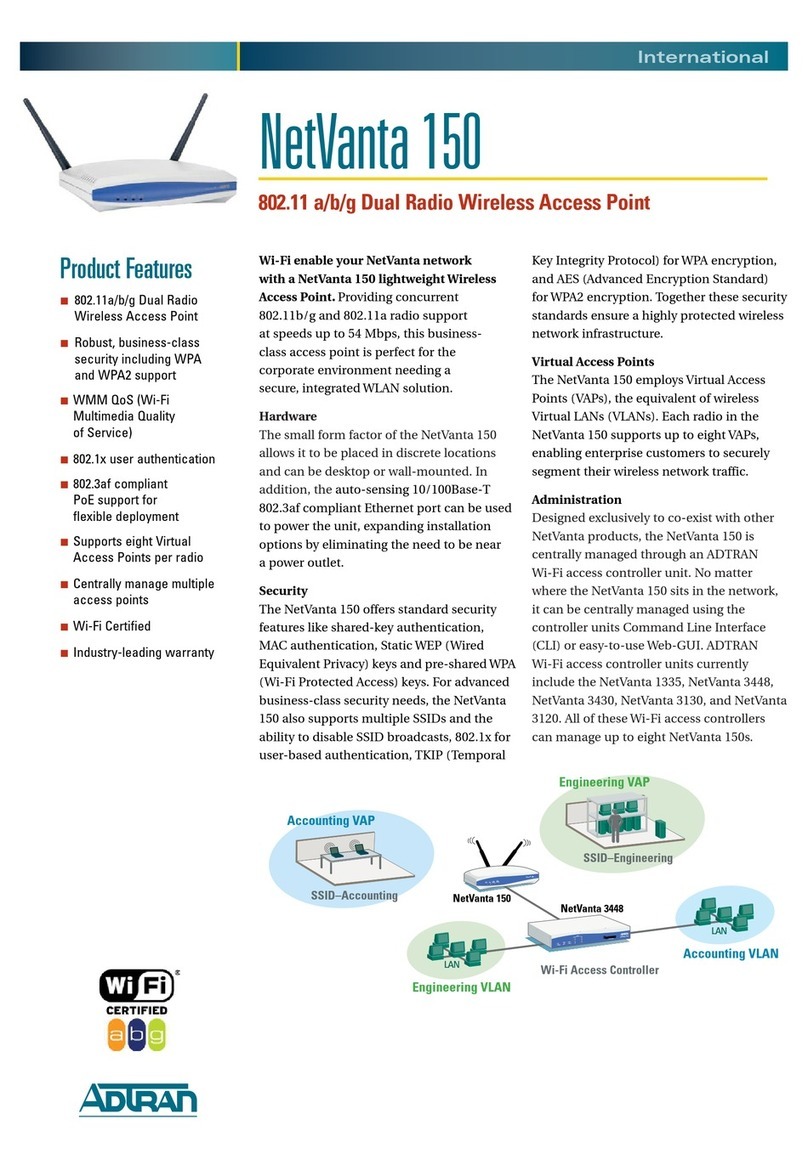
NetVanta 150 Wireless Access Point P/N 1700412E1
INSTALLING THE ANTENNAS
The NetVanta 150 unit ships with two dual-band RP-SMA detachable antennas. These must be
installed before operating the unit.
1. Place either of the two antennas directly onto the antenna port on the rear panel labeled
Antenna 1. See Rear Panel figure above to locate the ports on the rear panel.
2. Twist the antenna onto the threads until it is secure.
3. Repeat step 2 with the second antenna, attaching it to the Antenna 2 port.
SUPPLYING POWER TO THE NETVANTA 150 UNIT
The NetVanta 150 unit can be powered either by the Power over Ethernet (PoE) connection or
through the 12 VDC external supply. The external supply is not included in shipment of this unit but
can be requested from ADTRAN or your reseller.
CONNECTING TO THE NETVANTA 150 UNIT
Using the provided Ethernet cable, connect the ETH 0/1 port on the back of the NetVanta 150 unit
to the Ethernet port of the NetVanta controlling unit or to an Ethernet port on a unit that is
accessible by the controlling unit .
ACCESSING THE CONFIGURATION WIZARD
The web-based graphical user interface (GUI) for your NetVanta controlling unit contains a
configuration wizard that leads the user through the basic configuration of the dynamically
discovered access points. Refer to the Quick Start Guide shipped with your NetVanta controlling
unit for instructions on accessing the GUI and configuring the unit’s IP address. From the initial GUI
screen, expand the Data tab on the right side of the screen. Select AC/AP under the Wireless
menu. Select the Wizard button next to the desired discovered access point.
The 10/100BaseT Ethernet interface (ETH 0/1) MUST NOT be metallically connected
to interfaces that connect to the Outside Plant (OSP) or its wiring. This interface is
designed for use as an intrabuilding interface only. The addition of primary protectors
is not sufficient protection to connect this interface metallically to OSP wiring.
NETVANTA 150 FRONT PANEL
Factory Default Switch
NETVANTA 150 REAR PANEL
Wizard
Quick Start Guide, 61700412E1-13A, December 2006 Copyright © 2006 ADTRAN, All Rights Reserved
For more detailed documentation, visit us online at www.adtran.com.
Quick Start Guide
®
NetVanta 150 Wireless Access Point P/N 1700412E1
FACTORY DEFAULT SWITCH
• If the factory default switch is pressed once, the unit will reboot.
• If the factory default switch is pressed and held for 30 seconds, a default configuration will
overwrite your existing configuration and reboot the unit.
WALL MOUNTING YOUR UNIT
Screws should be spaced horizontally, approximately 4 inches apart. Use the mounting template
below as a guide. Leave approximately 1/4-inch of the screws protruding to allow the heads of the
screws to slide into place in the unit’s keyed insets. Slide the keyed insets on the bottom of the unit’s
chassis securely onto the screws. Refer to the NetVanta 100 Series Hardware Installation Guide on
the ADTRAN OS System Documentation CD shipped with the NetVanta controlling unit for more
complete mounting instructions.
ETHERNET PINOUTS
Pin Name Description
1 TX1 Transmit Positive
2 TX2 Transmit Negative
3 RX1 Receive Positive
4, 5 — Unused
6 RX2 Receive Negative
7, 8 — Unused
4.00
CONFIGURING YOUR APPLICATION
More detailed documentation for configuring your ADTRAN unit is provided on the ADTRAN OS
System Documentation CD included in the shipment of your NetVanta controlling unit. For more
detail on hardware setup, refer to the appropriate Hardware Installation Guide. For more detail on
configuring your NetVanta controlling system, refer to the ADTRAN Operating System (AOS)
Command Reference Guide, configuration guides, and technical support notes.
Important: For additional details on product features, specifications, installation, and
safety, refer to the appropriate Hardware Installation Guide on the ADTRAN OS
System Documentation CD shipped with the NetVanta controlling unit and available
online at www.adtran.com.
LED Activity Indication
STAT
Green (flashing)
Unit is powering up. On power-up the STAT LED flashes
until unit is ready for service. The STAT LED also flashes
during firmware upgrade.
Green (solid) Power is on.
Red (solid) An error condition is present on the unit.
ETH Green (flashing) LAN activity is present (traffic in either direction).
Green (solid) Powered device is connected to the Ethernet port (i.e., link
integrity).
Off There is no LAN activity on the Ethernet port (or unit is
powered off).
5GHz/802.11a Off There is no 802.11a wireless activity detected.
Green (flashing)
Data is being transmitted or received via the 802.11a
wireless band. Data includes network traffic as well as user
data.

2.4GHz/
802.11b/g Off There is no 802.11g or 802.11b wireless activity detected.
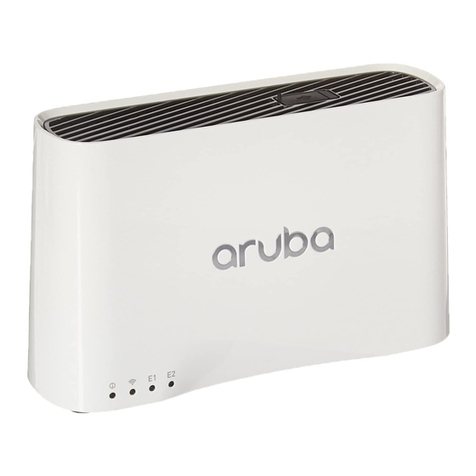
Green (flashing)
Data is being transmitted or received via the 802.11b/g
wireless band. Data includes network traffic as well as user
data.