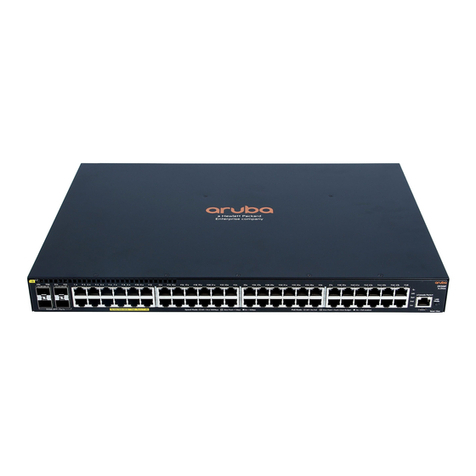
Aruba 2930M User manual

Aruba 2930M Switches
Installation and Getting Started Guide
Part Number: 5200-5214a
Published: November 2018
Edition: 2

© Copyright 2017 Hewlett Packard Enterprise Development L.P.
Notices
The information contained herein is subject to change without notice. The only warranties for Hewlett Packard
Enterprise products and services are set forth in the express warranty statements accompanying such products
and services. Nothing herein should be construed as constituting an additional warranty. Hewlett Packard
Enterprise shall not be liable for technical or editorial errors or omissions contained herein.
Confidential computer software. Valid license from Hewlett Packard Enterprise required for possession, use, or
copying. Consistent with FAR 12.211 and 12.212, Commercial Computer Software, Computer Software
Documentation, and Technical Data for Commercial Items are licensed to the U.S. Government under vendor's
standard commercial license.
Links to third-party websites take you outside the Hewlett Packard Enterprise website. Hewlett Packard Enterprise
has no control over and is not responsible for information outside the Hewlett Packard Enterprise website.
Acknowledgments
Intel®, Itanium®, Pentium®, Intel Inside®, and the Intel Inside logo are trademarks of Intel Corporation in the United
States and other countries.
Microsoft® and Windows® are either registered trademarks or trademarks of Microsoft Corporation in the United
States and/or other countries.
Adobe® and Acrobat® are trademarks of Adobe Systems Incorporated.
Java® and Oracle® are registered trademarks of Oracle and/or its affiliates.
UNIX® is a registered trademark of The Open Group.

Chapter 1 About this document......................................................................6
Applicable products....................................................................................................................................6
Related publications...................................................................................................................................6
Terminology................................................................................................................................................7
Chapter 2 Introducing the 2930M switches................................................... 8
Front of the switches..................................................................................................................................9
Network ports................................................................................................................................ 11
Management ports........................................................................................................................ 13
Console Ports.....................................................................................................................13
Auxiliary (Aux) port............................................................................................................. 13
Switch and port LEDs on front of the switches..............................................................................14
LED mode select button and indicator LEDs................................................................................ 20
Reset and Clear buttons............................................................................................................... 20
Out-of-band management (OOBM) port....................................................................................... 22
Back of the switches................................................................................................................................ 22
Power supplies..............................................................................................................................23
Power connector........................................................................................................................... 23
Stacking module slot..................................................................................................................... 23
Uplink port slot and module support..............................................................................................23
LEDs on the back of the switches................................................................................................. 24
2930M stacking module........................................................................................................................... 25
Stacking module LEDs..................................................................................................................26
2930M uplink modules............................................................................................................................. 28
Uplink module LEDs......................................................................................................................28
Switch features........................................................................................................................................ 30
Chapter 3 Installing the switch..................................................................... 33
Shipping the switch in a rack................................................................................................................... 33
Included parts.......................................................................................................................................... 33
Installation precautions and guidelines.................................................................................................... 34
Installation procedures.............................................................................................................................35
Summary.......................................................................................................................................35
1. Prepare the installation site.......................................................................................................36
2. Install a power supply and an (optional) second power supply.................................................37
3. (Optional) Install the stacking module....................................................................................... 38
4. Verify that the switch boots correctly.........................................................................................39
General LED behavior:.......................................................................................................40
(Optional) stacking module LED behavior..........................................................................40
5. Disconnect power from the switch............................................................................................ 41
6. (Optional) Install the uplink port module....................................................................................41
7. Mount the switch....................................................................................................................... 43
Mounting the switch in a two-post rack.............................................................................. 43
Mounting a switch on a tabletop or desktop....................................................................... 44
Mounting the switch in a four-post rack..............................................................................45
8. (Optional) Connect a Management Console.............................................................................46
9. Connect the switch to a power source...................................................................................... 48
10. (Optional) Installing the stacking cables..................................................................................48
Contents
Contents 3

11. (Optional) Install transceivers..................................................................................................49
12. Connect network cables..........................................................................................................49
SFP/SFP+/QSFP+ installation notes....................................................................................................... 50
Stacking information and topologies........................................................................................................ 51
Chain topologies........................................................................................................................... 52
Ring topologies............................................................................................................................. 52
Mesh topologies............................................................................................................................ 52
Sample network topologies......................................................................................................................52
Chapter 4 Getting started with switch configuration..................................57
Recommended minimal configuration......................................................................................................57
Minimal configuration through the console port connection.....................................................................58
Setting up a console connection................................................................................................... 59
Configuring the management console.......................................................................................... 60
Stacking configuration...................................................................................................................61
Where to go from here: Network connections..........................................................................................61
Using the IP address for remote switch management............................................................................. 61
Starting a Telnet session............................................................................................................... 62
Starting a web browser session.................................................................................................... 62
Chapter 5 Replacing components................................................................ 64
Replacing the power supply.....................................................................................................................64
Replacing the stacking module................................................................................................................ 65
Replacing the uplink port module.............................................................................................................66
Chapter 6 Troubleshooting............................................................................68
Basic troubleshooting tips........................................................................................................................ 68
Diagnosing with the LEDs........................................................................................................................69
Proactive networking................................................................................................................................78
Hardware diagnostic tests........................................................................................................................79
Testing the switch by resetting it................................................................................................... 79
Checking the switch LEDs..................................................................................................79
Checking console messages..............................................................................................79
Testing twisted-pair cabling........................................................................................................... 79
Testing switch-to-device network communications....................................................................... 79
Testing end-to-end network communications................................................................................80
Restoring the factory default configuration.............................................................................................. 80
Downloading new switch software........................................................................................................... 80
Chapter 7 Specifications............................................................................... 81
Switch specifications................................................................................................................................81
Physical.........................................................................................................................................81
Electrical........................................................................................................................................82
Environmental............................................................................................................................... 83
Acoustics.......................................................................................................................................84
Safety............................................................................................................................................ 84
Connectivity standards..................................................................................................................85
Stacking module specifications................................................................................................................86
Physical.........................................................................................................................................86
Environmental............................................................................................................................... 86
Uplink port specifications......................................................................................................................... 87
Physical.........................................................................................................................................87
4Aruba 2930M Switches

Environmental............................................................................................................................... 87
Chapter 8 Cabling and technology information.......................................... 88
Cabling specifications.............................................................................................................................. 88
Technology distance specifications..........................................................................................................90
Mode conditioning patch cord.................................................................................................................. 91
Installing the patch cord........................................................................................................................... 92
Twisted-pair cable/connector pin-outs..................................................................................................... 92
Straight-through twisted-pair cable for 10 Mbps or 100 Mbps network connections.....................93
Cable diagram.................................................................................................................... 94
Pin assignments................................................................................................................. 94
Crossover twisted-pair cable for 10 Mbps or 100 Mbps network connection................................94
Cable diagram.................................................................................................................... 95
Pin assignments................................................................................................................. 95
Straight-through twisted-pair cable for 1000 Mbps network connections......................................95
Cable diagram.................................................................................................................... 96
Pin assignments................................................................................................................. 96
Chapter 9 Websites........................................................................................ 97
Chapter 10 Support and other resources.................................................... 98
Accessing Hewlett Packard Enterprise Support...................................................................................... 98
Accessing updates...................................................................................................................................98
Customer self repair.................................................................................................................................99
Remote support....................................................................................................................................... 99
Warranty information................................................................................................................................99
Regulatory information...........................................................................................................................100
Documentation feedback....................................................................................................................... 100
Contents 5

This document is intended for network administrators and support personnel.
NOTE: The display and command line illustrated in this document are examples and might not
exactly match your particular switch or environment.
The switch and accessory drawings in this document are for illustration only, and may not exactly
match your particular switch and accessory products.
Applicable products
JL319A Aruba 2930M 24G 1-slot Switch JL325A Aruba 2930 2-port Stacking Module
JL320A Aruba 2930M 24G PoE+ 1-slot Switch JL078A Aruba 3810M/2930M 1-Port QSFP+ 40GbE
Module
JL321A Aruba 2930M 48G 1-slot Switch JL081A Aruba 3810M/2930M 4 HPE Smart Rate 1G/
2.5G/5G/10G PoE+ Module
JL322A Aruba 2930M 48G PoE+ 1-slot Switch JL083A Aruba 3810M/2930M 4-Port 100M/1G/10G SFP
+ MACsec Module
JL323A Aruba 2930M 40G 8 HPE Smart Rate
PoE+ 1-slot Switch
JL085A Aruba X371 12VDC 250W 100-240VAC Power
Supply
JL324A Aruba 2930M 24 HPE Smart Rate PoE
+ 1-slot Switch
JL086A Aruba X372 54VDC 680W 100-240VAC Power
Supply
R0M67A Aruba 2930M 40G 8 HPE Smart Rate
PoE Class 6 1-slot Switch
JL087A Aruba X372 54VDC 1050W 110-240VAC Power
Supply
R0M68A Aruba 2930M 24 HPE Smart Rate PoE
Class 6 1-slot Switch
Related publications
•Aruba 2930M Switches Installation and Getting Started Guide
•Aruba 2930M and 3810M Switch Power Supply Quick Setup Guide and Safety/Regulatory Information
• HPE ArubaOS-Switch software manuals
•HPE ArubaOS-Switch Power Over Ethernet (PoE/PoE+) Planning and Implementation Guide
•HPE ArubaOS-Switch Transceiver Guide
To view and download these publications, visit http://www.hpe.com/networking/ResourceFinder.
Chapter 1
About this document
6Aruba 2930M Switches
Terminology
In instances where the text refers collectively to both PoE+ and PoE Class 6 in the 2930M switch family, PoE is
used to refer to both.
Chapter 1 About this document 7

Aruba 2930M multiport switches are store-and-forward devices offering low latency for high-speed networking.
The 2930M switches also support a field-replaceable redundant power supply, Power over Ethernet (PoE)
technologies, full network management capabilities, a stacking module slot, and a flexible uplink port slot.
When 2930M stacking modules are installed in the switches, any combination of up to ten 2930M switches can be
stacked together through high-speed backplane cables to form a single extended virtual switch. See Stacking
information and topologies and the HPE ArubaOS-Switch Advanced Traffic Management Guide for your switch
OS version for more stacking information.
These switches are described in this manual:
Non-PoE switches PoE switches
Aruba 2930M 24G 1-slot Switch (JL319A) Aruba 2930M 24G PoE+ 1-slot Switch (JL320A)
Aruba 2930M 48G 1-slot Switch (JL321A) Aruba 2930M 48G PoE+ 1-slot Switch (JL322A)
Aruba 2930M 40G 8SR PoE+ 1-slot Switch (JL323A)
Aruba 2930M 24SR PoE+ 1-slot Switch (JL324A)
Aruba 2930M 40G 8 HPE Smart Rate PoE Class 6 1-slot
Switch (R0M67A)
Aruba 2930M 24 HPE Smart Rate PoE Class 6 1-slot
Switch (R0M68A)
Accessories list:
Stacking module/cables Power supply Uplink port module
Aruba 2930 2-port Stacking
Module (JL325A)
Aruba X371 12VDC 250W
100-240VAC Power Supply (JL085A)
Aruba 3810M/2930M 1-port QSFP
+ 40GbE Module (JL078A)
Aruba 2920/2930M 0.5m
Stacking Cable (J9734A)
Aruba X372 54VDC 680W
100-240VAC Power Supply (JL086A)
Aruba 3810M/2930M 4 HPE Smart Rate
1G/2.5G/5G/10G PoE+ Module (JL081A)
Aruba 2920/2930M 1m
Stacking Cable (J9735A)
Aruba X372 54VDC 1050W
110-240VAC Power Supply (JL087A)
Aruba 3810M/2930M 4-port
100M/1G/10G SFP+ MACsec Module
(JL083A)
Aruba 2920/2930M 3m
Stacking Cable (J9736A)
This chapter describes these switches with the following information:
• Front of the switches:
◦ Network ports
◦ Management ports
◦ LEDs
◦ Buttons
Chapter 2
Introducing the 2930M switches
8Aruba 2930M Switches
◦ Out-of-Band Management (OOBM)
◦ SFP support
• Back of the switches:
◦ Power supplies and power connectors
◦ Uplink module slot
◦ 2930M stacking module
• Switch features
Front of the switches
Figure 1: Front of all the 2930M switches
Table 1: Front of all the 2930M switches: Label and description
Label Description
1 Aruba 2930M 24G 1-slot switch (JL319A)
2 Aruba 2930M 24G PoE+ 1-slot switch (JL320A)
3 Aruba 2930M 48G 1-slot switch (JL321A)
4 Aruba 2930M 48G PoE+ 1-slot switch (JL322A)
Table Continued
Chapter 2 Introducing the 2930M switches 9

Label Description
5Aruba 2930M 40G 8SR PoE+ 1-slot Switch (JL323A)
Aruba 2930M 40G 8 HPE Smart Rate PoE Class 6 1-slot Switch (R0M67A)
6Aruba 2930M 24SR PoE+ 1-slot Switch (JL324A)
Aruba 2930M 24 HPE Smart Rate PoE Class 6 1-slot Switch (R0M68A)
Figure 2: Example of 2930M switch
Table 2: 2930M switches: Labels and description
Label Description
1 Switch Port LEDs
2 LED Mode button
3 Speed, PoE1, Usr LEDs
4, 5 Reset, Clear buttons
6 Back Module status LED
7 Out-of-Band Management port
8 Micro USB console
9 Unit Identification, Global Status LEDs
10 RJ serial console
11 USB/auxiliary port
12 Dual-personality SFP ports
1 PoE Mode LED is present only on switch models that support PoE.
10 Aruba 2930M Switches
Other manuals for 2930M
1
Table of contents
Other Aruba Switch manuals

Aruba
Aruba 8320 User manual

Aruba
Aruba 8360 Series User manual

Aruba
Aruba 2530 User manual

Aruba
Aruba S1500 Series User manual

Aruba
Aruba 3810M User manual

Aruba
Aruba 2930M Owner's manual

Aruba
Aruba 2930F Series Owner's manual

Aruba
Aruba 4100i Series User manual

Aruba
Aruba 6300F Series Owner's manual

Aruba
Aruba 6400 Series Owner's manual

Aruba
Aruba 8325 Series User manual

Aruba
Aruba 8360 Series User manual

Aruba
Aruba 2930F 24G 4SFP Plus User manual

Aruba
Aruba 2540 User manual

Aruba
Aruba JL253A User manual

Aruba
Aruba 6000 series User manual

Aruba
Aruba 8400 Series User manual

Aruba
Aruba Instant On 1430 User manual

Aruba
Aruba CX 10000 Series User manual

Aruba
Aruba S3500-24P User manual