manuals.online logo
Brands
  1. Home
  2. •
  3. Brands
  4. •
  5. Audiovox
  6. •
  7. Car Video System
  8. •
  9. Audiovox Movies 2 Go AVXMTGHR1M Installation and operating instructions

Audiovox Movies 2 Go AVXMTGHR1M Installation and operating instructions

Other manuals for Movies 2 Go AVXMTGHR1M

1

Other Audiovox Car Video System manuals

Audiovox VOD10PS2 - Car - 16:9 Flipdown Monitor User manual

Audiovox

Audiovox VOD10PS2 - Car - 16:9 Flipdown Monitor User manual

Audiovox VOD85 - DVD Player With LCD Monitor User manual

Audiovox

Audiovox VOD85 - DVD Player With LCD Monitor User manual

Audiovox VOD285S - Dual LCD Monitors User manual

Audiovox

Audiovox VOD285S - Dual LCD Monitors User manual

Audiovox VOD701 User manual

Audiovox

Audiovox VOD701 User manual

Audiovox MVP200 Quick start guide

Audiovox

Audiovox MVP200 Quick start guide

Audiovox LCM640TV User manual

Audiovox

Audiovox LCM640TV User manual

Audiovox VOH683 User manual

Audiovox

Audiovox VOH683 User manual

Audiovox Mobile Video 128-8342 User manual

Audiovox

Audiovox Mobile Video 128-8342 User manual

Audiovox VE640 - VE - 640 User manual

Audiovox

Audiovox VE640 - VE - 640 User manual

Audiovox VOH683 User manual

Audiovox

Audiovox VOH683 User manual

Audiovox MMD92 User manual

Audiovox

Audiovox MMD92 User manual

Audiovox VME 9309 TS User manual

Audiovox

Audiovox VME 9309 TS User manual

Audiovox HR7008PKG User manual

Audiovox

Audiovox HR7008PKG User manual

Audiovox FP1210 User manual

Audiovox

Audiovox FP1210 User manual

Audiovox VOD10 - Car - Overhead LCD Monitor User manual

Audiovox

Audiovox VOD10 - Car - Overhead LCD Monitor User manual

Audiovox FlexVision LCM641TV User manual

Audiovox

Audiovox FlexVision LCM641TV User manual

Audiovox LCM0701TV User manual

Audiovox

Audiovox LCM0701TV User manual

Audiovox Movies2Go AVXMTGHR1D User manual

Audiovox

Audiovox Movies2Go AVXMTGHR1D User manual

Audiovox VOH701 - VOH 701 - LCD Monitor User manual

Audiovox

Audiovox VOH701 - VOH 701 - LCD Monitor User manual

Audiovox MM801 User manual

Audiovox

Audiovox MM801 User manual

Audiovox HR7DD PKG User manual

Audiovox

Audiovox HR7DD PKG User manual

Audiovox HR7008APKG User manual

Audiovox

Audiovox HR7008APKG User manual

Audiovox VME 9312 TS User manual

Audiovox

Audiovox VME 9312 TS User manual

Audiovox VOH802 - VOH 802 - LCD Monitor User manual

Audiovox

Audiovox VOH802 - VOH 802 - LCD Monitor User manual

Popular Car Video System manuals by other brands

Farenheit MD-1510CM instruction manual

Farenheit

Farenheit MD-1510CM instruction manual

Mazda Connect manual

Mazda

Mazda Connect manual

RCA DRC97983 Manual de usuario

RCA

RCA DRC97983 Manual de usuario

Panasonic CY-VHD9401U Service manual

Panasonic

Panasonic CY-VHD9401U Service manual

Stinger HEIGH10 RB10RAM13B installation manual

Stinger

Stinger HEIGH10 RB10RAM13B installation manual

Alpine IVA-W203 - 6.5" Touch Screen 2-DIN DVD In-Dash... owner's manual

Alpine

Alpine IVA-W203 - 6.5" Touch Screen 2-DIN DVD In-Dash... owner's manual

Eonon E1057 instructions

Eonon

Eonon E1057 instructions

Milion D2223 user manual

Milion

Milion D2223 user manual

Metra Electronics 99-8153 installation instructions

Metra Electronics

Metra Electronics 99-8153 installation instructions

Voxx Electronics HR8MA1 owner's manual

Voxx Electronics

Voxx Electronics HR8MA1 owner's manual

Axxera AV604Bi quick start guide

Axxera

Axxera AV604Bi quick start guide

Clarion NX706E owner's manual

Clarion

Clarion NX706E owner's manual

Pyle view PLDN74BTi owner's manual

Pyle view

Pyle view PLDN74BTi owner's manual

Clarion NX602 quick start guide

Clarion

Clarion NX602 quick start guide

RCA DRC6296 - Twin 9" Mobile DVD System Manual Del Usuario

RCA

RCA DRC6296 - Twin 9" Mobile DVD System Manual Del Usuario

Fiat Uconnect 5.0 manual

Fiat

Fiat Uconnect 5.0 manual

Lanzar SVDVD5 owner's manual

Lanzar

Lanzar SVDVD5 owner's manual

Eonon E1060 instructions

Eonon

Eonon E1060 instructions

manuals.online logo
manuals.online logoBrands
  • About & Mission
  • Contact us
  • Privacy Policy
  • Terms and Conditions

Copyright 2025 Manuals.Online. All Rights Reserved.

128-8945A
OPERATION MANUAL / INSTALLATION GUIDE
ATTENTION
ATENCIÓN
MISE EN GARDE
Este producto está diseñado para utilizarse en vehículos modelo 2009 y anteriores.
Es ilegal instalarlo en vehículos modelo 2010 y posteriores.
Ce produit est destiné à être utilisé sur des véhicules de modèles 2009 et antérieurs.
Il est illégal de l’installer sur des modèles 2010 et plus récents.
This product is designed for use on 2009 and prior model year vehicles.
It is not lawful to install on 2010 model year vehicles or later.
AVXMTGHR1M
7” LCD MONITOR
FOR REAR SEAT ENTERTAINMENT
Important Notice
Installation of headrest products require careful planning and preparation. Be extremely careful
of seats that have airbags built into them. Keep wiring away from any air bag wiring (usually
identified by yellow connectors and yellow wire jackets). Damage to air bag wiring can result in
personal injury to vehicle occupants. If you have any questions regarding wire routing or
installation in a vehicle, please contact Audiovox Technical Support at 1-800-225-6074.
When connecting power and ground in a mobile video installation, insure that the ACC wire is
fused at the point where it is connected to the vehicle ACC wiring. Failure to do so can result in
damage to the vehicle if a short circuit develops between the vehicle connection point and the
mobile video product.
An LCD panel and/or video monitor may be installed in a motor vehicle and visible to the driver if
the LCD panel or video monitor is used for vehicle information, system control, rear or side
observation or navigation. If the LCD panel or video monitor is used for television reception,
video or DVD play, the LCD panel or video monitor must be installed so that these features will
only function when the vehicle is in “park” or when the vehicle’s parking brake is applied.
An LCD panel or video monitor used for television reception, video or DVD play that operates
when the vehicle is in gear or when the parking is not applied must be installed to the rear of the
driver’s seat where it will not be visible, directly or
indirectly, to be operator of the motor vehicle.
Licensed under one or more of the following patents:
Patent NOS. 7,245,274 , 6,899,365 and 6,678,892
FEATURES
• 7” Digital TFT (Thin Film Transistor) Active Matrix LCD (Liquid Crystal Display) Monitor
• OSD (On Screen Display) for control of picture quality and functions
• Two Audio / Video Source inputs (AV and AUX).
• Screen mode selection (4:3, 16:9)
• Full function remote control
• IR headphone (optional)
SPECIFICATIONS
Specifications subject to change without notice.
Resolution
Pixels
Operation Temperature
Storage Temperature
Backlit life
Video Display System
Headphone Audio Output
Power Source
Dimension (L x W x H)
480x234
336,960
32 ~113º F (0 ~ 45º C)
-4 ~ 149º F (-20 ~ 65º C)
20,000 Hours
NTSC / PAL
0.03W @ 32 ohms
10V~16V DC
147mm x 275mm x 200mm
Type TFT Active Matrix LCD
AVXMTGHR1M 3
5.7in x 10.8in x 7.8in
5) Black Vinyl Headrest Cover
(P/N 126-1377)-(1pc)
6)
(P/N 126-1378)-(1pc)
Pewter Vinyl Headrest Cover
MATERIAL TO USE IN THIS PACKAGE:
NOTE: Headrest cable is included with the monitor.
1) AVXMTGHR1M System Monitor (AVXMTGHR1M )
1) Remote Control
(P/N 136-5151)-(1pc)
3) 8PIN (Male) AV OUT to RCA
(P/N 112-4149)-(1pc)
2) AUX PIGTAIL
(P/N )-(1pc)112B3227
5)
(P/N 138-1495)-(1pc)
Heat Shrink Tube
4)
(P/N
Support Tube Adaptor Box
170-0161)-(1box)
AVXMTGHR1M4
-+
MUTE SOURCE
DISPLAY
SYSTEM
MENU
LEVEL
IR NO/OFF
NOTE: The AVXMTGHR1M monitor has been
designed to be interchangeable from one headrest to
the other. The headrests will still have the Red Din
cables on them and should be connected to their
respective connectors. The headrest cover from the
manufacturer is covered with shale colored vinyl.
AVXMTGHR1M 5
HEADREST COVER REPLACEMENT:
1. Using a Philips screwdriver, unscrew the two Philips screws and lift the bottom edge
of the monitor upward.
2. Remove the velcro tabs securing the headrest cover.
3. Replace the headrest cover with the desired color and secure the headrest cover by
re-attaching the velcro tabs.
4.Place the monitor cable into the space on the right side of the headrest and lower the
monitor into position to align the two Philips screws with the screw holes in the headrest.
Close the screen and press the PUSH button to secure the screen.
5.Tighten screws
NOTE: If desired, replace the headrest cover before installing the headrest in the vehicle.
Unscrew Philips Screws
Remove Velcro Tabs
Push
Tighten Philips Screws
VEHICLE PREPARATION
AVXMTGHR1M6
1) Decide on the system configuration and the options that will be installed.
2) Read the manuals and get familiar with the electrical requirements and
connections.
3) Decide on the mounting locations and methods of mounting the products that
will be connected to the AVXMTGHR1M.
4) Prepare the vehicle by removing any interior trim necessary to gain access to
the vehicle's wiring as well as all areas where interconnecting wire harnesses
will be located. The mounting method, and the location will vary from vehicle to
vehicle, so this manual will only focus for the installation of the AVXMTGHR1M
Monitors in the supplied configuration. The best location for the AVXMTGHR1M
System components is:
a. Monitors: Vehicle specific Headrest NOTE: The Master Monitor should be
installed in the passenger position most used.)
5) Locate an accessory power source (+12VDC present when the ignition key is in
the accessory and run positions. 0VDC should be present when the ignition key is
in the OFF position), a constant power source (+12VDC) at all times,
regardless of the ignition key and a good ground. Generally, these wires can be
found at the ignition switch or fusebox.
NOTE: Ensure that both the constant and accessory power is fused at the source.
Failure to do so may result in vehicle wiring damage.
6) Run the wiring harnesses throughout the vehicle as necessary. (Refer to the Wiring
Diagrams on page 7, as well as the wiring instructions for the individual
components and accessory options being installed). Be sure, that all the wiring is
protected from sharp edges and is routed in such a manner that it will not be
pinched, when it is fully installed. Be sure to leave enough slack in the wiring at
each component to allow sufficient working room. Be sure to leave enough slack
in the monitor cables to allow the headrest to move up or down, and seat
movement.
7) Remove all the A/V system components from their packaging and then place
them in the vehicle at their respective locations.
8) Install the headrests:
a. Remove vehicle's original headrests.
b. insert appropriate support tube adaptors in vehicle post guides. (if needed)
c. Hold the headrest above the seat and insert the two cables into the vehicle
support guides Make sure that the headrest is in the correct position (Display
facing the rear).
d. Route the cables through the seat back and out the bottom of the seat while
pulling the cables to remove the slack. Be sure to leave enough slack in the
monitor cables to allow the headrest to move up or down.
9) Connect all the components together (electrically) and verify proper operation of all
the system functions.

AVXMTGHR1M WIRING DIAGRAM
Headrest Monitor
(P/N.: 112-4149)
RED
12V+VDC
Ground
Video In Yellow
Audio in Right Red
Audio in Left White
AVXMTGHR1M 7
CONTROLS AND INDICATORS DIAGRAM (FRONT VIEW)
--
+
MUTE
AUX IN HEADPHONE JACK
POWER
COVER
SOURCE
MUTE
VOLUME
MENU
VOLUME
IR HEADPHONE
TRANSMITTER LENS
OPEN
IR SENSOR
8AVXMTGHR1M
REMOTE CONTROL OPERATION
NOTE: The remote control has a battery installed with a pull tab to prevent battery
discharge. Remove the pull tab before attempting to use the remote.
Battery Replacement
1. Remove the battery holder.
2. Insert the battery (CR2025) into the battery holder and insert the battery
holder into the remote. Be sure to observe the correct polarity.
3. Align the battery holder with the remote control and push until the holder
clicks.
-+
MUTE SOURCE
DISPLAY
SYSTEM
MENU
LEVEL
IR ON/OFF
6
7
8
1
2
3
4
5
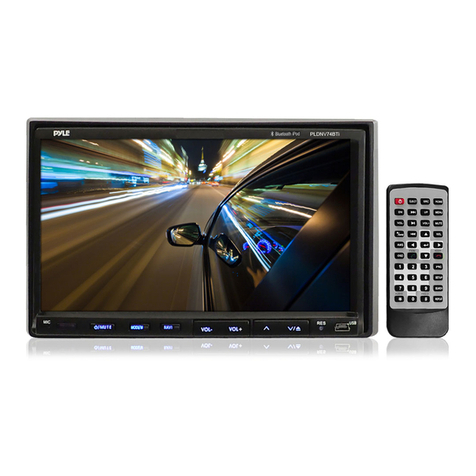
Remote Control Function Description
1. POWER ( ) Button*
Press this button to turn the unit ON and OFF.
2. MUTE Button
Press this button to mute all the audio. Pressing the button again restores the sound to
the previously set level.
3. SOURCE Button
Each time the button is pressed, the audio / video source will change in the
following sequence:
AV1 > AUX
4. VOLUME DOWN (-)
Press to select the level of the picture adjustments when the unit is in picture adjustment
mode or to decrease the volume for the wired headphones.
5. SYSTEM MENU Button
Press this button to enter the system menu which contains features and options to
customize the screen display and change the OSD language.
6. IR ON/OFF Button
Press this button to turn the IRT function on or off.
7. VOLUME UP (+)
Press to select the level of the picture adjustments when the unit is in picture adjustment
mode or to increase the volume for the wired headphones.
.8 DISPLAY
Press to display current disc information while the disc is playing. The information
displayed will be Title Elapsed, Title Remaining, Chapter Elapsed and Chapter
Remaining. Pressing the button will also turn the display off.
9
AVXMTGHR1M
The System Menu contains features and options that allow you to customize your
system.
1) Press the “ ” button on unit or press the TV button and the SYSTEM MENU
button on the remote control, the menu display below will appear on screen.
2) Use the “+” “-” buttons to change the setting .
3) To select the next menu press the “ ” button or the SYSTEM MENU button on
the remote control.
MENU DISPLAY
The first adjustment to appear is the volume adjustment. The volume can be adjusted
from 1 to 32.
The picture can be adjusted under the system menu. The picture adjustments consist
of brightness (BRIGHT), CONTRAST, COLOR, TINT (for NTSC only). The
adjustments range from 1 to 32.
The screen mode select feature allows the user to change the screen format (aspect
ratio from 4:3 or to 16:9).
AVXMTGHR1M
10
SCREEN MODE 16:9
16
BRIGHT 16
CONTRAST 16
COLOR 16
MENU ADJUSTMENT