Tips & Tricks.
Practical magic for using BlackBerry 7100t™
© 2004 Research In Motion Limited. All rights reserved. The BlackBerry and RIM families of related marks,
images and symbols are the exclusive properties and trademarks of Research In Motion Limited. RIM, Research
In Motion, “Always On, Always Connected” and BlackBerry are registered with the U.S. Patent and Trademark
Office and may be pending or registered in other countries. All other brands, product names, company names,
trademarks and service marks are the properties of their respective owners. The specifications and features
contained in this document are subject to change without notice. Printed in Canada.
The Bluetooth wordmark
and logos are owned by the Bluetooth SIG, Inc. and any use of such marks by RIM is under license.
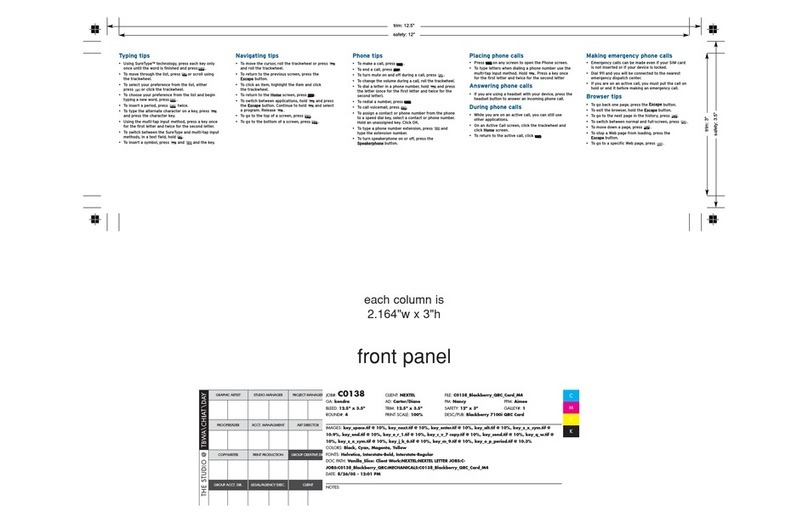
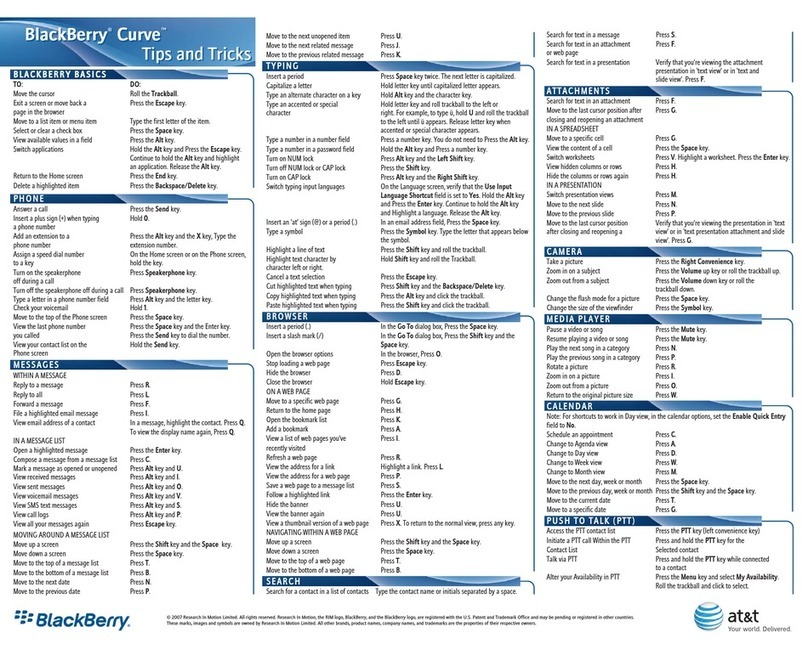
NAVIGATING SCREENS
To:
Move cursor
Exit a screen or dialog box
Click an icon or menu item
Select multiple items or characters
Move to top of screen
Move to bottom of screen
Do:
Roll Trackwheel
Press Escape
Roll Trackwheel to select item
Click Trackwheel
Hold Shift and roll Trackwheel
Press 1
Press 7
CALENDAR
To:
Create an appointment
Move to next day, week or month
Move to previous day, week
or month
Move cursor horizontally in
Week view
Move cursor vertically in
Month view
Do:
Press Period (.) key
Press 6
Press 4
Hold Alt and roll Trackwheel
Hold Alt and roll Trackwheel
ATTACHMENTS
To:
Pan horizontally across an image
Zoom in on an image
Zoom out of an image
Rotate an image
Do:
Hold Alt key and roll Trackwheel
Press 3. To continue zooming,
hold Shift and roll Trackwheel
Press 9. To continue zooming,
hold Shift and roll Trackwheel
Press Period (.) key
GENERAL TIPS
To:
Reboot
Save battery
Do:
Remove Battery
Turn off BlackBerry handset in
fringe or no-coverage areas
BROWSER
To:
Open browser and display list of
bookmarks made available by
service provider
Edit web address in Go To
dialog box
Move down a page
Move up a page
Move between full-screen mode
and normal mode
Do:
Press Convenience Key
Hold Alt and roll Trackwheel.
Select address. Edit text.
Click Trackwheel
Press 9
Press 3
Press Exclamation Point
(!) key
For these tips to work in Day view, in the calendar
options, set Enable Quick Entry field to No
ETTCA04141