manuals.online logo
Brands
  1. Home
  2. •
  3. Brands
  4. •
  5. Comdial
  6. •
  7. Telephone
  8. •
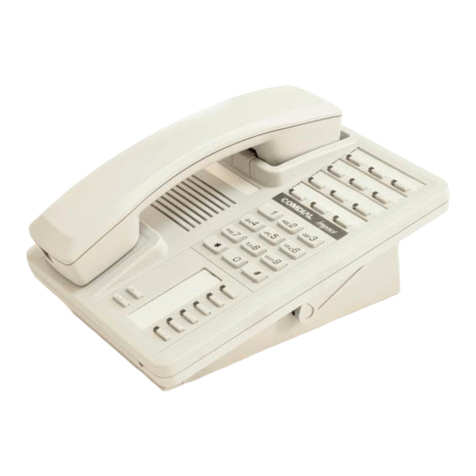
  9. Comdial 1432B User manual

Comdial 1432B User manual

This manual suits for next models

3

Other Comdial Telephone manuals

Comdial Impact SCS 8212S Series User manual
Comdial

Comdial Impact SCS 8212S Series User manual

Comdial ExecuTech 2000 User manual

Comdial

Comdial ExecuTech 2000 User manual
Comdial GCA70-25 User manual

Comdial

Comdial GCA70-25 User manual

Comdial LCD Speakerphone User manual
Comdial

Comdial LCD Speakerphone User manual

Comdial DX-80 User manual

Comdial

Comdial DX-80 User manual
Comdial DigiTech 7700S Series User manual
Comdial

Comdial DigiTech 7700S Series User manual

Comdial Impact 8024S Series Service manual

Comdial

Comdial Impact 8024S Series Service manual

Comdial DXP Impact User manual

Comdial

Comdial DXP Impact User manual
Comdial SOLO II User manual

Comdial

Comdial SOLO II User manual
Comdial Scout Telephone User manual

Comdial

Comdial Scout Telephone User manual
Comdial Scout II User manual

Comdial

Comdial Scout II User manual
Comdial Imression 2022S User manual

Comdial

Comdial Imression 2022S User manual
Comdial GCA70-38 User manual

Comdial

Comdial GCA70-38 User manual
Comdial Quick Q User manual

Comdial

Comdial Quick Q User manual
Comdial DX-80 User manual

Comdial

Comdial DX-80 User manual
Comdial DSU Series User manual

Comdial

Comdial DSU Series User manual
Comdial SCS 8324SJ-FB User manual

Comdial

Comdial SCS 8324SJ-FB User manual

Comdial Impact User manual

Comdial

Comdial Impact User manual

Comdial Solo II 5531S User manual

Comdial

Comdial Solo II 5531S User manual
Comdial GCA70-33 User manual

Comdial

Comdial GCA70-33 User manual
Comdial DXP Plus Series User manual
Comdial

Comdial DXP Plus Series User manual
Comdial Air Imact User manual

Comdial

Comdial Air Imact User manual

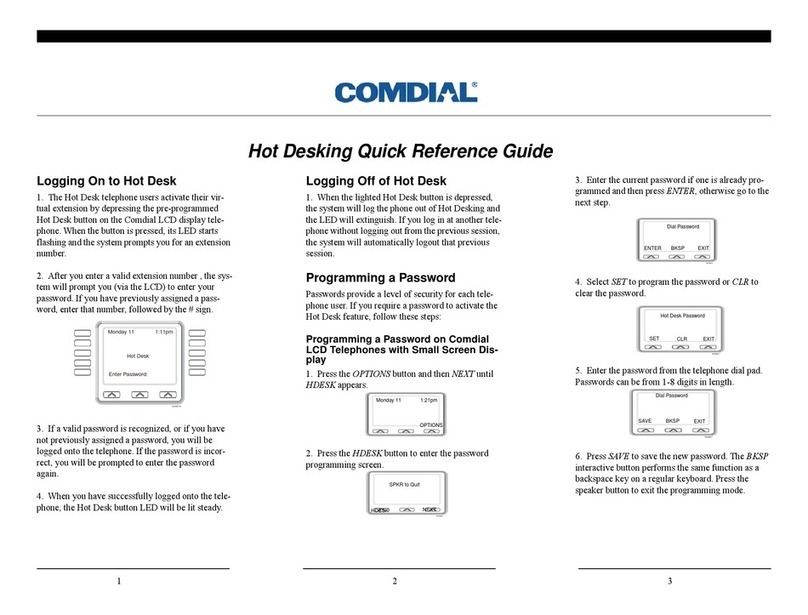
Comdial Hot Desking User manual

Comdial

Comdial Hot Desking User manual

Comdial Digital Communications Systems User manual

Comdial

Comdial Digital Communications Systems User manual

Popular Telephone manuals by other brands

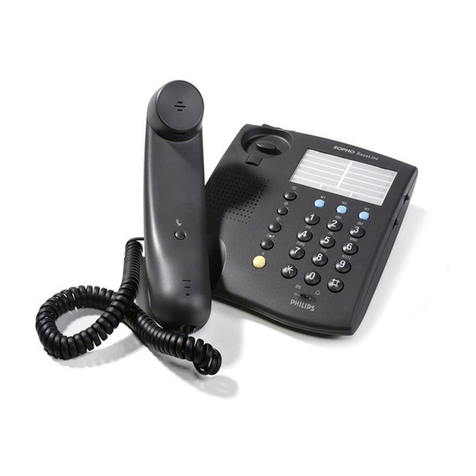
Philips BaseLine Pro manual

Philips

Philips BaseLine Pro manual

V-tech i6772 user guide

V-tech

V-tech i6772 user guide

BT FREELANCE XD 5100 quick start guide

BT

BT FREELANCE XD 5100 quick start guide

Uniden 1360 user guide

Uniden

Uniden 1360 user guide

Fanvil D800 user manual

Fanvil

Fanvil D800 user manual

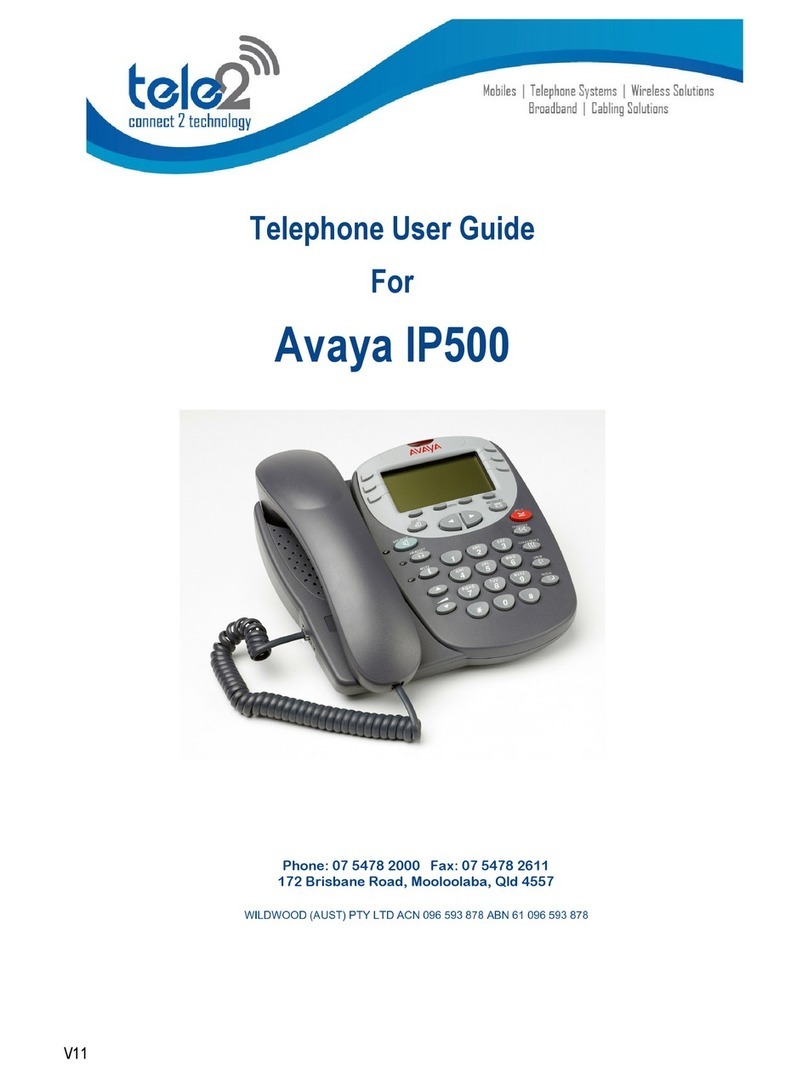
Avaya IP500 user guide

Avaya

Avaya IP500 user guide

NEC Univerge SV9100 installation manual

NEC

NEC Univerge SV9100 installation manual

Amanda MiniSOHO Installation and programming manual

Amanda

Amanda MiniSOHO Installation and programming manual

Hitachi SelecSet 900 Series user guide

Hitachi

Hitachi SelecSet 900 Series user guide

mPTech HAMMER BS21 quick start guide

mPTech

mPTech HAMMER BS21 quick start guide

NEC 2000IVX user guide

NEC

NEC 2000IVX user guide

ooma Phone Genie quick start guide

ooma

ooma Phone Genie quick start guide

Siemens Gigaset S450 user guide

Siemens

Siemens Gigaset S450 user guide

Clarity RC100 operating instructions

Clarity

Clarity RC100 operating instructions

GE 2-9480 user guide

GE

GE 2-9480 user guide

Geemarc PHOTOPHONE 155 user guide

Geemarc

Geemarc PHOTOPHONE 155 user guide

Interquartz Gemini IQ333 operating instructions

Interquartz

Interquartz Gemini IQ333 operating instructions

SSS Siedle HT 840-0 operating instructions

SSS Siedle

SSS Siedle HT 840-0 operating instructions

manuals.online logo
manuals.online logoBrands
  • About & Mission
  • Contact us
  • Privacy Policy
  • Terms and Conditions

Copyright 2025 Manuals.Online. All Rights Reserved.

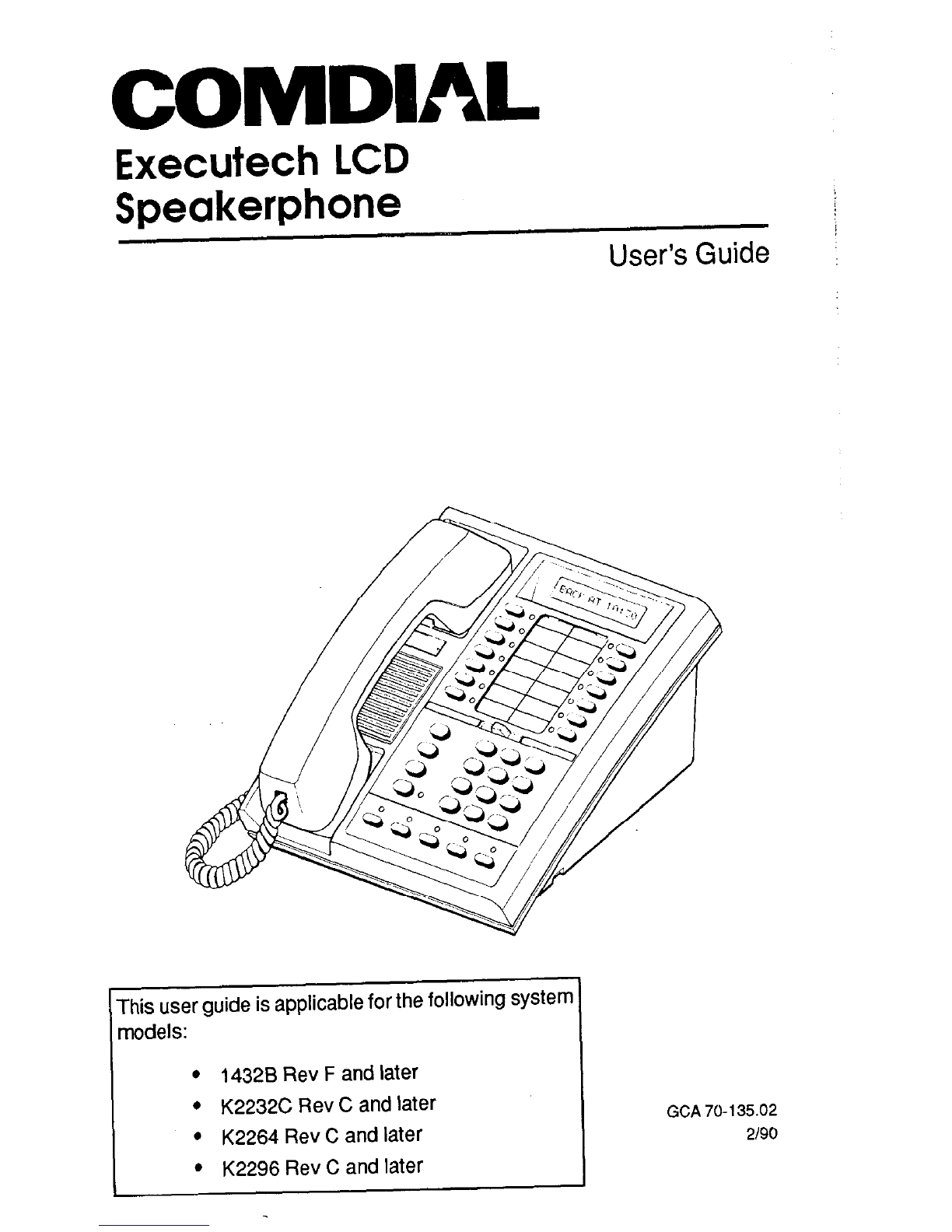
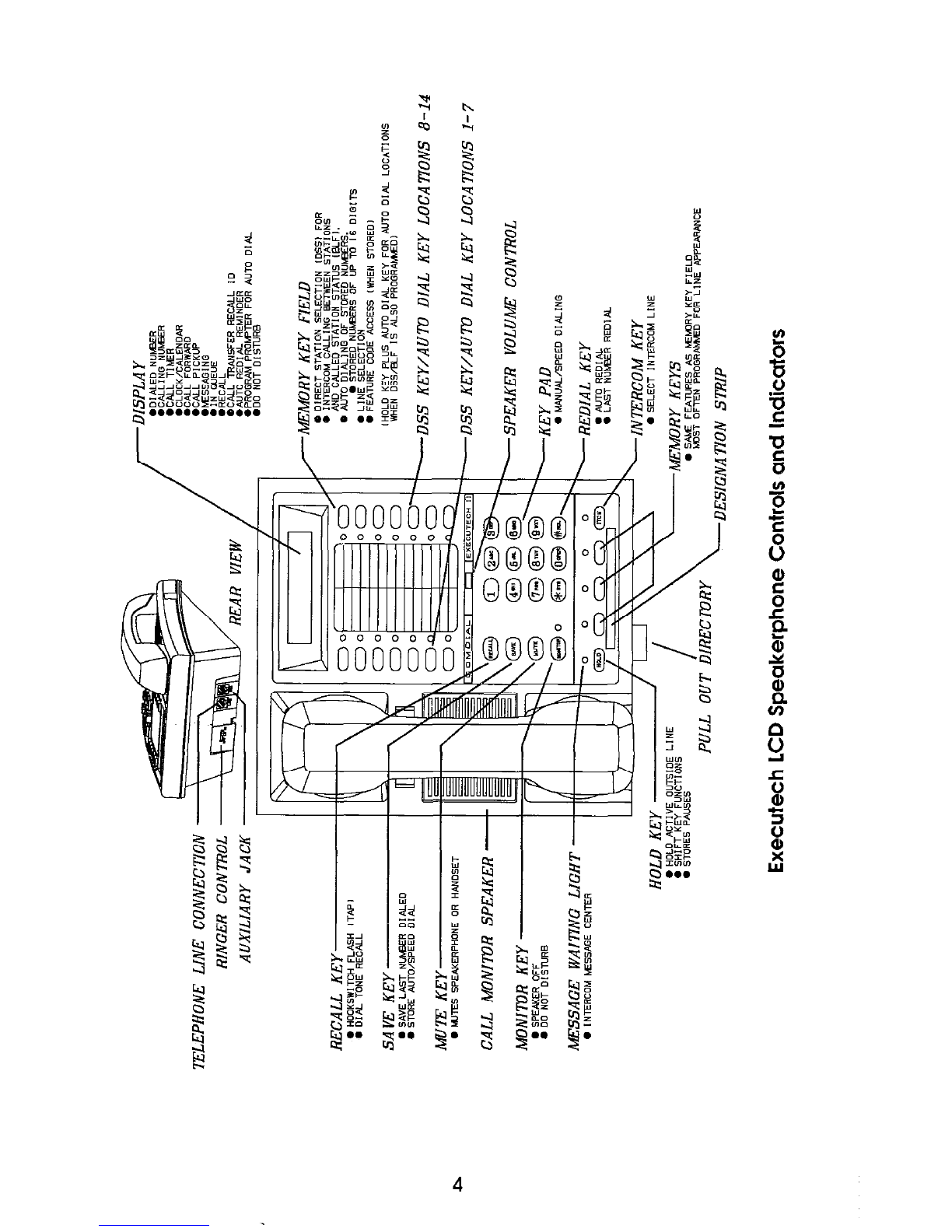
Executech LCD
Speakerphone
This user guide is applicable for the following system
models:
l
14328 Rev F and later
l
K2232C Rev C and later
l
K2264 Rev C and later
l
K2296 Rev C and later
User’s Guide ;
GCA 70-135.02
2190
Table Of Contents
4
Introduction
This Executech LCD Speakerphone provides the
user with a Liquid Crystal Display (LCD) in addition
to the many standard available features. In the
idle state, this l&digit LCD provides a desk clock
and calendar combination, When a call is in
progress, an elapsed time display provides a con-
stant reminder of call duration. Other call handling
and information displays make telephone use
easier and more efficient.
All display functions occur automatically as call
processing and handling proceeds, One manual
operation (Call Messaging Display) is available for
use where needed.
5
The Basics
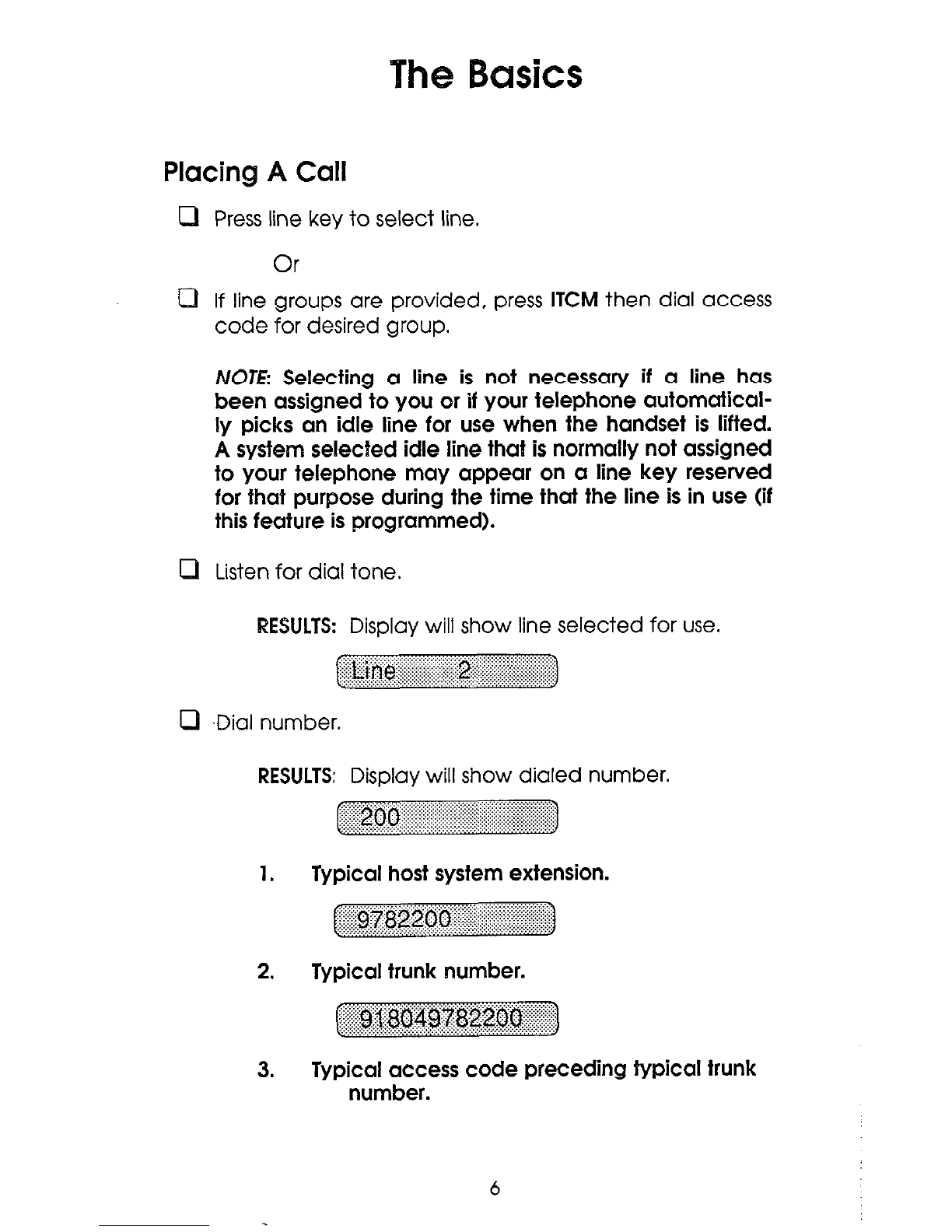
Placing A Call
0 Press line key to select line.
Or
0 If line groups are provided, press ITCM then dial access
code for desired group.
NOTE Selecting a line is not necessary if a line has
been assigned to you or if your telephone automatical-
ly picks an idle line for use when the handset is lifted.
A system selected idle line that is normally not assigned
to your telephone may appear on a line key reserved
for that purpose during the time that the line is in use (if
this feature is programmed).
LI Listen for dial tone.
RESULTS: Display will show line selected for use.
.,
~
.‘:.:.“‘.:‘::.:.:::‘:..:::~,~~~~~~~~,~,~,~~;
..:.:.:.:.:.:.:.:.:.:.:.:.:.?: ... ... .... ... .. . ..
0 .Dial number.
RESULTS: Display will show dialed number.
1. Typical host system extension.
$$..T ::....... :.: . ... .... ... ...’ ii.... .:.:...:.:.:.:.:.:.:.:.:.:.:.:.:.:..
f
... .... .... ... .. .A..
2. Typical trunk number.
3. Typical access code preceding typical trunk
number.
6
When party answers,
a Speak toward telephone or lift handset for private con-
versation
To return to speakerphone from handset,
0 Press MNTR key. R Hang up handset.
To end call,
0 Press MNTR key or hang up handset if engaged in
private conversation.
Call Timer
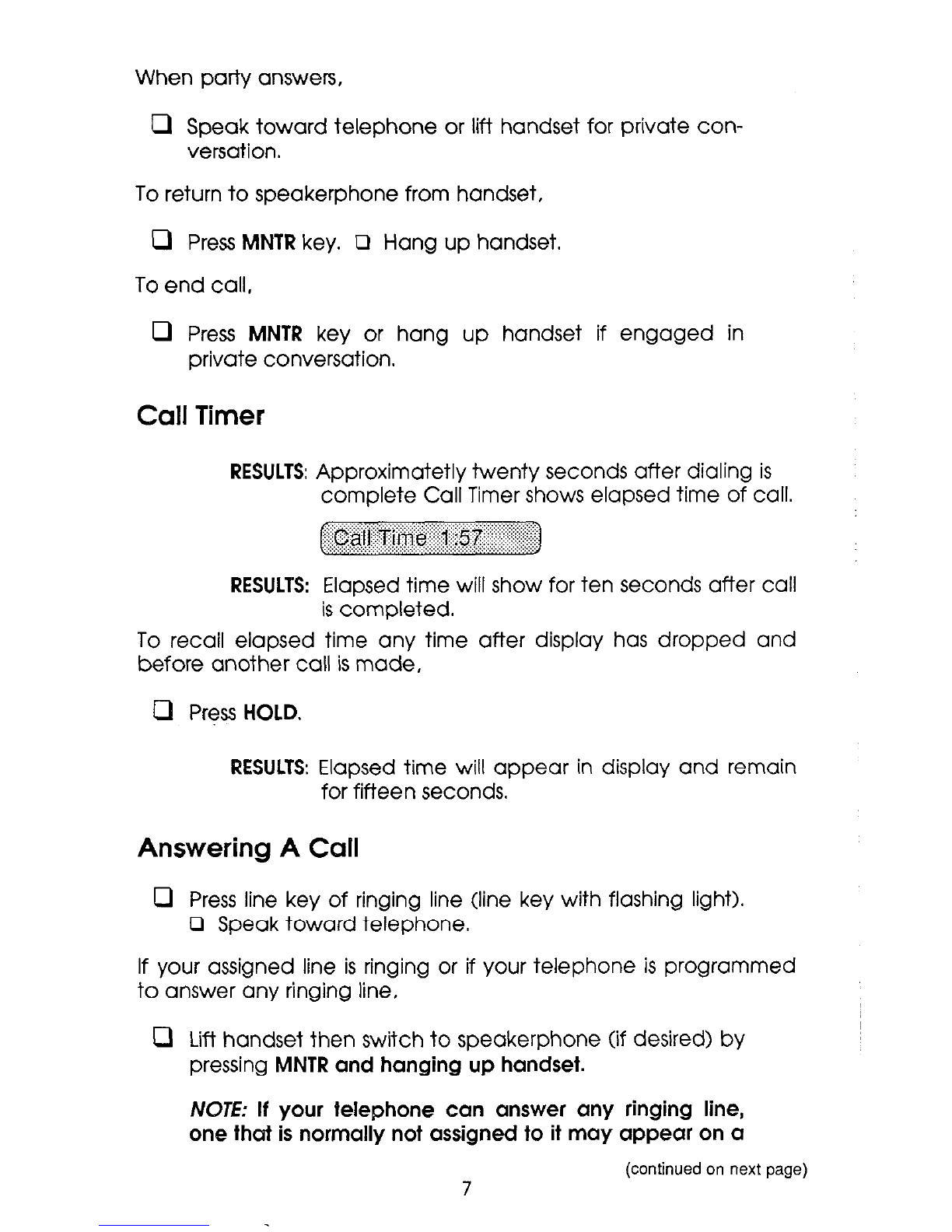
RESULTS:Approximatetly twenty seconds after dialing is
complete Call Timer shows elapsed time of call.
RESULTS: Elapsed time will show for ten seconds after call
is completed.
To recall elapsed time any time after display has dropped and
before another call is made,
Q Press HOLD.
RESULTS:Elapsed time will appear in display and remain
for fifteen seconds.
Answering A Call
0 Press line key of ringing line (line key with flashing light).
0 Speak toward telephone.
If your assigned line is ringing or if your telephone is programmed
to answer any ringing line,
Q Lift handset then switch to speakerphone (if desired) by
pressing MNTR and hanging up handset.
NOTE: If your telephone can answer any ringing line,
one that is normally not assigned to it may appear on a
7
(continued on next page)
,continued from previous page)
line key reserved for that purpose when it is answered.
(if this feature is programmed).
RESULTS: Display will show answered line,
Placing A Call On Hold
Marauca~hold
(Any telephone with line appearance can retrieve
held call.)
0 Press HOLD.
To return to call on hold,
0 Press line key with flashing light.
Exclusive
hold
(Only your telephone can retrieve held call.)
0 Press HOLD twice.
Hold recall feature
After a preprogrammed length of time, a call
placed on hold will automatically ring back to the
telephone which placed it on hold. If the call is on
exclusive hold, it will revert to manual hold after the
hold recall time period and can be retrieved by
anyone with that line appearance.
RESULTS: Display will show line and telephone station
number each time that the timed hold recall
occurs.
Placing Intercom Calls
Intercom calls may be manually dialed as described below or
automatically dialed as described in the paragraph provided
later titled Direct Station Selection/Busy Lamp Field.
Voice Calling
0 Lift handset. 0 Press ITCM. 0 Dial extension number.
(To call system operator, dial 0.)
RESULTS: Display will show dialed extension.
~ .,................ ,...,...................
0 Speak to called party.
Tone Calling
0 Press ITCM. 0 Dial extension number,
RESULTS: Display will show dialed extension.
~ .,.,.,........
B Press ITCM again.
RESULTS: Called telephone will ring.
When called telephone answers,
0 Speak toward telephone or lift handset for private con-
versation
NOTE Some systems may be programmed to tone sig-
nal as the first option. In that case, press /XX4 key
again to voice call the party instead of making the
called telephone ring.
Answering Intercom Calls
RESULTS:Display will show extension number of calling
telephone.
~
... ... ... . ..
-:.:-:.:.:.: :,... :.>::..:...:...:::..:.: . .... ..:...: .. ...):.:.5:.:.:.:.: .. .. ... .,.,.,. .,.,.,_,.,_,.,.,.
To answer a voice call,
0 Speak toward the telephone. 0 Lift handset if privacy
isdesired.
(continued on next page)
9
(continued from previous page)
NOTE: Voice calling can be blocked. See the discus-
sion titled, Voice Signal Blocking for details.
To answer a tone call,
0 Lift handset to
talk
or press ITCM and speak toward
telephone.
Direct Station Selection/Busy Lamp Field - DSS/BLF
(One key intercom calling with visual indication of telephone
status)
To program,
0 Press ITCM. Listen for tone. Cl Dial 85. Tone will stop.
0 Press memory key. Cl Dial extension number. 0
Repeat last two steps for all desired telephones. 0
Press MONITOR.
NOTE: An autodial number can also be programmed as
a secondary function at every DSS/BLF memory loca-
tion. See Automatic Dialing Insffucfions for details.
To voice call a number,
m Lift handset. Q Press memory key. 0 Voice an-
nounce.
NOTE: If you are transferring a call, the outside line is
automatically placed on hold when a DSS key is
pressed.
To tone call a number,
0 Lift handset. 0 Press memory key. 0 Press ITCM.
When telephone answers, two-way conversation can
take place.
NOTE: The lights (LEDs) adjacent to memory keys indi-
cate status of DSS telephones: dark indicates idle
telephone, steady-on indicates telephone in use, and
flutter indicates telephone call back request.
10