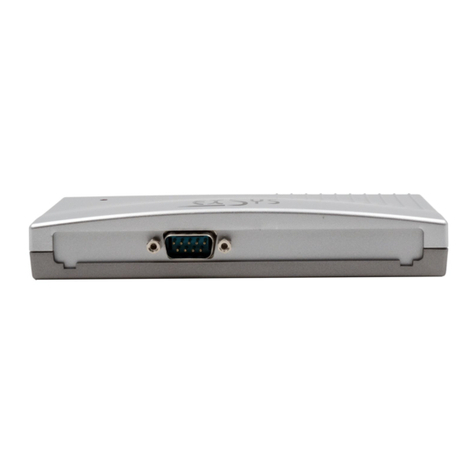
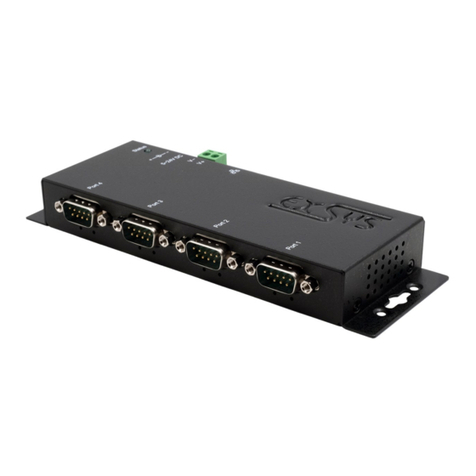
Exsys EX-6001 User manual

1
Thank you for purchasing this 4-Port USB2.0 USB Server (hereinafter
referred to as “The USB Server”). It provides an ideal solution to use USB
devices over Internet instantly. With its Client Software, the network
users can use the remote USB devices over local a network or Internet
as if they were connected directly to your local PC.
The USB Server supports High speed USB devices like Printers, scanners,
digital cameras and USB Flash drives over the network. It is ideal for
home office, small office or industrial applications that access the USB
devices remotely.
Features:
9Provides 4 USB2.0 Host Ports over Ethernet or IP
9Allows Working With Remote USB Devices as with Local Ones
9Supports High Speed/Full Speed USB2.0 Peripherals
9Supports USB Screw Lock Mechanism Enhances the Reliability
9IEEE 802.3 10/100Mbps, Auto Cross-over Ethernet Port
9DC Jack and Terminal Blocks for DC +7~24V DC Power Input
9Supports Windows XP, 2003, and Vista
+7~24V DC Power
Input Terminal Blocks
EX-6001 4-Port USB2.0 to Ethernet
Adapter (USB over IP)
Installation Guide
1. Introduction
2. Connector La
y
out
+5VDC Power
Input DC Jack RJ45 LAN
Connector
4 USB2.0 Downstream
Type-A Connectors
Status LEDs

4-Port USB2.0 to Ethernet Adapter (USB Server)
2
zDC Jack and Terminal Blocks Power Connectors: A 7V~24V DC
Power is required for this product. Power is supplied from either the
DC Jack or the Terminal Blocks, but not both at the same time.
zRJ45 Ethernet Connector: 10/100Mbps Ethernet port. It supports
auto cross-over feature. You can use the same cable to connect
to either a Hub/Switch or a host computer.
zLED Indicators: There are 4 LAN LEDs on the rear panel. They are
described as the following table:
LED Name Color LED Function
100M
Green Steady on: Ethernet Speed = 100Mbps
Off: Ethernet Speed = 10Mbps
Act
Green Blinking: Transferring Ethernet Data
Off: No Data Transferring on Ethernet
Conn
Green Blinking: When the unit is loading firmware
Steady On: The firmware load completed
and ready to connect Ethernet
FDX
Green When On, indicates the Ethernet Operates
in the Full Duplex Mode
1. Use static electricity discharge precautions.
Remove possible static discharge potential from any objects that
the Adapter may come in contact with before installation. This
can be accomplished by touching a bare metal chassis rail after
you have turned off the power.
2. Attached the DC power source: there are 2 connectors can be
added the power to the unit. One is the DC Jack (by the AC /DC
Adapter) and the other is the 2-pin terminal blocks.
3. Connecting LAN cable: Use a standard straight-through Ethernet
cable to connect to a Hub or Switch. If you connect the USB
Server to your computer’s Ethernet port instead, you don’t need
to change to a cross-over type cable since the Adapter provides
auto cross-over feature.
4. Connect the USB Server’s USB ports to your USB devices.
3. Hardware Installation

4-Port USB2.0 to Ethernet Adapter (USB Server)
3
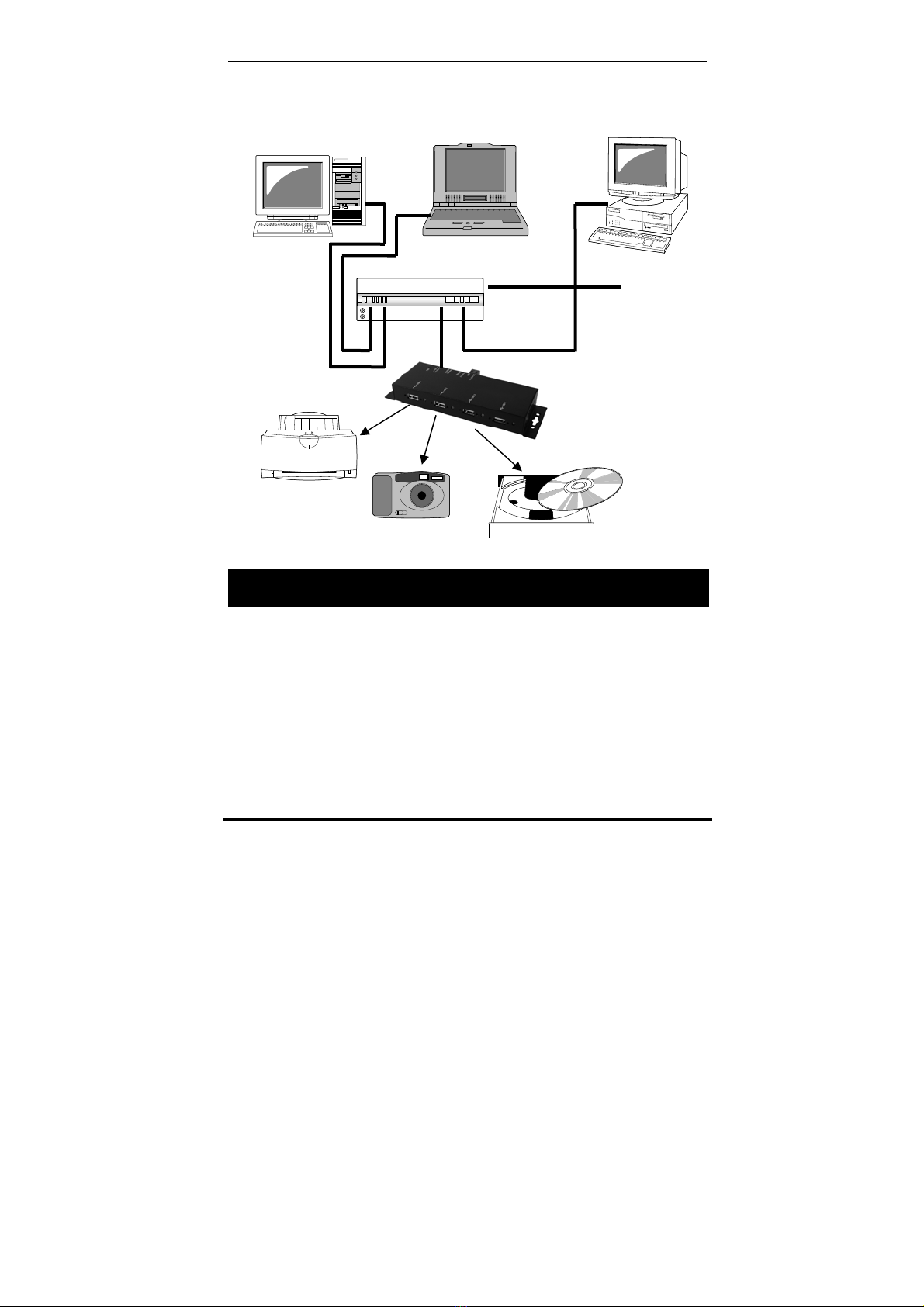
Typical Connection Diagram:
The USB Server comes with user friendly client software which maps USB
devices connected to the USB server onto the local host machine. To
access the USB devices on the USB Server, each Client PC should install
this utility. We call it USB IP Admin Software Utility.
This GUI Utility provides Device Mapping functionality for a user to
connect and disconnect various devices found on the network. It also
includes a Server Manager that lists and provides option to configure
various setting on the USB server remotely.
The Utility was shipped in a Install Shield in the following folder on the
driver CD:
4. Software Installation
Client PC1 Client PC2 Client PC3
Router/Hub
USB Server
WAN/DSL
(to Internet)
USB Printer
USB
Camera USB DVD

4-Port USB2.0 to Ethernet Adapter (USB Server)
4
To Install the Install Shield, please go to the above folder, double click
the setup program in the folder, follow the instruction of the installer to
complete the installation.
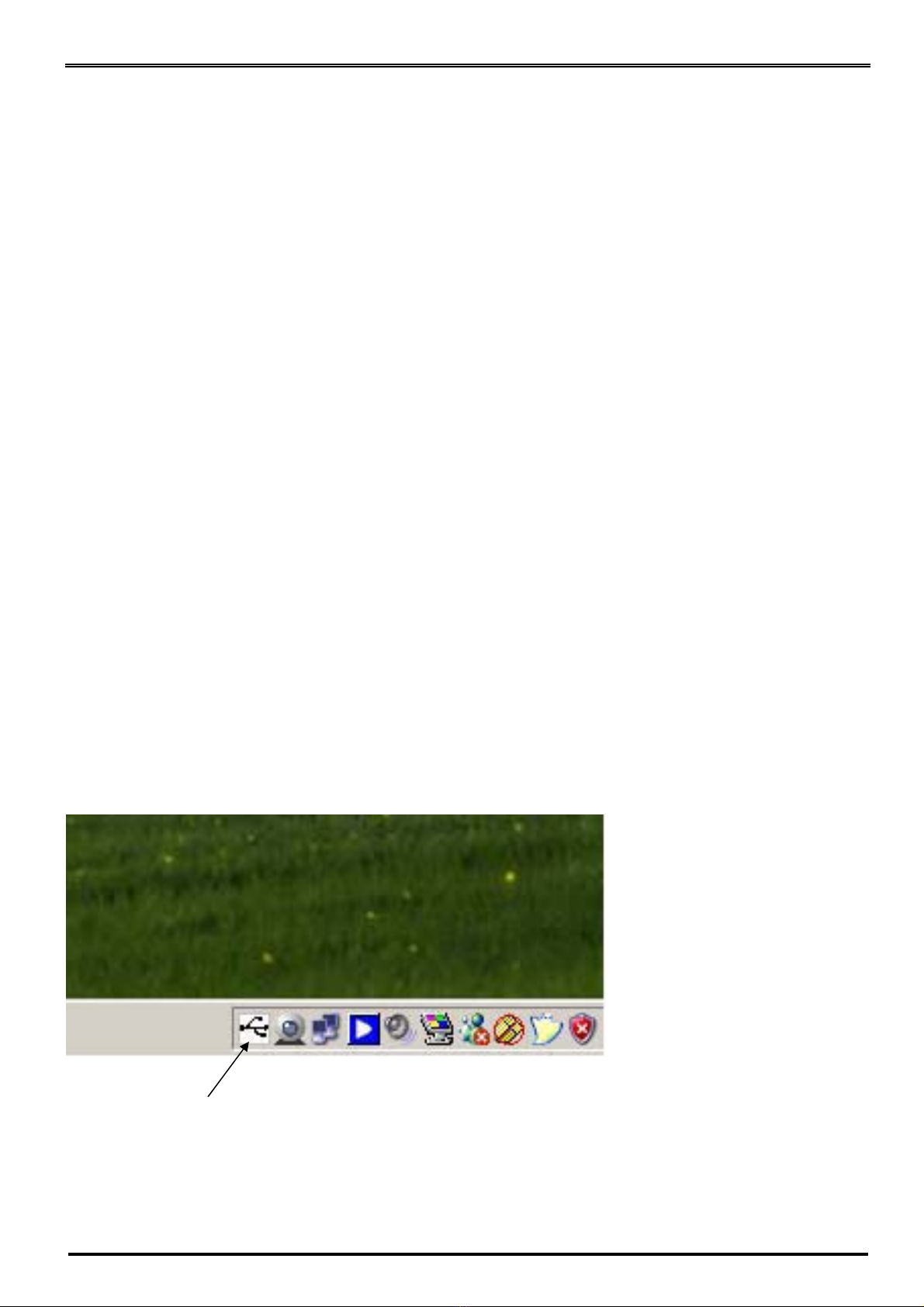
As soon as the utility is installed this application will be placed in the
system tray as shown in the figure below.
Double click the icon on the system tray to view and run the Utility in
the Full screen mode on your client PC.
For the more detail about how to use this Utility, please refer to the PDF
manual file in the same folder on the driver CD.
Note: Due to the limitation of the USB bus emulation drivers
over IP, NOT all USB Devices were supported. The newest support
list was included in the manual PDF file of USB IP Admin Software
Utility on the driver CD.
USBIP Admin tool

1
EX-6001
USB Server Windows Client Utility
Installation Guide
Version 1.0

USB Server Windows Client Utility
2
TABLE OF CONTENTS
1.Introduction.......................................................................................................................3
2.Windows utility...................................................................................................................4
2.1Virtual USB-IP Driver Software...................................................................................................................... 4
2.2Device Mapping.......................................................................................................................................... 5
2.3Server Manager ........................................................................................................................................... 8
2.4Printer Auto-Connect................................................................................................................................. 16
3.USB-IP Web Server...........................................................................................................18
3.1Web-Interface overview ........................................................................................................................... 18
3.2Home Page ................................................................................................................................................ 18
3.3Network Page............................................................................................................................................. 19
3.4Status Page................................................................................................................................................. 21
3.5Upgrade page. .......................................................................................................................................... 22
4.Additional Information ...................................................................................................25
4.1Wireless USB Server .................................................................................................................................... 25
5.USB Server Device Interoperability List..........................................................................26

USB Server Windows Client Utility
3
1. Introduction
USB-IP application enables the virtualization of USB devices over LAN (Local Area Network) as
if they are connected local to your PC. By this implementation, USB devices connected to
USB Server can be made available to remote Clients over LAN.
Key Features of the USB-IP application are
zAllows USB Devices to be used and shared by client PC's over LAN.
zSupports wide variety of USB devices.
zCompatible with bulk, interrupt and isochronous type USB devices.
zSupports both Ethernet and WiFi networks.
zSupports printing to USB printer from both Wired and Wireless Interface.
zSupports printer auto-reconnect while sharing the printer to different Client PC's.
zSupports auto sharing of USB devices.
zSupports USB device safe removal.
zUser-Friendly Application interface.

USB Server Windows Client Utility
4
2. Windows utility
USBIP Admin utility Setup is an Install Shield based application, which can be used for
installing, uninstalling and upgrading the USBI Client S/W. Please run the self-explanatory
Install shield application to install the USBIP Admin Utility.
Admin utility application enables the USB devices virtualization along with USB Server
Firmware loaded onto USB Server. Any USB device connected to the USB Server can be
made available over the Network, for different Windows hosts to use the device. USB Server
supports monopoly type connection i.e USB device connected to the USB Server can be
accessed by one host at a time. Other Windows host can access this USB device, once first
host relinquishes the connection. Different Windows hosts can access different USB devices
connected to the USB Server.
Eg : If USB Pen Drive, USB Audio device, USB 1.1 Web Cam & USB DVD Rom drive are
connected to the USB Server. Then PC1 can access Pen Drive, PC2 can access Audio device,
PC3 can access Web Cam & PC4 can access DVD ROM drive.
Pen Drive can be accessed by PC2 or PC3 or PC4, once PC1 relinquishes the connection.
In-case of Printers, USB Server application’s Auto Reconnect feature enables multiple
Windows hosts to use the Printer simultaneously.
The USB Server & all the Windows Hosts need to be connected to same LAN & under same IP
subnet for above.
2.1 Virtual USB-IP Driver Software
This contains a Virtual Bus Enumerator driver & Virtual Bus driver. These drivers will help in
virtualizing the USB devices attached on the USB-Server.
Virtual Bus driver takes the USB traffic from the USB Client drivers on Windows Host and passes
it to the USB-Server which is sitting remotely on the network.
As soon as the utility is installed this application will be placed in the system tray as shown in
the figure below.
Double click the icon on the system tray to view the Full screen mode of the PC client
application as shown below.
USBIP Admin tool

USB Server Windows Client Utility
5
The application has four panels, which are docked in the application.
1. Main window: This displays all the Device server and the USB Devices connected on

them
2. Function Panel: This panel enables to switch between the Device Mapping and Server
Manager Application.
3. Server/Device Details Panel: This displays the more information of the server and the
device selected on the main window.
4. Log panel: Any event on the USB server creates a log in the Log panel. This helps in
continuous monitoring of USB device servers on the network.
The USBIP Admin Utility has two main functionalities built in
zDevice Mapping
zServer Manager
2.2 Device Mapping
Device Mapping enables virtualization of all USB Devices connected to the USB Server on to
your PC, over LAN.
Click on the Green Arrow Button in the Admin utility to start the device mapping, which will
automatically start the ‘Found New Hardware’ wizard to install the Virtual USB driver.

USB Server Windows Client Utility
6
Continue the Add New Hardware wizard to install the Virtual USB driver for the USBIP Admin
utility.
Make sure “Search for a suitable driver for my device (recommended)” is selected. Click on
Next and the Operating System automatically searches for the driver until the Virtual USB
over IP driver is installed.
Make sure that you click on “Continue anyway” if a Windows dialog pops up about the
Digital Signature as shown below.
Table of contents
Other Exsys Adapter manuals

Exsys
Exsys EX-6011 User manual

Exsys
Exsys EX-1225 User manual

Exsys
Exsys EX-47999 User manual

Exsys
Exsys EX-47925 User manual

Exsys
Exsys EX-1328 User manual

Exsys
Exsys EX-6112 User manual

Exsys
Exsys EX-1234HMVS User manual

Exsys
Exsys EX-3505 User manual

Exsys
Exsys EX-1320 User manual

Exsys
Exsys EX-47000 User manual

Exsys
Exsys EX-2346 User manual

Exsys
Exsys EX-6084 User manual

Exsys
Exsys EX-1452IS User manual

Exsys
Exsys EX-1331-4KVIS User manual

Exsys
Exsys EX-6114 User manual

Exsys
Exsys EX-6111 User manual

Exsys
Exsys EX-2346IS User manual

Exsys
Exsys EX-1225 User manual

Exsys
Exsys EX-1331 User manual

Exsys
Exsys EX-1329 User manual