8
SAVING AND LOADING DATA
TO/FROM MEMORYCARDS
The following data can be saved to memory
card:
• Mark/line
• Waypoints/routes
• Track
• Configration (menu settings)
1Formatting Memory Cards
Before you can use a memory card it must
be formatted. Note that formatting always
erases all saved data on the card!
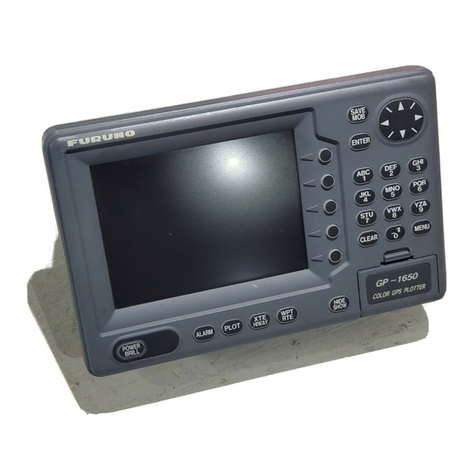
1.Insert the memory card you want to for-
mat into the slot.
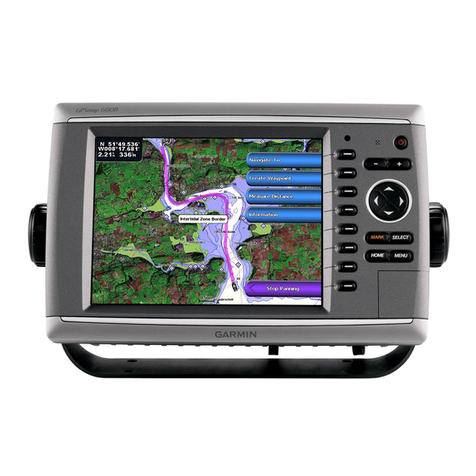
2.Pressthe [MENU] key followedbythesoft
keys CONFIGRATION and UPLOAD/
DOWNLOAD DATA.
DGPS 3D
SAVE
DATA
EDIT
FORMAT
TRACK
MARK/LINE
WAYPOINT/ROUTE
CONFIGURATION
OFF
OFF
OFF
OFF
RETURN
s
SAVE
DATA
SAVE DATA display
3.Press the soft key SAVE DATATO
MEMORYCARD and the soft key FOR-
MAT.You are asked if you are ready to
format the memory card.
4.Pressthe [ENTER] keytoformat (or press
the [CLEAR] key to escape). Now FOR-
MATTING MEMORYCARD appears. Do
not remove the card while it is being for-
matting. When the formatting is com-
pleted,FORMATCOMPLETED appears.
5.Pressthe[ENTER]keytofinish. Now you
can record data to the memory card.
2Saving Data to Memory
Card
Thememory cardcansave fouritemsof data;
track,mark/line, waypoint/route and configu-
ration.
Saving data
1.Insert a formatted memory card into the
slot.
2.Pressthe [MENU] key followedbythesoft
keys CONFIGURATION and UPLOAD/
DOWNLOAD DATA.
3.Press the soft key labeled SAVE DATA
TO MEMORYCARD. The SAVE DATA
display appears.
4.Press ▲or ▼to select item to save.
5.Press the soft key EDIT to open the
TRACK, MARK/LINE, WAYPOINTS/
ROUTES or CONFIGRATION window.
6.Press ▲to select ON.
7.Pressthe soft keyENTERorthe [ENTER]
key.
8.Repeat from steps 4 to 7 to save other
data if desired.
9.Press the soft key SAVE DATA. The fol-
lowing message appears and saving
starts. Do not remove the memory card
while data is being saved.
NOW SAVING DATA TO
MEMORY CARD. DO NOT
TURN OFF THE POWER UNTIL
SAVING COMPLETED.
SAVE DATA message
When saving is completed, COM-
PLETE SAVING DATAappears.
10.Press the [ENTER] key.