manuals.online logo
Brands
  1. Home
  2. •
  3. Brands
  4. •
  5. Gamber Johnson
  6. •
  7. Docking Station
  8. •
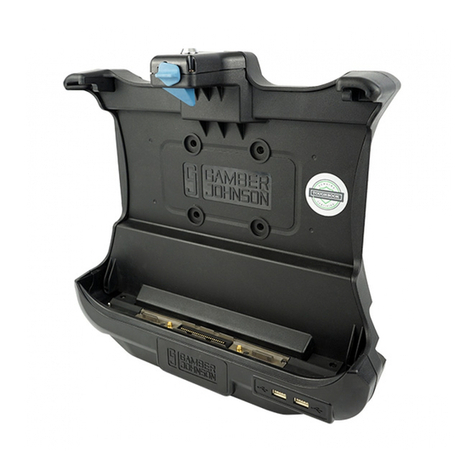
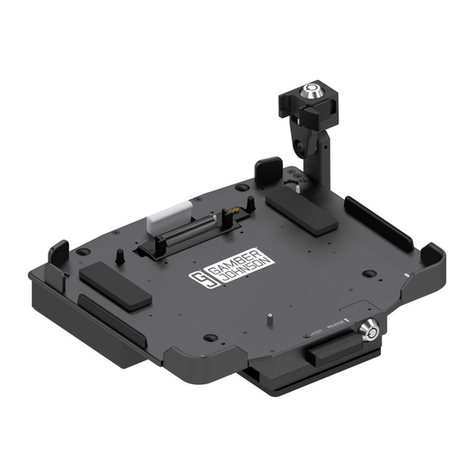
  9. Gamber Johnson 7160-0486 User manual

Gamber Johnson 7160-0486 User manual

This manual suits for next models

13

Other Gamber Johnson Docking Station manuals
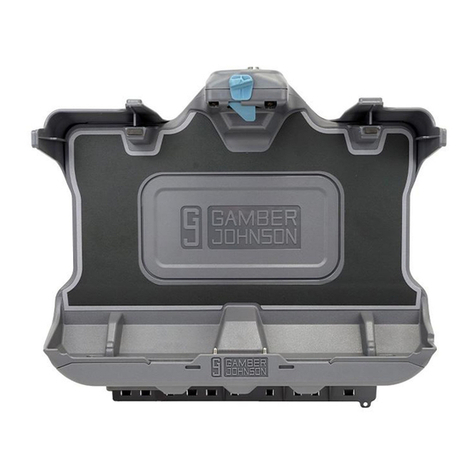
Gamber Johnson 7160-1005 User manual

Gamber Johnson

Gamber Johnson 7160-1005 User manual

Gamber Johnson 7160-0471 User manual

Gamber Johnson

Gamber Johnson 7160-0471 User manual

Gamber Johnson 7160-1252 Series User manual

Gamber Johnson

Gamber Johnson 7160-1252 Series User manual

Gamber Johnson Getac S400 User manual

Gamber Johnson

Gamber Johnson Getac S400 User manual

Gamber Johnson 7160-0542-00 User manual

Gamber Johnson

Gamber Johnson 7160-0542-00 User manual

Gamber Johnson 7160-0883-00 User manual

Gamber Johnson

Gamber Johnson 7160-0883-00 User manual

Gamber Johnson TrimLine 7300-0373-00 User manual

Gamber Johnson

Gamber Johnson TrimLine 7300-0373-00 User manual

Gamber Johnson 7160-0907-02 User manual

Gamber Johnson

Gamber Johnson 7160-0907-02 User manual

Gamber Johnson 7160-1265-00 User manual

Gamber Johnson

Gamber Johnson 7160-1265-00 User manual

Gamber Johnson CF19 User manual

Gamber Johnson

Gamber Johnson CF19 User manual

Gamber Johnson ZEBRA TC22 User manual

Gamber Johnson

Gamber Johnson ZEBRA TC22 User manual

Gamber Johnson CF54 User manual

Gamber Johnson

Gamber Johnson CF54 User manual

Gamber Johnson Tab Cruzer 7160-0581 User manual

Gamber Johnson

Gamber Johnson Tab Cruzer 7160-0581 User manual

Gamber Johnson CF20 Quick start guide

Gamber Johnson

Gamber Johnson CF20 Quick start guide

Gamber Johnson GD8000 User manual

Gamber Johnson

Gamber Johnson GD8000 User manual

Gamber Johnson 7160-0595 User manual

Gamber Johnson

Gamber Johnson 7160-0595 User manual

Gamber Johnson Recon CF31 Military User manual

Gamber Johnson

Gamber Johnson Recon CF31 Military User manual

Gamber Johnson 7160-0318-00 User manual

Gamber Johnson

Gamber Johnson 7160-0318-00 User manual

Gamber Johnson GETAC V110 User manual

Gamber Johnson

Gamber Johnson GETAC V110 User manual

Gamber Johnson 7160-1084-00 User manual

Gamber Johnson

Gamber Johnson 7160-1084-00 User manual

Gamber Johnson 7160-0840-00 User manual

Gamber Johnson

Gamber Johnson 7160-0840-00 User manual

Gamber Johnson CF53 User manual

Gamber Johnson

Gamber Johnson CF53 User manual

Gamber Johnson TabCruzer User manual

Gamber Johnson

Gamber Johnson TabCruzer User manual

Gamber Johnson 7160-1082 Series User manual

Gamber Johnson

Gamber Johnson 7160-1082 Series User manual

Popular Docking Station manuals by other brands

Durr Dental VISTACAM2 Installation and operating instructions

Durr Dental

Durr Dental VISTACAM2 Installation and operating instructions

DLO TransDock Direct user manual

DLO

DLO TransDock Direct user manual

Lenovo USB-C Mini Dock user manual

Lenovo

Lenovo USB-C Mini Dock user manual

Sony Dream Machine XDR-DS12iP user manual

Sony

Sony Dream Machine XDR-DS12iP user manual

ATEN UC-2000 user manual

ATEN

ATEN UC-2000 user manual

Xcellon HDD-202 user manual

Xcellon

Xcellon HDD-202 user manual

Dok CR09 user guide

Dok

Dok CR09 user guide

Philips BTM630/12 quick start guide

Philips

Philips BTM630/12 quick start guide

IOGear Travel Pro GUD3C09 quick start guide

IOGear

IOGear Travel Pro GUD3C09 quick start guide

iHome iP15 instruction manual

iHome

iHome iP15 instruction manual

VITURE ONE MOBILE DOCK quick start guide

VITURE ONE

VITURE ONE MOBILE DOCK quick start guide

CipherLab 8001 quick guide

CipherLab

CipherLab 8001 quick guide

Pyle PIPDSP2 owner's manual

Pyle

Pyle PIPDSP2 owner's manual

Targus DOCK315EUZ user guide

Targus

Targus DOCK315EUZ user guide

Philips DC190/79 user manual

Philips

Philips DC190/79 user manual

Akasa DuoDockX3 AK-DK08U3-BK user manual

Akasa

Akasa DuoDockX3 AK-DK08U3-BK user manual

Sirius Satellite Radio SUBX2082808a Installation and user guide

Sirius Satellite Radio

Sirius Satellite Radio SUBX2082808a Installation and user guide

OWC Thunderbolt Dock user guide

OWC

OWC Thunderbolt Dock user guide

manuals.online logo
manuals.online logoBrands
  • About & Mission
  • Contact us
  • Privacy Policy
  • Terms and Conditions

Copyright 2025 Manuals.Online. All Rights Reserved.

Product Mounting Disclaimer
Gamber-Johnson is not liable under any theory of contract or tort law for any loss, damage, personal injury, special, incidental or consequential damages for personal injury or other damage
of any nature arising directly or indirectly as a result of the improper installation or use of its products in vehicle or any other application. In order to safely install and use Gamber-Johnson
products full consideration of vehicle occupants, vehicle systems (i.e., the location of fuel lines, brakes lines, electrical, drive train or other systems), air-bags and other safety equipment is
required. Gamber-Johnson specifically disclaims any responsibility for the improper use or installation of its products not consistent with the original vehicle manufactures specifications
and recommendations, Gamber-Johnson product instruction sheets, or workmanship standards as endorsed through the Gamber-Johnson Certified Installer Program.
Rev. G
INST-596
INSTALLATION INSTRUCTIONS
Product
Revision
Form
If you need assistance or have questions, call Gamber-Johnson at 1-800-456-6868
Printing Spec:
PS-004
TOUGHPAD FZ-G1 Docking Station
7160-0486, 7160-0487
This instruction sheet is for the TOUGHPAD FZ-G1 docking station only. For instructions
on features, set-up, and operation of the TOUGHPAD FZ-G1 computer, please refer to
the manual provided by Panasonic with the computer.
This docking station is designed to be used with a variety of Gamber-Johnson mounting
systems. Installation instructions for other Gamber-Johnson products are provided with
each individual product.
This instruction sheet is for the following products:
Item No. 7160-0486-00(-P)(-E)
Keyed alike, No RF
Item No. 7160-0486-02(-P)(-E)
Keyed alike, Dual RF
Item No. 7160-0486-03(-P)(-E)
Keyed different, No RF
Item No. 7160-0486-04(-P)(-E)
Keyed different, Dual RF
Item No. 7160-0487-00(-P)(-E)
Keyed alike, No RF
Item No. 7160-0487-02(-P)(-E)
Keyed alike, Dual RF
Item No. 7160-0487-03(-P)(-E)
Keyed different, No RF
Item No. 7160-0487-04(-P)(-E)
Keyed different, Dual RF
© Copyright 2016 Gamber-Johnson, LLC
1/5
IMPORTANT SAFETY INFORMATION FOR INSTALLERS
Safety is dependent on the proper installation and servicing of this docking station. It is important to
read and follow all instructions before installing this product.
To properly install a Gamber-Johnson docking station you must have a good understanding of
automotive electrical procedures and systems, along with proficiency in the installation and service of
aftermarket vehicle equipment.
There are no adjustments required at any time of the electrical components within the docking station.
Opening the docking station will void the product warranty.
During Installation:
DO NOT
connect this docking station to the vehicle battery until:
All other electrical connections are made
1.
Mounting of all components is complete
2.
Verification that no shorts exist in the entire system
3.
DO NOT
install equipment or route wiring or cords in the deployment path of any air bag.
When drilling into the vehicle, DO make sure that both sides of the surface are clear of anything that
could be damaged.
CAUTION:
If wiring is shorted to the frame, high current conductors can cause hazardous sparks
resulting in electrical fires or flying molten metal.
After installation:
Test the docking station to ensure that it is working properly.
File these instructions in a safe place and refer to them when performing maintenance or re-
installing.
WARNING
: Failure to follow all safety precautions and instructions may result in property damage,
serious injury, or death.
PRE-INSTALLATION RECOMMENDATOINS
Conduct a "Bench Test"
Gamber-Johnson strongly advises a "bench test" be conducted to verify all electronic and
software issues are resolved prior to installation:
Make sure the computer is operational by itself.
1.
Insert computer into the docking station and verify that the computer is
2.
operating in the dock.
Interconnect entire assembly and verify start-up of all components, including
3.
other equipment (printers, modems, scanners, etc.)
Gamber-Johnson recommends positioning of all mounts and equipment in the vehicle
prior to the actual install to verify that mounting locations are safe and practical.
2/5
Alignment Tabs
Top Hooks
Dual RF Connector
Ground Pins
Docking Connector
Button Latch
(Keyed alike,
or Keyed different)
Dual RF Output
Slide Plate
Base
Guide Block
(Can be removed for
use with a computer that has
an extended battery or
card slot attachment)
(2) USB
HDMI - If using HDMI cable, snap
ferrite (GJ# 15064 - Fair-Rite Part #
0431167281) supplied in the
hardware bag onto the HDMI cable
as close to the dock as possible
Video
Serial
Ethernet
15.6 Vdc Input
RF Switch - move
to outside position
for External RF
Antenna
Cable Tie Openings
4X Mounting Studs
(1/4-20unc for model 7160-0486)
(M6-1.0 for model 7160-0487)
TOUGHPAD FZ-G1 DOCKING STATION FEATURE IDENTIFICATON
RF connections are configurable in the BIOS of
the computer. The terms "UPPER" and "LOWER"
positon used in the BIOS of the computer
correlates with Gamber Johnson TOUGHPAD FZ-G1 Docking
Station "Ant 1" and "Ant 2" as follows: "UPPER" = "Ant 1"
and "LOWER" = "Ant 2".
3/5
DOCKING AND UNDOCKING THE COMPUTER
1. Turn the computer off.
2. With the slide plate in the open
position, insert the bottom of the
computer into the docking station. Make
sure the guide tabs are lined up with the
pockets on the back side of the
computer.
Rotate the top of the comptuter under the
top hooks until the computer is resting on
the two vertical walls sticking out from the
slide plate.
(see Figues 1, 2 & 3)
(Note: If your computer has an
extended battery or card slot
attachment on the back side, you will
need to remove the guide block from
the face of the dock before inserting
the computer.)
3. Push downward on the slide plate to
latch the dock. (See Figure 4)
4. (Optional) The key lock can now be
used for security purposes.
TO UNDOCK THE COMPUTER
1. Turn the computer off.
2. Unlock if locked.
3. Press the Latch Button. The slide plate
is spring loaded and should raise with your
hand when you release the button.
4. Rotate the top of the computer out of
the dock to remove.
Figure 2
Figure 3
Figure 4
Figure 1
Vertical Walls
Guide tabs
Guide Block
4/5
Gamber-Johnson LLC, 3001 Borham Ave., Stevens
Point, WI, 54481, USA, 715-344-3482
Regulatory Certification Information
Regulatory Model #: 7160-0486
GJ Model #'s: 7160-0486-00, 7160-0486-02, 7160-0486-03, 7160-0486-04
7160-0486-00-P, 7160-0486-02-P, 7160-0486-03-P, 7160-0486-04-P
7160-0487-00, 7160-0487-02, 7160-0487-03, 7160-0487-04
7160-0487-00-E, 7160-0487-02-E, 7160-0487-03-E, 7160-0487-04-E
Descriptions: Dock-Panasonic-FZG1
Certifications:
EN 55022:2010 CISPR 22:2008 Class B
•
EN 50498:2010
•
EN 50581:2012
•
IEC 60950-1(ed.2);am1;am2
•
EN 60950-1:2006/A2:2013
•
CAN/CSA C22.2 No. 60950-1:2007/A2:2014-10
•
UL 60950-1:2007/R:2014-10
•
E-Mark
•
This device complies with Part 15 of the FCC Rules. Operation is subject to the
following two conditions. (1) this device may not cause harmful interference, and
(2) this device must accept any interference received, including interfernece that
may cause undesired operation.
10R-04 7045
5/5