Gestetner DSm416 User manual

Printer Enhance Option for
DDST Type 2000
Operating Instructions
Installing the PCL Printer Driver
Printer Features
Troubleshooting
1
2
3

Introduction
This manual contains detailed instructions and notes on the operation and use of this machine. For your
safety and benefit, read this manual carefully before using the machine. Keep this manual in a handy
place for quick reference.
Important
Contents of this manual are subject to change without prior notice. In no event will the company be li-
able for direct, indirect, special, incidental, or consequential damages as a result of handling or oper-
ating the machine.
Do not copy or print any item for which reproduction is prohibited by law.
Copying or printing the following items is generally prohibited by local law:
bank notes, revenue stamps, bonds, stock certificates, bank drafts, checks, passports, driver's licens-
es.
The preceding list is meant as a guide only and is not inclusive. We assume no responsibility for its
completeness or accuracy. If you have any questions concerning the legality of copying or printing cer-
tain items, consult with your legal advisor.
Notes:
Some illustrations in this manual might be slightly different from the machine.
Certain options might not be available in some countries. For details, please contact your local dealer.
Caution:
Use of controls or adjustments or performance of procedures other than those specified in this manual
might result in hazardous radiation exposure.

i
TABLE OF CONTENTS
How to Read This Manual .....................................................................................1
Symbols .....................................................................................................................1
1. Installing the PCL Printer Driver
Installing the PCL 6 Printer Driver........................................................................3
Setting Up Options ................................................................................................5
2. Printer Features
Adjusting Printer Features....................................................................................7
Printer Features Parameters.................................................................................8
Paper Input.................................................................................................................8
List/Test Print .............................................................................................................8
Maintenance...............................................................................................................9
System .....................................................................................................................10
Host Interface...........................................................................................................11
PCL Menu .............................................................................................................12
3. Troubleshooting
Printing Problems ................................................................................................15
Form Feed.............................................................................................................16
Printing from a Selected Tray...................................................................................16
Appendix...............................................................................................................17
System Requirements..............................................................................................17
INDEX......................................................................................................... 18

ii
1
How to Read This Manual
Symbols
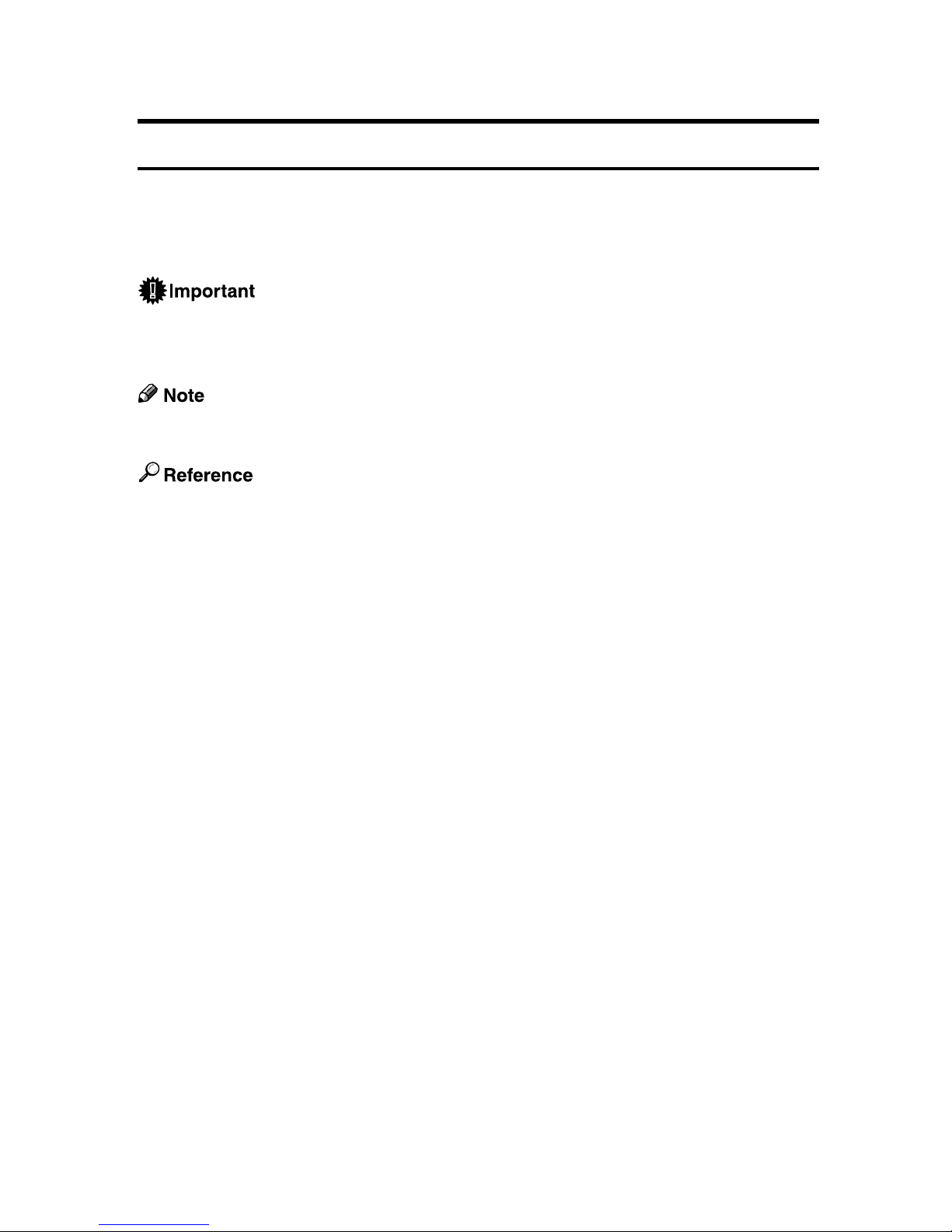
This manual uses the following symbols:
Indicates points to pay attention to when using the machine, and explanations
of likely causes of paper misfeeds, damage to originals, or loss of data. Be sure
to read these explanations.
Indicates points to pay attention to when using the machine, and explanations
of likely causes of paper misfeeds, damage to originals, or loss of data. Be sure
to read these explanations.
Indicates supplementary explanations of the machine’s functions, and instruc-
tions on resolving user errors.
This symbol is located at the end of sections. It indicates where you can find fur-
ther relevant information.
[]
Indicates the names of keys that appear on the machine’s display panel.
{}
Indicates the names of keys on the machine’s control panel.

2

3
1. Installing the PCL Printer
Driver
Installing the PCL 6 Printer Driver
This section describes how to install PCL 6 printer driver.
If you want to use the PCL 5e printer driver, you must download it from the sup-
plier's Web site.
TCP/IP requires the following:
• This machine must be connected to the network through the network inter-
face cable.
• This machine must be turned on.
• The TCP/IP protocol must be configured.
• An IP address must be allocated to this machine and to the computer.
Important
❒If you install the Printer Enhance Option, the DDST printer driver is disabled.
❒When the DDST printer driver disabled, it cannot be used even if you remove
the Printer Enhance Option.
❒If your system is Windows 2000/XP, or Windows Server 2003, installing a
printer driver by Auto Run requires Administrators permission. When you
install a printer driver by Auto Run, log on using an account that has Admin-
istrators permission.
❒When updating the printer driver by installing the latest version, you should
uninstall that of former version if any.
❒Some applications may require installation of the PCL 5e printer driver. In
this case, you can install PCL 5e without having to install PCL 6.
Auto Run starts the installer automatically when you load the CD-ROM in the
CD-ROM drive.
If you want to cancel Auto Run, hold down the {Shift}key (when your system is
Windows 2000, hold down the left {Shift}key) while inserting the CD-ROM.
Keep the {Shift}key held down until the computer has finished accessing the
CD-ROM.
AClose all applications that are running.
BInsert the CD-ROM into the CD-ROM drive.
Auto Run will start the installer.
CSelect a language to change the interface language, and then click [OK].
DSelect [PCL 6 Printer Driver].

Installing the PCL Printer Driver
4
1
EThe software license agreement appears in the [License Agreement]dialog
box.
After reading through all of the contents, click [I accept the agreement.]to agree
with the License Agreement, and then click [Next >].
FSelect the printer driver you want to install when the [Select Program]dialog
box appears.
GFollow the instructions on the screen.
Note
❒Auto Run might not automatically work with certain OS settings. In this
case, launch “Setup.exe” located on the CD-ROM root directory
❒During installation in Windows 2000, the [Digital Signature Not Found]dialog
box may appear. In this case, click [Yes]to continue the installation.
❒During installation in Windows XP, Windows Server 2003, the [Hardware In-
stallation]dialog box may appear. In this case, click [Continue Anyway]to
continue the installation.

Setting Up Options
5
1
Setting Up Options
When setting up options, you should access the printer properties dialog box
from Windows.
Important
❒If the machine is equipped with certain options, you should set up the options
with the printer driver.
❒In Windows 2000/XP, Windows Server 2003, changing the printer settings re-
quires Manage Printers permission. Members of the Administrators and
Power Users groups have Manage Printers permission by default. When you
set up options, log on using an account that has Manage Printers permission.
AClick [Start]on the taskbar, point to [Settings], and then click [Printers].
The [Printers]window appears. In Windows XP Professional, Windows Serv-
er 2003, access the [Printers and Faxes]window from [Start]on the taskbar.
In Windows XP Home Edition, access the [Printers and Faxes]window. Click
[Start]on the taskbar, click [Control Panel], [Printers and Other Hardware]and then
[Printers and Faxes].
BClick to select the icon of the printer you want to use.
COn the [File]menu, click [Printing Preferences...].
The Printing Preferences dialog box appear.
DClick the [Device Options Settings]tab.
ESelect options you have installed from the [Device Options]group.
FClick [OK].

Installing the PCL Printer Driver
6
1
This manual suits for next models
3
Table of contents
Other Gestetner Printer Accessories manuals

Gestetner
Gestetner DSc224 User manual
Gestetner
Gestetner F104 Manual
Gestetner
Gestetner DSm616 User manual
Gestetner
Gestetner F540 User manual
Gestetner
Gestetner P7032 User manual
Gestetner
Gestetner F9199 User manual
Gestetner
Gestetner 1502 User manual

Gestetner
Gestetner DSm616 User manual
Gestetner
Gestetner 105 User manual