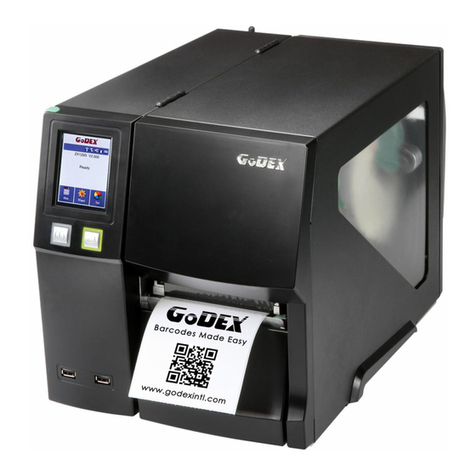
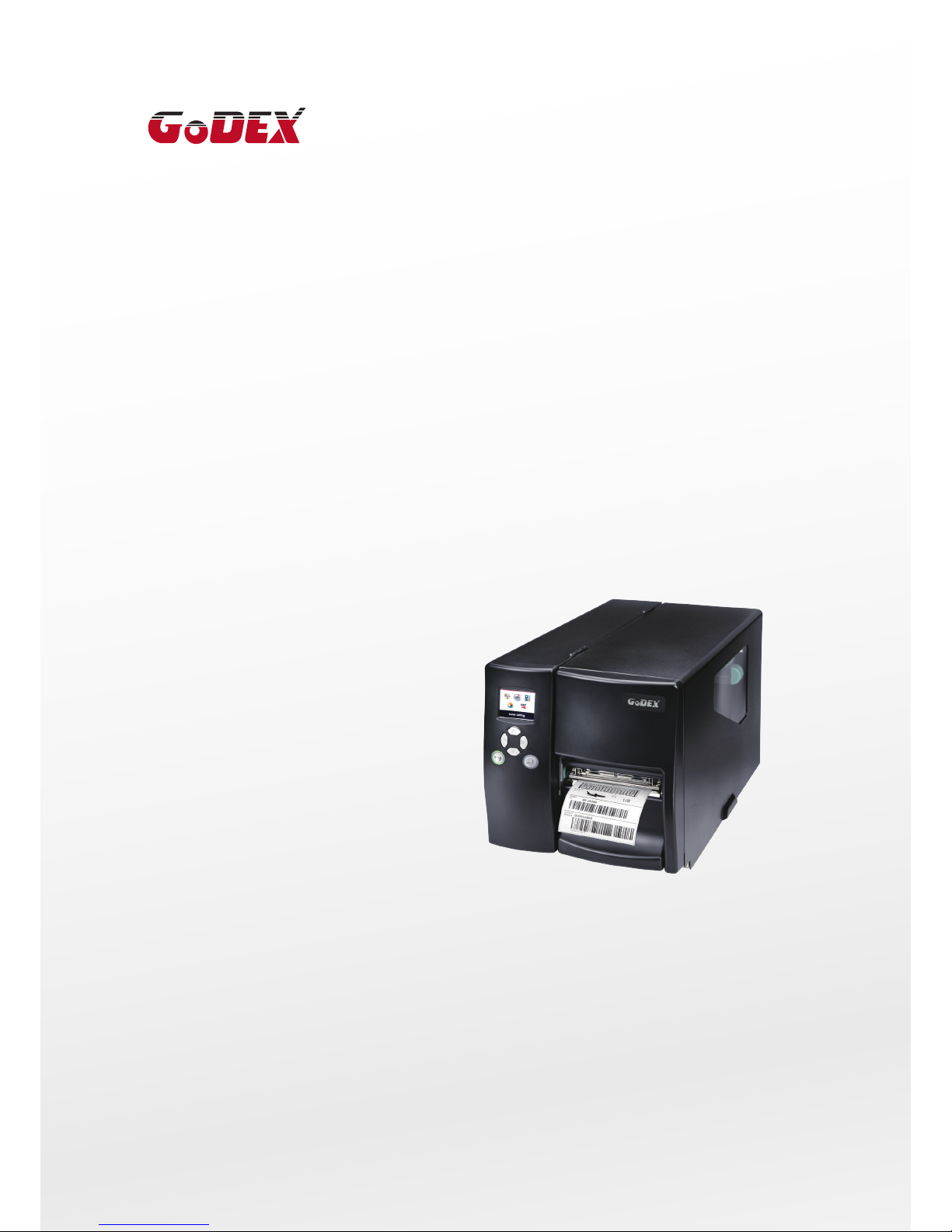
Godex EZ2250i User manual
1
EZ2250i/EZ2350i BARCODE PRINTER
USER MANUAL
User Manual
Version
Issue Date
P/N
: EZ2250i series
: Rev. E
: 2013.11.28
: 920-014611-00

Contents
EZ2250i/EZ2350i USER MANUAL
CONTENTS
Contents
1
. BOX CONTENT ............................................................................
1
1.1 Box Content ...............................................................................................................
1
1.2 Getting to Know Your Printer..................................................................................
2
2
. PRINTER SETUP .............................................................................
4
2-1. Loading the label roll ...................................................................................................
4
2-2. Loading the ribbon.......................................................................................................
7
2-3. Connecting the printer to the host computer ..........................................................
8
2.4 Installing Printer Driver and GoLabel with Super Wizard CD ................................
9
3
. PRINTER SETTING AND CONTROL ............................................. 1
4
3-1. Operation Panel ......................................................................................................... 14
3-2. LCD Interface Introduction ....................................................................................... 15
3-3 LAN Setting ................................................................................................................... 20
3-4 LCD Password .............................................................................................................. 22
3-5. LCD Interface Function.............................................................................................. 24
3-6. Label Calibration and Self Test ................................................................................. 28
3-7. Dump mode................................................................................................................ 30
3-8. Error Alerts .................................................................................................................... 31
3-9. USB Host ....................................................................................................................... 33
4
. NETSETTING FOR ETHERNET .......................................................3
5
4-1. Installing the NetSetting software ............................................................................. 35
4-2. The Interface of NetSetting ....................................................................................... 36
5
. ACCESSORIES ........................................................................... 4
3
5-1. Internal rewinder......................................................................................................... 43
5-2. Installing the rewinder guide..................................................................................... 45
5-3. Label dispenser ........................................................................................................... 46
5-4. Installing the cutter..................................................................................................... 48
5-5. Installing the Parallel adapter ................................................................................... 50
6
. MAINTENANCE AND ADJUSTMENT ..........................................5
2
6-1. Installing / removing the print head module .......................................................... 52
6-2. Adjusting the print line ............................................................................................... 53
6-3. Adjusting the ribbon tension ..................................................................................... 54
6-4. Cleaning the thermal print head ............................................................................. 55
6-5. Adjusting the balance and print head tension ...................................................... 56
6-6. Ribbon shield settings................................................................................................. 57
6-7. Cutter settings ............................................................................................................. 58
6-8. Troubleshooting .......................................................................................................... 59
A
PPENDIX

EZ2250i/EZ2350i USER MANUAL
FCC COMPLIANCE STATEMENT
FOR AMERICAN USERS
This equipment has been tested and found to comply with the limits for a CLASS A digital device,
pursuant to Part 15 of the FCC Rules. These limits are designed to provide reasonable protection
against harmful interference when the equipment is operated in a commercial environment. This
equipment generates, uses, and can radiate radio frequency energy and, if not installed and used
in accordance with the instructions, may cause harmful interference to radio communications.
Operation of this equipment in a residential area is likely to cause harmful interference in which case
the user will be required to correct the interference at own expense.
EMS AND EMI COMPLIANCE STATEMENT
FOR EUROPEAN USERS
This equipment has been tested and passed with the requirements relating to electromagnetic
compatibility based on the standards EN 55022:2010 Class A, EN61000-3-2:2006/ A1:2009/A2:2009,
EN 61000-3-3:2008 and EN 55024:2010, IEC 61000-4-2:2008 series The equipment also tested and
passed in accordance with the European Standard EN55022 for theboth Radiated and
Conducted emissions limits.
EZ2250i SERIES
TO WHICH THIS DECLARATION RELATES
IS IN CONFORMITY WITH THE FOLLOWING STANDARDS
IEC 60950-1:2005(2nd Edition)+Am 1:2009, GB4943-2001 GB9254-2008(Class A) GB17625.1-2003,
EN 55022:2010 Class A, EN61000-3-2:2006/ A1:2009/A2:2009, EN 61000-3-3:2008 and EN 55024:2010,
IEC 61000-4-2:2008 series, CAN/CSA C22.2 No. 60950-1-03, date July, 2006, UL 60950-1, 1st Edition,
2007-10-31, CFR 47, Part 15
WARNING
This is a Class A product. In a domestic environment this product may cause radio interference
in which case the user may be required to take adequate measures.
此为Class A产品,在生活环境中,该产品可能造成无线电干扰,在这种情况下,可能需要用户对其干扰采取切实可行
的措施。
Declaration
Decleration

EZ2250i/EZ2350i USER MANUAL
SAFETY INSTRUCTIONS
Please read the following instructions carefully.
1. Keep the equipment away from humidity.
2. Before you connect the equipment to the power outlet, please
check the voltage of the power source.
3. Make sure the printer is off before plugging the power connector
into the power jack.
4. It is recommended that you connect the printer to a surge
protector to prevent possible transient overvoltage damage.
5. Be careful not to get liquid on the equipment to avoid electrical
shock.
6. For safety and warranty reasons, ONLY qualified service personnel
should open the equipment.
7. Do not repair or adjust energized equipment under any
circumstances.
Safety instructions
**** Danger of explosion if battery is incorrectly replaced. Replace only with the equivalent type recommended by
the manufacturer.
**** Dispose of used batteries according to the manufacturer’s instructions.
****Only use with designated power supply adapter model.
**** Changes or modifications not expressly approved by the party responsible for compliance could void the user's
authority to operate the equipment.
Specifications are subject to change without notice.
Caution
Safety instructions
1
1Barcode Printer
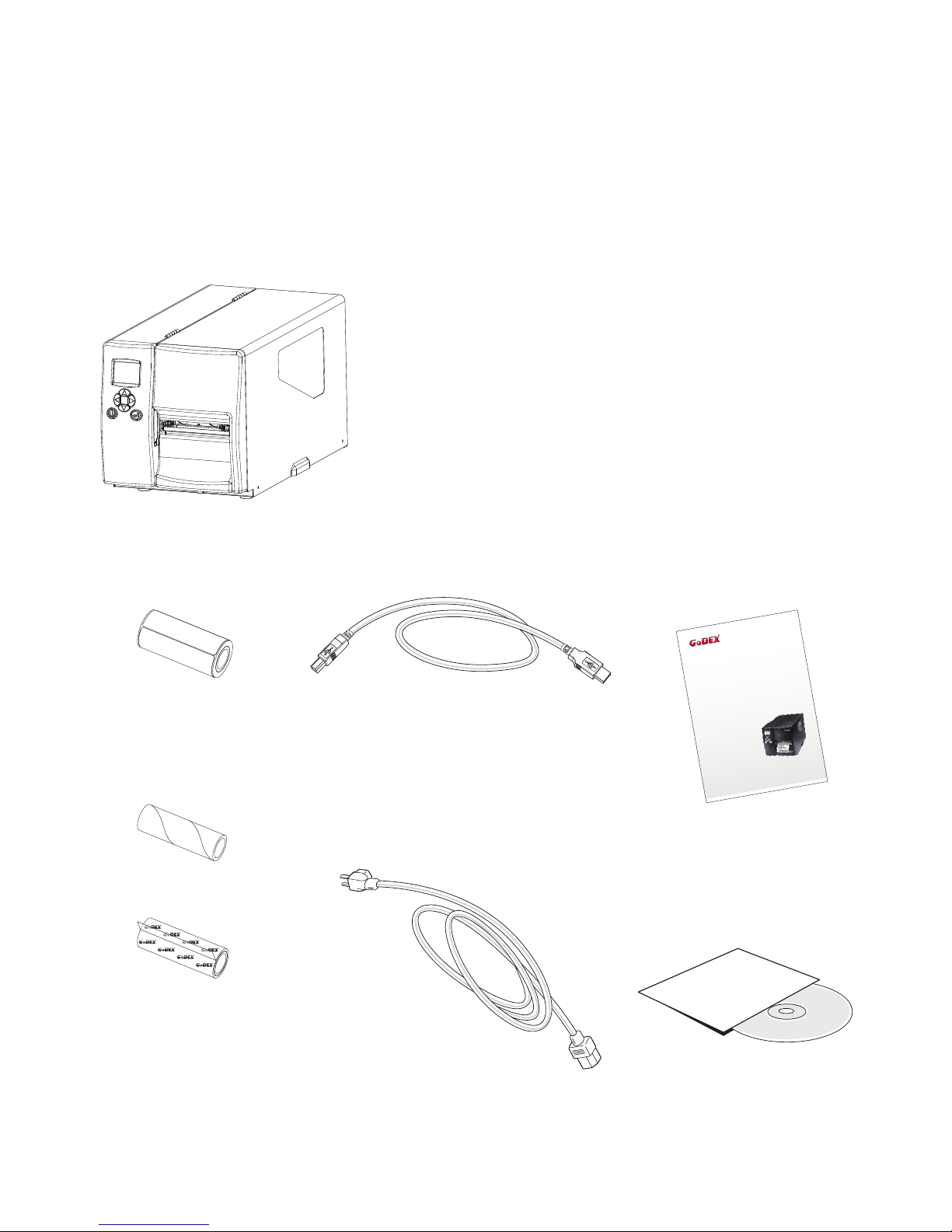
1.1 Box Content
Please check that all of the following items are included with your printer.
EZ2250i/EZ2350i Barcode Printer
USB Cable
CD
Including GoLabel software
and EZ2250i/EZ2350i user manual.
Label Stock
Ribbon Module
Empty Ribbon Core
Ribbon
Power Adapter
Power Cord
EZ2250i Series Quick Guide
EZ2250i/EZ2350i Series

2
1Barcode Printer
1.2 Getting to Know Your Printer
External view
1.
Operator panel
2.
Lower cover plate
3.
Viewing window
4.
Printer cover
1.
Feed slot for continuous labels
2.
Auto-Calibration button
3.
Parallel port (optional)
4.
Applicator interface (optional)
5.
USB Host
6. N
Ethernet port
7.
USB port
8.
Serial port (DB-9)
9.
Power jack
10.
On/Off switch
11.
Feed slot for continuous labels
1
2
11
6
8
10
3
4
5
9
7

3
1Barcode Printer
Internal view
1.
Ribbon rewind hub
2.
Ribbon supply hub
3.
Print mechanism
4.
Platen roller
5.
Tear-off plate
6.
Release lever for print head
7.
Adjustment wheel for sensor
8.
Paper guide
9.
Label tension guide
10.
Label supply hub
11.
Label roll guide
12.
Release catch
1.
Movable sensor
1
4
2Printer Setup
This printer supports the following printing methods:
Thermal transfer printing (TTP):Requires a ribbon for transferring a printed image to a medium.
Direct thermal printing (DTP):Does not require a ribbon, only thermal paper.
Please check which printing method you are using and alter the settings accordingly in the printer driver,
printer menu, and/or software.
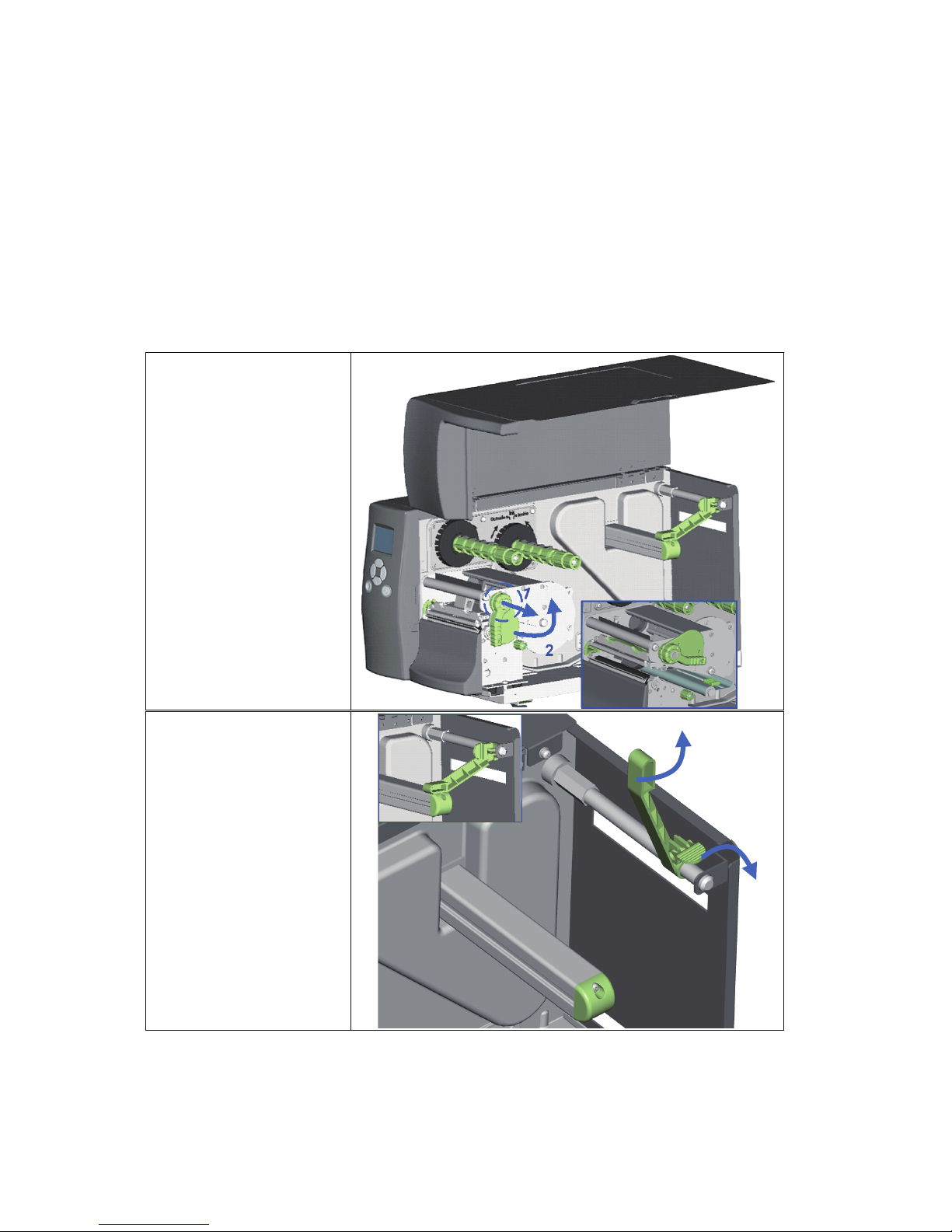
1. Place the printer on a
flat surface and open
the printer cover.
2. Pull out the print
head release lever as
shown in the
illustration (1) and
turn it anticlockwise
to a top right position
(2).
3. Pull the release catch
for the label roll guide
to the right as shown
by the blue arrow 1.
4. Now slide the label
roll guide forward
and fold it up as
shown by the blue
arrow 2.
2
1
2.1 Loading the label roll
5
2Printer Setup
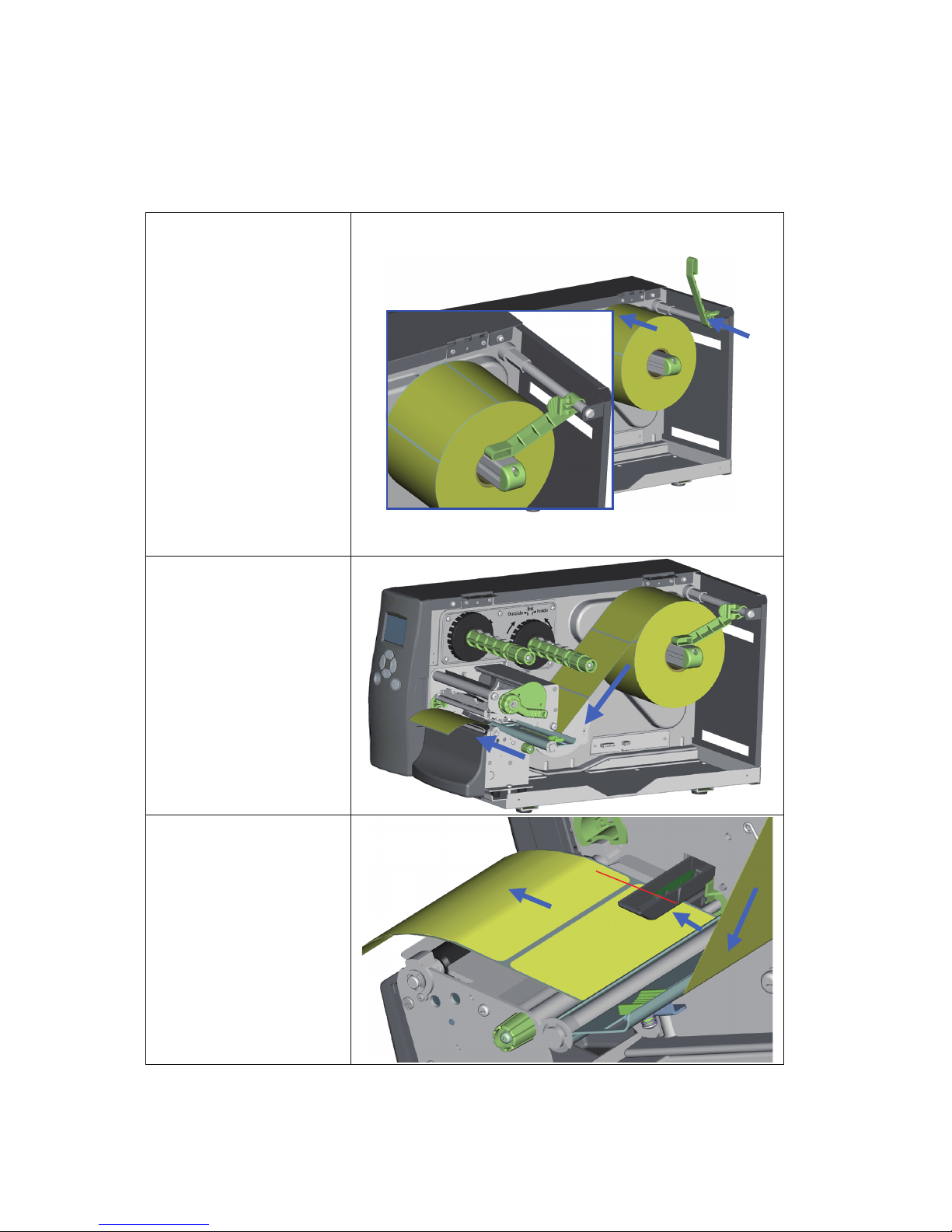
5. Place the label roll on
the label supply hub,
pushing it right up to
the printer housing.
(Do not apply too
much pressure to
avoid damaging the
label stock.)
6. Fold the label roll
guide back down
and push it against
the label roll.
【
Note
】
When moving the label roll
guide, hold it only by the
end that is attached to
the bracket, not by its top.
7. Load the label roll
into the printer as
shown in the
illustration. Pass it
through the printer as
indicated by the blue
arrows.
8. Pass the label stock
through the sensor
and up to the tear-off
plate.
【
Note
】
Remember to set the
movable sensor to gap,
black mark, or tag hole by
changing the position of
the sensor with the
adjustment wheel.
1
2
3

6
2Printer Setup
9. The labels pass
between the wall of
the printer housing
and the adjustable
paper guide.
【
Note
】
Pass the labels through the
printer as shown in the
illustration.
10. Return the print head
release lever to its
original position.
11. Then close the printer
cover.
This manual suits for next models
1
Table of contents
Other Godex Barcode Reader manuals
Godex
Godex EZ-1105 User manual
Godex
Godex G500 User manual

Godex
Godex GS500 Operating and maintenance instructions
Godex
Godex RT700 SERIES User manual
Godex
Godex AP16-F User manual
Godex
Godex EZ-2000 PLUS User manual
Godex
Godex EZ100 Series User manual
Godex
Godex G525 User manual
Godex
Godex BP300 User manual
Godex
Godex ZX1200i User manual
Godex
Godex RT200 User manual
Godex
Godex RT700 SERIES User manual
Godex
Godex EZPi1000 Series User manual

Godex
Godex GS220 User manual
Godex
Godex BP500L User manual
Godex
Godex RT800i Series User manual

Godex
Godex GS520 User manual
Godex
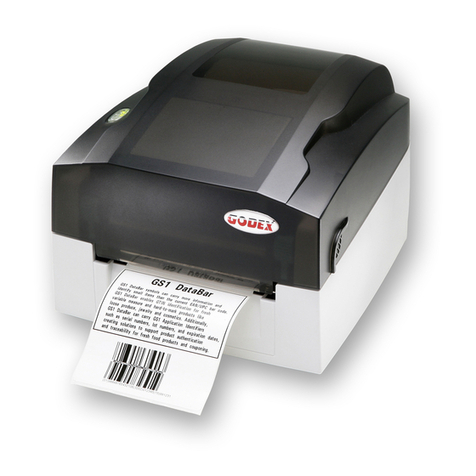
Godex EZ-1105 User manual

Godex
Godex GS220 User manual

Godex
Godex RT700i User manual