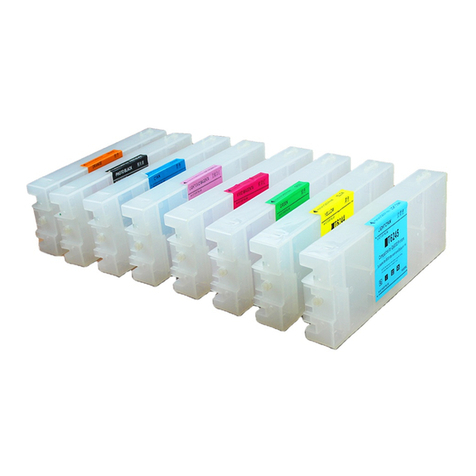
HP c6463a User manual
Other HP Printer Accessories manuals
HP
HP Designjet 10000s series User manual
HP
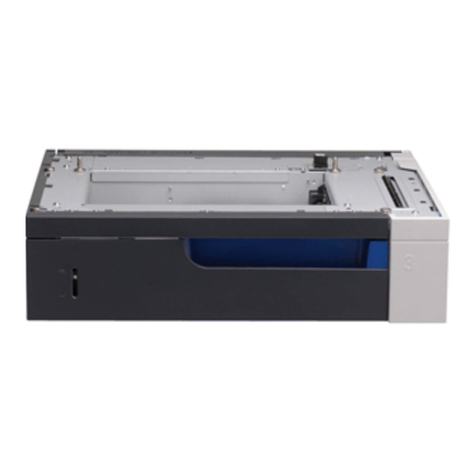
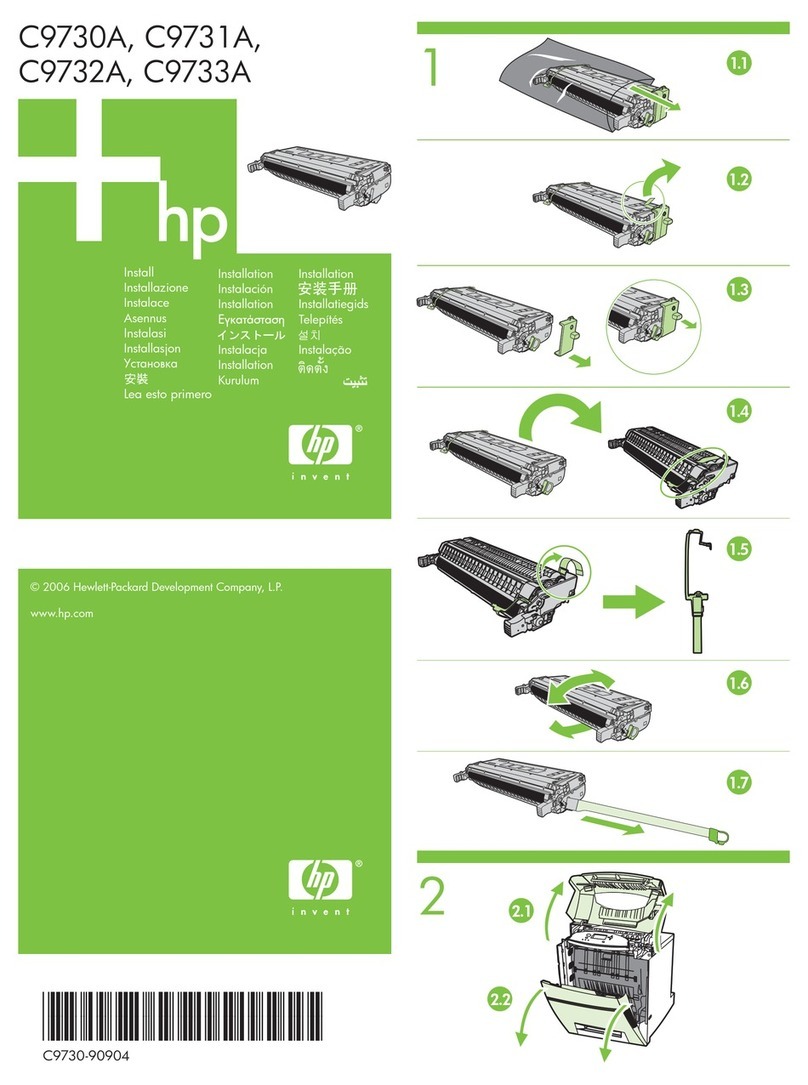
HP CM4540 COLOR LASERJET Manual
HP
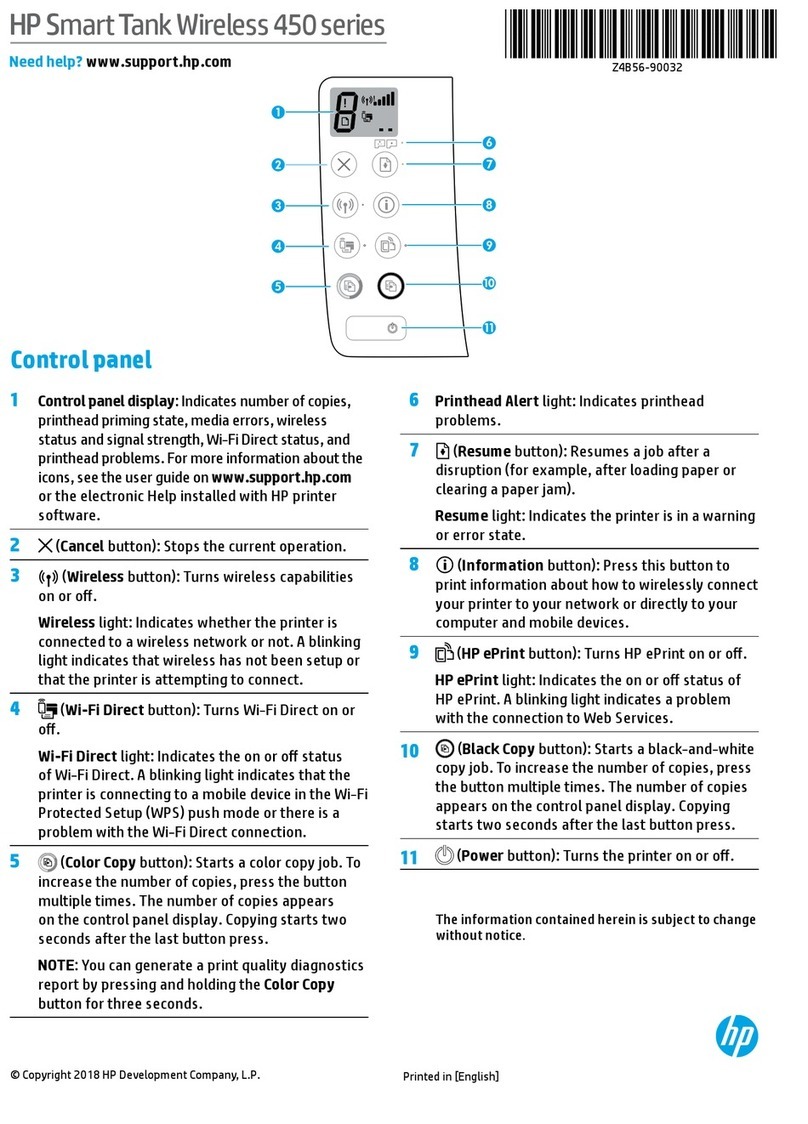
HP Color laserjet 5500 User manual
HP
HP Smart Tank Wireless 450 Series User manual
HP
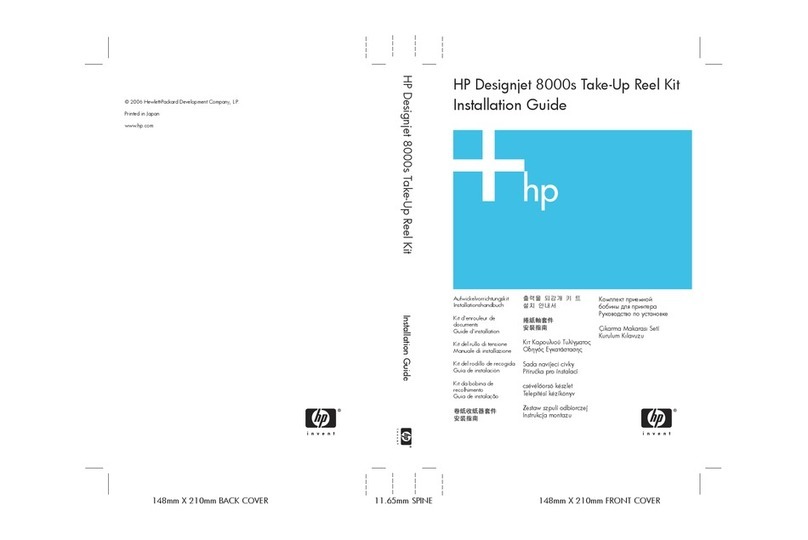
HP Designjet 8000s Series User manual

HP
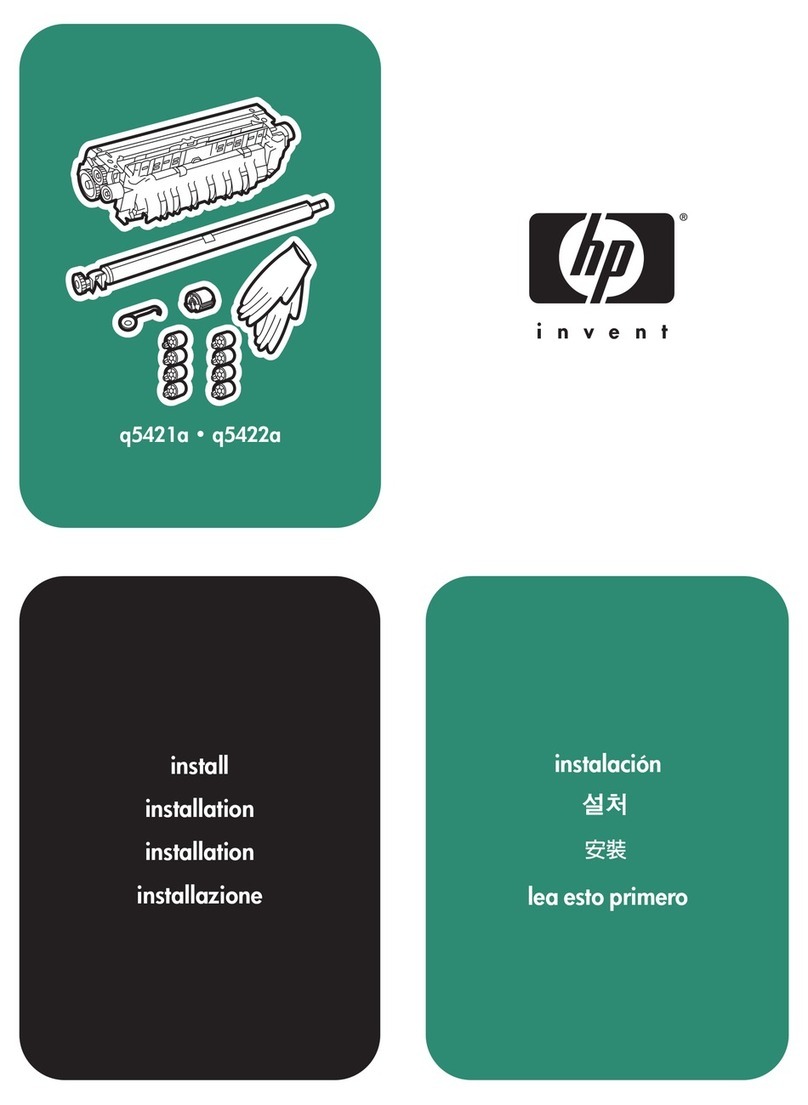
HP Color LaserJet CP3520 User manual
HP
HP Laserjet,Color Laserjet 4350 User manual
HP
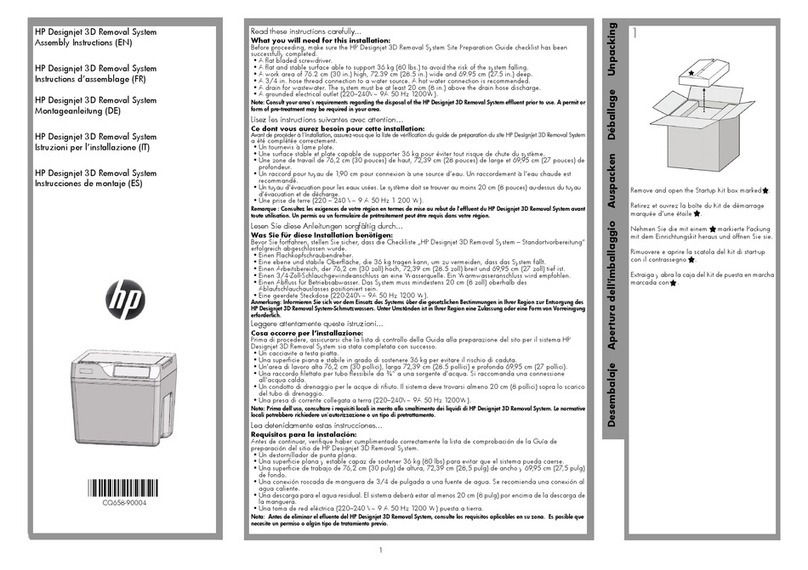
HP DESIGNJET 3D User manual
HP
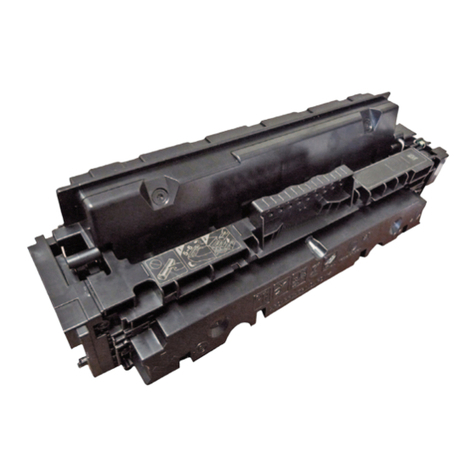
HP CF410A User manual
HP
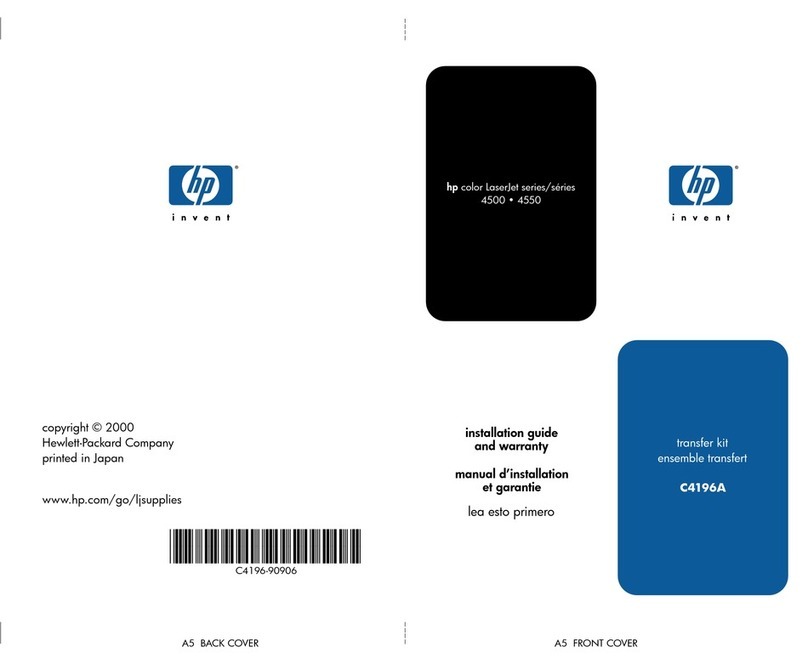
HP 4500 - DesignJet Color Inkjet Printer User manual
HP
HP DesignJet 2000CP User manual
HP
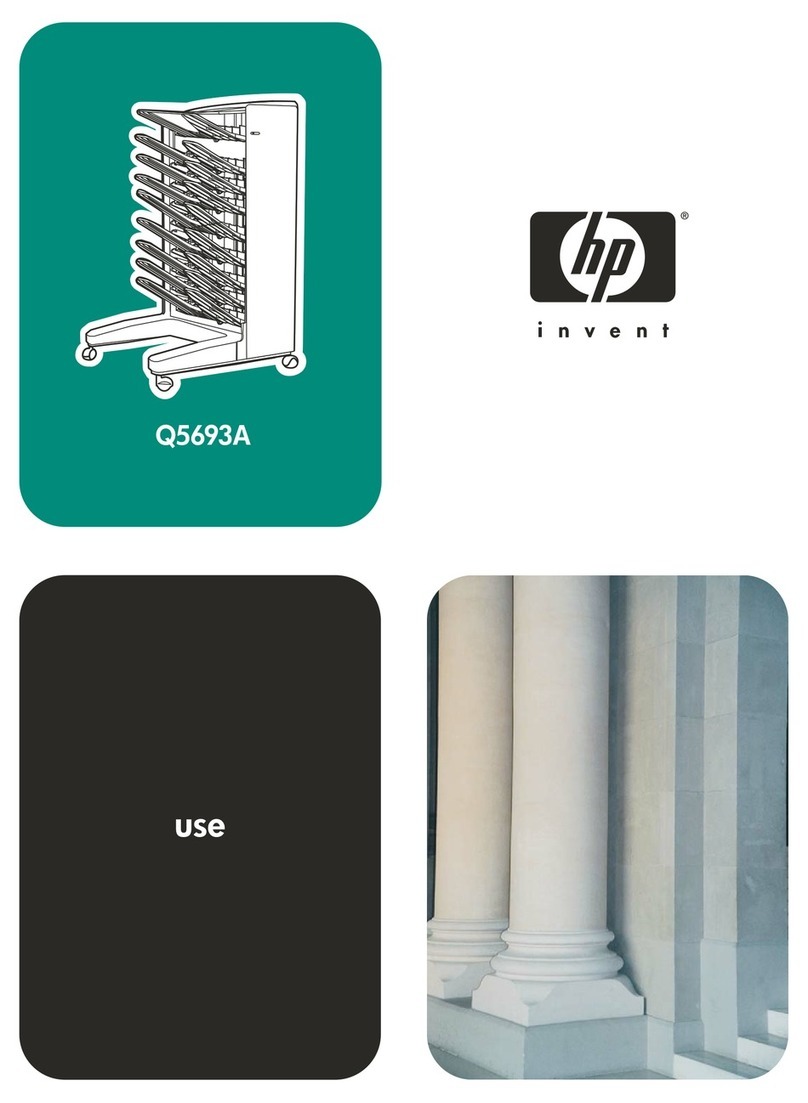
HP Q5693A User manual
HP
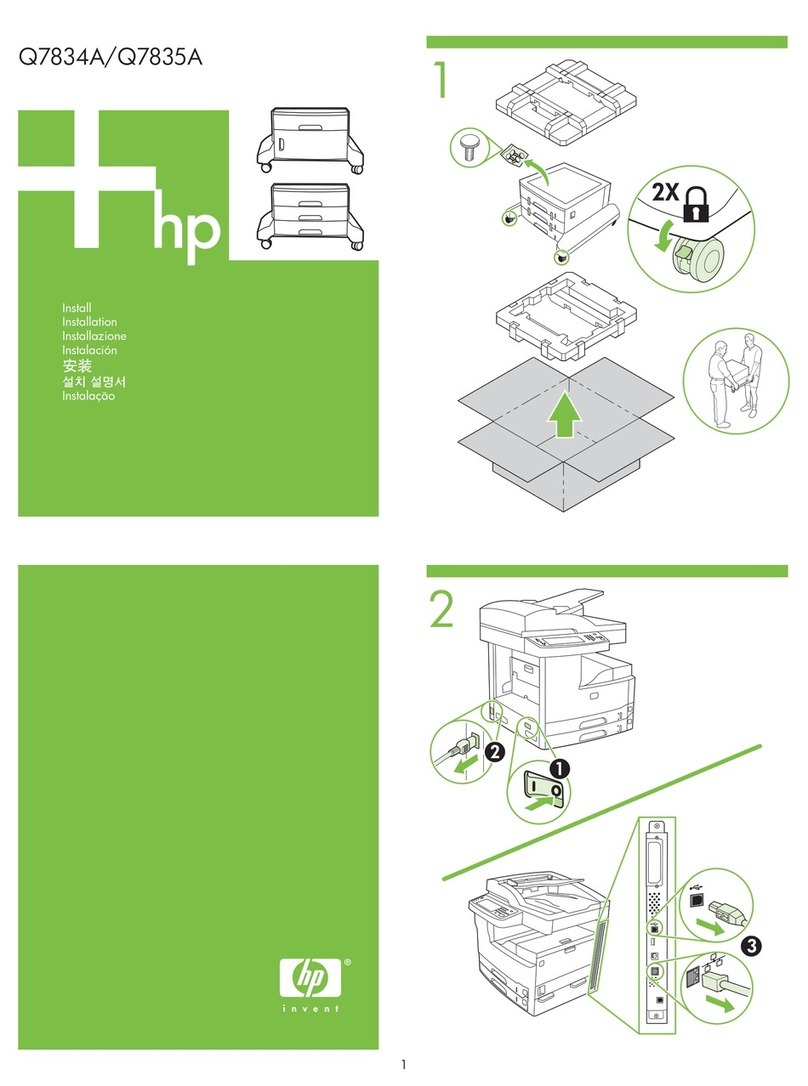
HP LaserJet M5025 MFP User manual

HP
HP Latex R Series User manual
HP
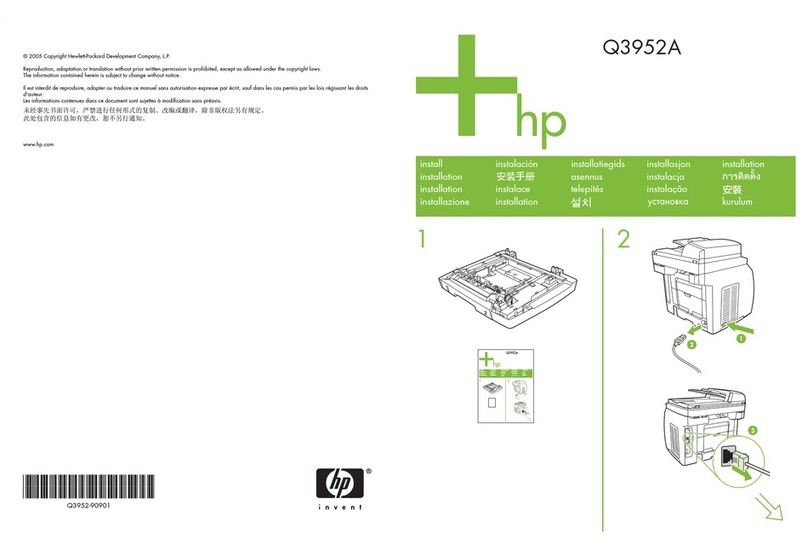
HP Q3952A User manual
HP
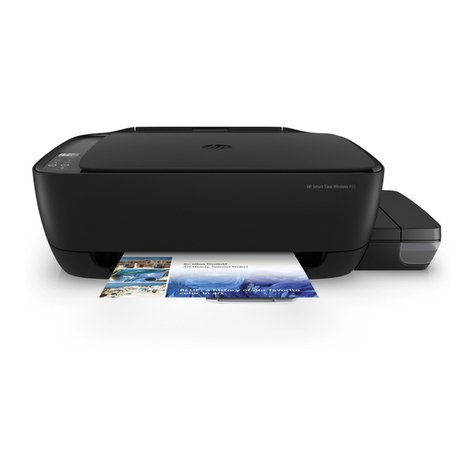
HP Smart Tank Wireless 450 series User manual

HP
HP Officejet 100 User manual
HP
HP Color LaserJet 9500 Service manual
HP
HP Designjet L65500 User manual

HP
HP q2439a User manual