manuals.online logo
Brands
  1. Home
  2. •
  3. Brands
  4. •
  5. IRiver
  6. •
  7. Media Player
  8. •
  9. IRiver iFP-700 Series Assembly Instructions

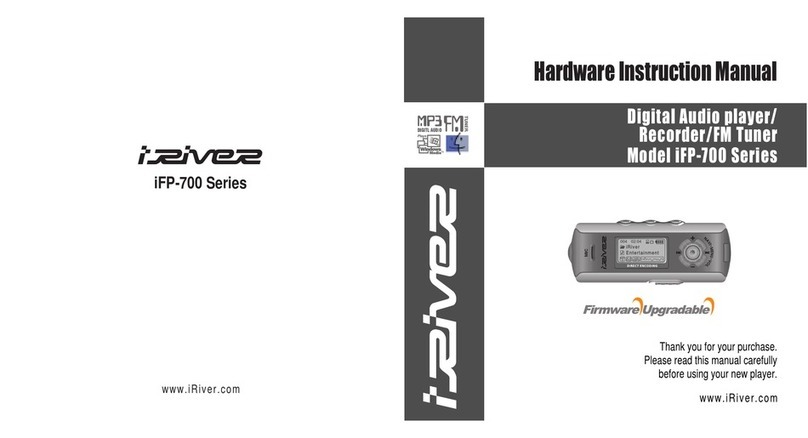
IRiver iFP-700 Series Assembly Instructions

Other manuals for iFP-700 Series

1

Other IRiver Media Player manuals

IRiver CLIX User manual

IRiver

IRiver CLIX User manual

IRiver Simple S7 User manual

IRiver

IRiver Simple S7 User manual

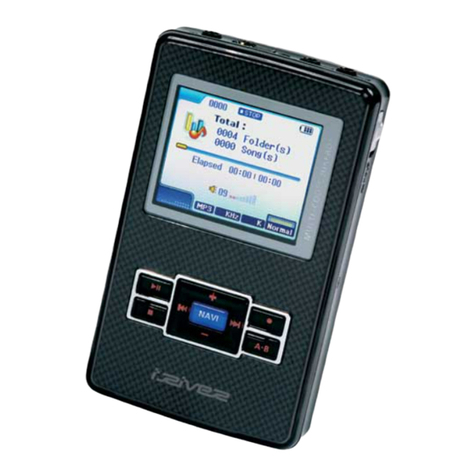
IRiver H320 User manual

IRiver

IRiver H320 User manual

IRiver iFP-700 Series Assembly Instructions

IRiver

IRiver iFP-700 Series Assembly Instructions

IRiver SPINN User manual

IRiver

IRiver SPINN User manual

IRiver CLIX User manual

IRiver

IRiver CLIX User manual

IRiver W10 User manual

IRiver

IRiver W10 User manual

IRiver E200 User manual

IRiver

IRiver E200 User manual

IRiver T6 User manual

IRiver

IRiver T6 User manual

IRiver CLIX User manual

IRiver

IRiver CLIX User manual

IRiver Astell & Kern AK320 User manual

IRiver

IRiver Astell & Kern AK320 User manual

IRiver MPlayer User manual

IRiver

IRiver MPlayer User manual

IRiver CLIX User manual

IRiver

IRiver CLIX User manual

IRiver PMC-120 User manual

IRiver

IRiver PMC-120 User manual

IRiver U100 User manual

IRiver

IRiver U100 User manual

IRiver B20 User manual

IRiver

IRiver B20 User manual

IRiver CLIX Instruction Manual

IRiver

IRiver CLIX Instruction Manual

Popular Media Player manuals by other brands

VidaBox LUX installation guide

VidaBox

VidaBox LUX installation guide

CasaTunes CT-3S quick start guide

CasaTunes

CasaTunes CT-3S quick start guide

Yamaha TSX-112 owner's manual

Yamaha

Yamaha TSX-112 owner's manual

Fantec MM-FHDL user manual

Fantec

Fantec MM-FHDL user manual

Visual Land Impulse quick start guide

Visual Land

Visual Land Impulse quick start guide

Philips GoGear Muse SA2MUS08 quick start guide

Philips

Philips GoGear Muse SA2MUS08 quick start guide

Fantec MM-HDRL user manual

Fantec

Fantec MM-HDRL user manual

Kvarta DVB Streamer quick start

Kvarta

Kvarta DVB Streamer quick start

Dune HD Duo 4K user manual

Dune HD

Dune HD Duo 4K user manual

Camos MMS-1000 manual

Camos

Camos MMS-1000 manual

Energy 75 Series user manual

Energy

Energy 75 Series user manual

Z3 Technology DME-03 user guide

Z3 Technology

Z3 Technology DME-03 user guide

Sony SVR-2000 Dimensions

Sony

Sony SVR-2000 Dimensions

Meicheng HD-1080K12 user manual

Meicheng

Meicheng HD-1080K12 user manual

DENAFRIPS ARCE owner's manual

DENAFRIPS

DENAFRIPS ARCE owner's manual

Topaz CMS Media Player Hardware user manual

Topaz

Topaz CMS Media Player Hardware user manual

InFocus LightCast user guide

InFocus

InFocus LightCast user guide

Samsung MP-80S Owner's instructions

Samsung

Samsung MP-80S Owner's instructions

manuals.online logo
manuals.online logoBrands
  • About & Mission
  • Contact us
  • Privacy Policy
  • Terms and Conditions

Copyright 2025 Manuals.Online. All Rights Reserved.

iFP-700 Series
www.iRiver.com
HardwareInstructionManual
Thank you for your purchase.
Please read this manual carefully
before using your new player.
www.iRiver.com
Digital Audio player/
Recorder/FM Tuner
Model iFP-700 Series
THIS DEVICE COMPLIES WITH PART 15 OF THE FCC RULES.
OPERATION IS SUBJECT TO THE FOLLOWING TWO CONDITIONS:
(1) THIS DEVICE MAY NOT CAUSE HARMFUL INTERFERENCE, AND
(2) THIS DEVICE MUST ACCEPT ANY INTERFERENCE RECEIVED,
INCLUDING INTERFERENCE THAT MAY CAUSE UNDESIRED
OPERATION.
Note : This equipment has been tested and found to comply with the limits for
a Class B digital device, pursuant to part 15 of the FCC Rules. These
limits are designed to provide reasonable protection against harmful
interference in a residential installation.
This equipment generates, uses and can radiate radio frequency energy
and, if not installed and used in accordance with the instructions, may
cause harmful interference to radio communications. However, there is
no guarantee that interference will not occur in a particular installation.
If this equipment does cause harmful interference to radio or television
reception, which can be determined by turning the equipment off and
on, the user is encouraged to try to correct the interference by one or
more of the following measures :
- Reorient or relocate the receiving antenna.
- Increase the separation between the equipment and receiver.
- Connect the equipment into an outlet on a circuit different from that to which
the receiver is connected.
- Consult the dealer or an experienced radio/TV technician for help.
NOTE: THE MANUFACTURER IS NOT RESPONSIBLE FOR ANY RADIO OR
TV INTERFERENCE CAUSED BY UNAUTHORIZED
MODIFICATIONS TO THIS EQUIPMENT. SUCH MODIFICATIONS
COULD VOID THE USER'S AUTHORITY TO OPERATE THE
EQUIPMENT.
1
GETTING STARTED
LOCATING THE CONTROLS
PC SOFTWARE INSTALLATION
BASIC OPERATION
CONVENIENT FUNCTIONS
ADDITIONAL INFORMATION
1
2
3
4
5
6
Contents
THIS MANUAL COVERS THE INSTALLATION AND USE OF
THE PLAYER HARDWARE. FOR DETAILS REGARDING THE
SOFTWARE OPERATION INCLUDING TRANSFERRING MUSIC
TO THE PLAYER, PLEASE SEE THE SOFTWARE
INSTRUCTION MANUAL.
NOTE
GETTINGSTARTED
CONTENTS
1
INTERNET
FEATURES
ABOUT POWER SUPPLY
1-1
1-2
1-3
Gettingstarted...
THIS MANUAL COVERS THE INSTALLATION AND USE OF
THE PLAYER HARDWARE. FOR DETAILS REGARDING THE
SOFTWARE OPERATION INCLUDING TRANSFERRING MUSIC
TO THE PLAYER, PLEASE SEE THE SOFTWARE
INSTRUCTION MANUAL.
NOTE
Gettingstarted...
1-2
Gettingstarted...
1-1
URL : www.iRiver.com
Find information on our company, products, and customer and technical
support.
Update your player with firmware downloads. Firmware upgrades offer
support for new CODECS and deliver new product features.
Consult the product FAQ.
Register your iRiver product online so that our Customer Service is able to
provide support as efficiently as possible.
All contents contained in this manual subject to change without notice to
improve ability of this player or according to changing of specification.
iRiver Limited does not assume any responsibility for errors or omissions in
this document or make any commitment to update the information contained
herein.
iRiver is a registered trademark of iRiver Limited in the Republic of Korea and
/or other countries and is used under license. Microsoft Windows Media and the
Windows Logo are trademarks or registered trademarks of Microsoft
Corporation in the United States and /or other countries.
All other brand and product names are trademarks of their respective
companies or organization. All other product names may be trademarks of the
companies with which they are associated.
1999-2004 iRiver Limited. All rights reserved.
INTERNET
Multi-Codec Player
Supports MP3, WMA, OGG and ASF formats.
Firmware Upgrade
Provides the latest updated features via firmware upgrade.
Graphic LCD supporting Multiple Languages
iFP-700 Series comes with graphic LCD which can support multiple languages (40
languages).
FM Function
You can easily listen to FM stations and set your favorite stations by using Auto Preset and
Frequency Memory functions.
6 Preset EQ : Normal, Rock, Jazz, Classic, U Bass, Metal
Xtreme EQ and Xtreme 3D
Customize your own EQ with Xtreme EQ and enhance bass and surround sound with
Xtreme 3D.
GUI (Graphic User Interface) Menu System
Simple Navigation
Simple navigation makes it easy to find any song.
Supports 8 levels of subfolders, 500 folders total and up to 1500 files at one time.
Create your own playlists.
Direct MP3 Encoding
11.025KHz ~44.1KHz, 8Kbps ~ 320Kbps
Record FM Radio, Voice, or line-in from another device
Voice record level is automatically controlled by AGC function.
Convenient neck strap.
Supports USB 2.0 (iFP-780 Supports USB 1.1 only)
FEATURES

Open the battery cover.
Close the battery cover.
Insert the battery. (AA
1.5V type x 1ea)
Be sure to match the + and -
ends of the battery with the
diagram inside the battery
compartment.
ABOUTPOWERSUPPLY
Insertingabattery
Gettingstarted...
1-3
If the battery is worn out, “Low
Battery” is displayed on the LCD.
Insert a fresh battery.
To avoid corrosion, remove the
battery if the player is not to be used
for a long time.
Remove dead battery immediately to
avoid damage from corrosion.
When corrosion occurs, wipe the
battery compartment immediately with
a dry cloth and insert a new battery.
NOTE
LocatingtheControls
LocatingtheControls
Contents
2
Front View
Side View
LCD Screen
2-1
2-2
2-3
THIS MANUAL COVERS THE INSTALLATION AND USE OF
THE PLAYER HARDWARE. FOR DETAILS REGARDING THE
SOFTWARE OPERATION INCLUDING TRANSFERRING MUSIC
TO THE PLAYER, PLEASE SEE THE SOFTWARE
INSTRUCTION MANUAL.
NOTE
LocatingtheControls
2-2
LocatingtheControls
2-1
LocatingtheControls
SideView
LocatingtheControls
FrontView
MIC LCD Screen Volume +
Volume -
I(Previous Track/Fast Reverse)
I (Next Track/Fast Forward)
NAVI/MENU
STEREO
Power ON/OFF
/(Play/Stop) MEMORY/EQ
A-B (Interval repeat)
MODE/REC
USB
Connection
Port
HOLD
Battery
Earphones
FILE FORMAT
2-3
SONG
NUMBER
BIT RATE
PLAY
TIME PLAYBACK MODE
BATTERY INDICATOR
VOLUME
EQUALIZER
VISUALIZATION
FOLDER NAME
SAMPLE RATE
PROGRAM
ARTIST/TITLE NAME
HOLD
LocatingtheControls
LCDScreen
ASF WMA
OGG MP3
IRM (iRiver Rights Management)
iRiver Rights Management is a digital music format.
Please visit our web site for details about this music format.
IRM
LocatingtheControls
PC software installation
Attach the player
Detach the player
3-1
3-4
3-7
PCsoftwareinstallation
3
Contents
THIS MANUAL COVERS THE INSTALLATION AND USE OF
THE PLAYER HARDWARE. FOR DETAILS REGARDING THE
SOFTWARE OPERATION INCLUDING TRANSFERRING MUSIC
TO THE PLAYER, PLEASE SEE THE SOFTWARE
INSTRUCTION MANUAL.
NOTE
THIS SECTION COVERS THE INSTALLATION FOR WINDOWS
OPERATING SYSTEMS ONLY. FOR INSTALLATION
INSTRUCTIONS FOR MAC OS, PLEASE SEE THE SOFTWARE
INSTRUCTION MANUAL.
NOTE
PCsoftwareinstallation
3-2
PCsoftwareinstallation
3-1
PCsoftwareinstallation
Softwareinstallation
System Requirements (Windows)
"Pentium 133MHz or faster
"USB port
"Window 98SE / ME / 2000 / XP
"CD-ROM drive
"10MB free hard disk space
Note
"The player can store MP3 files or files of any type.
You can upload files, other than music (MP3, WMA, OGG, ASF), to the PC using the iRiver
Music Manager Program.
"Download latest versions of drivers and iRiver Music Manager at www.iRiver.com
"Insert the Installation CD into the CD-ROM drive.
The following screen appears after inserting the CD.
"If the installation doesn't automatically begin,
execute the "setup.exe" file in the installation
CD.
The installation program will begin.
"The installation CD contains the following
contents :
- Device Driver
- iRiver Music Manager
- MoodLogic
- Manager Program for Mac
"Please be sure your login has Administrator privileges if using Windows 2000 or Windows XP.
Please complete the steps in this section BEFORE ATTACHING YOUR
PLAYER TO YOUR PC.
IMPORTANT
PCsoftwareinstallation
Softwareinstallation
Click “Next” to Install iRiver Music
Manager. Select the folder to Install.
Click “Next”.
3
34
4
During this installation, the software will check online for the most recent
updates. Please note that the installation screens may differ slightly from those
appearing here, as software may be of a more recent version. If your screens
differ, please visit www.iRiver.com/software for an updated user guide.
Note
Insert the Installation CD into the CD-ROM
drive. Installation starts automatically.
2
2
1
1
Click “Next” after selecting the language to
install.
3-4
3-3
PCsoftwareinstallation
Softwareinstallation
Click “Install” to begin the installation.
5
56
6
7
7
Click “Next” after confirming the
installation folder.
Installation is in progressing.
Click “Finish” after the installation is completed.
Attachtheplayer
ConnectingtothePC
Connect the USB cable (provided) to the USB port of your computer.
Type “A”
Type “B”
USB port on the PC USBportonthe
player
USB cable
Type “A”
Type “B”
Turn on the player by pressing the button
marked STEREO. Lift the protective cover
over the USB port and connect the USB
cable to the player.
“USB CONNECTED” will appear on the
LCD screen of the player.
1
1
2
2
"Connect the USB cable to the PC after playback stops to avoid errors.
"iFP-780 supports USB 1.1 and iFP-790/ 795/ 799 supports USB 2.0 version.
Note
3
3